How to Integrate WhatsApp Pay with BotBee
Integrating WhatsApp Pay with BotBee allows businesses to accept payments directly inside the WhatsApp chatbot, creating a seamless and secure checkout experience.
Key Benefits of This Integration:
- Seamless in-chat payment experience.
- Secure transactions via Razorpay.
- Faster checkout and higher conversion rates
- Fully automated payment flow inside WhatsApp.
This guide explains the complete step-by-step process to integrate WhatsApp Pay.
Step 1: Configure WhatsApp Manager:
- Log in to your BotBee Dashboard.
- From the left menu, click on “Connect Account”.
- Scroll down to your profile then click on Manage Account.
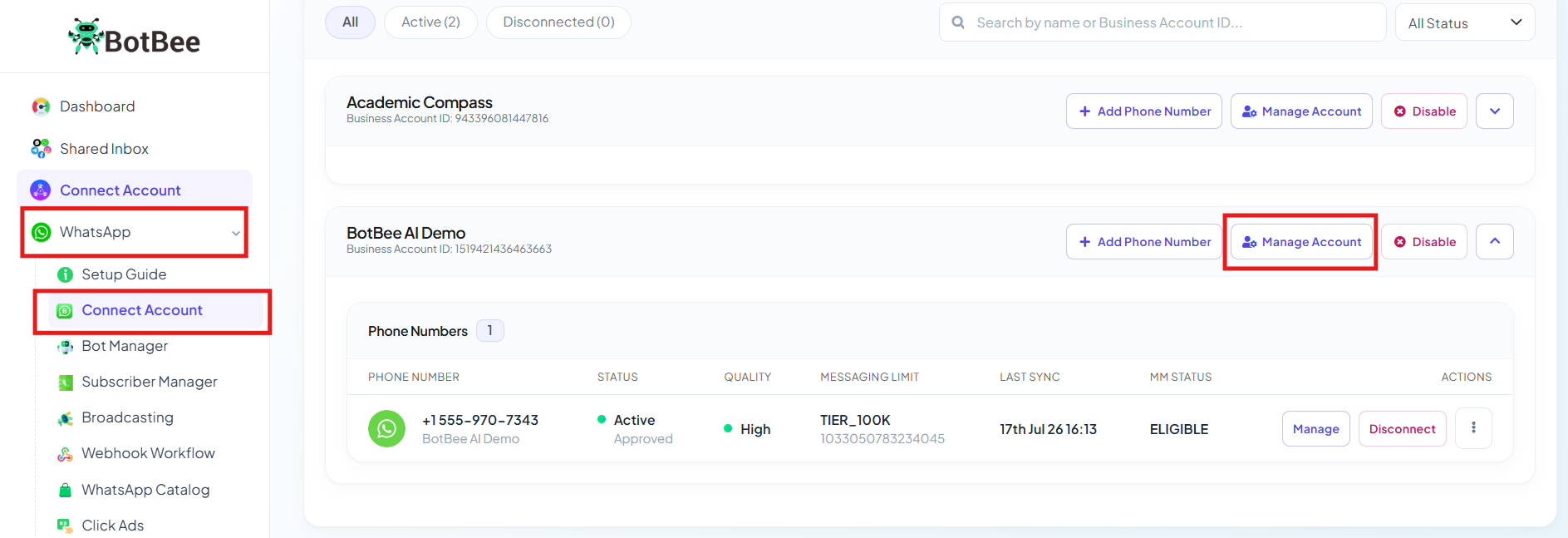
- You will be redirected to Business Overview.
- In WhatsApp Manager, navigate to Payment Configuration.
- Select your country. We are selecting India for now.
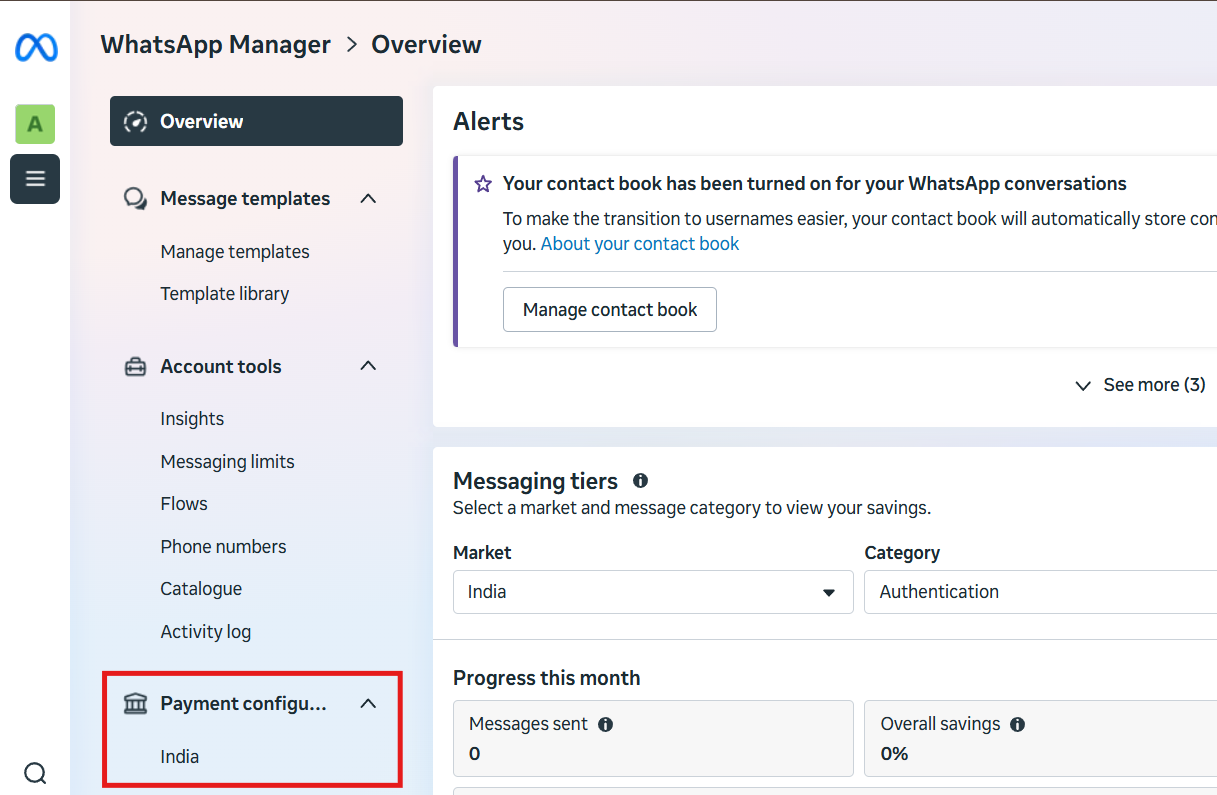
- Click New Configuration.
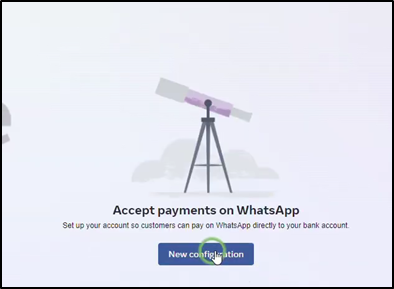
- You will be shown a list of payment gateways that are available in the country, since we have selected India, it will be showing gateways option in India.
- Select the payment gateway and you have. (E.g. Razorpay)
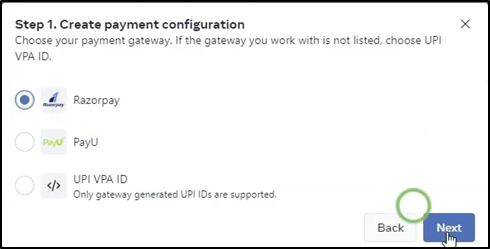
- Enter a Configuration Name (this will be required later in BotBee).
- Choose the appropriate:
- Merchant Category Code (MCC)
- Product Code based on your business type.
- Click Next.
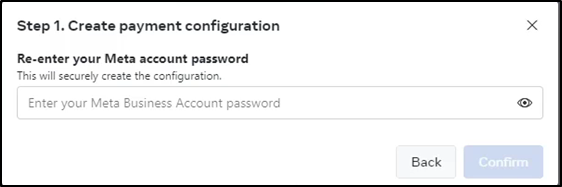
Step 2: Link Payment Gateway Configuration with BotBee Dashboard:
- Return to the BotBee Dashboard.
- Navigate to Bot Manager under WhatsApp.
- Navigate to Product Catalog under Commerce section.
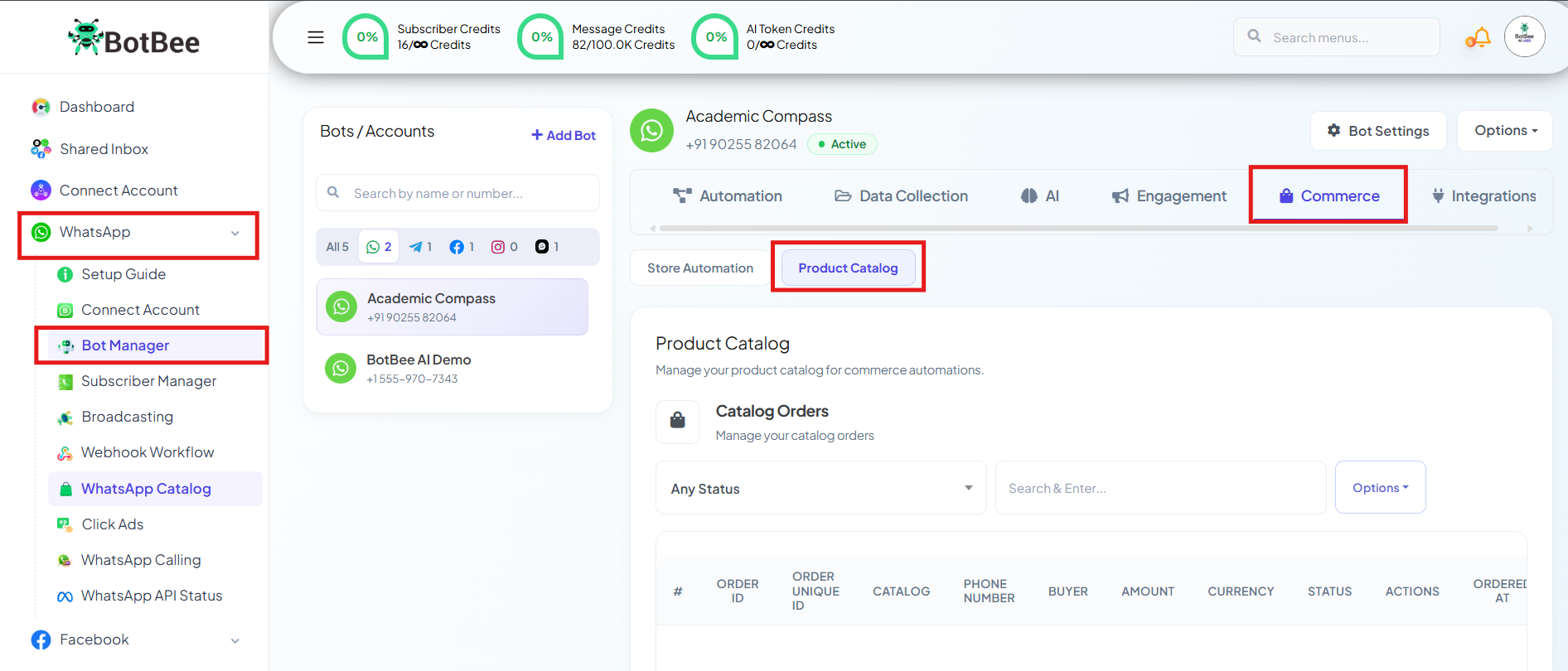
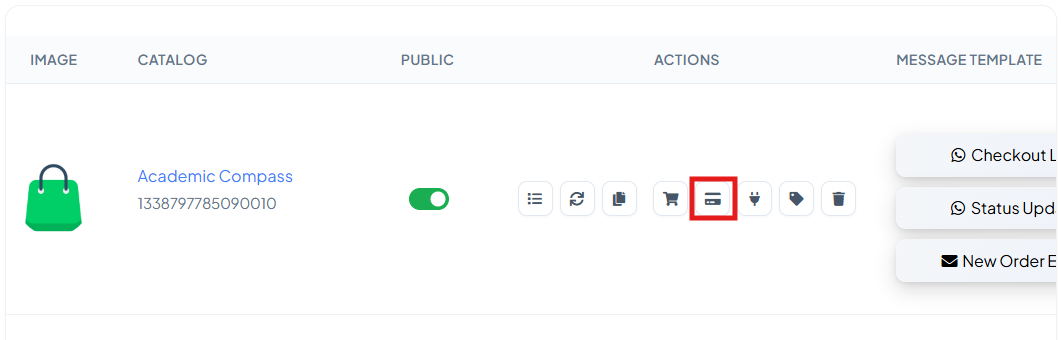
- Click on Payment Settings(Card Icon) of the Catalog you have.
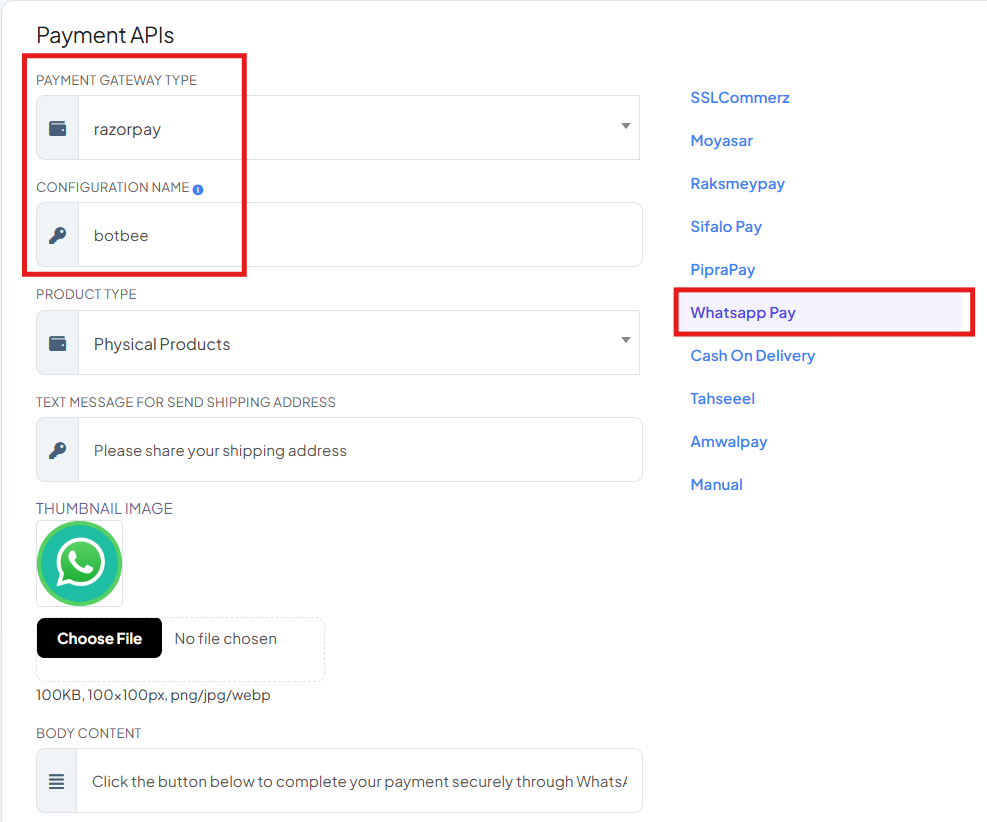
- Select WhatsApp Pay as the payment method.
- Choose your Gateway Type. (We’ve chosen Razorpay)
- Paste the Configuration Name copied from WhatsApp Manager.
- Enable the Active toggle.
- Click Save to apply the settings.
- This links your WhatsApp Pay configuration with BotBee.
Step 3: Final Authorization & Testing:
- Go back to WhatsApp Manager.
- Click the Link (🔗) icon next to your Razorpay configuration.

- Select Connect Now and click on Next.
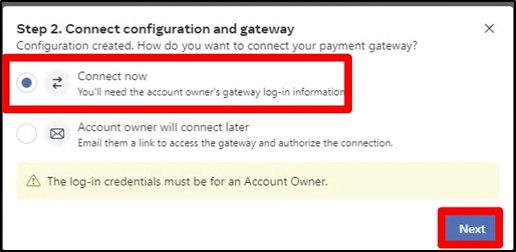
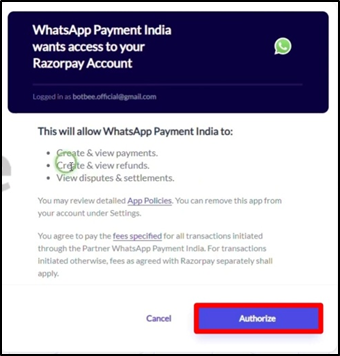
- Click Authorize to complete the connection between WhatsApp and Razorpay.
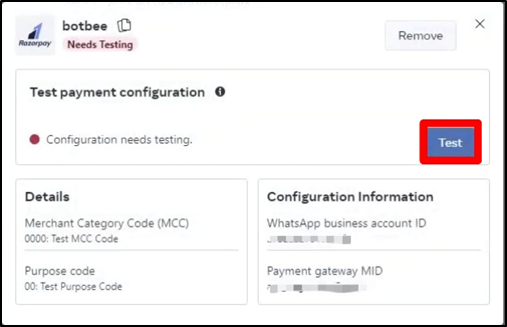
- Go back to the WhatsApp Manager and click on the Settings icon.

- Click on “Test”.
- That’s it WhatsApp Pay connected successfully.
- Verify that the payment flow works smoothly inside the WhatsApp chatbot.
Once the setup is complete, your WhatsApp chatbot is fully payment-ready. With WhatsApp Pay integrated via Razorpay on BotBee, customers can make secure, instant payments directly within the chat—no redirects, no friction. This creates a faster checkout experience, improves conversion rates, and lets your business close sales seamlessly on WhatsApp.
Reference Video:
If you prefer video tutorials here are the links:
English: https://youtu.be/BkeQfrTvGNk?si=DcY-QpOceDyKwssM
Still Need Help?
If you face difficulties during onboarding:
- Take a screenshot or screen recording.
- Share details with our support team.
Our team will review the onboarding step and guide you further.
Contact: 08069645300
Found this article helpful?
( 4 Out of 8 Found Helpful )