Prerequisites for WhatsApp Business API Onboarding
Please ensure you have the following ready before starting the onboarding process shown in the videos below:
- Live Website with Business Name Credits
Your business website must be live and accessible, clearly displaying your registered business name. - MSME/GST Certificate or Current Account
Official business registration document (such as MSME/GST certificate) or a current business bank account statement. - Business Mail ID
A professional business email address (example: support@yourbusiness.com). - Facebook Account with Business Portfolio
A Facebook account with an active Business Portfolio and no policy restrictions. - Mobile Number without WhatsApp Account
A mobile number that is not already registered with WhatsApp. - Visa Credit or Debit Card
A valid Visa credit or debit card for Meta billing and payment verification.
Note: Missing any of the above requirements may cause onboarding delays or verification failure.
WhatsApp Business API Onboarding (Part 1)
In this article, you will learn how to set up the WhatsApp Business API on BotBee using Embedded Signup. The steps in this guide help you connect your WhatsApp account and complete the setup correctly.
Step-by-Step Instructions:
Step 1: Open WhatsApp API Setup:
- Log in to the BotBee dashboard.
- Select “Connect Account” under WhatsApp Tab.
- Click on Connect New Account.
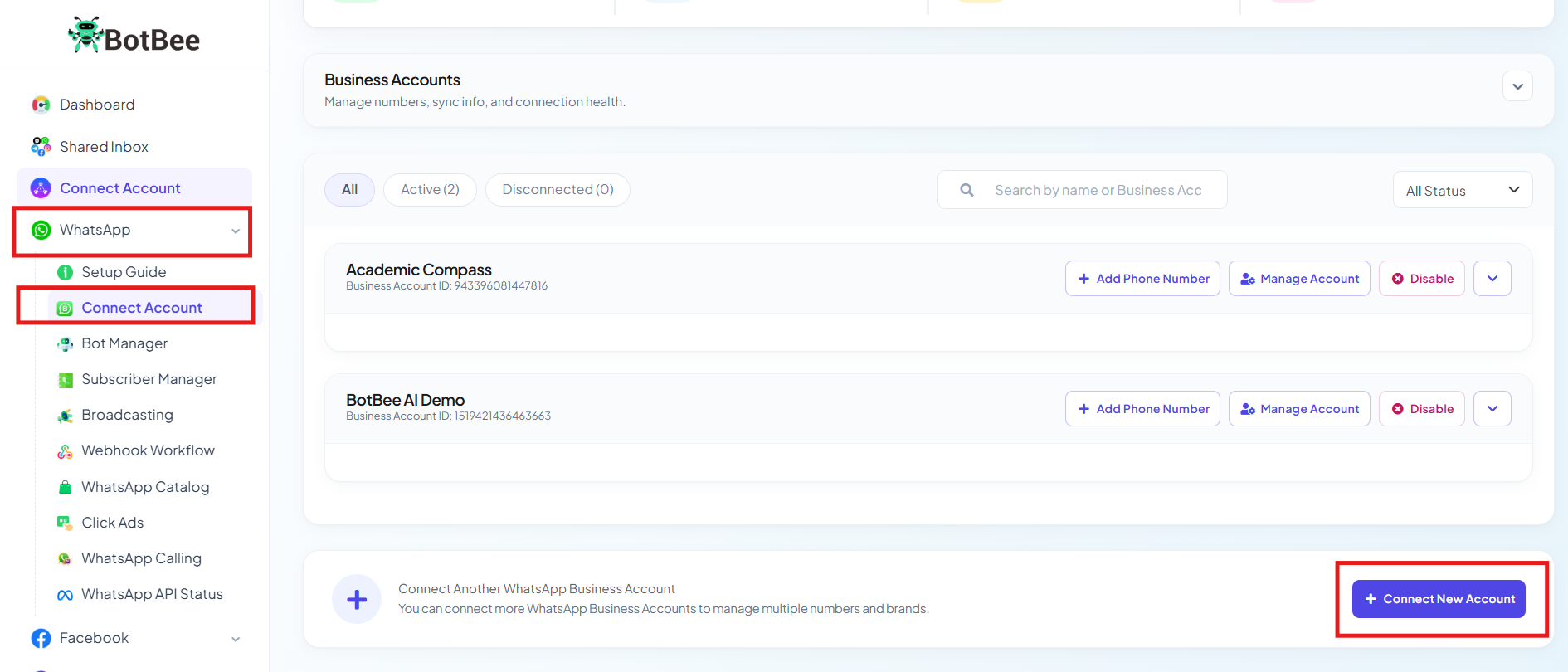
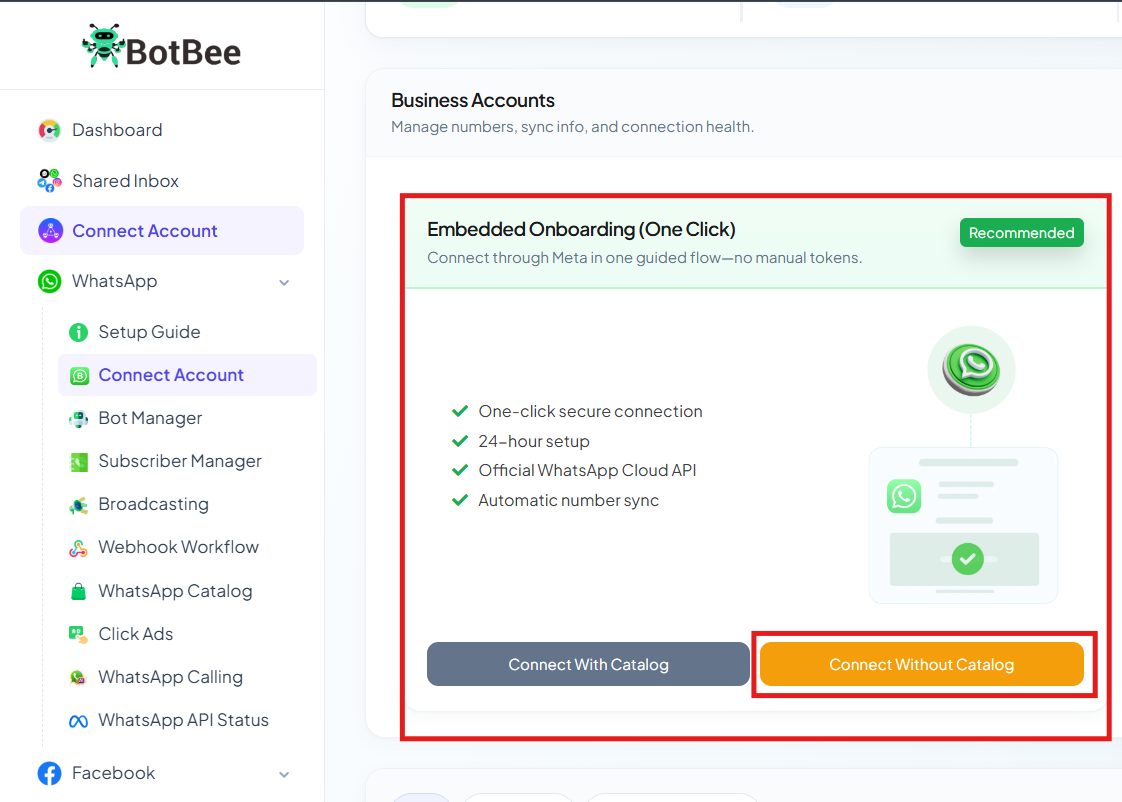
• In the embedded Onboarding, Click on “Connect without Catalog Permission” button.
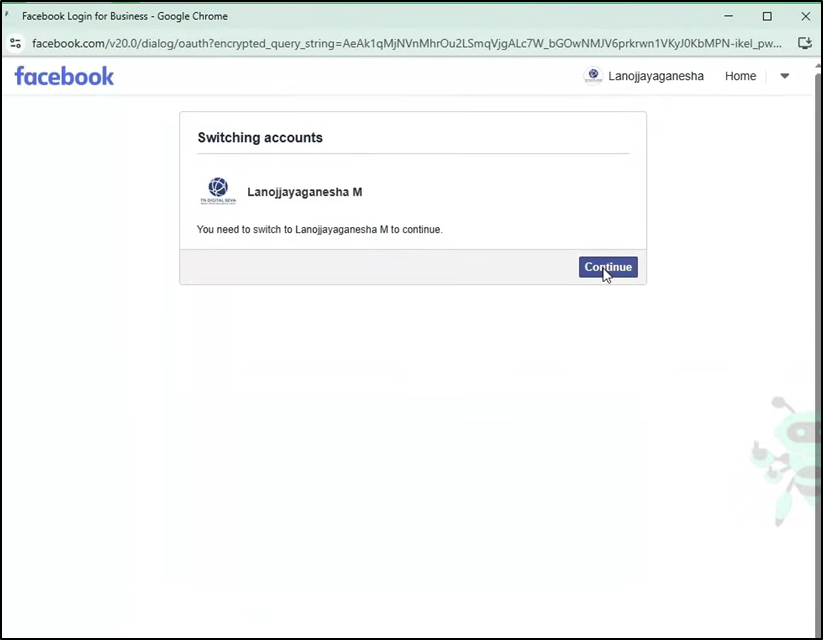
Step 2: Login with your Facebook Account:
- Log in to your Facebook Account and give all the permissions.
Note: Make sure you log in using the account connected to your WhatsApp Business Account.
- Select the business portfolio that contains the WhatsApp number you want to connect and click on next. In case you don’t have one, follow step 3 to create one.
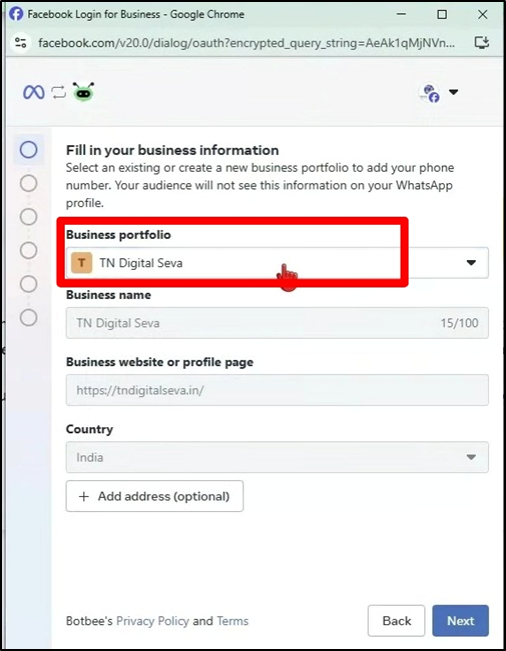
- Click on “Create new portfolio" and a window will appear next.
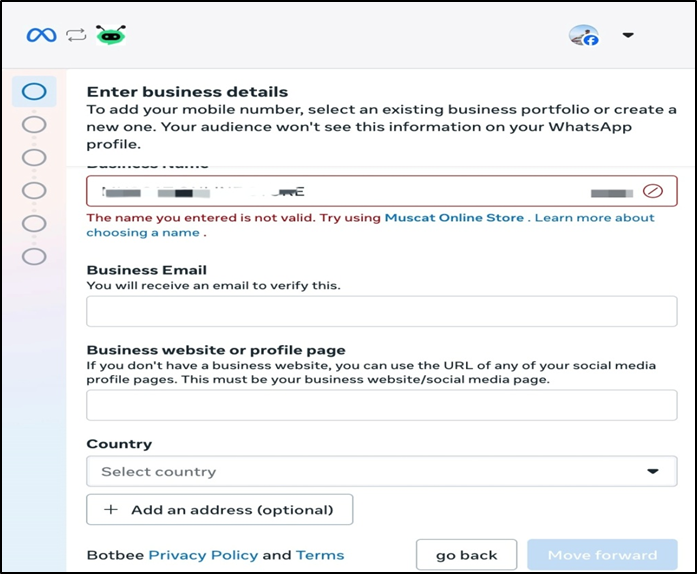
- Fill your details correctly to avoid any Meta restrictions.
- Click on save and your new Business Portfolio will be created.
- After the Business Portfolio is created Click on Next.
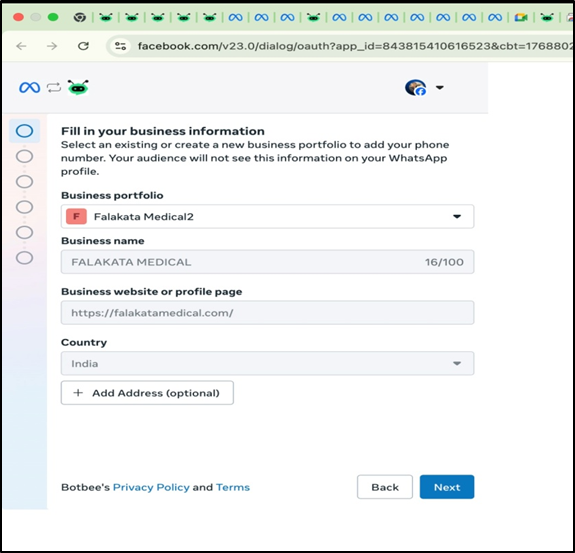
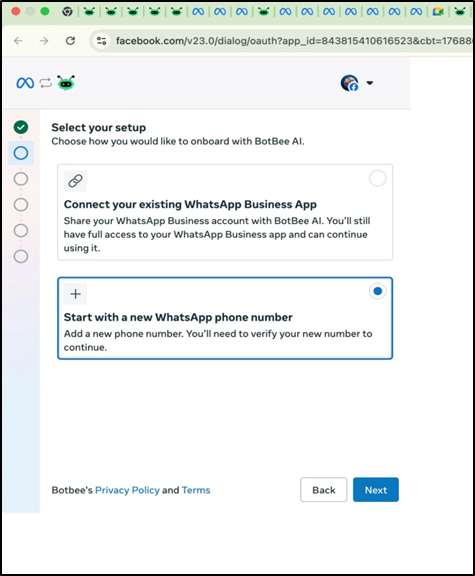
- Click on the above option of “Start with a new WhatsApp Phone Number.”
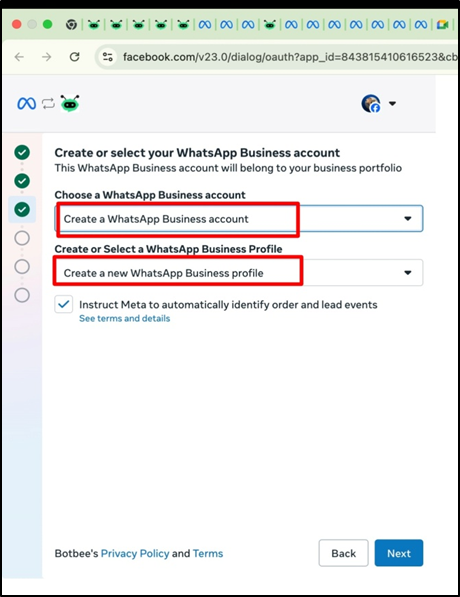
- Select "Create a New WhatsApp Business Account" from the above dropdown and Select “Create a new WhatsApp Business Profile” from the second dropdown menu and click on Next.
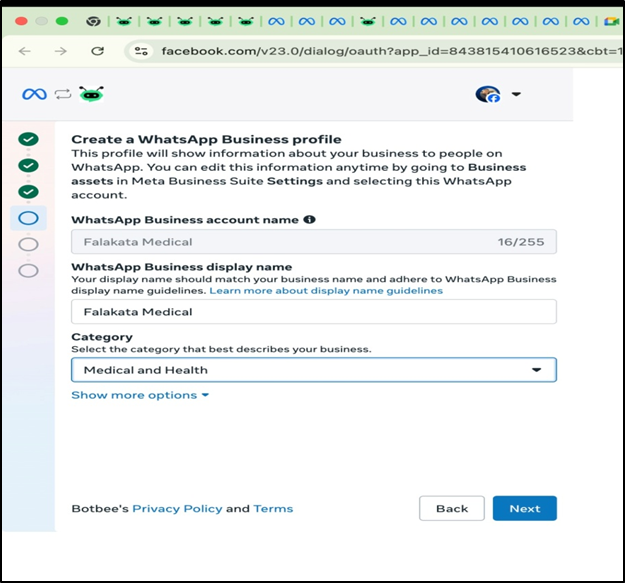
- Write the Business Account Name and select relevant Category of your Business.
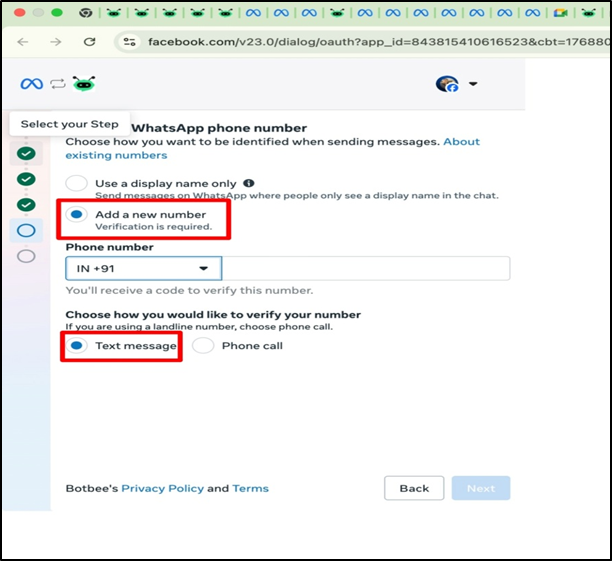
- Click on “Add a New number” and write down your New Number which is not connected to WhatsApp yet.
- Also choose text message as your medium to Verify your Number.
- Click on Next.
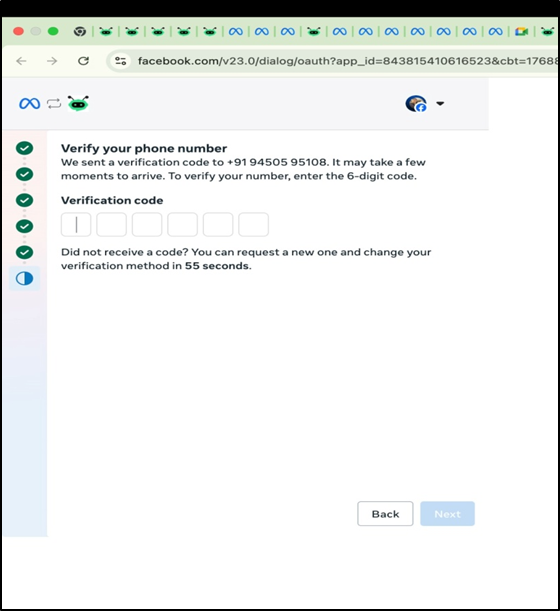
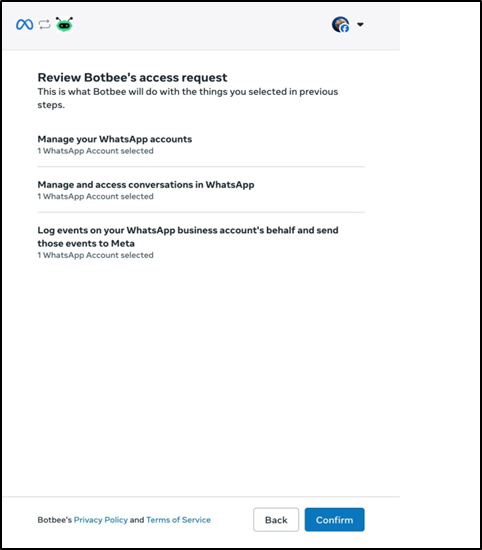
- Now Click on Confirm and Your New Number will be connected successfully.
- Now click on “Sync Info”.
- Then Click on Register.
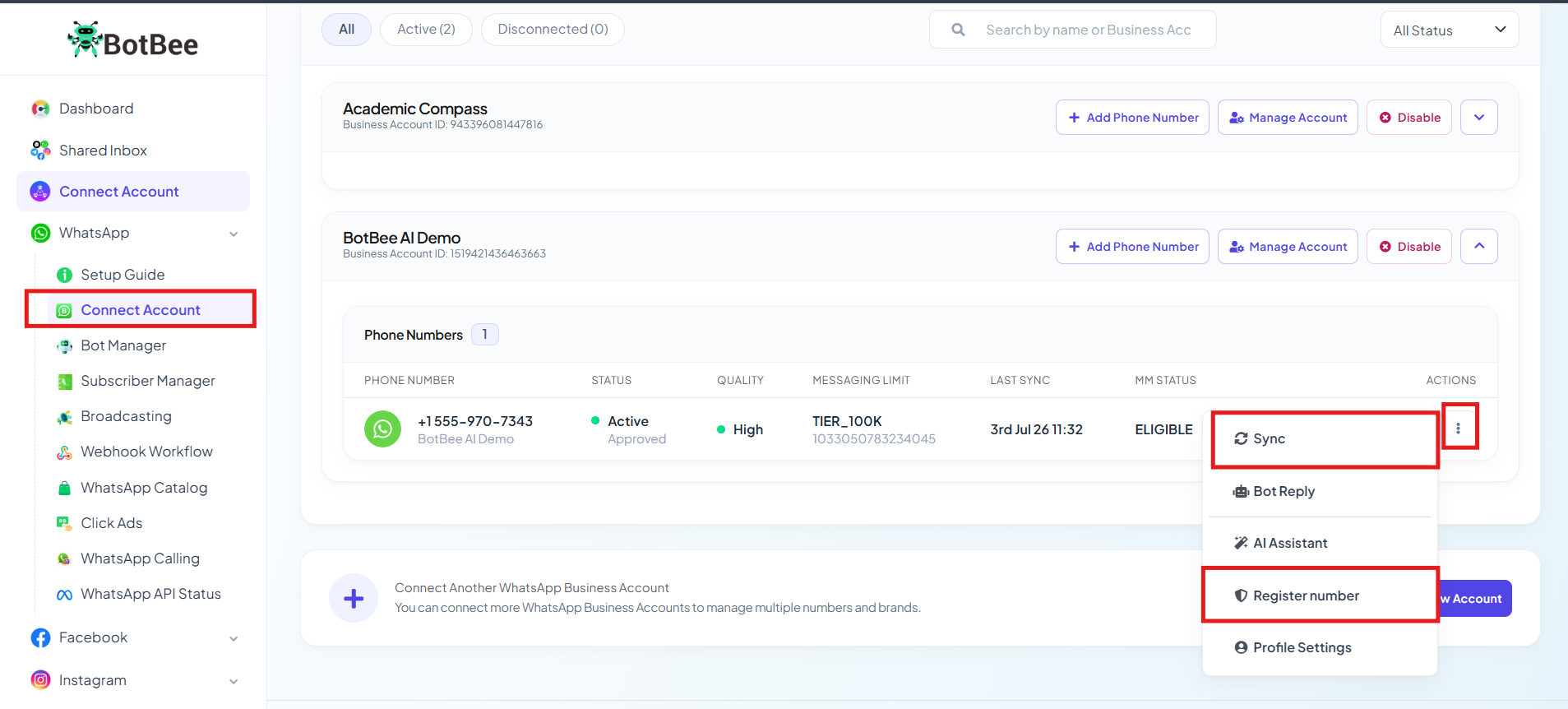
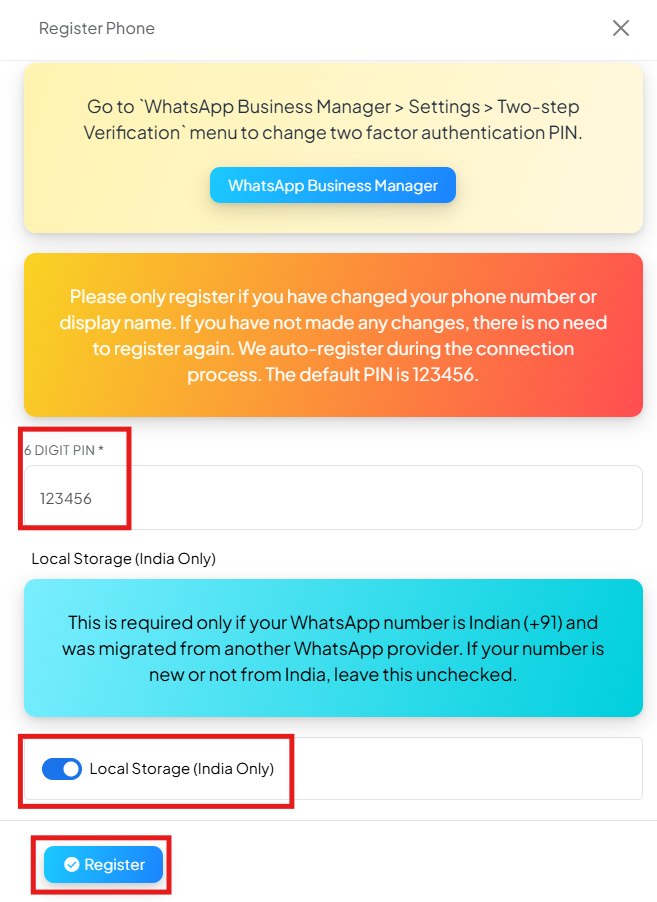
- After entering the PIN , there is an option of “Local Storage (India Only)”, Enable it only when your WhatsApp number is Indian (+91) and was migrated from another WhatsApp provider. If your number is new or not from India, leave this unchecked.
- Click on Register lastly.
- English: https://youtu.be/dVuS8dqr7wQ?si=8ihrYeJuNOX0jLgN
- Hindi: https://youtu.be/9HdX1BJOhLU?si=rHHfE2cJP-InOivV
- Tamil: https://youtu.be/M75QIROBfz8?si=KRKEIaJ7bk29Zc8L
In this article, you will learn how to complete the WhatsApp Business API setup on BotBee, including payment details, business verification, and profile settings. These steps are required to fully activate WhatsApp messaging.
Step 1: Add Payment Method:
- Go to your Connect Account under WhatsApp Section.
- Click on Manage Account.
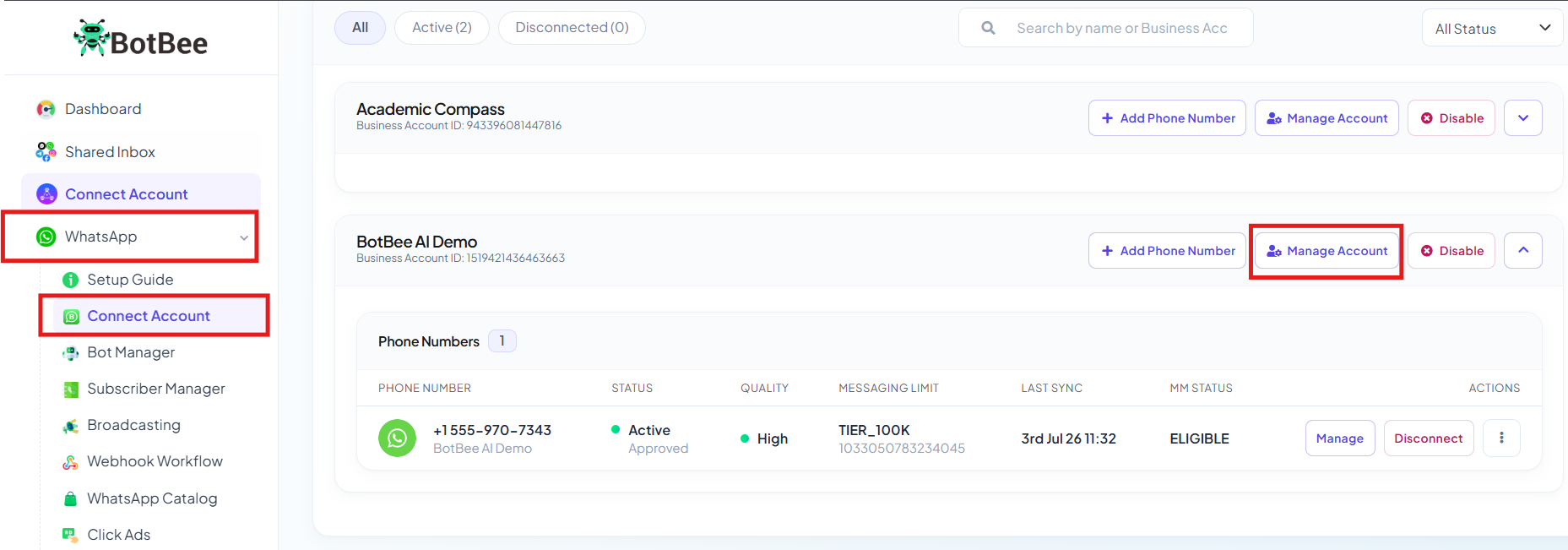
- You will be redirected to "Business Overview" .
- From the left side menu, Click on your Business Portfolio and Go to "Business Settings icon".
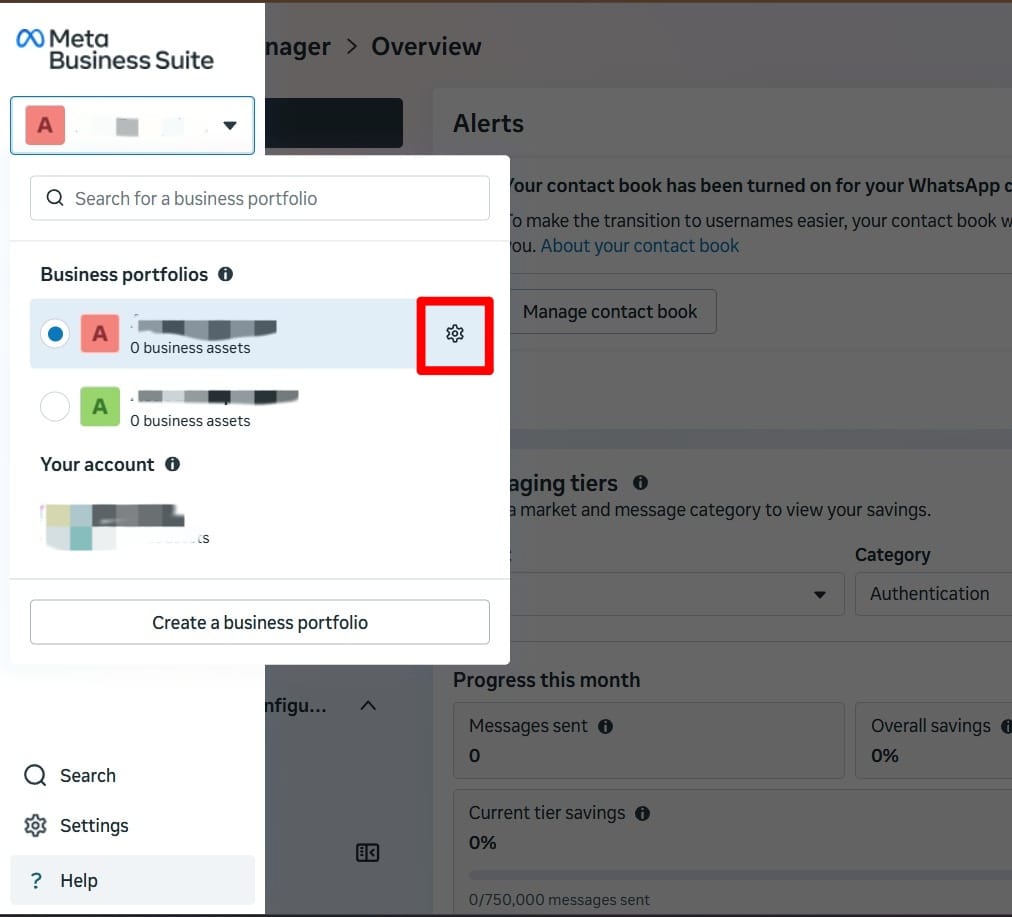
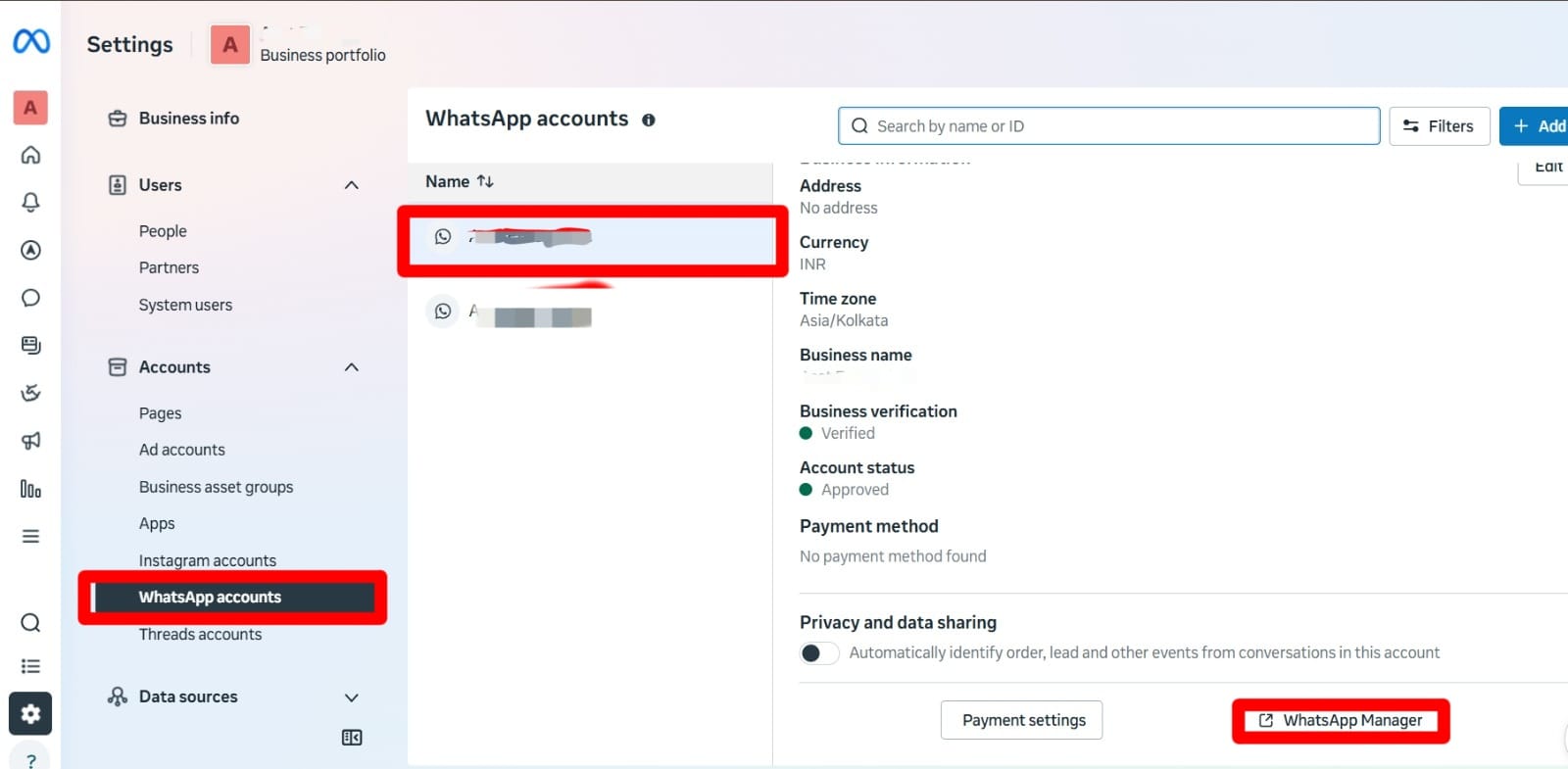
- Select WhatsApp accounts under accounts and then select WhatsApp account name.
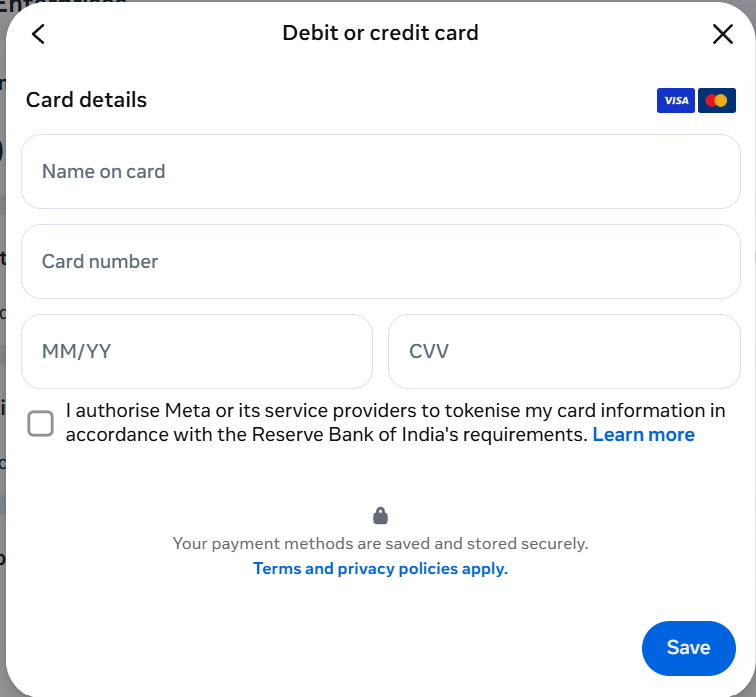
- Select payment settings click add payment method.
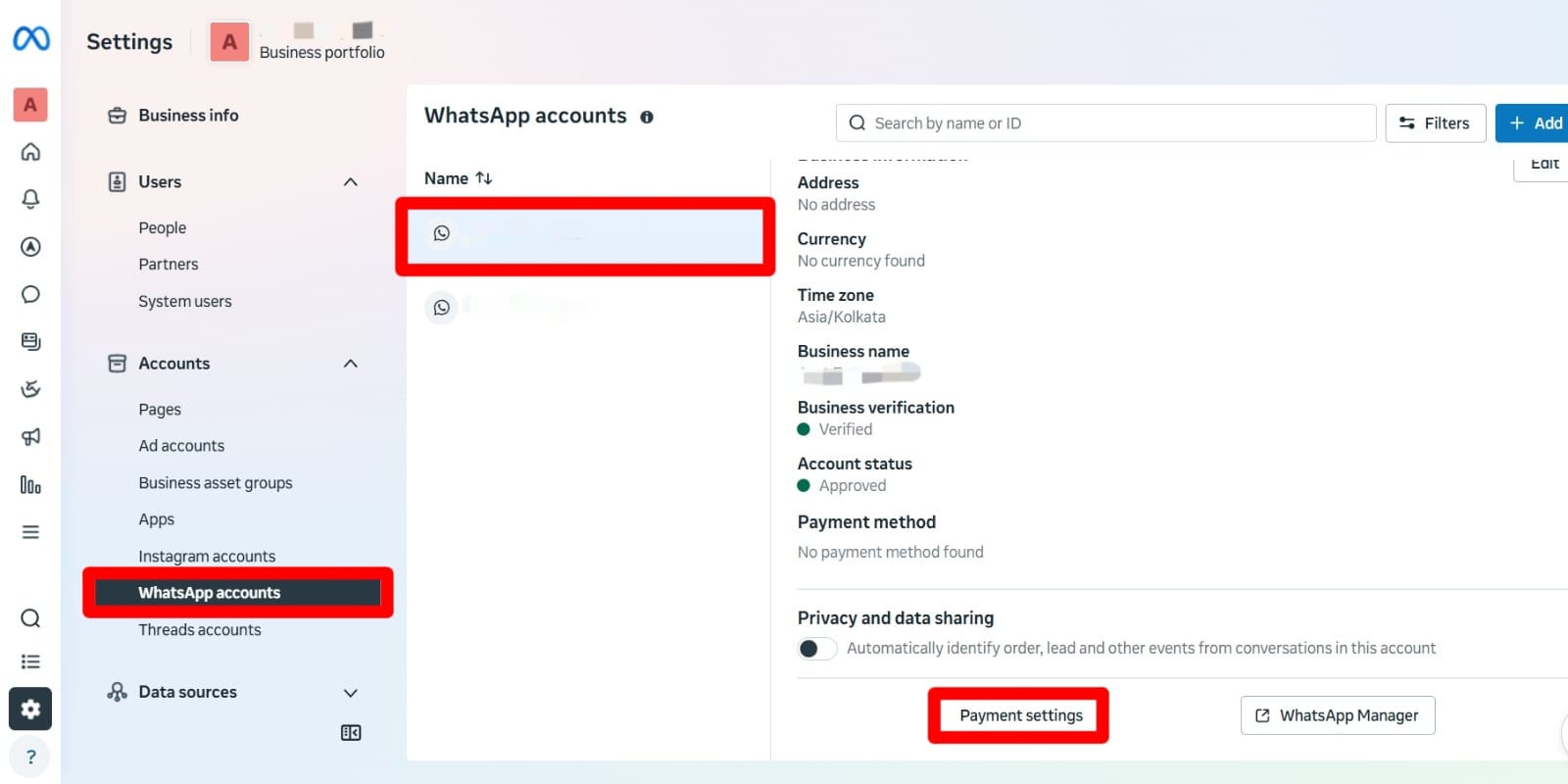
- Click on “add payment method” and select correct country and time zone and then click Next.
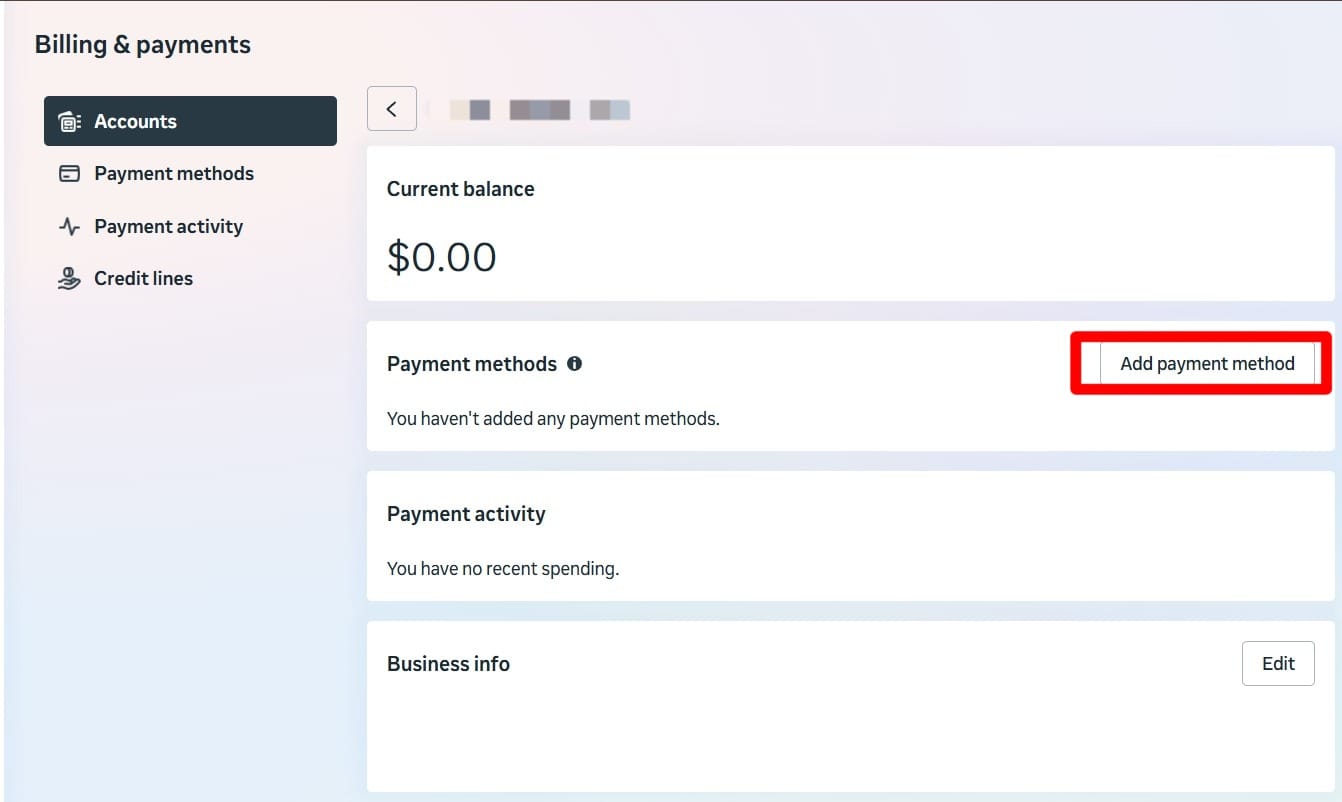
- Add your card details here then click save your card ended successfully. Hereafter your Meta conversation charges are collected.
- Log in to the BotBee dashboard.
- Select “Connect Account” under WhatsApp Tab.
- Click on Manage Account beside your connected number.
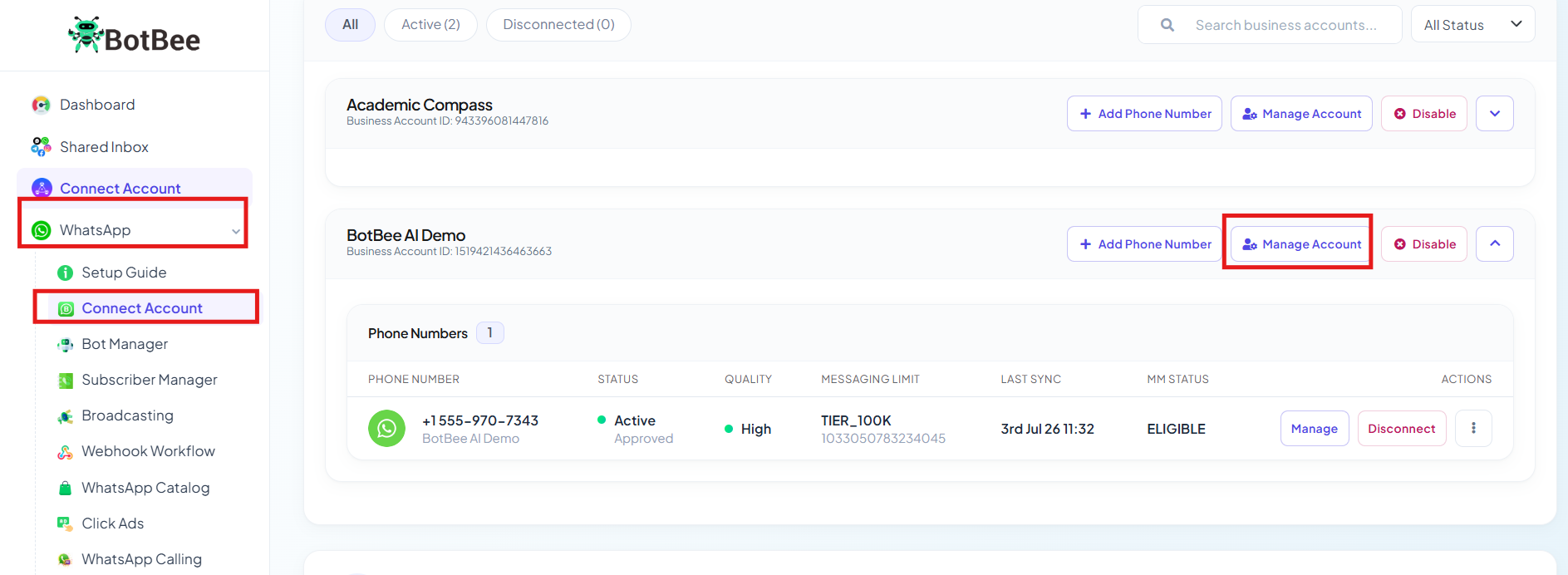
- You will be redirected to "Business Overview" .
- From the left side menu, Click on your Business Portfolio and Go to "Business Settings icon".
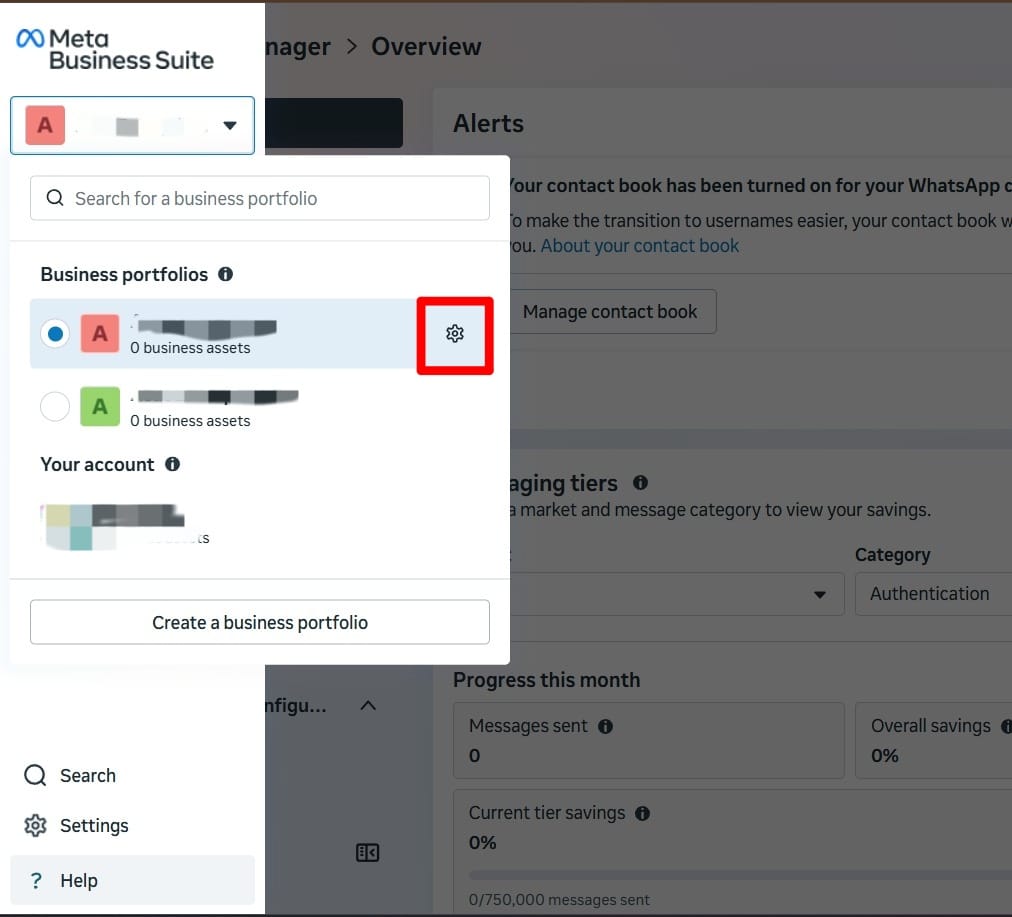
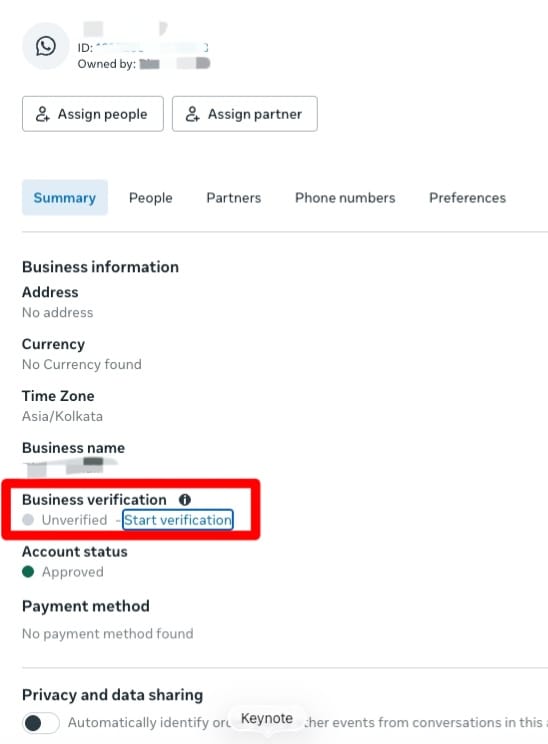
- Select WhatsApp accounts under accounts and then select WhatsApp account name.
- Under Business Verification, Click on “Start Verification”.
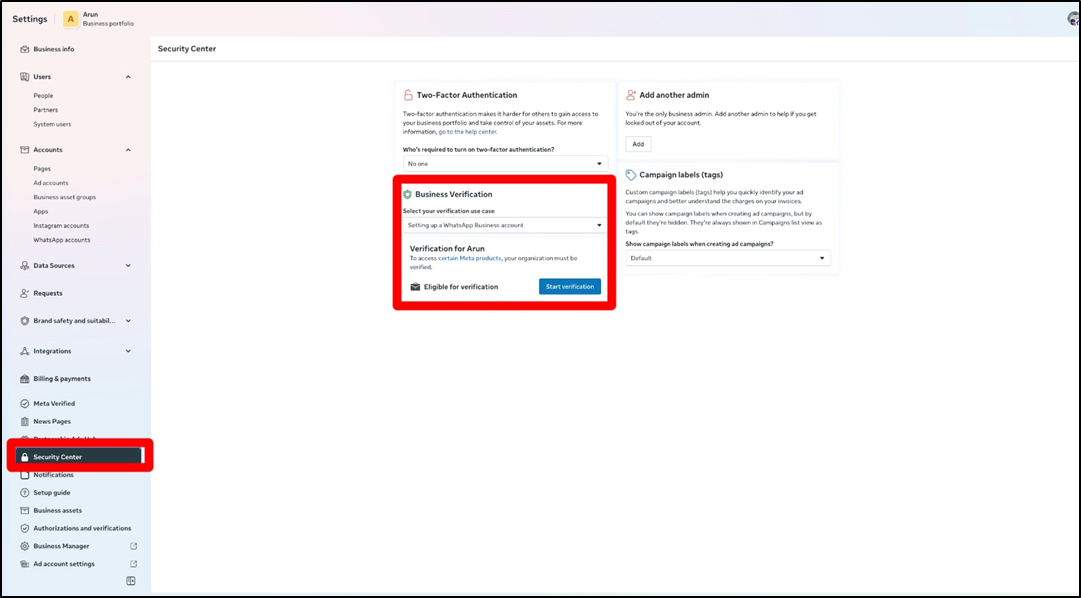
- Add address and phone number and then click next.
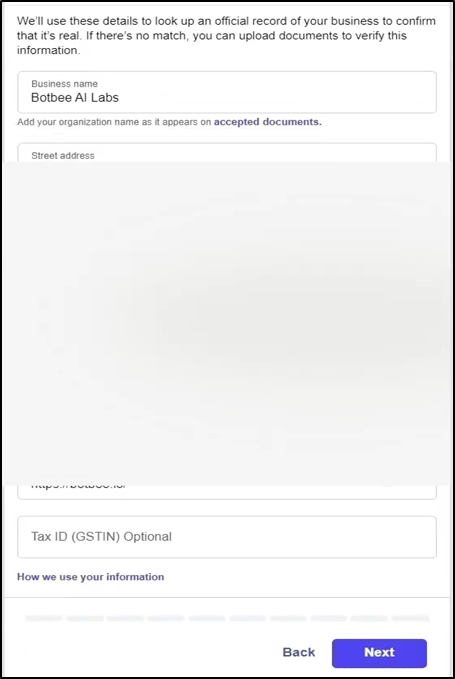
- Select contact method and then click next.
- Upload business documents for verification confirm phone number.
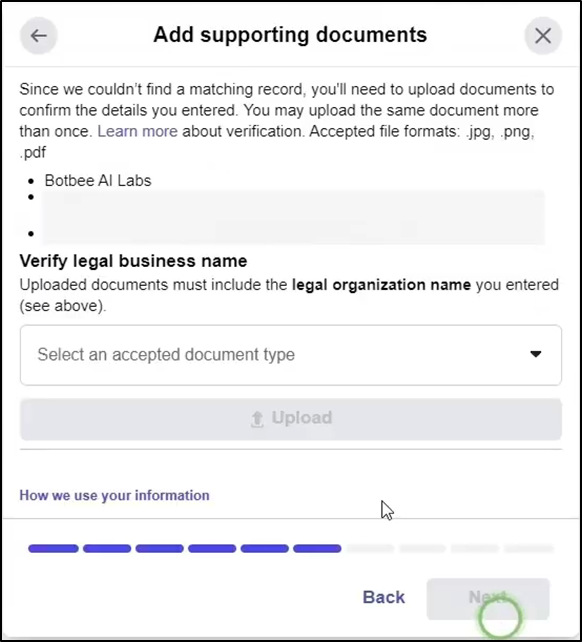
- Confirm Phone Number and then select “Send text”.
- Enter the OTP that you will receive on your Phone Number.
- Go to business settings and then select WhatsApp account.
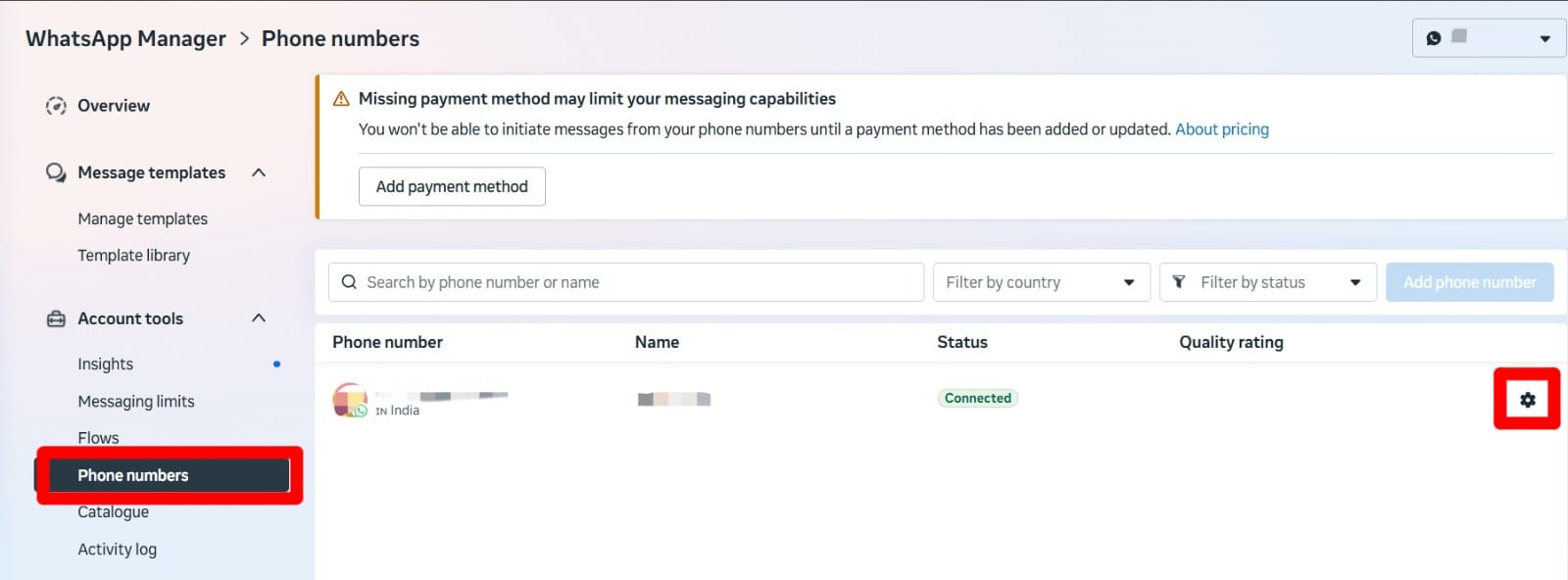
- Select WhatsApp manager in left side menu.
- Select phone number and then click settings icon.
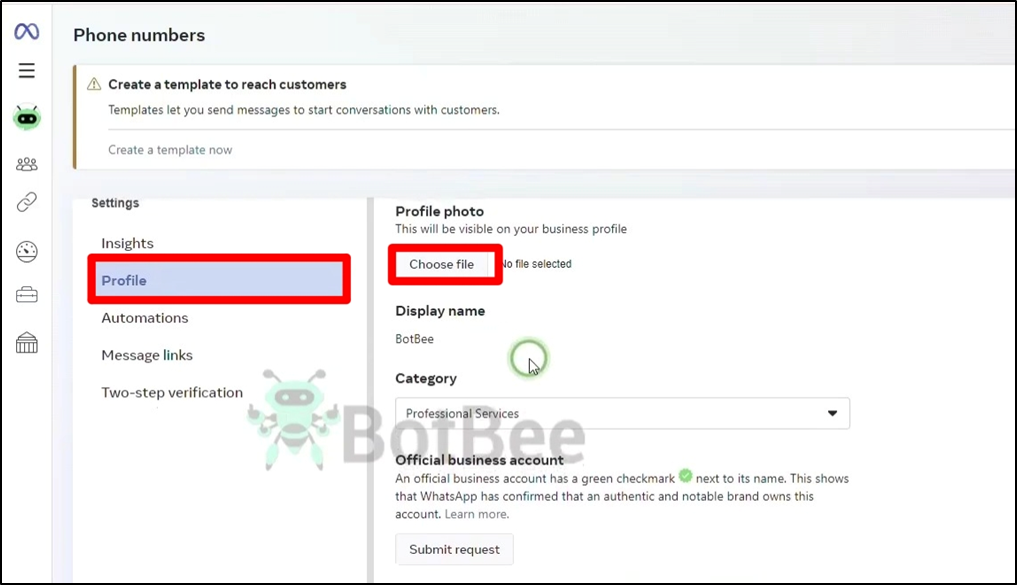
- Click profile, now you can a profile picture for WhatsApp business number.
- Add email address and website details.
- You can update profile details on BotBee dashboard also.
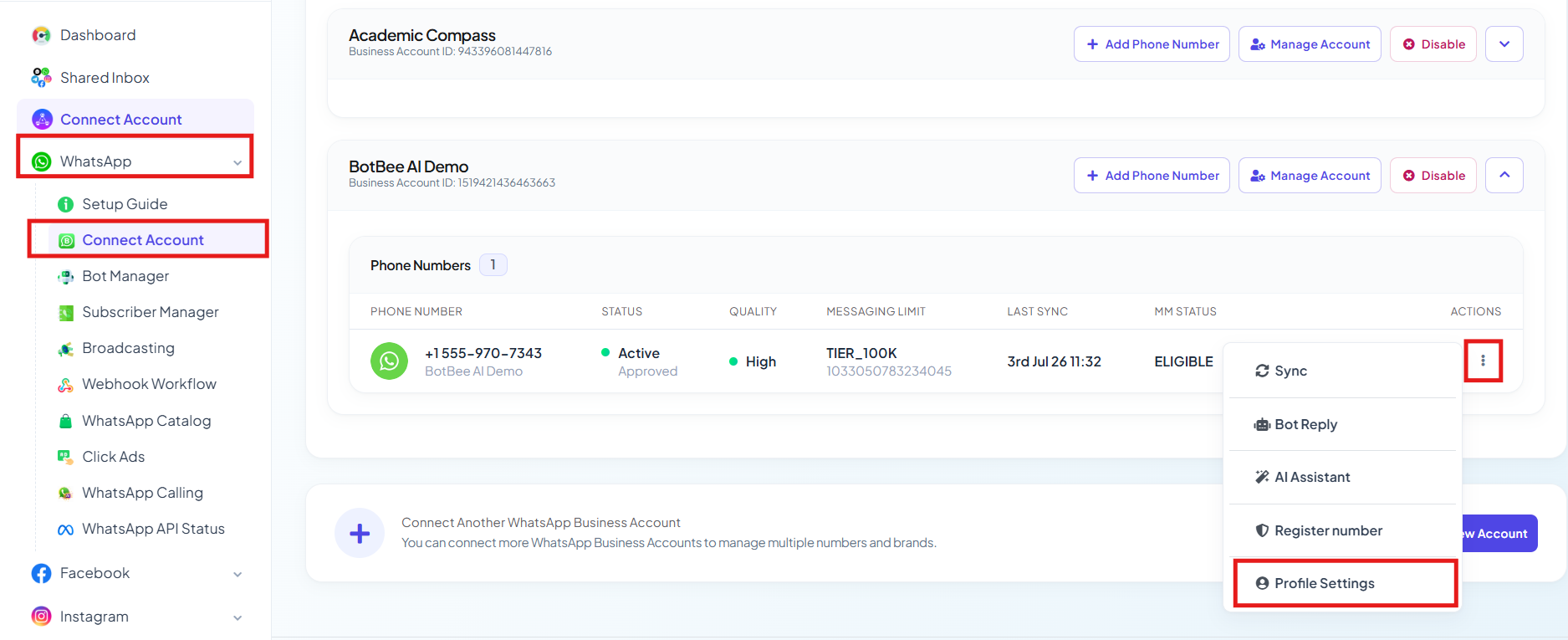
- Go to BotBee dashboard and then select Connect account under WhatsApp .
- Scroll down and Clickon three dots in Action then select profile settings.
- Here you can update all the profile.
Important Note
Please complete the onboarding strictly as shown in the instructions.
Do not skip steps or modify the process, as this may result in:
- Account connection failure
- Verification delays
- API access issues
Reference Video (Part 2):
If you prefer video guidance, watch the tutorial linked below for step-by-step instructions.
- English: https://youtu.be/LXuZK4AAj-Y?si=nuao0HCZr_SebccP
- Hindi: https://youtu.be/hC1wh6jxSjc?si=CS0w8SRhJIFfRxQK
- Tamil: https://youtu.be/084jNCcgmwo?si=xgBeqgz7pK2-h0a4
Still Need Help?
If you face difficulties during onboarding:
- Take a screenshot or screen recording
- Share details with our support team
Our team will review the onboarding step and guide you further.
Contact: 08069645300
Found this article helpful?
( 5 Out of 9 Found Helpful )