Prerequisites for WhatsApp Business App Onboarding
Live Website with Business Name Credits
Your business website must be live and accessible, clearly displaying your registered business name.
MSME/GST Certificate or Current Account
Official business registration document (such as MSME/GST certificate) or a current business bank account statement.
Business Mail ID
A professional business email address (example: support@yourbusiness.com).
Facebook Account with Business Portfolio
A Facebook account with an active Business Portfolio and no policy restrictions.
Mobile Number with WhatsApp Account
A mobile number that is registered with WhatsApp.
Visa Credit or Debit Card
A valid Visa credit or debit card for Meta billing and payment verification.
Note: Missing any of the above requirements may cause onboarding delays or verification failure.
WhatsApp Business App Onboarding (Part 1)
In this article, you will learn how to set up the WhatsApp Business App on BotBee using Embedded Signup. The steps in this guide help you connect your WhatsApp account and complete the setup correctly.
Step-by-Step Instructions:
Step 1: Open WhatsApp API Setup:
- Log in to the BotBee dashboard.
- Select “Connect Account” under WhatsApp Tab.
- Click on Connect New Account.
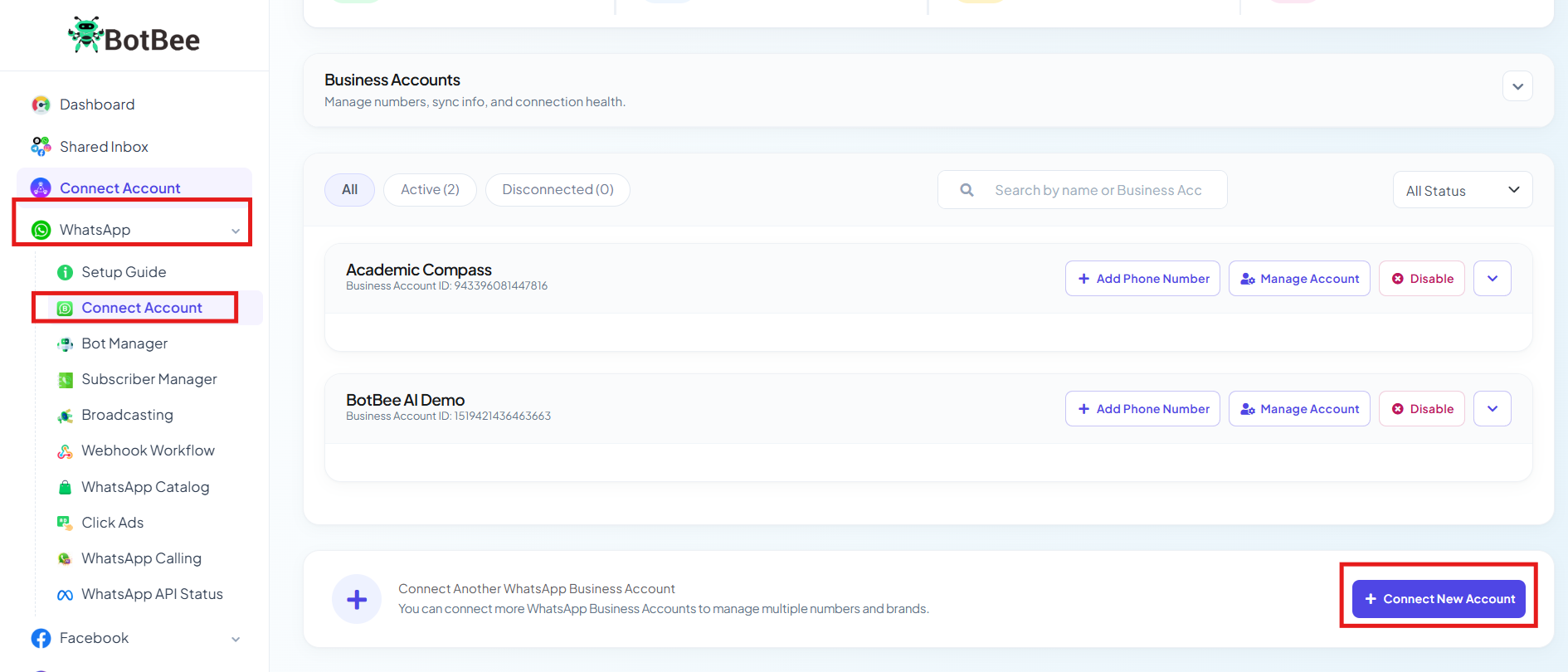
- Click on “Connect WhatsApp without Catalog Permission” button.
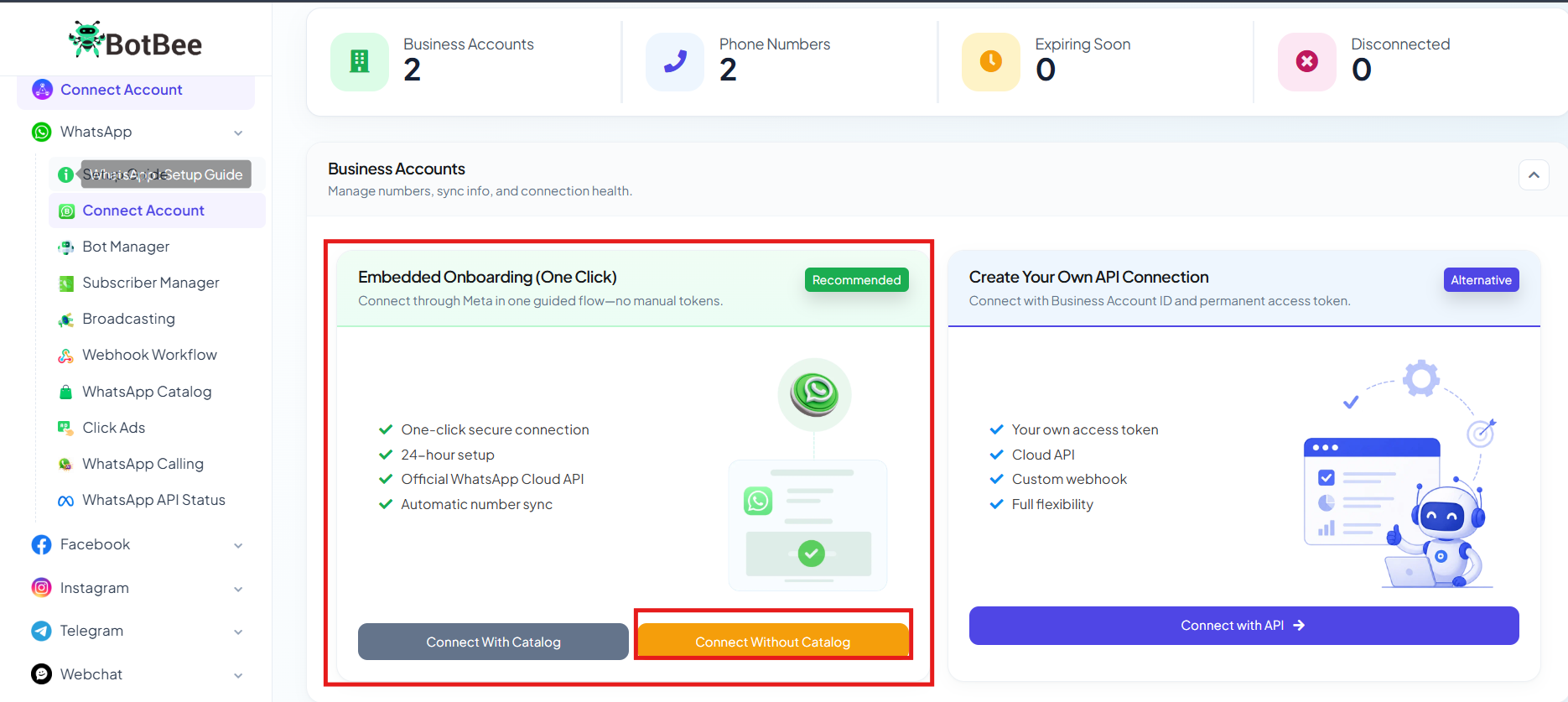
Step 2: Login with your Facebook Account:
- Login into your Facebook Account and allow the requested permissions.
Note: Make sure you log in using the account connected to your WhatsApp Business Account.
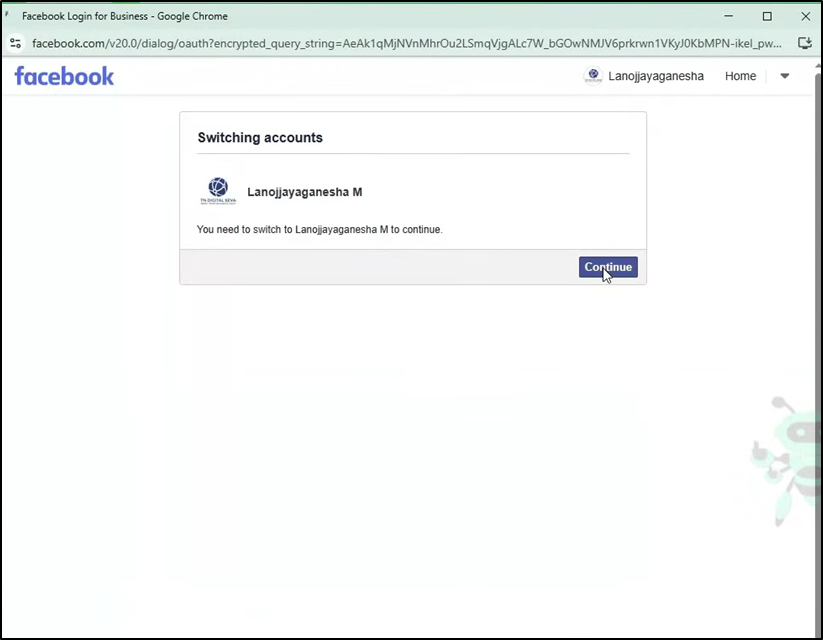
- Select the business portfolio that contains the WhatsApp number you want to connect and click on next. In case you don’t have one, follow step 3 to create one.
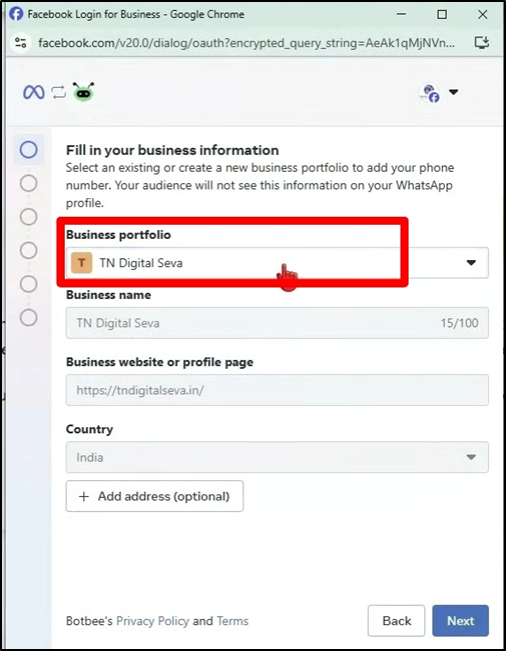
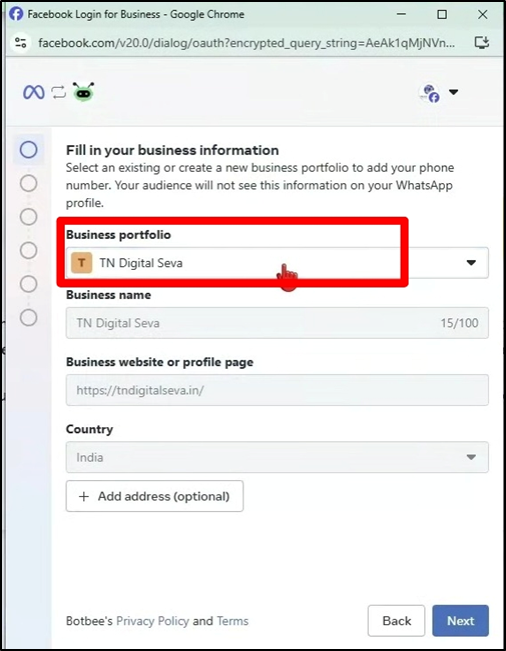 Step 3: Create a new business Portfolio:
- Click on “Create new portfolio" and a window will appear next.
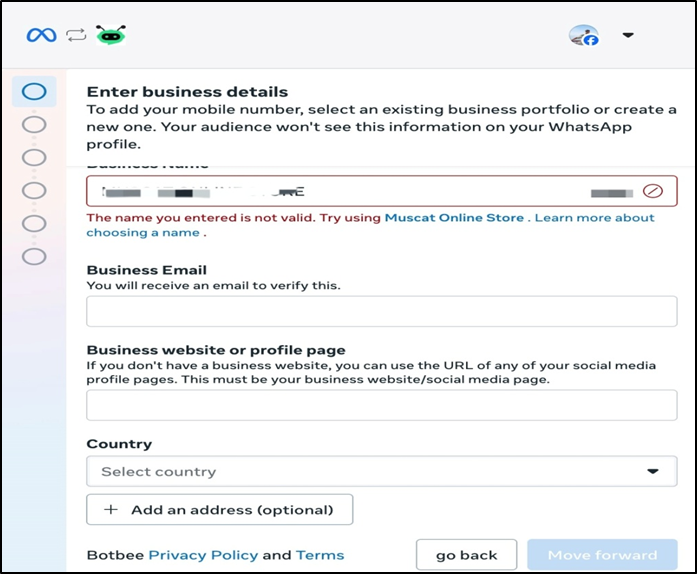
- Fill your details correctly to avoid any Meta restrictions.
- Click on save and your new Business Portfolio will be created.
Step 4: Connect Existing WhatsApp Business Account:
- Now, select the first option, connect your existing WhatsApp business app. This option allows you to connect without deleting your existing WhatsApp account.
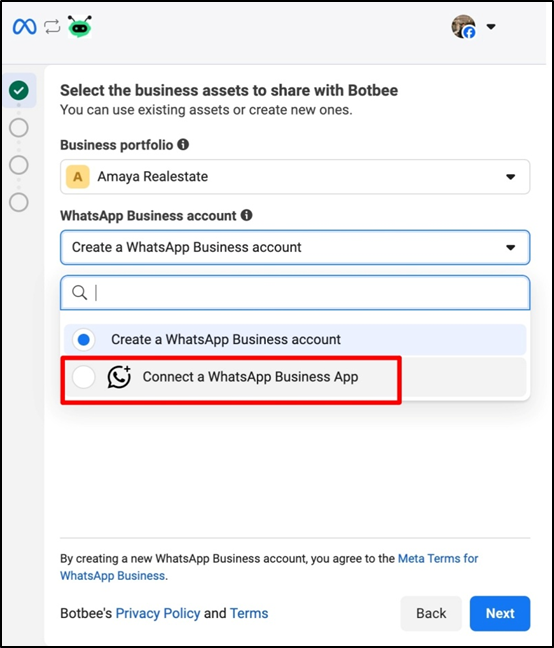
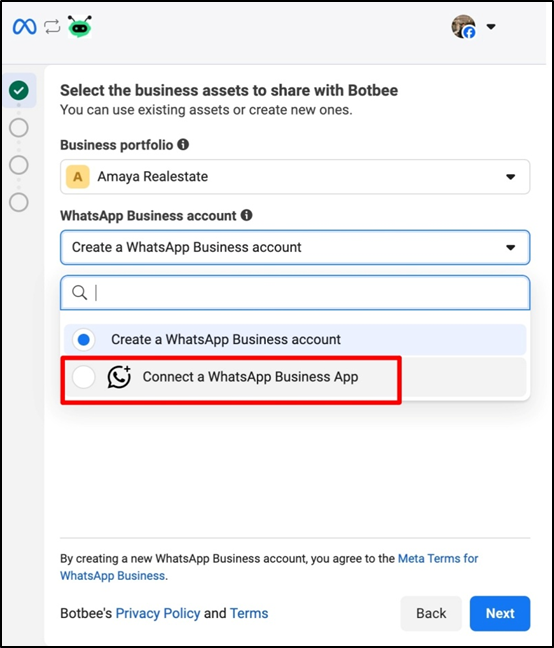
- Now enter your WhatsApp business app number that you want to connect. Once entered, click next.
- Now your WhatsApp business account name will be displayed. Next, select the time zone that matches your location. Once selected, click next to proceed.
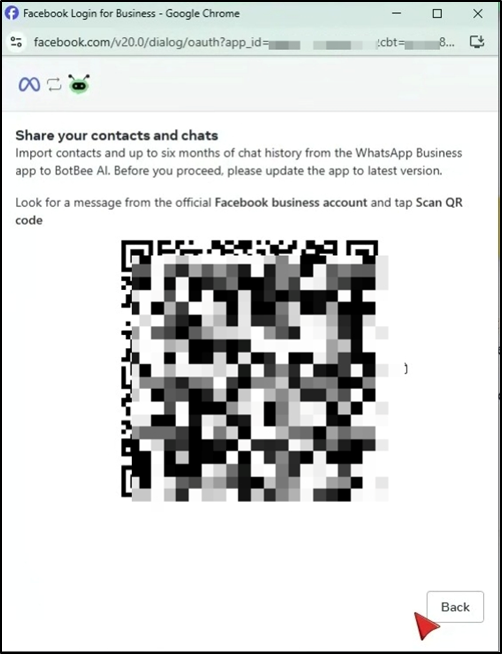
Step 5: Scan QR Code:
- Now the system will display a QR code on the screen. At the same time, you'll receive a message on your WhatsApp number with instructions to scan the QR code.
- Open your WhatsApp business app. Scan the QR code and complete the linking process.
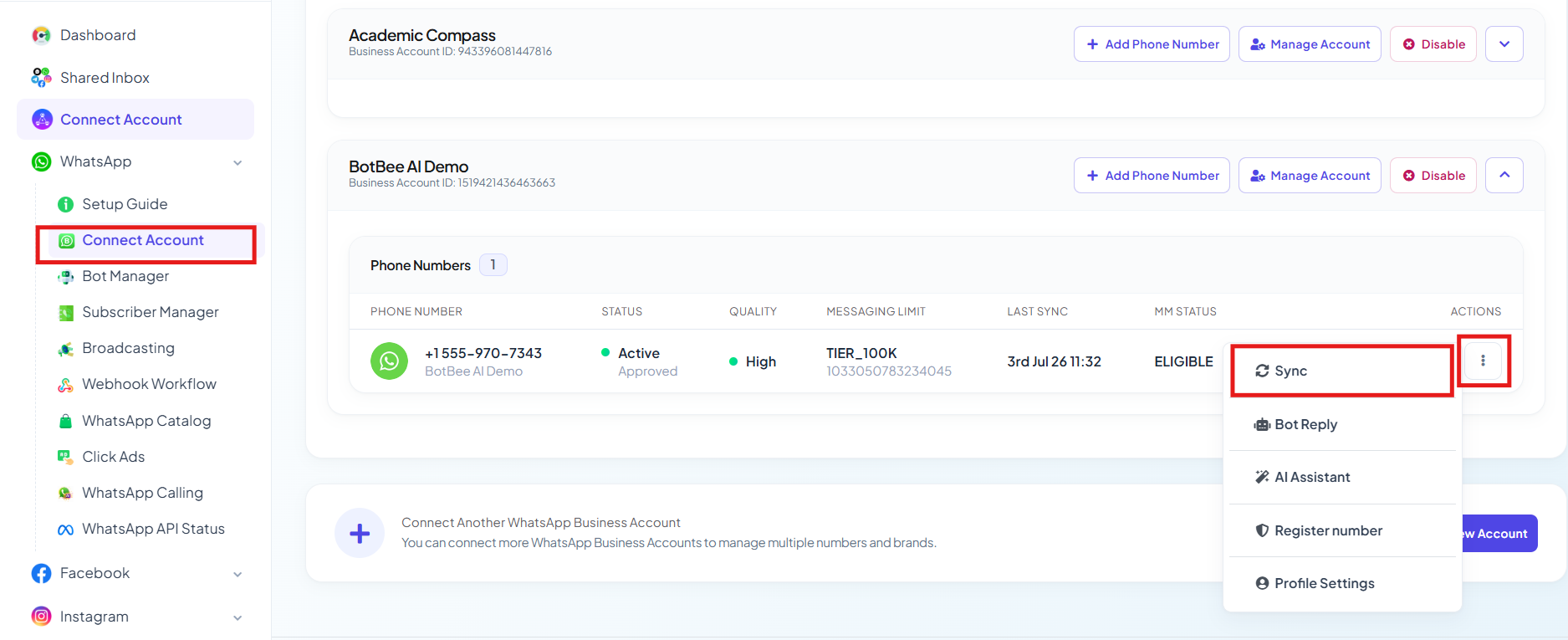
Step 6: Sync Info:
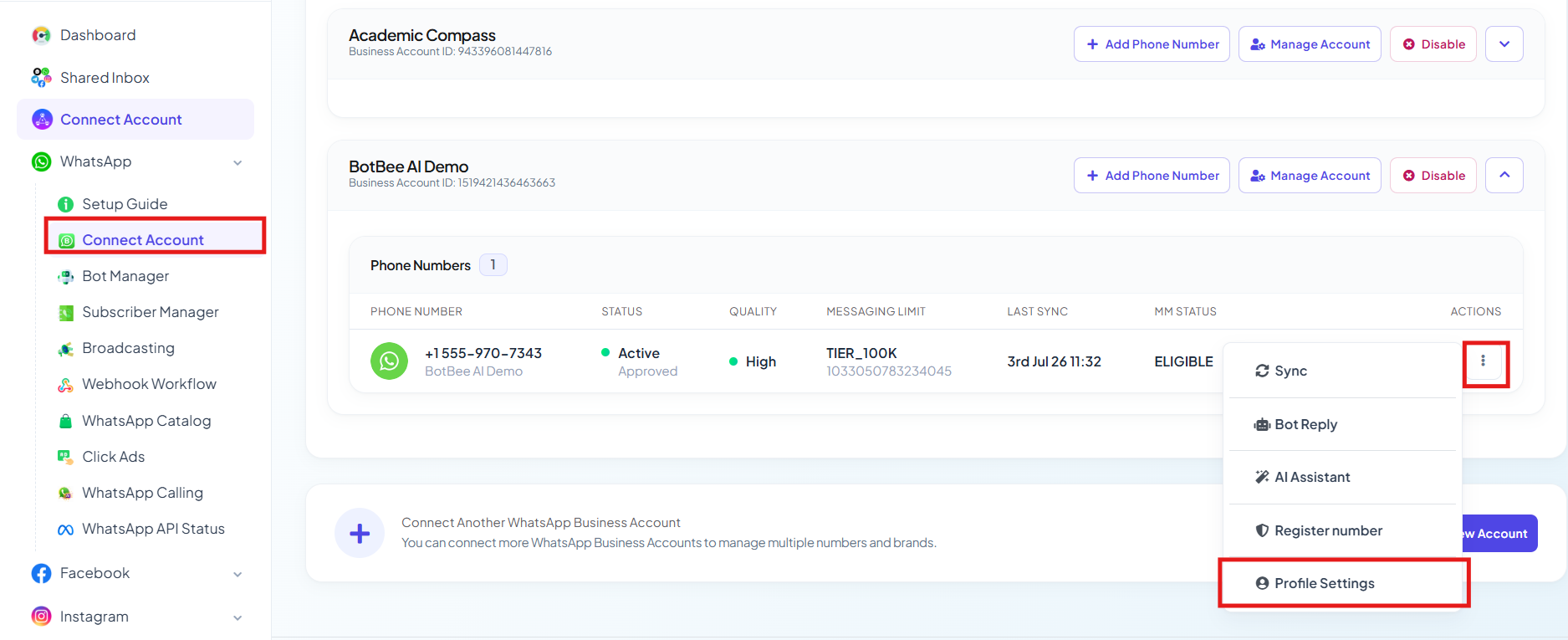
- Click on three dots in the Actions.
- Now click on “Sync Info”.
That’s it! Your WhatsApp App is now successfully connected. Thank you for reading. With this integration, you can automate your chats, engage customers instantly, and boost your business growth effortlessly.
Reference Video (Part 1):
If you prefer video guidance, watch the tutorial linked below for step-by-step instructions.
- English: https://youtu.be/dVuS8dqr7wQ?si=8ihrYeJuNOX0jLgN
- Hindi: https://youtu.be/9HdX1BJOhLU?si=rHHfE2cJP-InOivV
- Tamil: https://youtu.be/M75QIROBfz8?si=KRKEIaJ7bk29Zc8L
WhatsApp Business App Onboarding (Part 2)
In this article, you will learn how to complete the WhatsApp Business API setup on BotBee, including payment details, business verification, and profile settings. These steps are required to fully activate WhatsApp messaging.
Step 1: Add Payment Method:
- Go to your Connect Account under WhatsApp Section.
- Click on Manage Account.
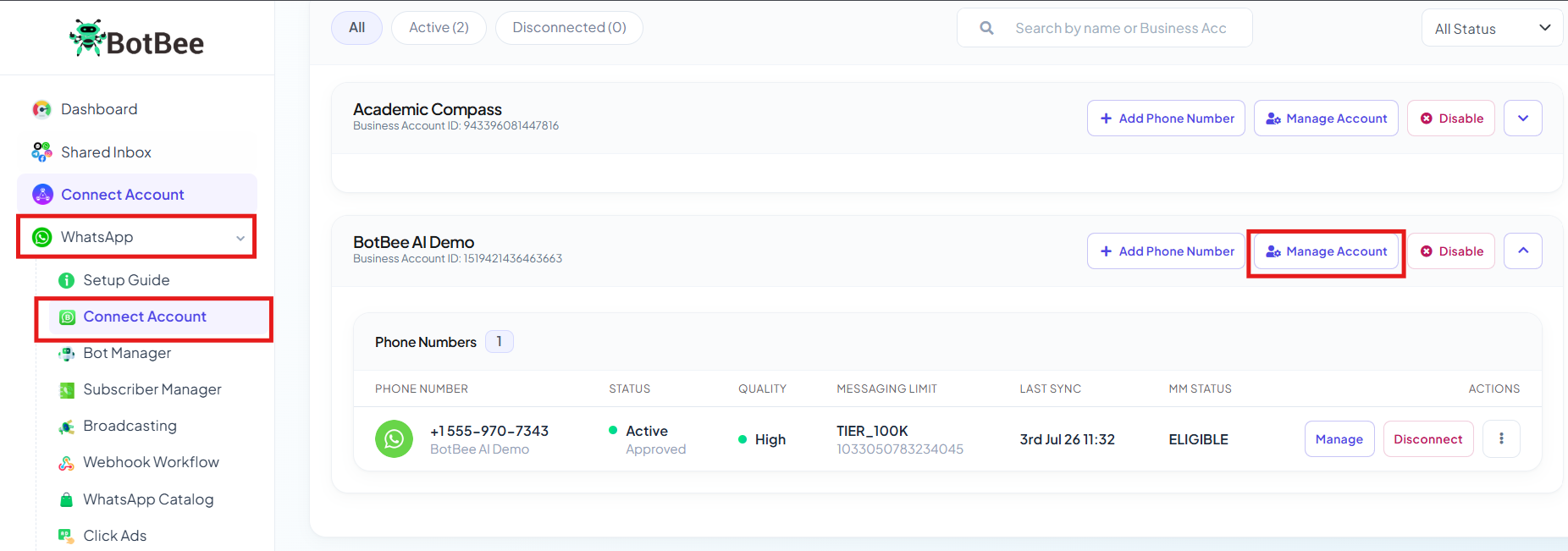
- You will be redirected to "Business Overview" .
- From the left side menu, Click on your Business Portfolio and Go to "Business Settings icon".
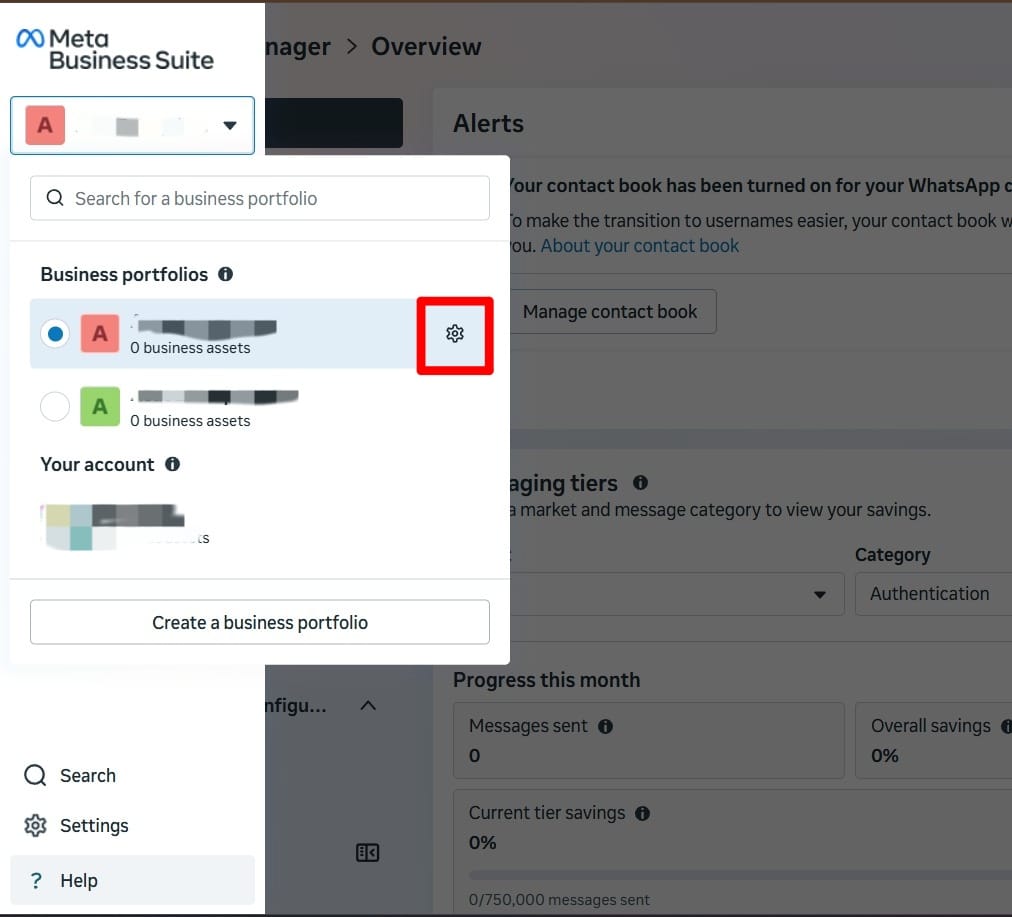
- Select WhatsApp accounts under accounts and then select WhatsApp account name.
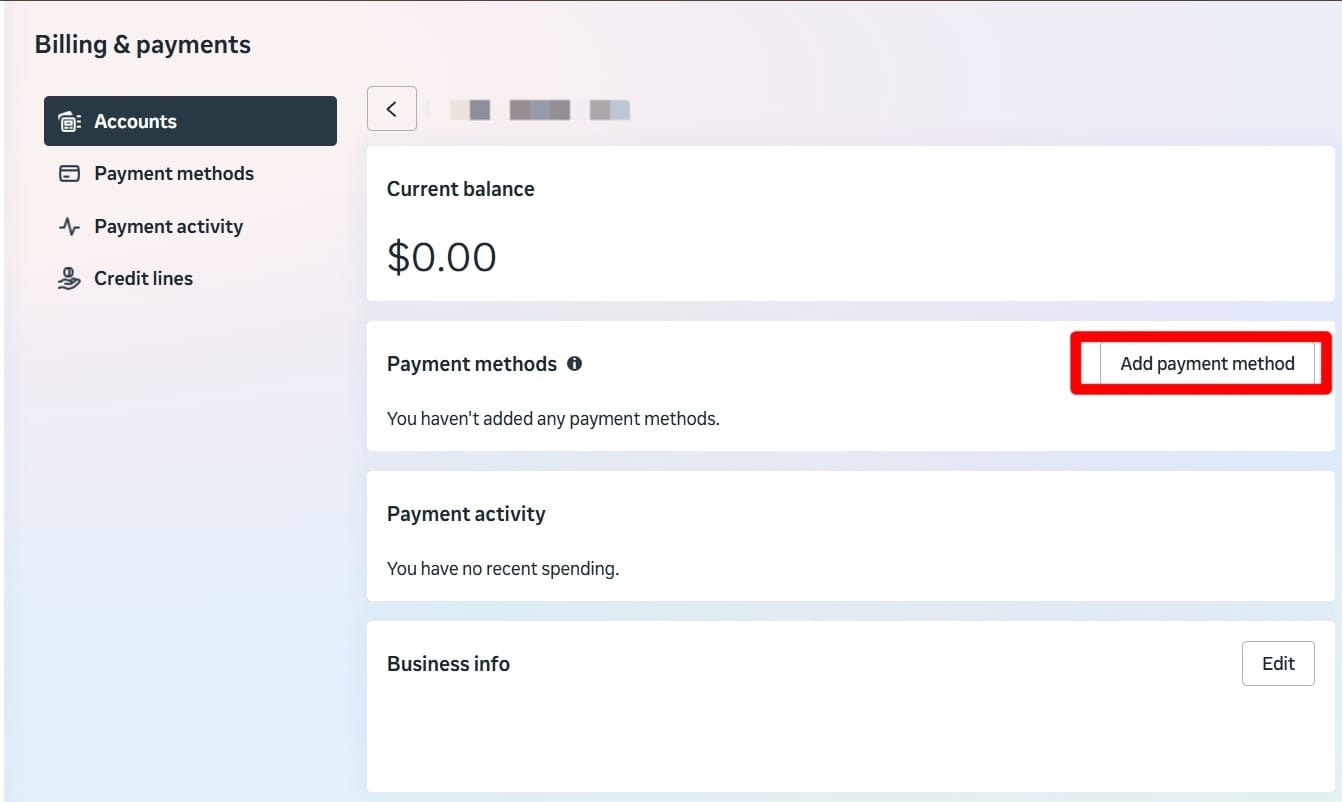
- Select payment settings click add payment method.
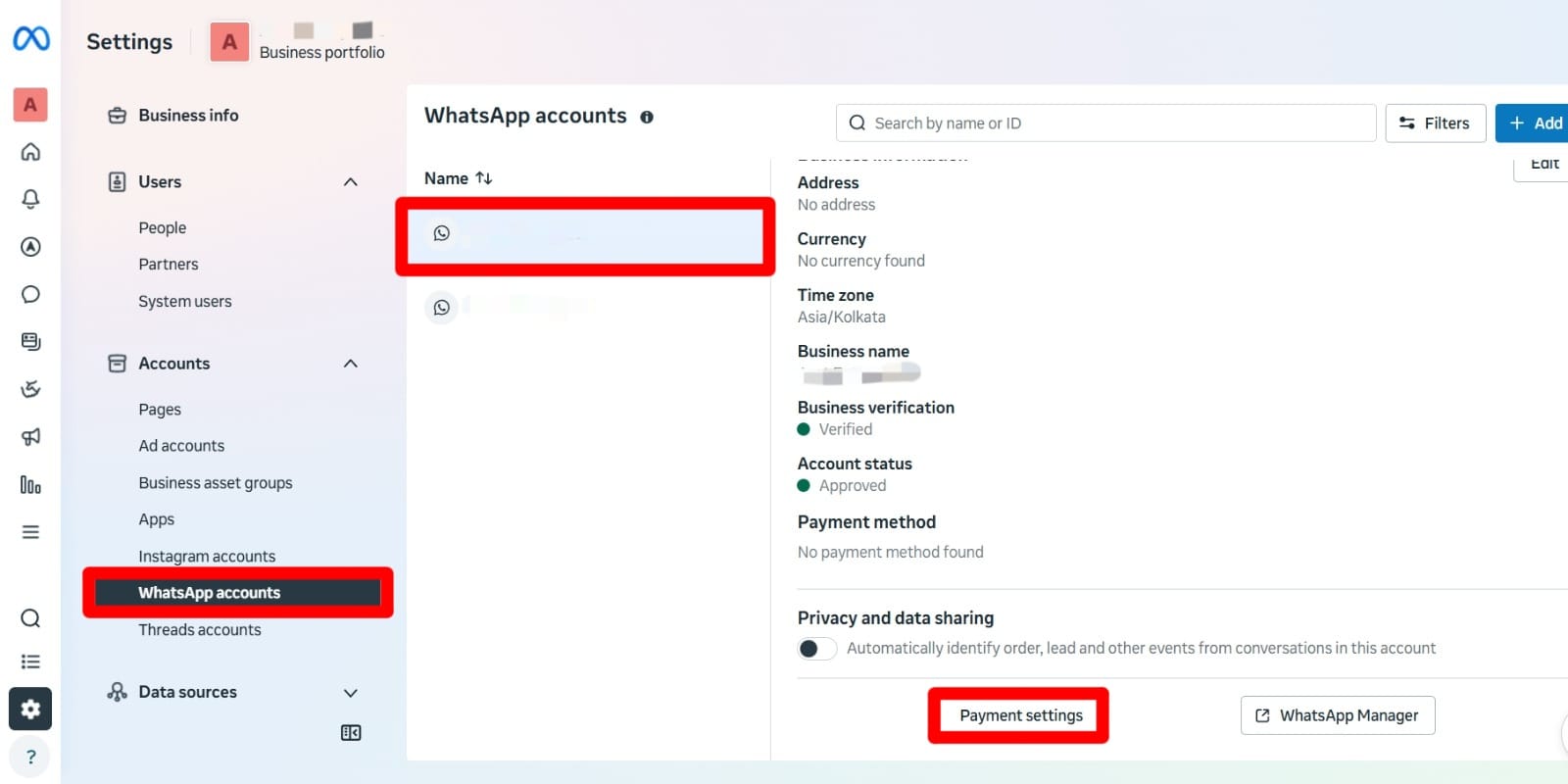
- Click on “add payment method” and select correct country and time zone and then click Next.
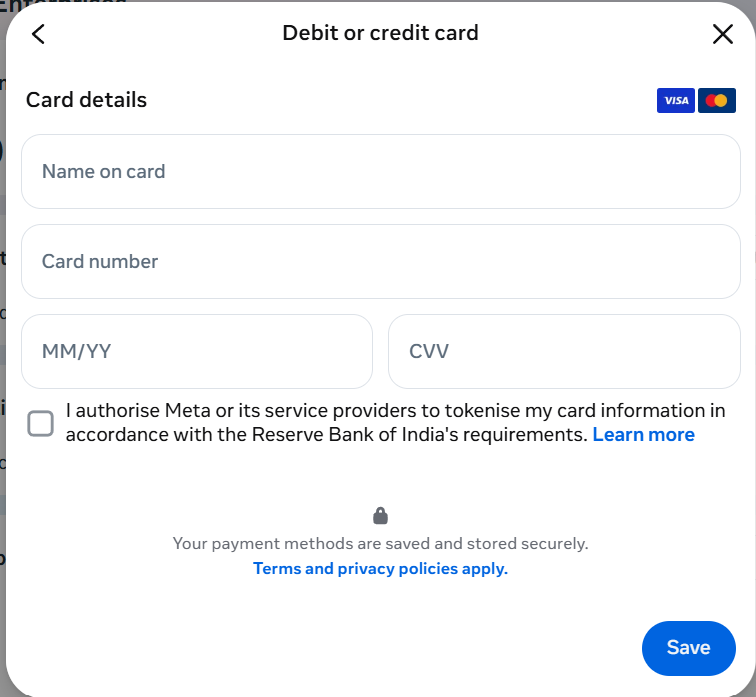
- Add your card details here then click save your card ended successfully. Hereafter your Meta conversation charges are collected.
Step 2: Verify Meta Business Manager:
- Log in to the BotBee dashboard.
- Select “Connect Account” under WhatsApp Tab.
- Click on Manage Account beside your connected number.
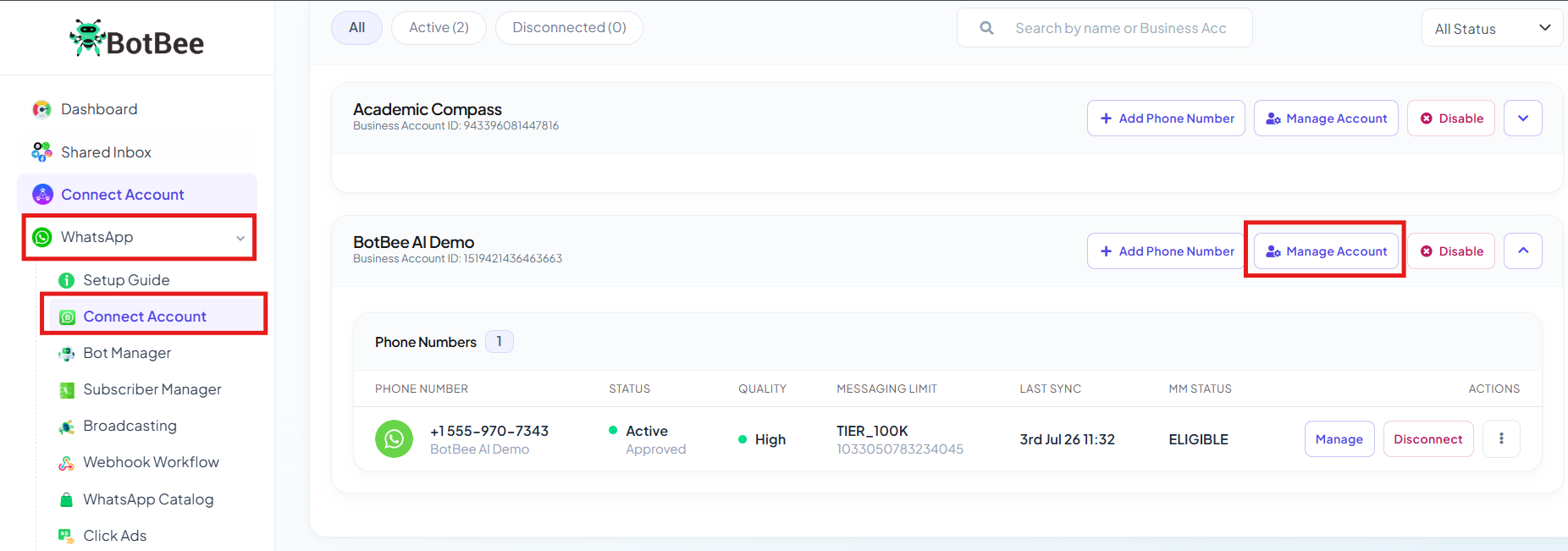
- You will be redirected to "Business Overview" .
- From the left side menu, Click on your Business Portfolio and Go to "Business Settings icon".
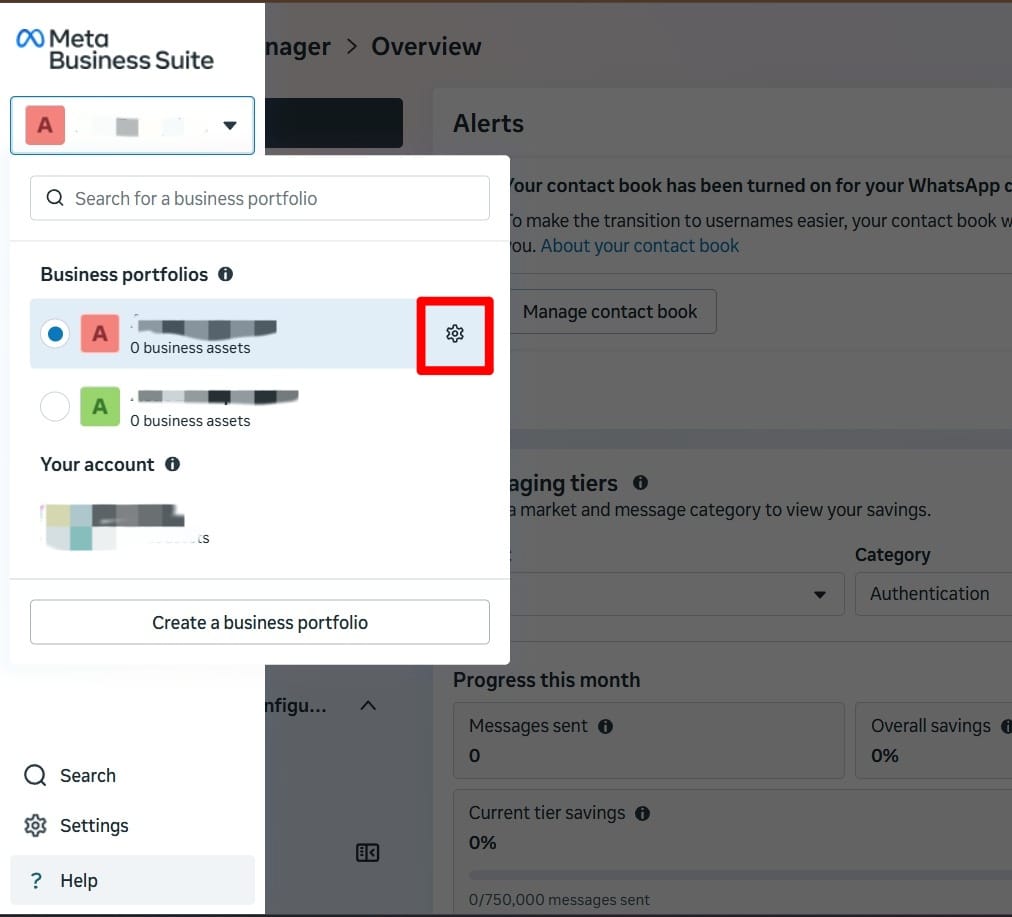
- Select WhatsApp accounts under accounts and then select WhatsApp account name.
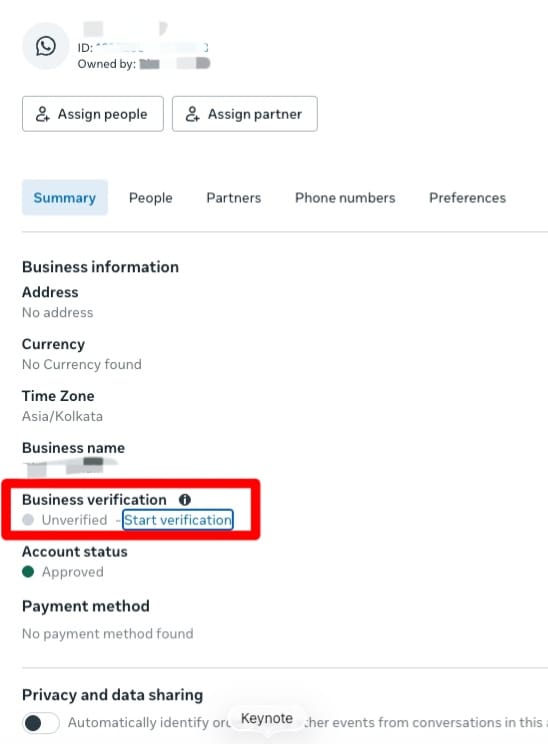
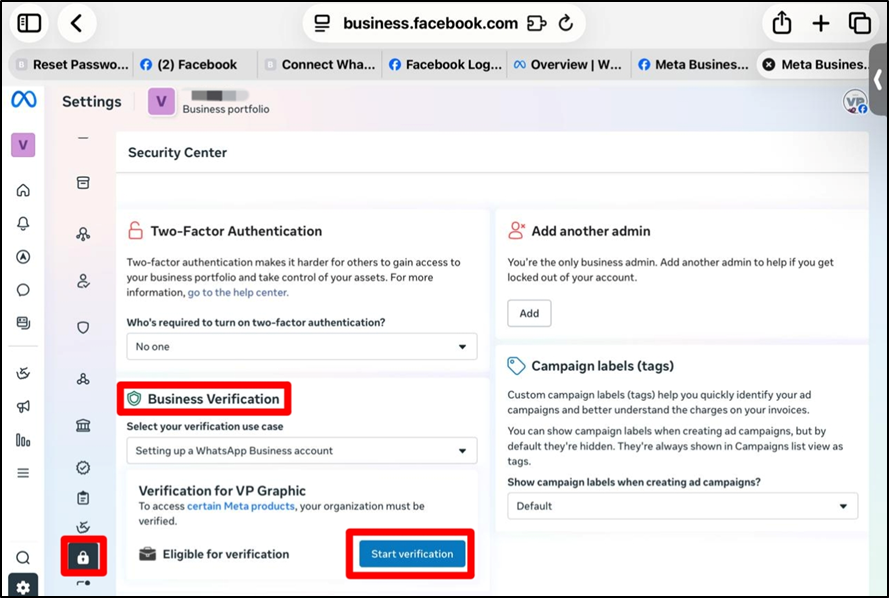
- Under Business Verification, Click on “Start Verification”.
- Add address and phone number and then click next.
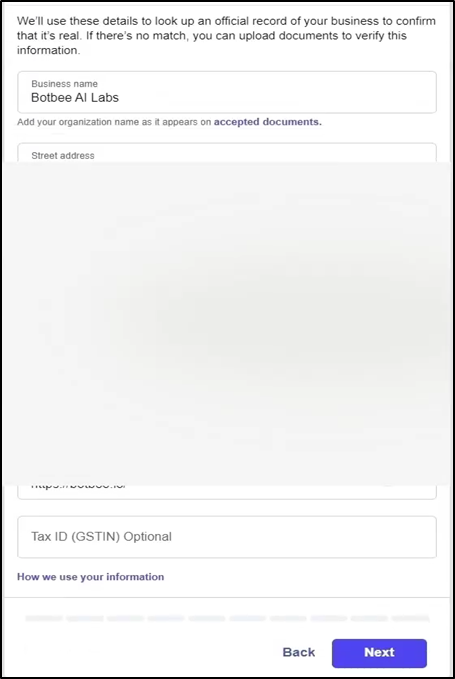
- Select contact method and then click next.
- Upload business documents for verification confirm phone number.
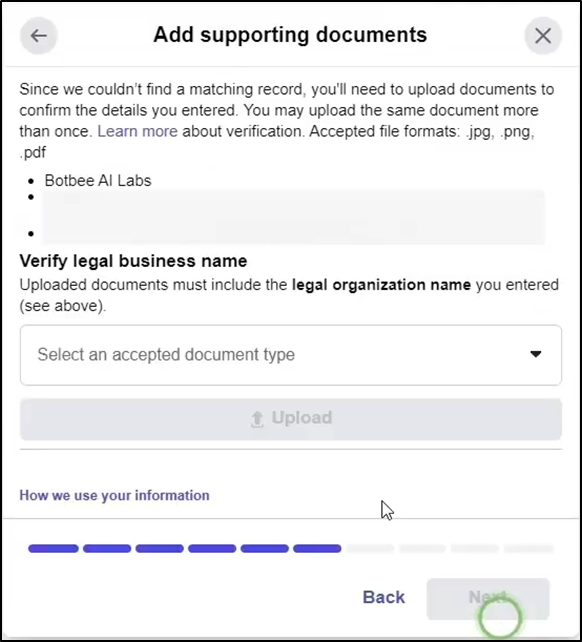
- Confirm Phone Number and then select “Send text”.
- Enter the OTP that you will receive on your Phone Number.
Note: It will take 2-5 business days to verify your business.
Step 3: Add Profile Details:
- Go to business settings and then select WhatsApp account.
- Select WhatsApp manager in left side menu.
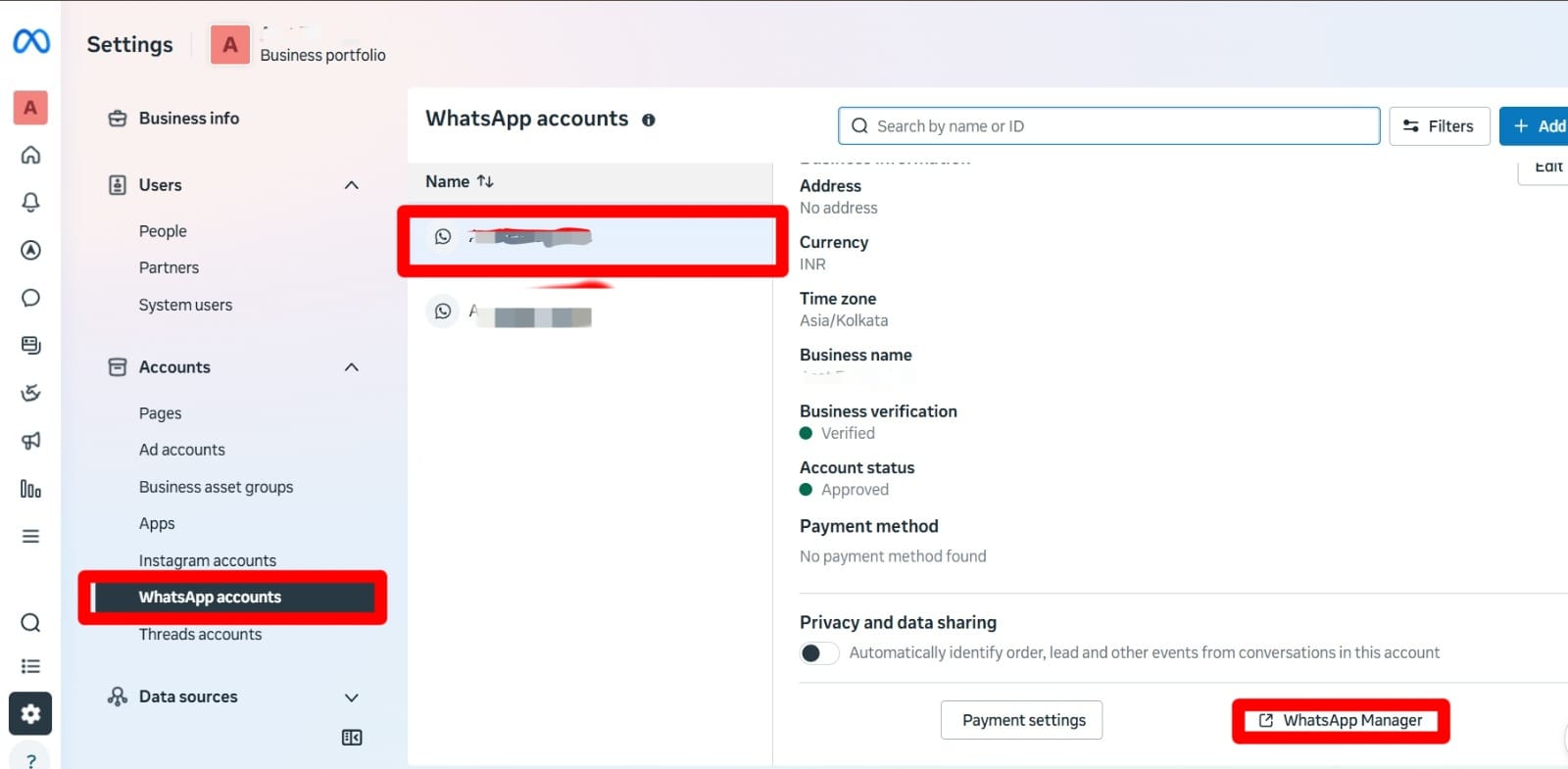
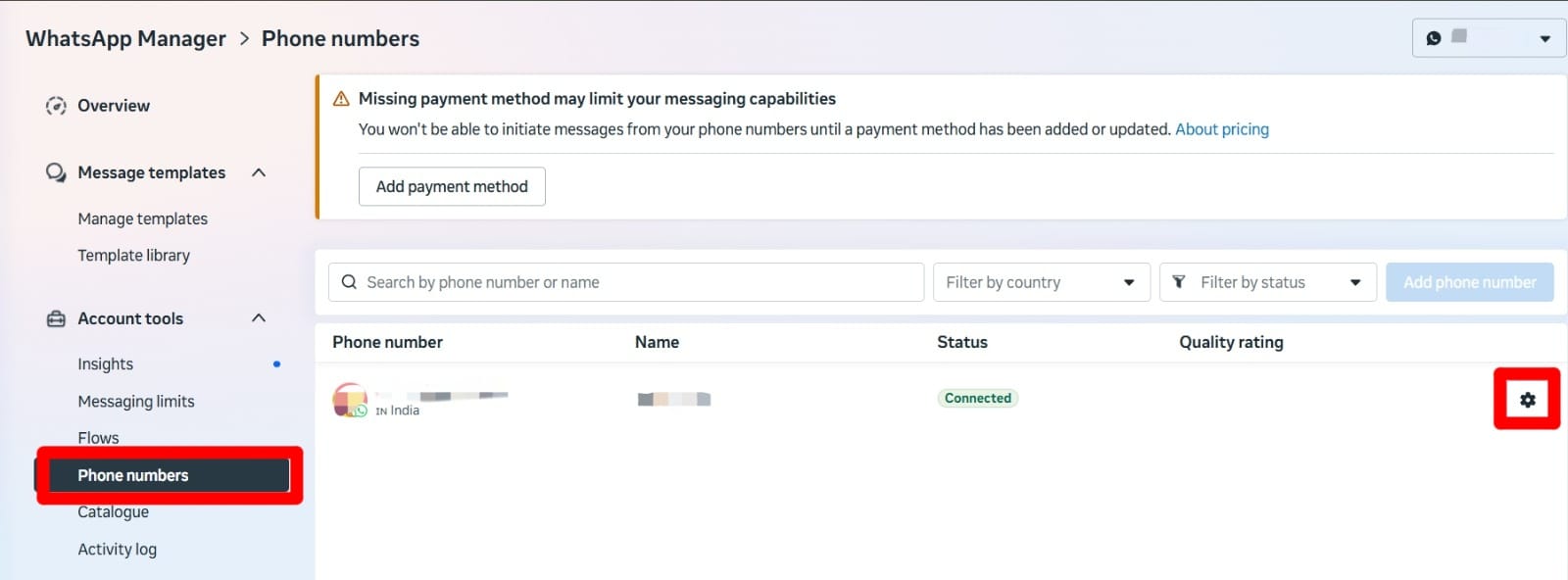
- Select phone number and then click settings icon.
- Click profile, now you can a profile picture for WhatsApp business number.
- Add email address and website details.
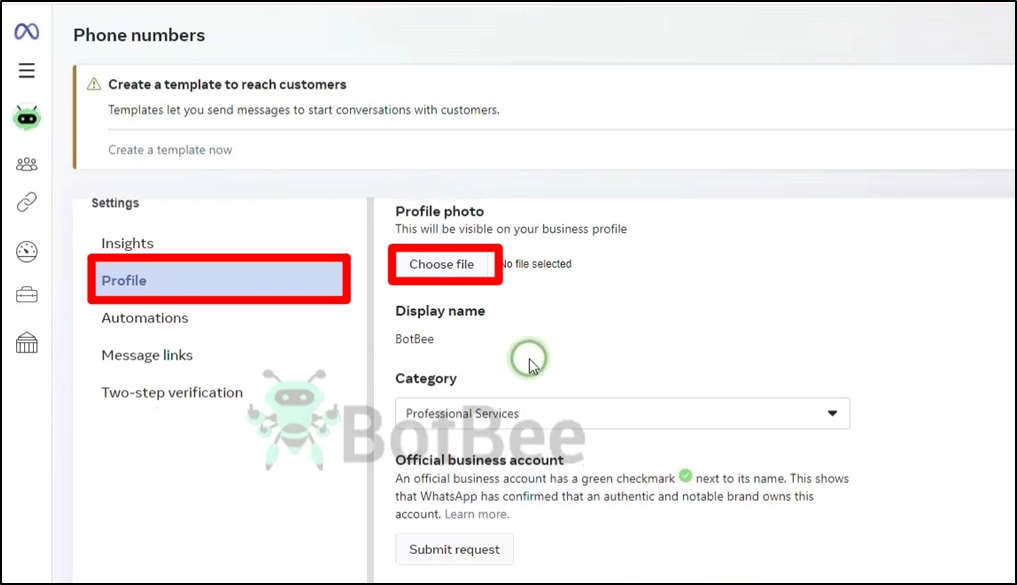
That's it! Click save details added successfully now you can see profile picture and business details on your WhatsApp business number.
- You can update profile details on BotBee dashboard also.
- Go to BotBee dashboard and then select connect account.
- Scroll down and select your WhatsApp account then select profile settings.
- Here you can update all the profile.
Thank you for reading. Complete these steps to activate WhatsApp messaging on BotBee.
Important Note
Please complete the onboarding strictly as shown in the instructions.
Do not skip steps or modify the process, as this may result in:
- Account connection failure
- Verification delays
- API access issues
Reference Video (Part 2):
If you prefer video guidance, watch the tutorial linked below for step-by-step instructions.
- English: https://youtu.be/LXuZK4AAj-Y?si=nuao0HCZr_SebccP
- Hindi: https://youtu.be/hC1wh6jxSjc?si=CS0w8SRhJIFfRxQK
- Tamil: https://youtu.be/084jNCcgmwo?si=xgBeqgz7pK2-h0a4
Still Need Help?
If you face difficulties during onboarding:
- Take a screenshot or screen recording
- Share details with our support team
Our team will review the onboarding step and guide you further.
Contact: 08069645300
Found this article helpful?
( 5 Out of 10 Found Helpful )