Adding Subscribers to Google Contact Account
Managing your subscribers properly is crucial if you want smooth communication, better organization, and efficient outreach. Whether you're collecting leads, managing customers, or building a contact list for your business, adding subscribers to your Google Contacts account can simplify everything in one place.
In this guide, we’ll walk you through the exact steps to add subscribers easily, so you can keep your data organized, accessible, and ready to use for messaging, follow-ups, and automation inside your workflow.
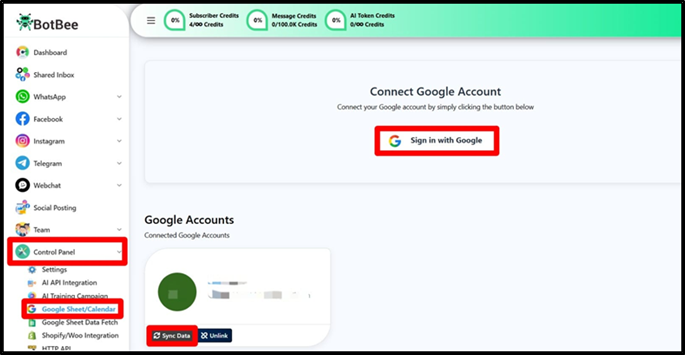
Step 1: Sign in with Google Account:
- Go to your BotBee Control Panel
- Click on Google Sheets/Calendar
- Sign in using your Google account and Grant all the required permissions.
- Once connected, click on Sync Data to ensure everything is up to date.
This step allows BotBee to securely access and manage your contact data for seamless subscriber handling.
Step 2: Navigate to Configuration:
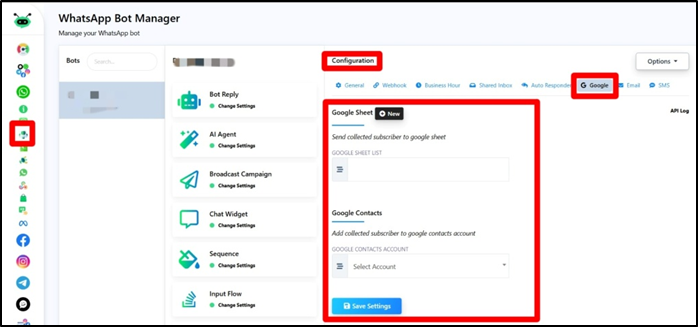
Now that your Google account is connected, head to the configuration settings:
- Go to Bot Manager under the WhatsApp section in BotBee
- Scroll down to find Configurations
- Click on the Google section
This is where you’ll manage how your subscriber data connects and syncs with your Google account.
Step 3: Add Subscribers to Google Sheets:
Now you can start adding your subscribers to a Google Sheet—either an existing one or a new sheet.
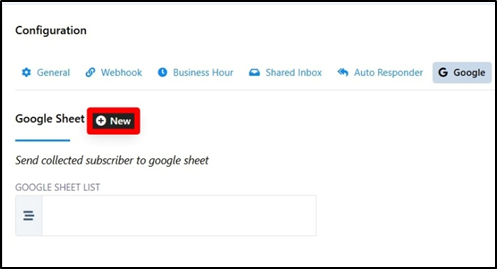
To create a new sheet:
- Click on “New”
- Select “Create New Sheet”
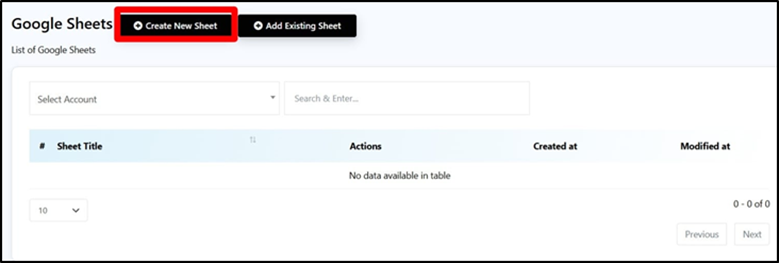
- Give your sheet a name
- Add the required headers (like Name, Phone, Email, etc.)
- Save the sheet and click on Sync Data again.
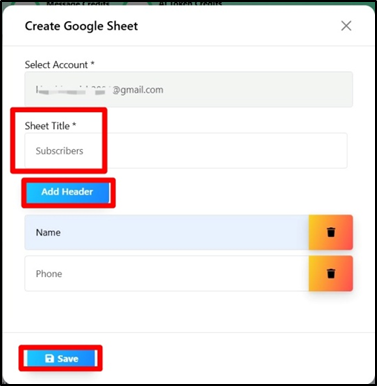
- Once done, use the dropdown menu to select your newly created sheet. You’ll also be able to view and choose from all your existing sheets here.
This step ensures your subscriber data is properly stored and structured for easy access and future use.
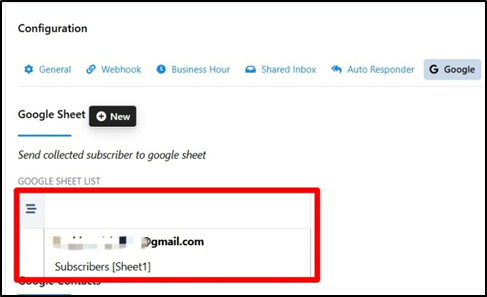
Step 4: Add Subscribers to Google Contacts:
- Finally, you can connect your subscribers directly to your Google Contacts:
- Click on the dropdown menu and select your connected Google account.
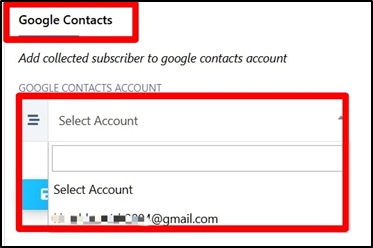
- Click on Save Settings.
Once this is done, all your subscribers will automatically be added to your Google Contacts, making it easy to manage, access, and use them across your Google ecosystem.
Still Need Help?
If you face difficulties during onboarding:
- Take a screenshot or screen recording.
- Share details with our support team.
Our team will review the onboarding step and guide you further.
Contact: 08069645300
Found this article helpful?
( 2 Out of 4 Found Helpful )