Capture Leads with WPForms & Send Instant WhatsApp Notifications
This guide walks you through setting up WPForms on your WordPress website and connecting it with BotBee to send instant WhatsApp notifications whenever a lead is captured.
Step 1: Install & Set Up WPForms (WordPress Plugin):
Before creating forms or automation, you need to install WPForms on your website.
- Go to your WordPress Dashboard
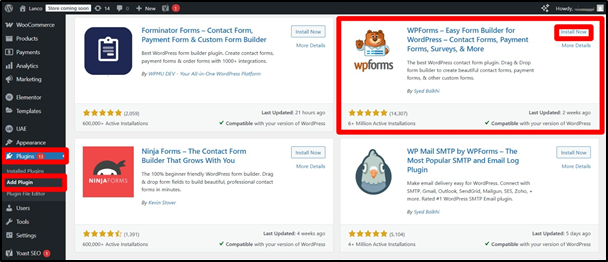
- Navigate to Plugins → Add New
- Search for WPForms
- Click Install Now, then Activate
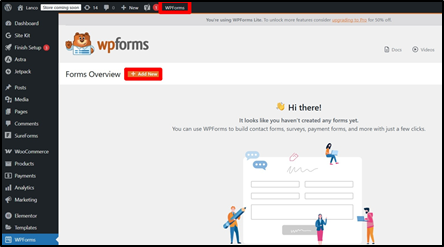
- Go to WPForms → Add New
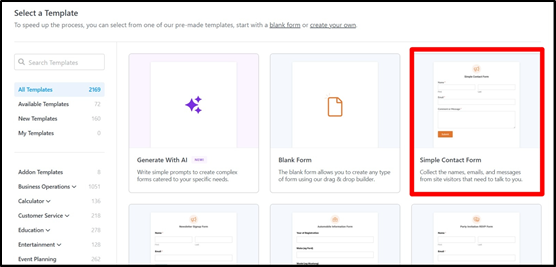
- You can choose pre defined template as well as create a new one with blank form.
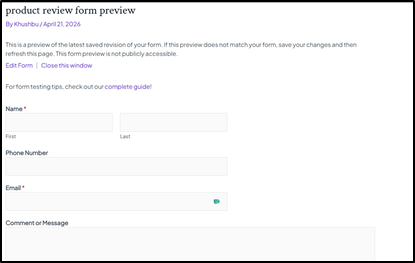
- Add or customize fields for form.
- Make sure to preview the form and Click Save.
- To connect WPForms with BotBee, you’ll need webhook functionality:
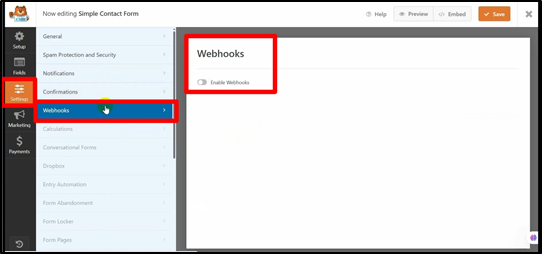
- Go to WPForms → Settings
- Find Webhooks
- Click on Enable Webhook.
(Note: Webhooks addon is available in WPForms Pro plans, if it’s missing, that’s probably why.)
Now we will generate the Webhook URL to finish the setup.
Step 2: Create a WhatsApp Message Template in BotBee:
Before setting up automation, you need a message template that will be sent to users after they submit your form.
- Log in to your BotBee dashboard
- Navigate to Bot Manager → Message Template under Automation section
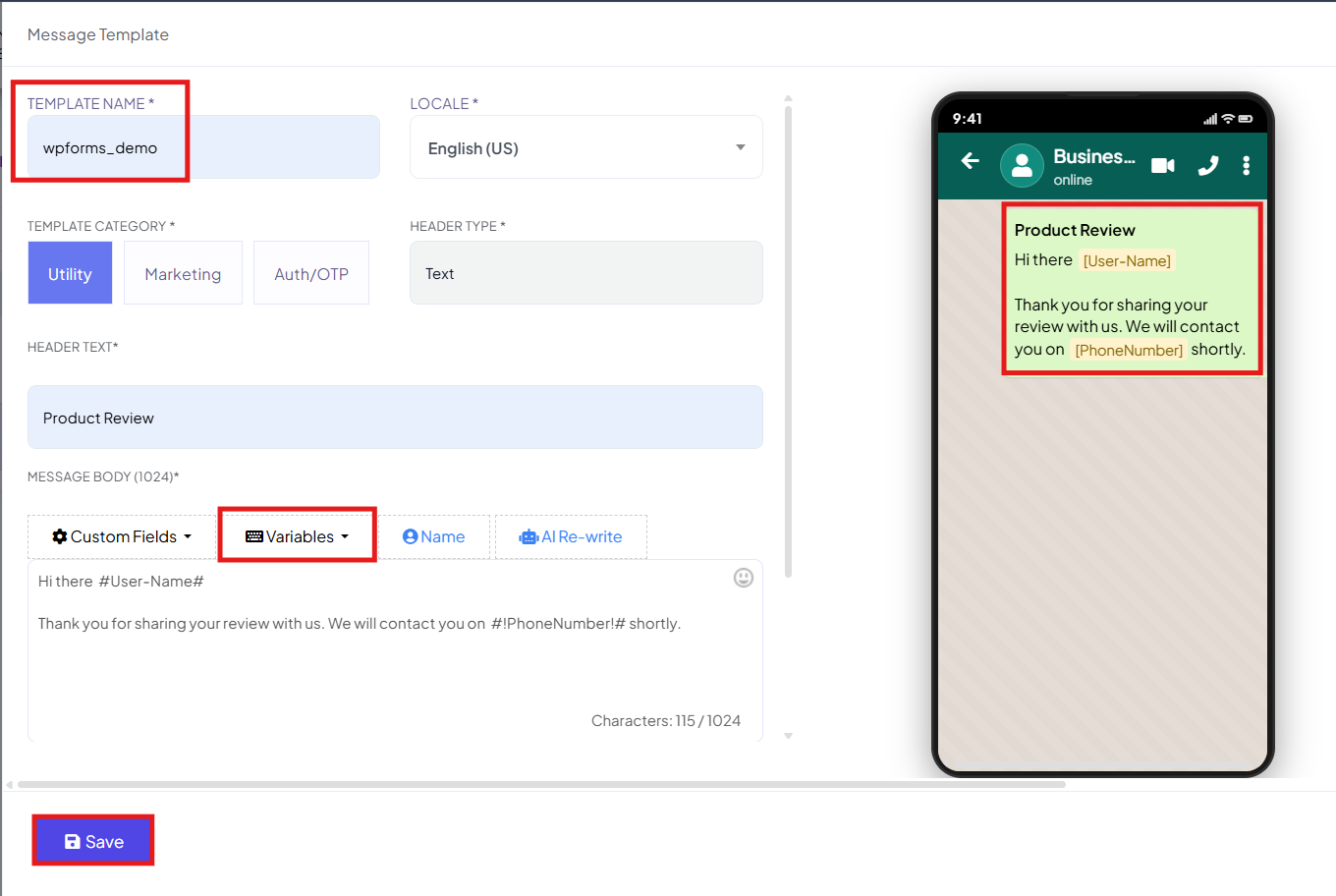
- Click on Create → Mixed Templates
- Write down your template content. You can use variables for dynamic fields(name, email, etc.)
- Click Save, then Sync Template until it shows Approved.
Step 3: Set Up Webhook Workflow in BotBee:
- Go to WhatsApp → Webhook Workflow
- Click Create
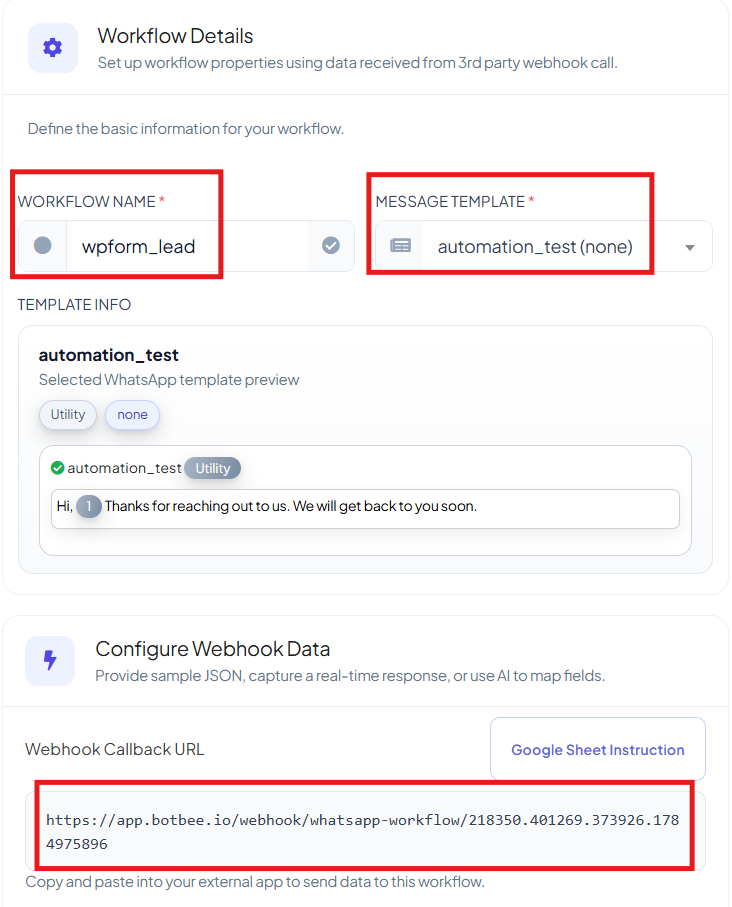
- Give your Workflow a Name
- Select the Message Template you just created.
- Click on Create Workflow and Copy the Webhook URL.
Step 4: Configure WPForms Webhook:
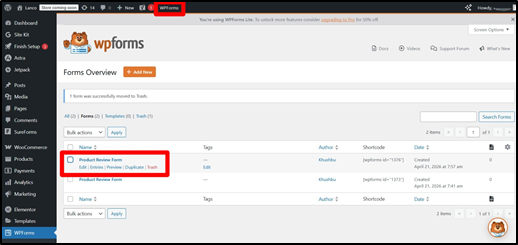
- Now that we have the webhook URL, Go to WPForms
- All Forms → Edit Your Form
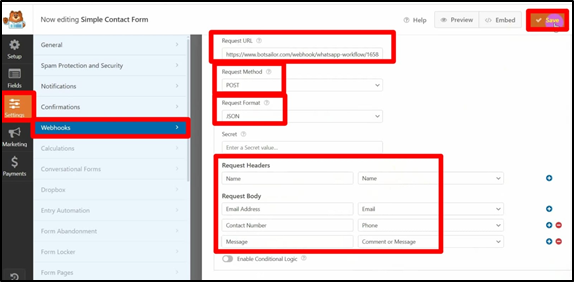
- Navigate to Settings → Webhooks
- Enable Webhooks
Fill in:
- Request URL: Paste BotBee Webhook URL
- Method: POST
- In Request Header, Map “Name” Field.
- In Request Body, Map fields: Name, Email, Phone, Message
- Click Save.
Step 5: Data Mapping in BotBee:
- Submit a test form entry.
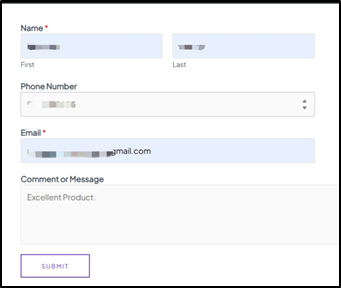
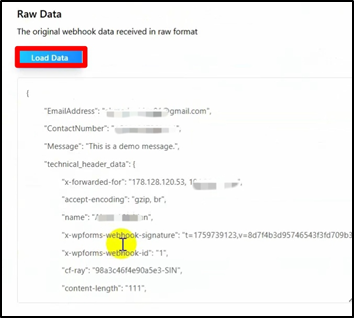
- In BotBee, click Capture Webhook Response
- Click Load Data. You will get the raw response.
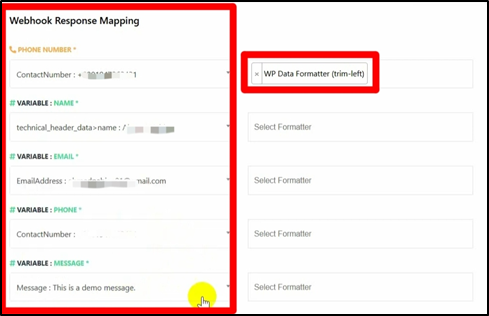
- Now we will have to Map the Fields and dynamic variables.
- You can use Use Data Formatter (e.g., Trim Left) to remove the plus sign.
- Click Save Workflow.
Step 6: Test & Verify:
- Submit the form again.
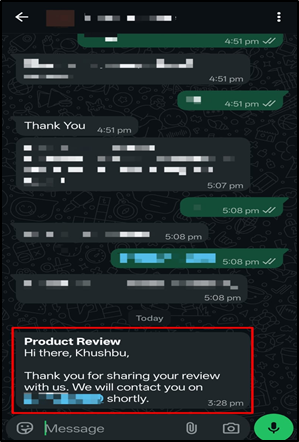
- You should receive a WhatsApp message instantly
- Track performance inside BotBee Reports (delivery, open rate, etc.)
Final Thoughts
Now you’ve got a complete pipeline:
Visitor fills form → Data captured → WhatsApp message sent instantly
No delays. No manual work. Just fast lead engagement
Still Need Help?
If you face difficulties during onboarding:
- Take a screenshot or screen recording.
- Share details with our support team.
Our team will review the onboarding step and guide you further.
Contact: 08069645300
Found this article helpful?
( 4 Out of 7 Found Helpful )