Integrating Shopify store with BotBee
Connecting your Shopify store with BotBee unlocks powerful WhatsApp automation features like order updates, abandoned cart reminders, and customer engagement flows. To make this integration work, you’ll need to create a custom app in Shopify and link it with BotBee using an API access token.
Let’s walk through the complete process step by step.
Step 1: Create a Custom App in Shopify:
- Start by logging into your Shopify Admin Panel.
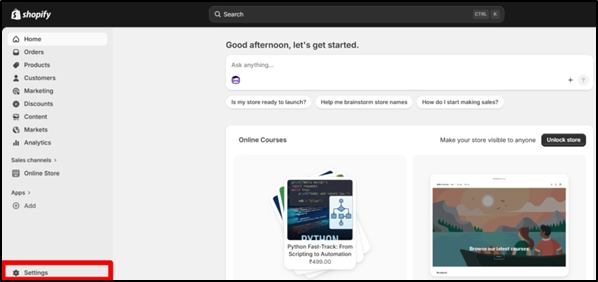
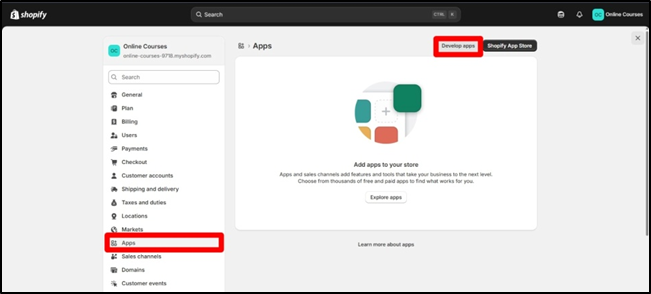
- Go to Settings → Apps
- Select Develop apps → Create an App
If this is your first time, Shopify may ask you to allow custom app development—approve it.
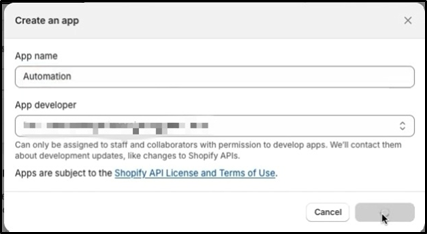
- Give your app a name
- Click Create app
Step 2: Configure API Permissions:
- Once your app is created, you need to assign the correct permissions.
- Open your app
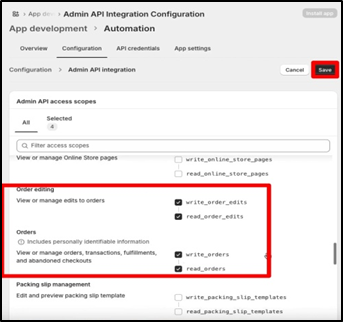
- Click on Configure Admin API scopes.
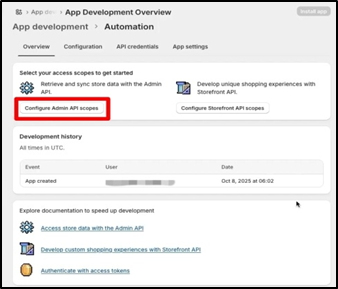
- Allow four permissions: Read and write order edits; Read and write orders.
- Save the permissions.
Step 3: Generate the Access Token:
- Go to the API credentials tab
- Click Install app
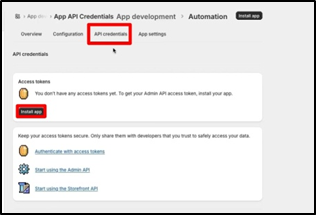
After installation:
- Click Reveal token
- Copy the Admin API access token
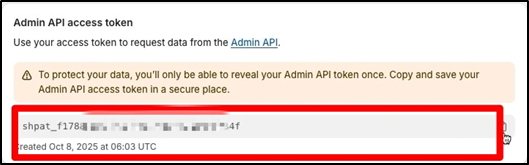
Important: This token is shown only once. Store it securely.
Step 4: Get Your Store Domain:
- Next, you’ll need your Shopify store URL.
- Go to Domains in your Shopify dashboard
- Copy your primary domain ending with .myshopify.com
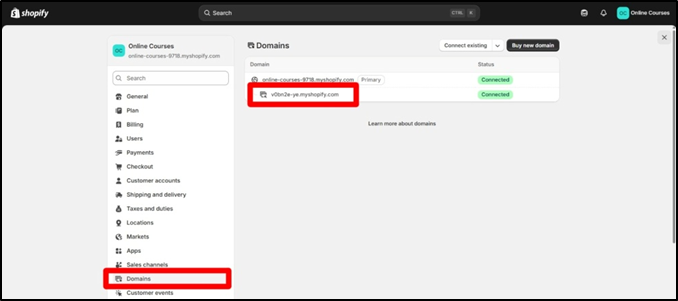
Step 5: Connect Shopify with BotBee:
- Now switch to your BotBee dashboard.
- Go to Shopify/Woo Integration under Control Panel.
- Click on E-commerce API→ New
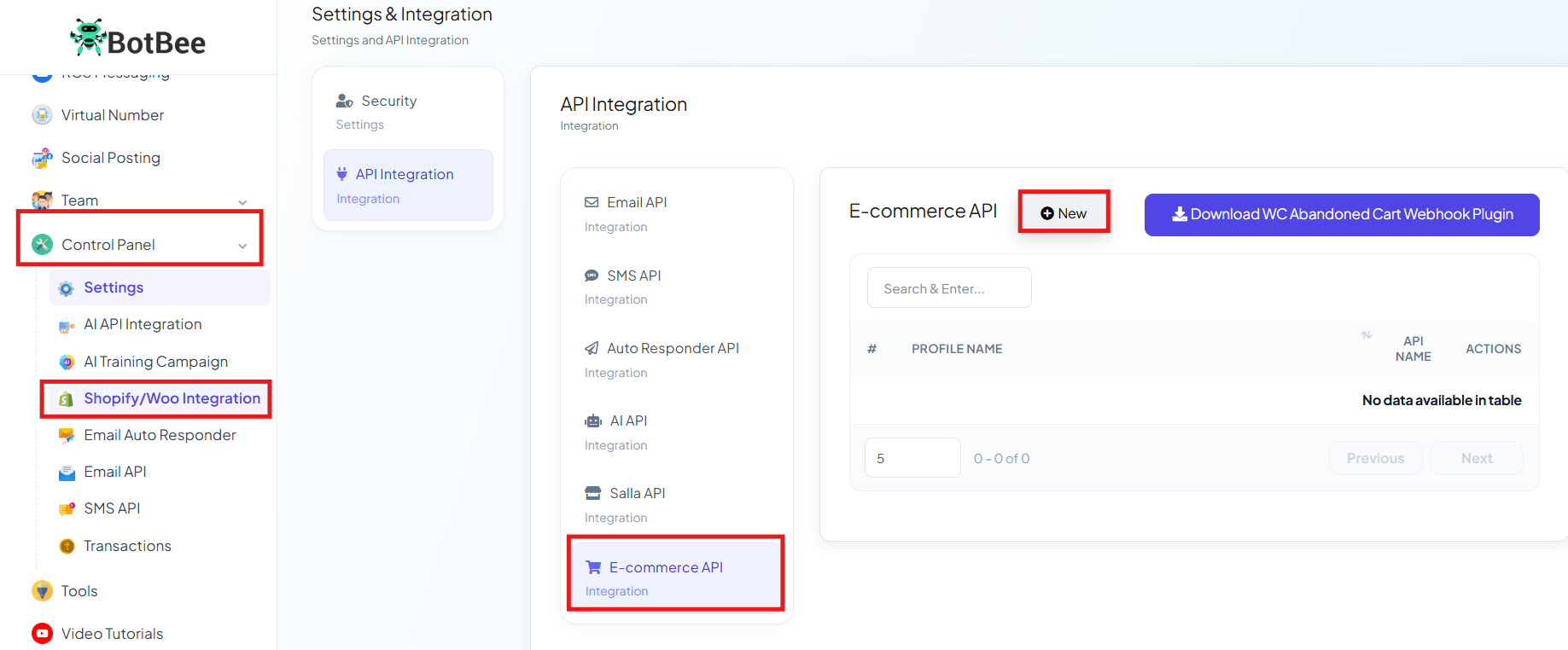
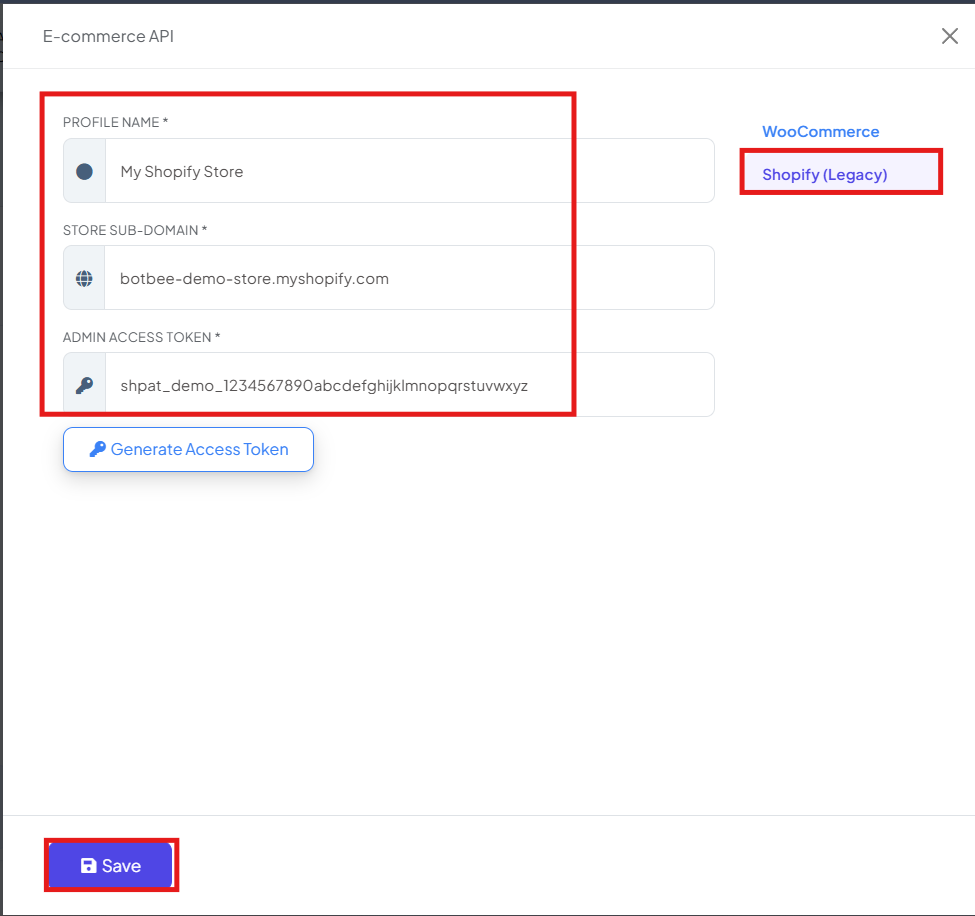
- Choose Shopify Option.
- Profile Name: Any identifier (e.g., Main Shopify Store)
- Store Subdomain: Paste your .myshopify.com domain
- Admin Access Token: Paste the token from Shopify
- Click Save
Final Result
Your Shopify store is now successfully connected to BotBee. You can now:
- Send automated WhatsApp order confirmations
- Trigger abandoned cart recovery messages
- Build advanced customer journeys
Reference Video:
If you prefer video tutorials here are the links:
English: https://youtu.be/NbVt5J_LZRY?si=1tOsCT7kjYBmb0z8
Still Need Help?
If you face difficulties during onboarding:
- Take a screenshot or screen recording.
- Share details with our support team.
Our team will review the onboarding step and guide you further.
Contact: 08069645300
Found this article helpful?
( 8 Out of 12 Found Helpful )