Sending Abandoned Cart message to WhatsApp
Recovering abandoned carts is one of the easiest ways to boost your Shopify sales. Instead of letting potential customers slip away, you can gently remind them on WhatsApp right where they’re most active. There are two different methods to set up abandoned cart recovery automation in Shopify. In this article, we’ll cover both the articles, to set up abandoned cart recovery automation.
Why Abandoned Cart Recovery is Important
A large number of customers leave their carts before making payment because of:
- Payment hesitation
- Distractions
- Comparing products
- Network/payment issues
- Forgetting to complete checkout
Sending an automated WhatsApp reminder can help bring customers back and recover lost sales.
Method 1: Shopify Automation Inside BotBee:
Step 1: Integrate Your Shopify Store:
- Before setting up automation, you need to connect your Shopify store to BotBee.
- Log in to your BotBee dashboard
- Navigate to E-commerce Integration Settings under Control panel.
- Connect your Shopify store using API credentials
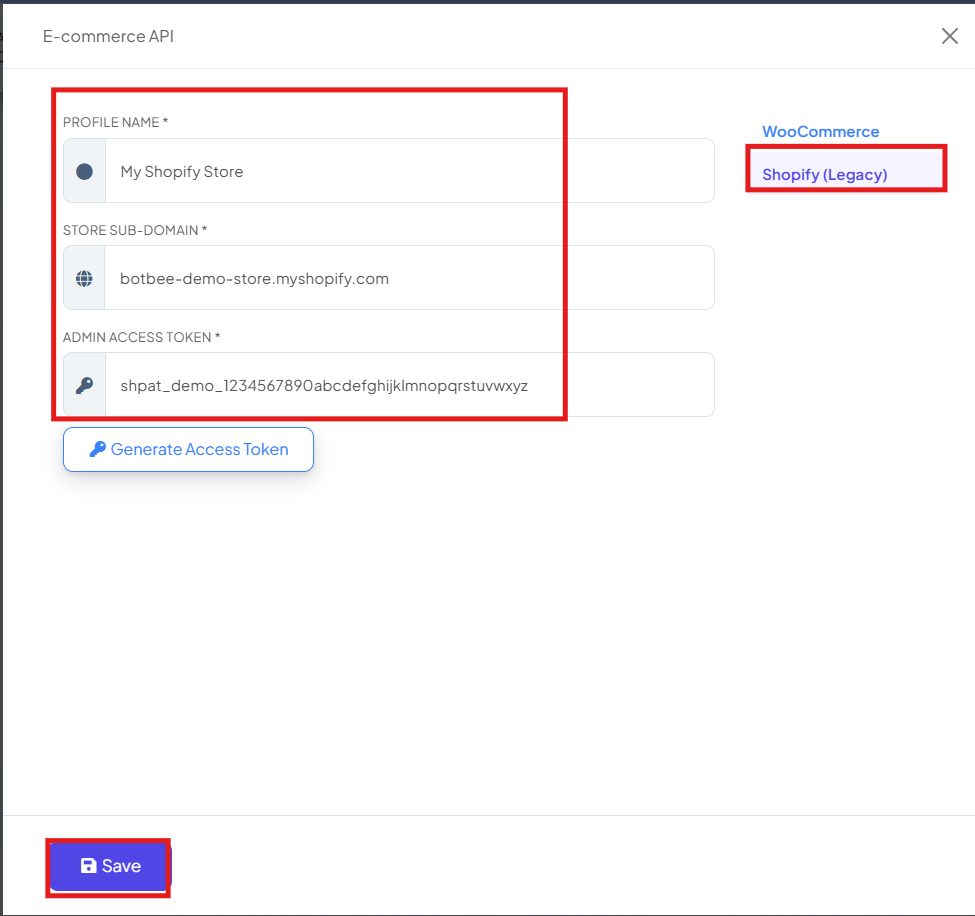
If you haven’t completed this step yet, make sure your store is fully integrated before proceeding. Here is a reference article: Integrating Shopify Store with BotBee
Step 2: Select your Message Templates:
- BotBee automatically generates variables and default templates that you can use for order notifications.
- To get the default templates, Go to Message templates in Bot Manager.
- Click on Create then Default Templates.
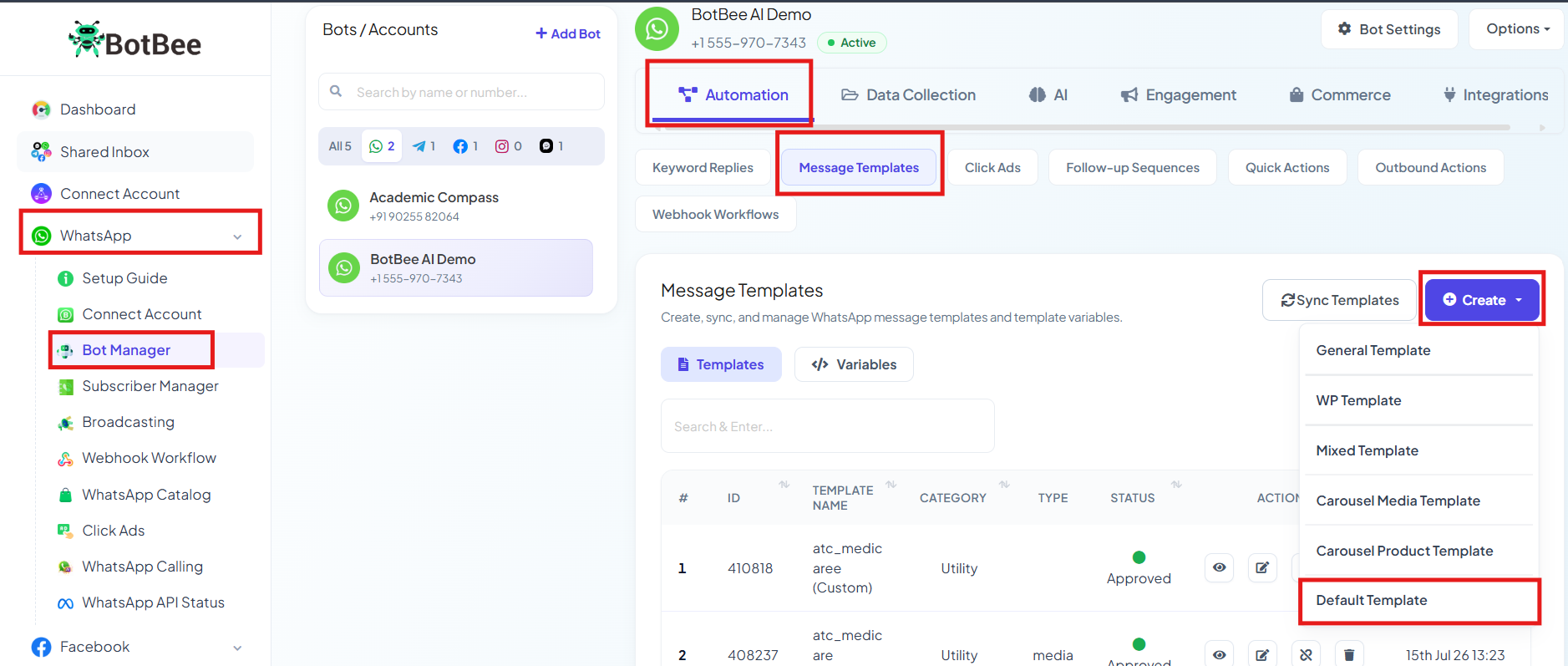
- The system will show default template along with pre made variables.
- Confirm that the template status is Approved.
Step 3: Create the Automation Campaign:
- Make a Shopify campaign.
- In the Bot Manager, Go to "Store Automation" under Commerce Section.
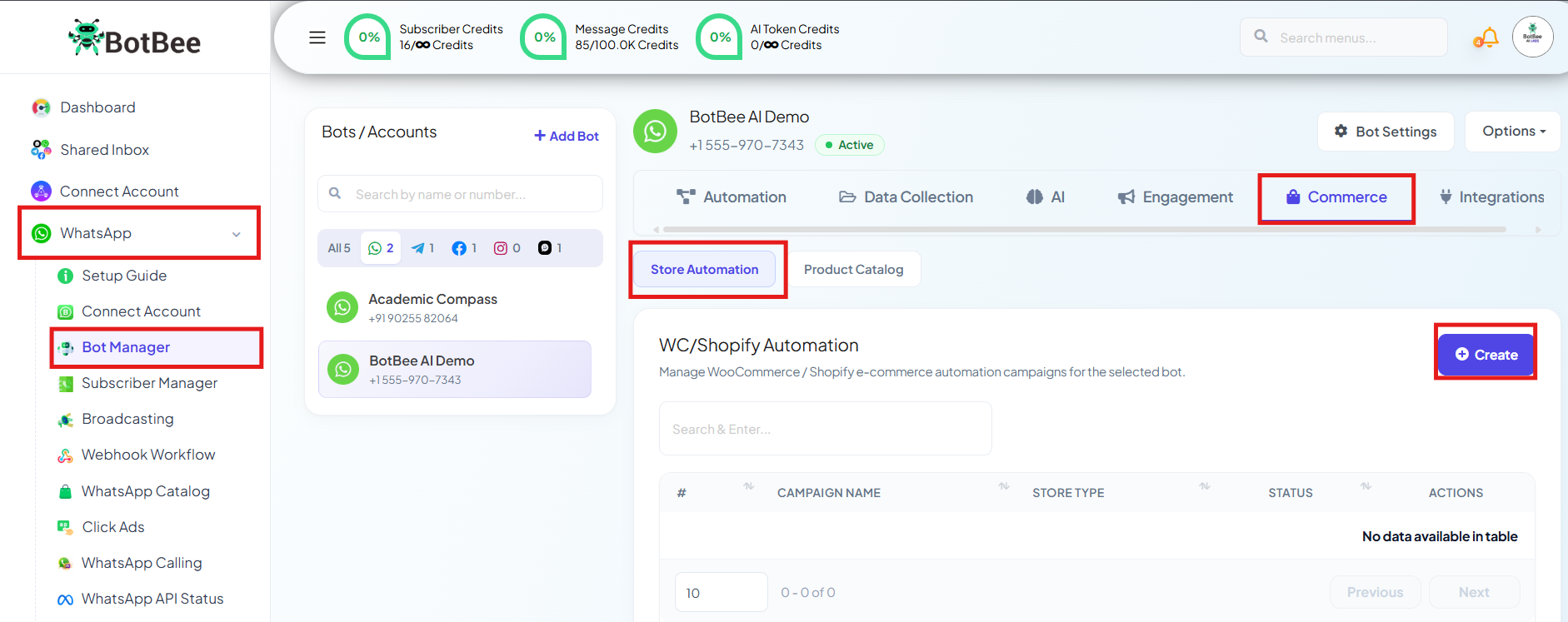
Fill in the details:
- Campaign Name: Choose a recognizable name
- Store Type: Select Shopify
- Store API: Select your connected store
- Action: Choose Abandoned Cart Recovery
- Message Delay: Set how long the system should wait before sending the WhatsApp reminder. The default recommended timing is usually 30 minutes.
- Template: Select your approved template
- Click Save to activate your campaign.

Step 4: Test the Automation:
- Before using it in production, always test the workflow properly.
- Visit your Shopify store like a customer.
- Add any product to the cart.
- Fill in customer and shipping information.
- Proceed to the payment page.
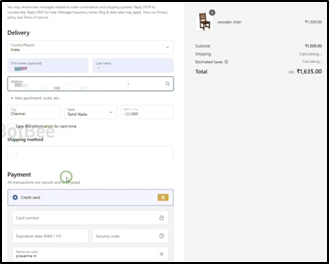
Important Step
- Do not complete the payment.
- In Shopify, a cart is generally considered abandoned only when the customer reaches the payment stage and leaves without purchasing.
- After the delay time you configured, the customer should automatically receive a WhatsApp message.
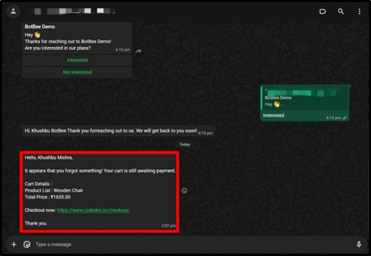
Method 2: Using Custom Templates with Webhook Integration:
Step 1: Create a Message Template:
Before setting up automation, you need to define the message your customers will receive.
- Go to Bot Manager under WhatsApp in BotBee Dashboard.
- Click on Message Template.
- Click on Create → Mixed Templates
- Write the message body and include variables for dynamic data. By default Abandoned Cart Messages comes under Marketing Category.
- Click Save and wait for the template to be approved by WhatsApp.
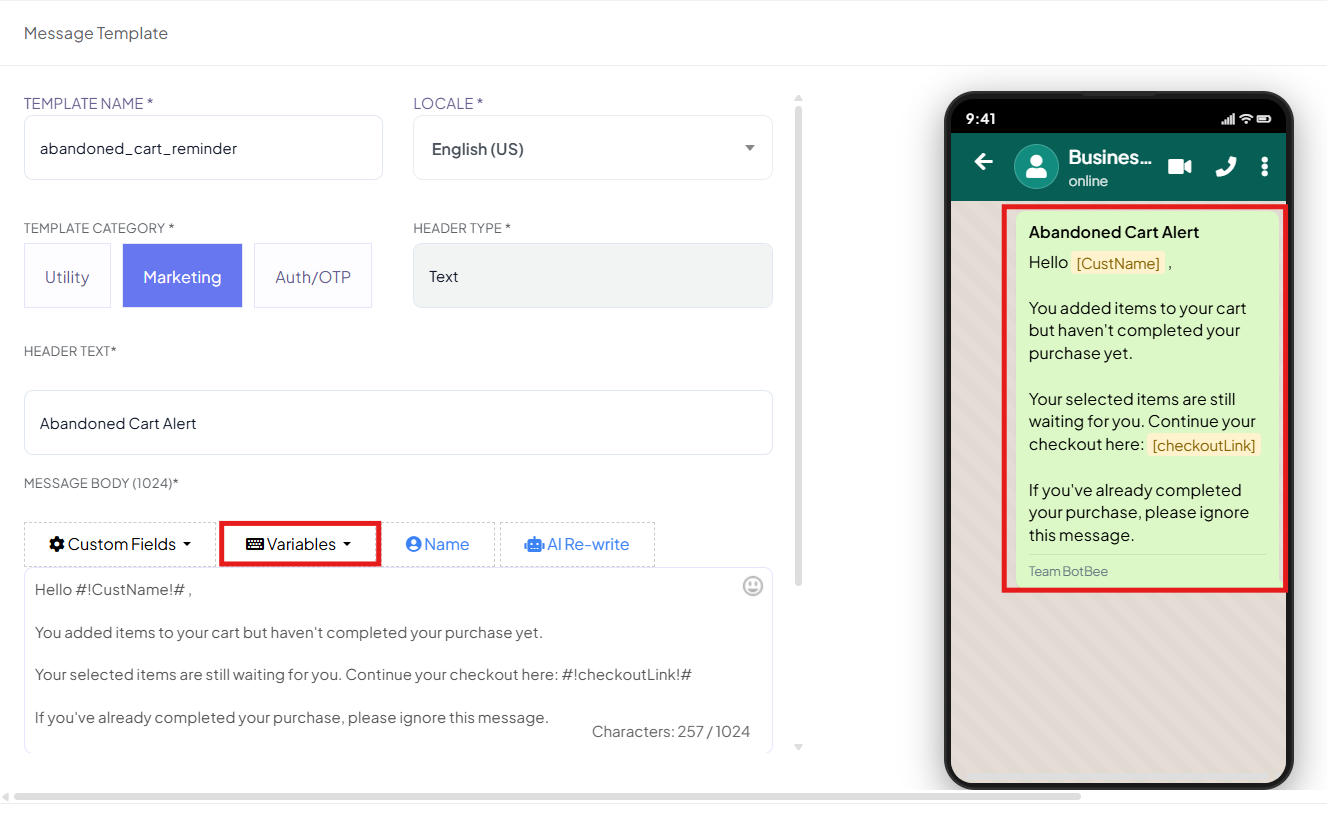
Step 2: Set Up a Webhook Workflow in BotBee:
- This workflow connects Shopify with WhatsApp messaging.
- Navigate to Webhook Workflow and click New Workflow.
- Provide a name for your workflow.
- Select the WhatsApp Bot Account you want to use.
- Choose the Message Template you created earlier.
- Click Create Workflow.
- BotBee will generate a unique Webhook URL.
- Copy this URL, as it will be required in Shopify.
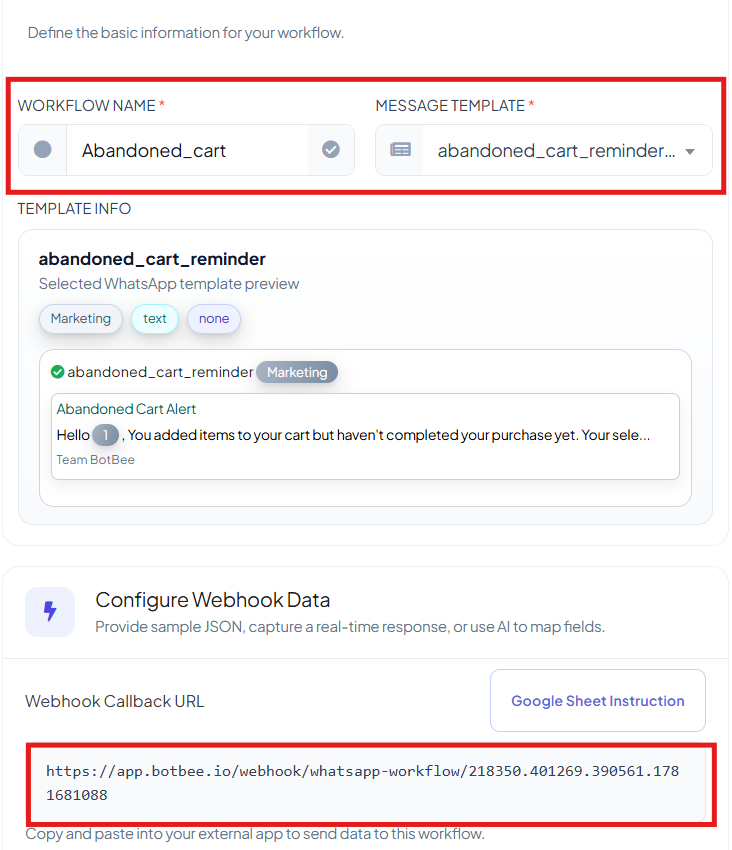
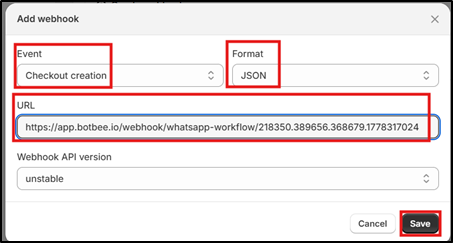
Step 3: Configure the Webhook in Shopify:
- Now you need to tell Shopify to send order data to BotBee.
- Log in to your Shopify Admin.
- Go to Settings → Notifications.
- Scroll down to the Webhooks section and click Create Webhook.
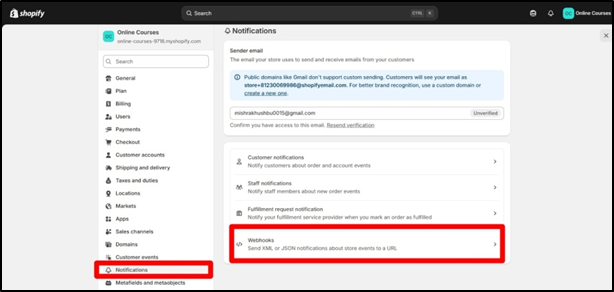
Configure it as follows:
- Event: Checkout creation
- Format: JSON
- URL: Paste the Callback URL from BotBee
- Save the webhook.
Step 4: Map Webhook Data and Format Variables:
To ensure everything works correctly, you need to map Shopify data to BotBee fields.
- In BotBee, Click Capture Webhook Response.
- Send a test order from Shopify to capture sample data.
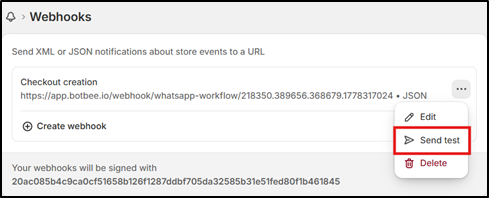
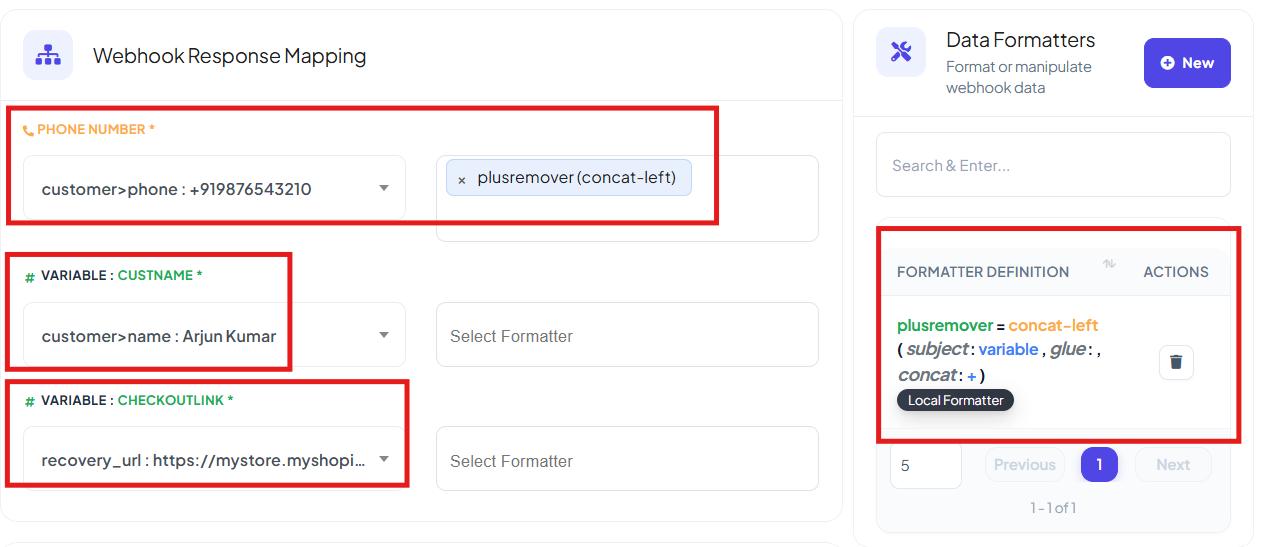
Now map and format key fields:
- Phone Number: Map the customer’s phone number field. (From Raw data)
- Use a formatter to clean the number (remove “+”, or dash) so WhatsApp can process it correctly.
- Username: Map customer’s first name. Use a formatter concat right to add last name.
- In the same manner map product list, price and checkout link.
- Click Save Workflow.
Step 4: Test the Automation:
Before using it in production, always test the workflow properly.
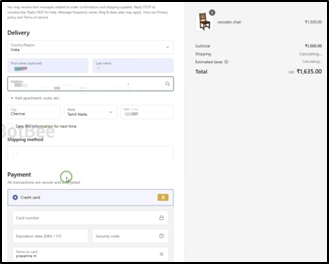
- Visit your Shopify store like a customer.
- Add any product to the cart.
- Fill in customer and shipping information.
- Proceed to the payment page.
Important Step
- Do not complete the payment.
- In Shopify, a cart is generally considered abandoned only when the customer reaches the payment stage and leaves without purchasing.
- After the delay time you configured, the customer should automatically receive a WhatsApp message.
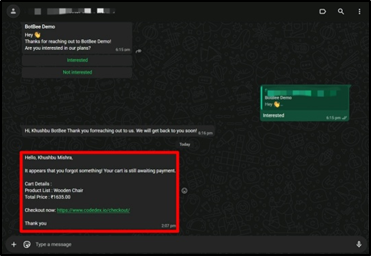
Benefits of WhatsApp Abandoned Cart Recovery
Using WhatsApp for abandoned cart recovery provides several advantages:
- Higher Open Rates: WhatsApp messages are opened far more frequently than emails.
- Better Customer Engagement: Customers are more likely to respond quickly on WhatsApp.
- Increased Sales Recovery: Automated reminders help recover potentially lost revenue.
- Fully Automated Workflow: Once configured, the system works automatically without manual effort.
Reference Video:
If you prefer video tutorials here are the links:
English: https://youtu.be/lp6o_T3Lei0?si=rjm49L9OLLNdu7NN
Still Need Help?
If you face difficulties during onboarding:
- Take a screenshot or screen recording.
- Share details with our support team.
Our team will review the onboarding step and guide you further.
Contact: 08069645300
Found this article helpful?
( 3 Out of 6 Found Helpful )