Sending Shopify Order Notifications to Customers on WhatsApp
Keeping customers informed about their orders is key to building trust and improving their shopping experience. With BotBee, you can automate Shopify order notifications and instantly deliver updates to your customers via WhatsApp.
This step-by-step guide will walk you through the complete setup process.
BotBee allows you to send Shopify order updates on WhatsApp using two different methods depending on your requirements.
Method 1: Using Default Templates:
Step 1: Integrate Shopify with BotBee:
- Before setting up automation, you need to connect your Shopify store to BotBee.
- Log in to your BotBee dashboard
- Navigate to E-commerce Integration Settings under Control panel.
- Connect your Shopify store using API credentials
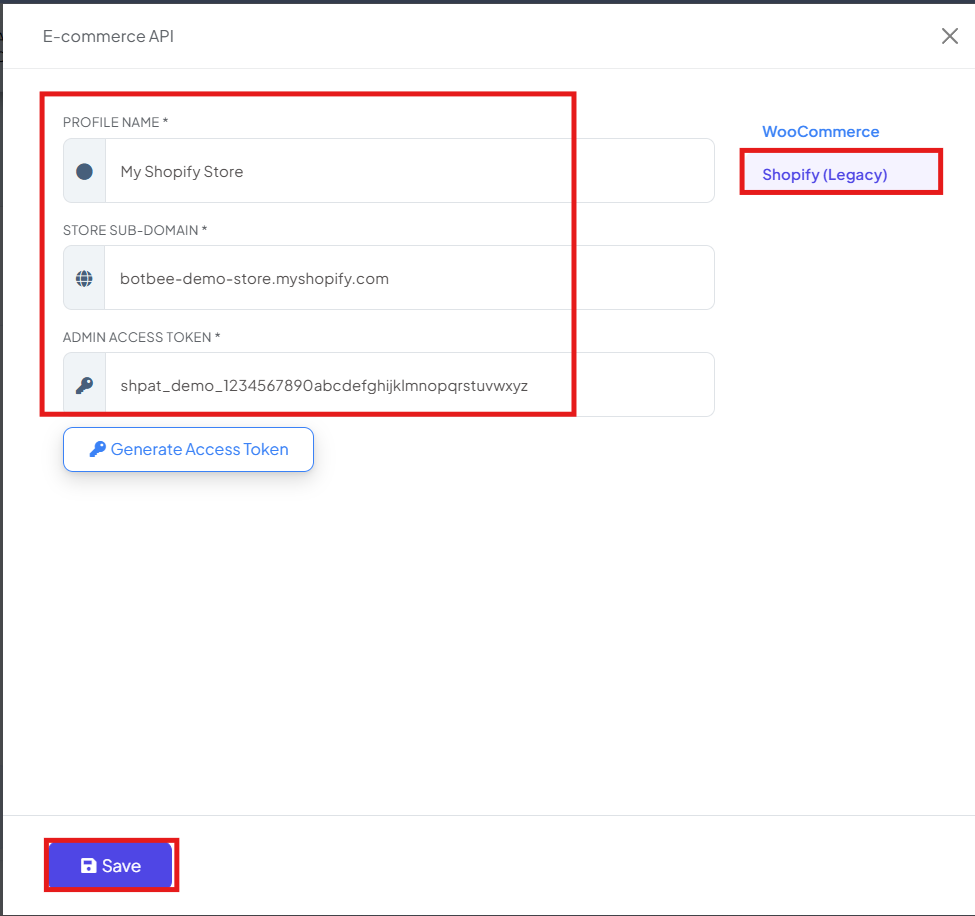
If you haven’t completed this step yet, make sure your store is fully integrated before proceeding. Here is a reference article: : Shopify integration with BotBee
Step 2: Select Your Message Templates:
- BotBee automatically generates variables and default templates that you can use for order notifications.
- To get the default templates, Go to Message templates in Bot Manager.
- Click on Create then Default Templates.
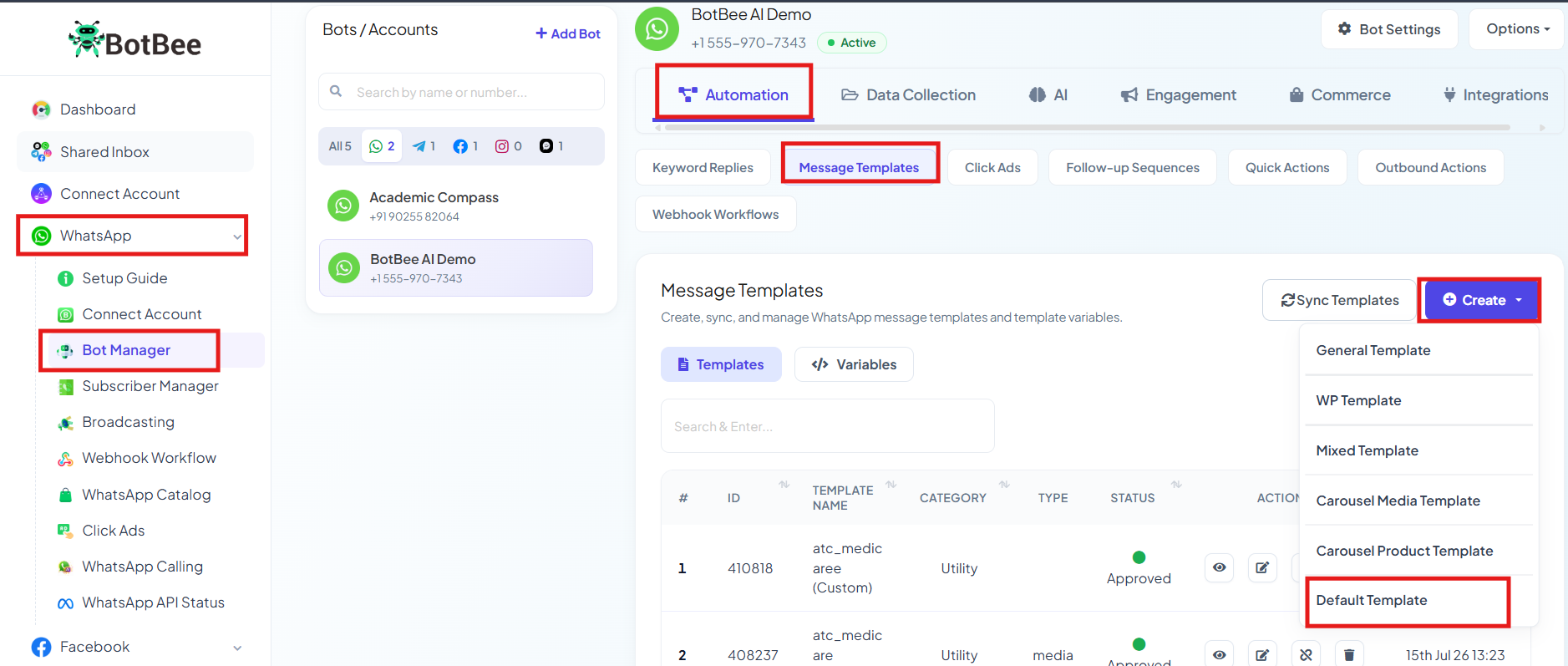
- The system will show default template along with pre made variables.
- Confirm that the template status is Approved.
- Make a Shopify campaign.
- In the Bot Manager, Go to "Store Automation" under Commerce Section.
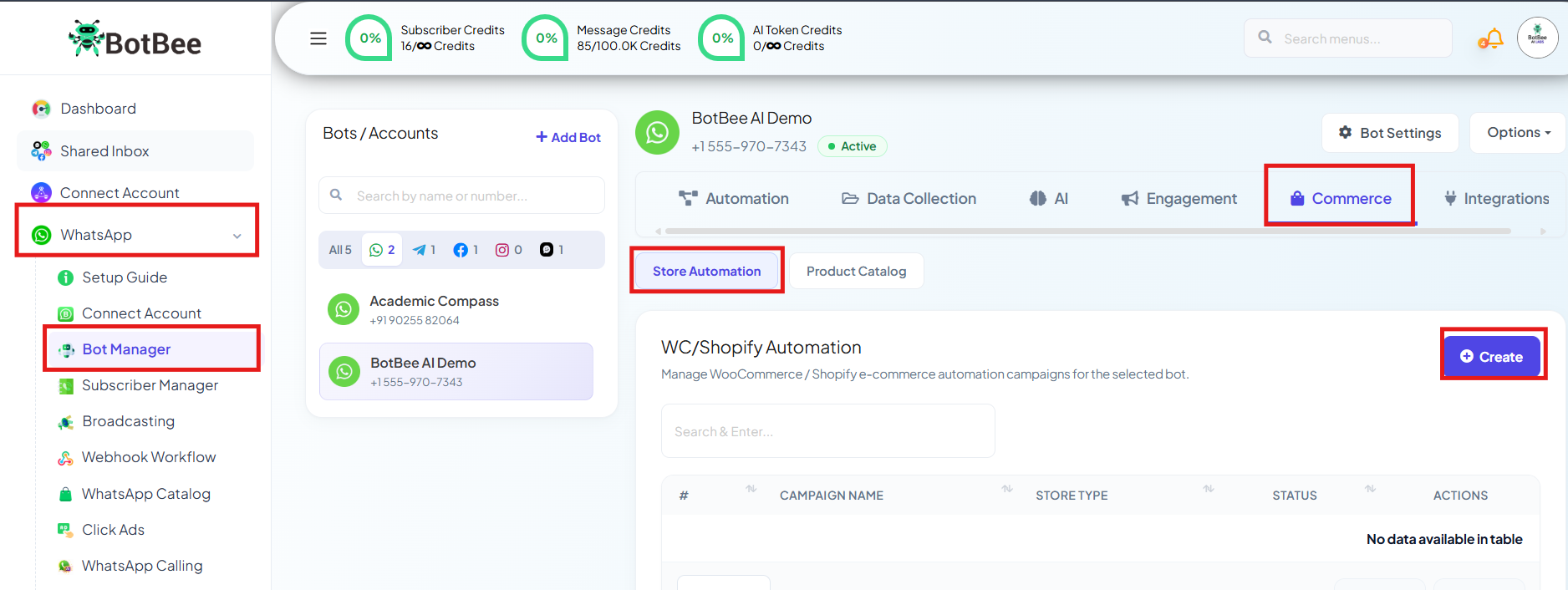
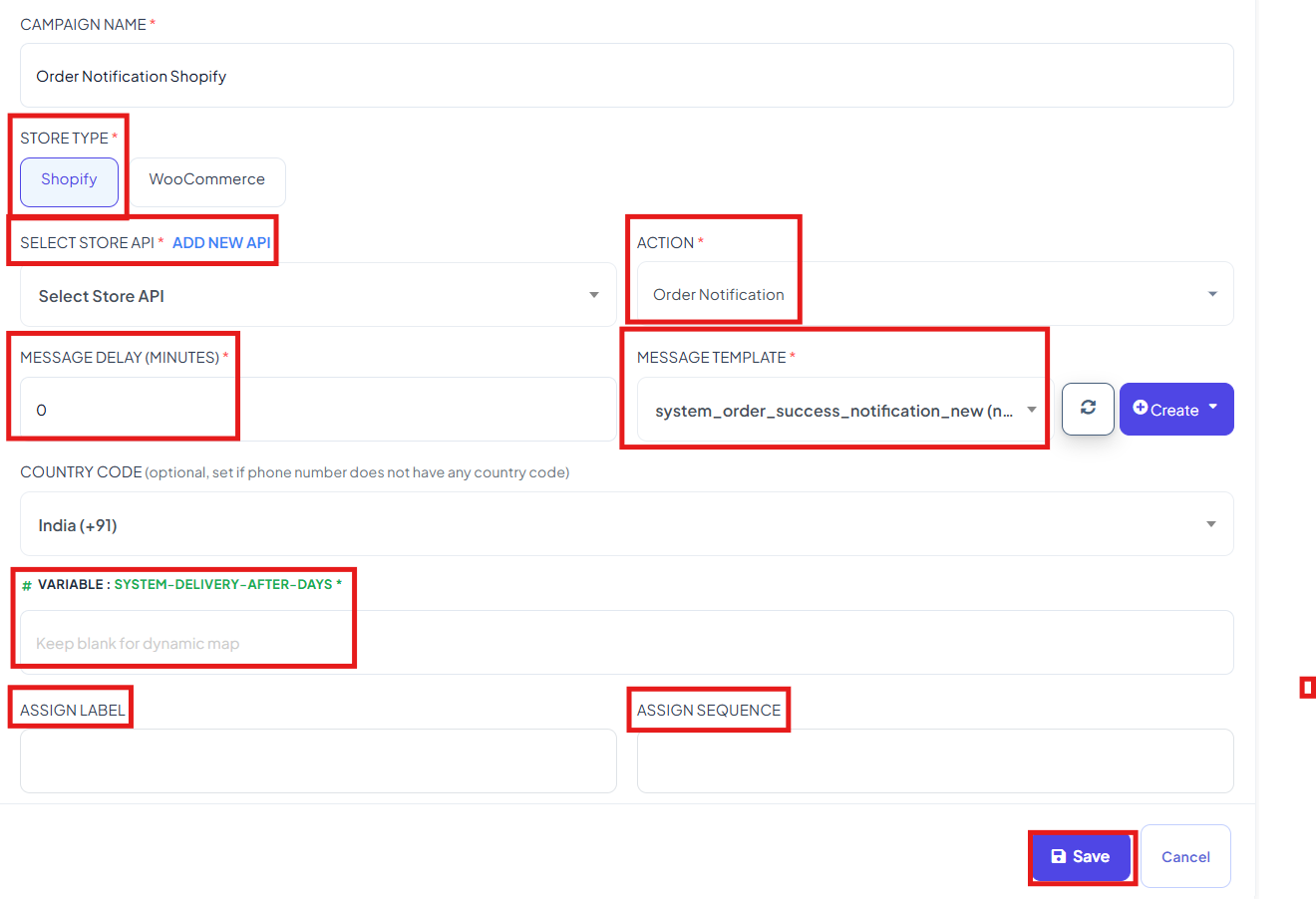
Fill in the details:
- Campaign Name: Choose a recognizable name
- Store Type: Select Shopify
- Store API: Select your connected store
- Action: Choose Order Notification
- Message Delay: Set to 0 for instant messages Or add delay if needed
- Template: Select your approved template
- Click Save to activate your campaign.
Step 4: Test the Integration:
- Before going live, always test your setup.
- Place a test order on your Shopify store.
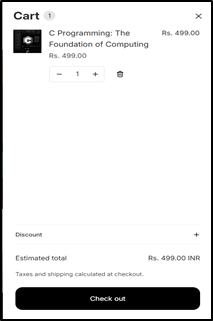
- Check if the WhatsApp notification is sent correctly
- Verify message content, variables, and timing
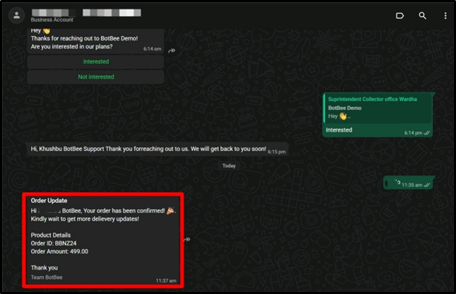
Method 2: Using Custom Templates with Webhook Integration:
Step 1: Create a Message Template:
Before setting up automation, you need to define the message your customers will receive.
- Go to Bot Manager under WhatsApp in BotBee Dashboard.
- Click on Message Template.
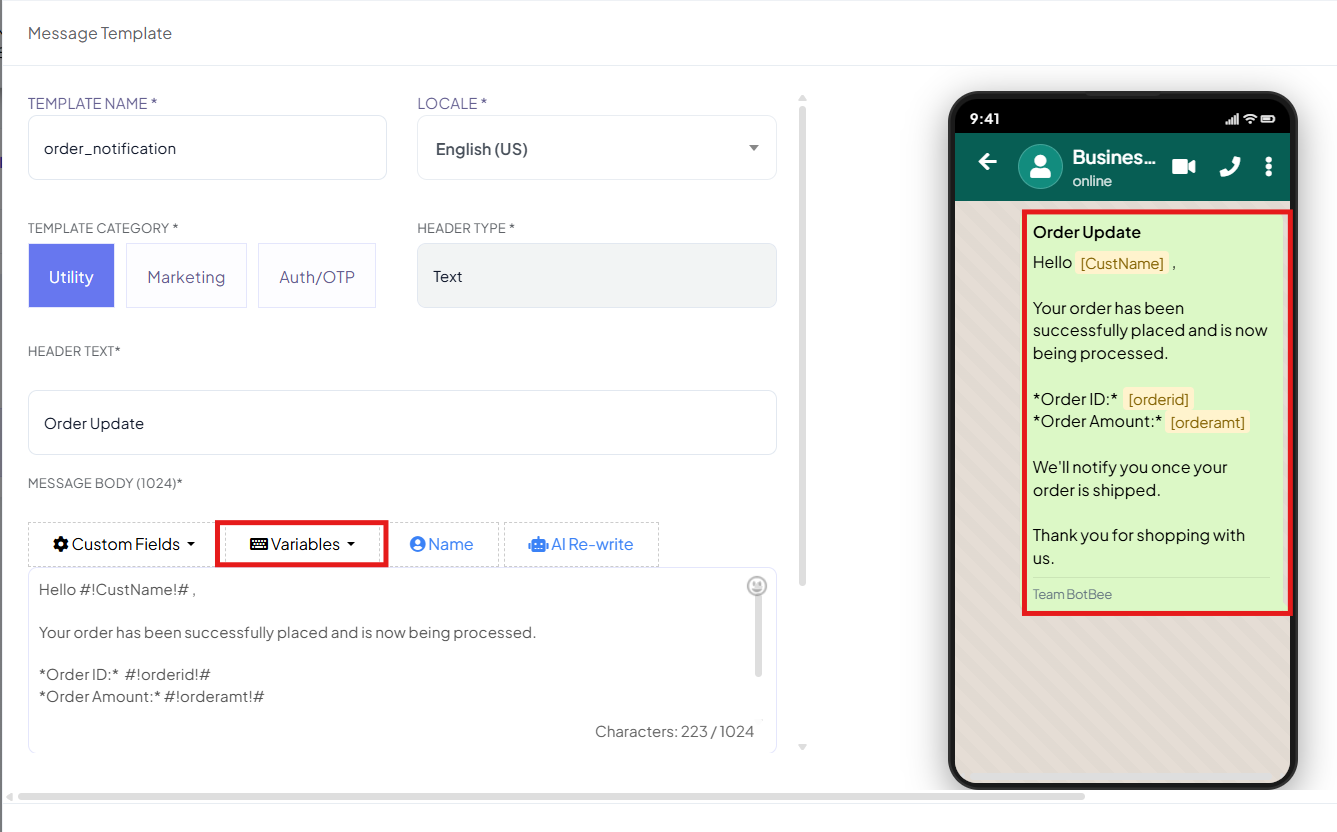
- Click on Create → Mixed Templates
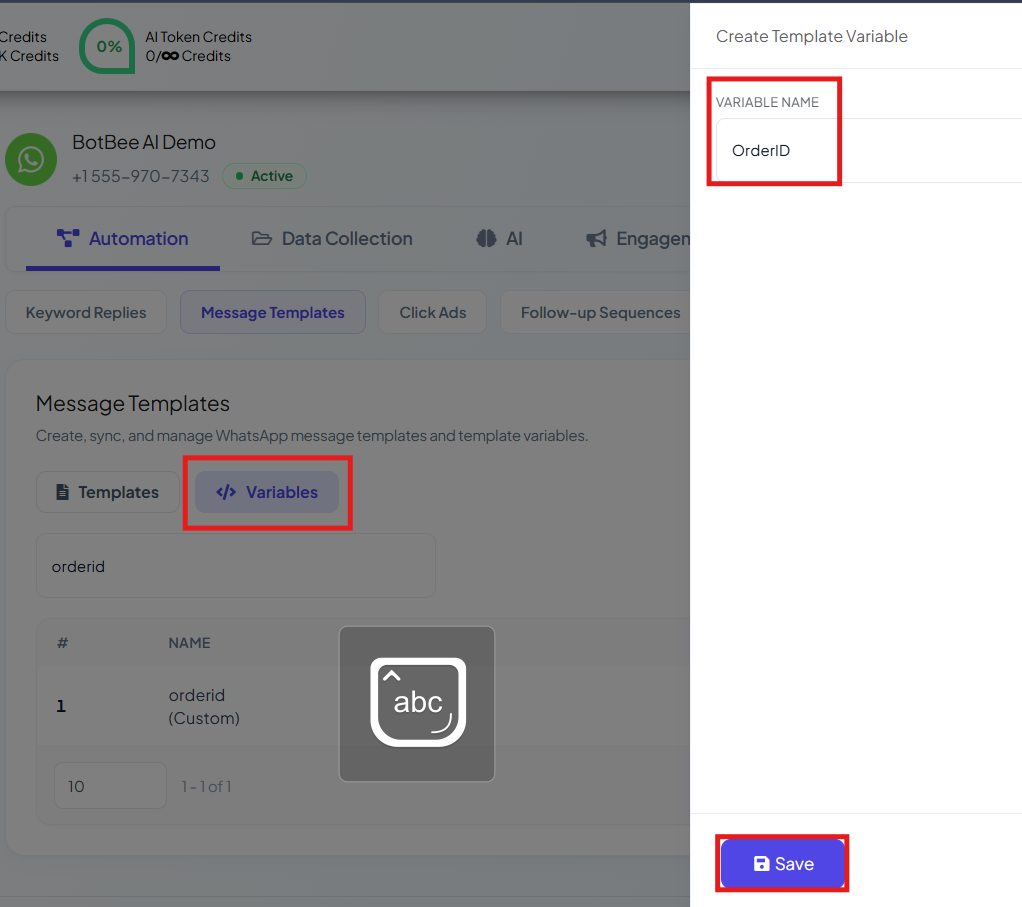
- Write the message body and include variables for dynamic data.
- Common variables include: Order ID, Order Price, Order Quantity.
- Click Save and wait for the template to be approved by WhatsApp.
Step 2: Set Up a Webhook Workflow in BotBee:
This workflow connects Shopify with WhatsApp messaging.
- Navigate to Webhook Workflow and click New Workflow.
- Provide a name for your workflow.
- Select the WhatsApp Bot Account you want to use.
- Choose the Message Template you created earlier.
- Click Create Workflow.
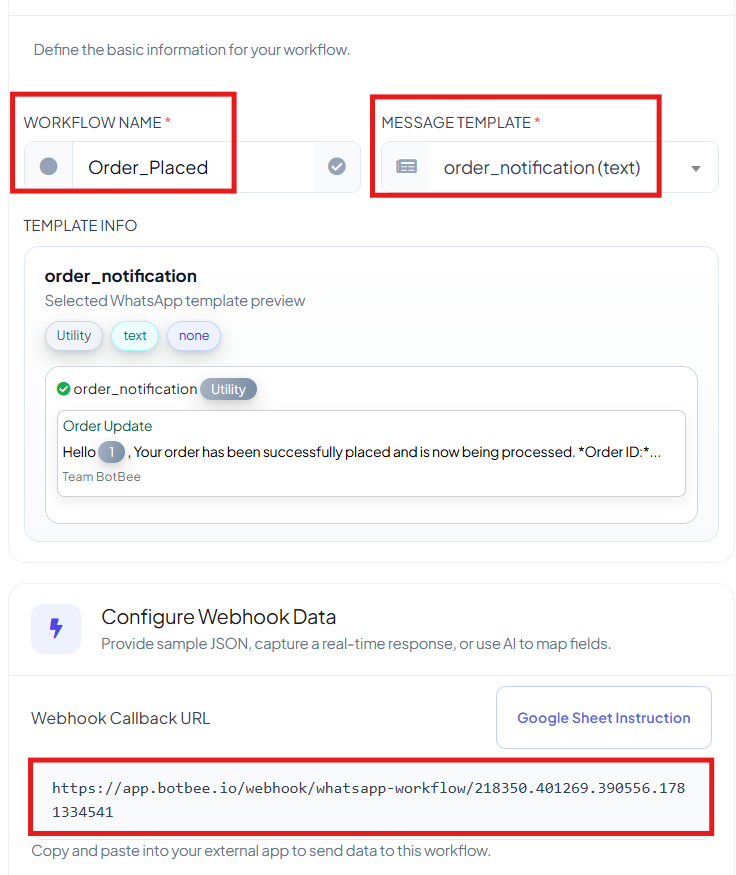
- BotBee will generate a unique Webhook URL.
- Copy this URL, as it will be required in Shopify.
Step 3: Configure the Webhook in Shopify:
- Now you need to tell Shopify to send order data to BotBee.
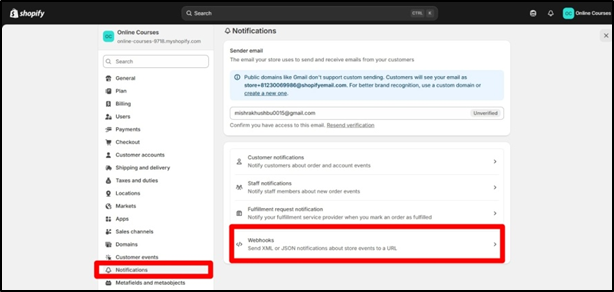
- Log in to your Shopify Admin.
- Go to Settings → Notifications.
- Scroll down to the Webhooks section and click Create Webhook.
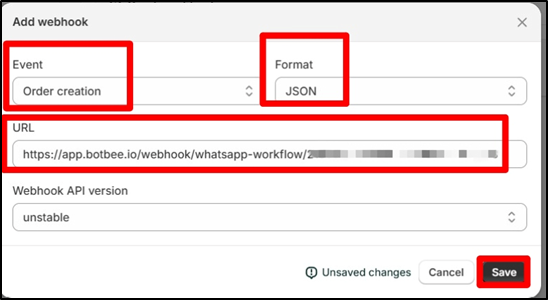
Configure it as follows:
- Event: Order creation
- Format: JSON
- URL: Paste the Callback URL from BotBee
- Save the webhook.
Step 4: Map Webhook Data and Format Variables:
To ensure everything works correctly, you need to map Shopify data to BotBee fields.
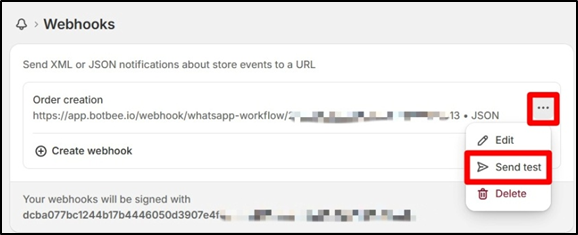
- In BotBee, click Capture Webhook Response.
- Send a test order from Shopify to capture sample data.
Now map and format key fields:
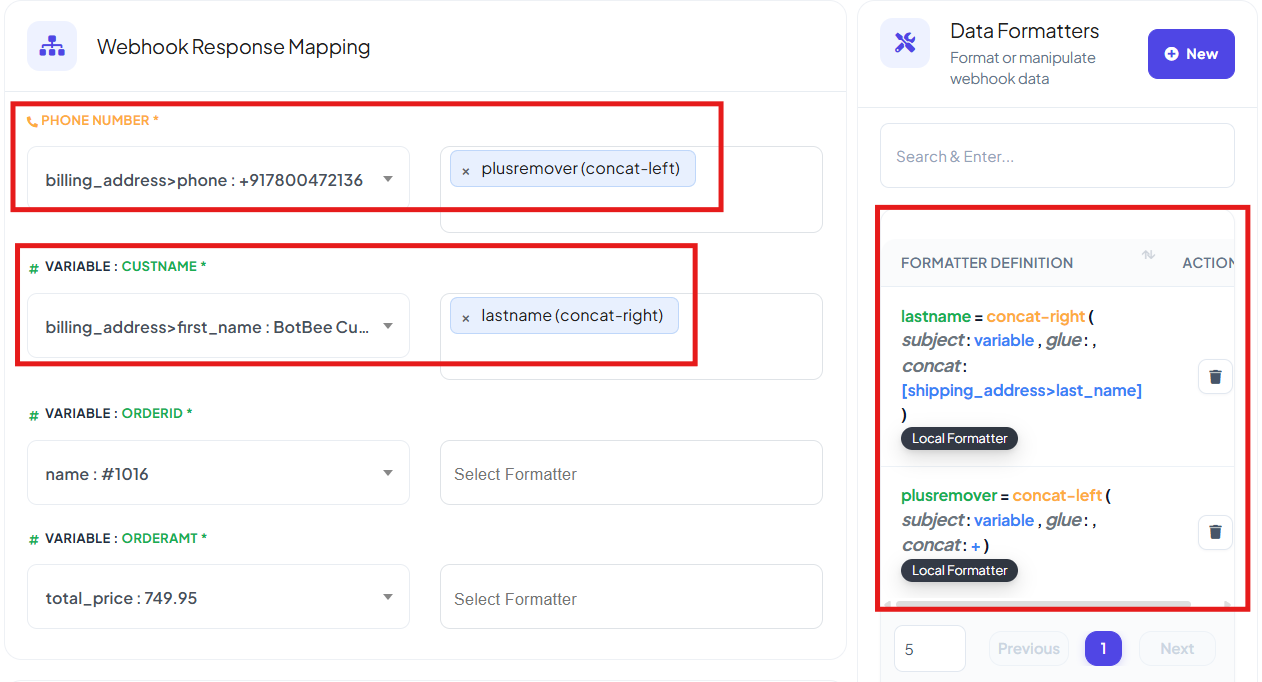
- Phone Number: Map the customer’s phone number field. (From Raw data)
- Use a formatter to clean the number (remove “+”, or dash) so WhatsApp can process it correctly.
- Username: Map customer’s first name. Use a formatter concat right to add last name.
- Add a delay if you don’t want messages sent instantly. (Optional)
- Click Save Workflow.
Step 5: Test the Setup:
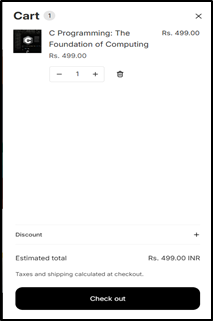
- Place a test order in your Shopify store.
- Go to the Report section in BotBee.
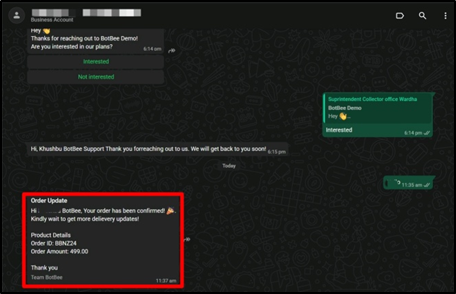
- Once the status changes from Pending to Processed, the message will be sent to the customer via WhatsApp.
Final Thoughts
With BotBee, you can fully automate your Shopify order notifications and deliver real-time updates directly to your customers’ WhatsApp inbox. This not only improves communication but also enhances customer satisfaction and trust.
If you run an E-Commerce store, this setup is honestly one of those “set it once and forget it” automations that keeps working quietly in the background while making your brand look super responsive.
Reference Video:
If you prefer video tutorials here are the links:
English: https://youtu.be/BlDJvwBLbK0?si=YilQ37reXoBrAuR5
Still Need Help?
If you face difficulties during onboarding:
- Take a screenshot or screen recording.
- Share details with our support team.
Our team will review the onboarding step and guide you further.
Contact: 08069645300
Found this article helpful?
( 8 Out of 11 Found Helpful )