Building a Lead Capture & Automation Flow Using BotBee and n8n
In modern customer engagement, automation plays a crucial role in capturing and nurturing leads efficiently. This article explains how to build a simple yet powerful workflow using BotBee and n8n that:
- Captures user intent through a chat interface
- Sends data to a backend automation system
- Triggers a WhatsApp template message automatically
Tools Used
- BotBee: For creating conversational flows
- n8n: For backend automation and API handling
- WhatsApp: For sending and receiving messages
The system works as follows: User clicks button → BotBee sends data → n8n webhook → API call → Template message sent
Step 1: Creating a Message Template:
- Go to Bot Manager under WhatsApp in BotBee.
- Click on Message templates → Create → Mixed Templates.
- Create a message content that you want to send after user clicks on a certain button. (E.g.: Interested)
- You can make a Utility template for better delivery rate.
- Make sure to get it approved.
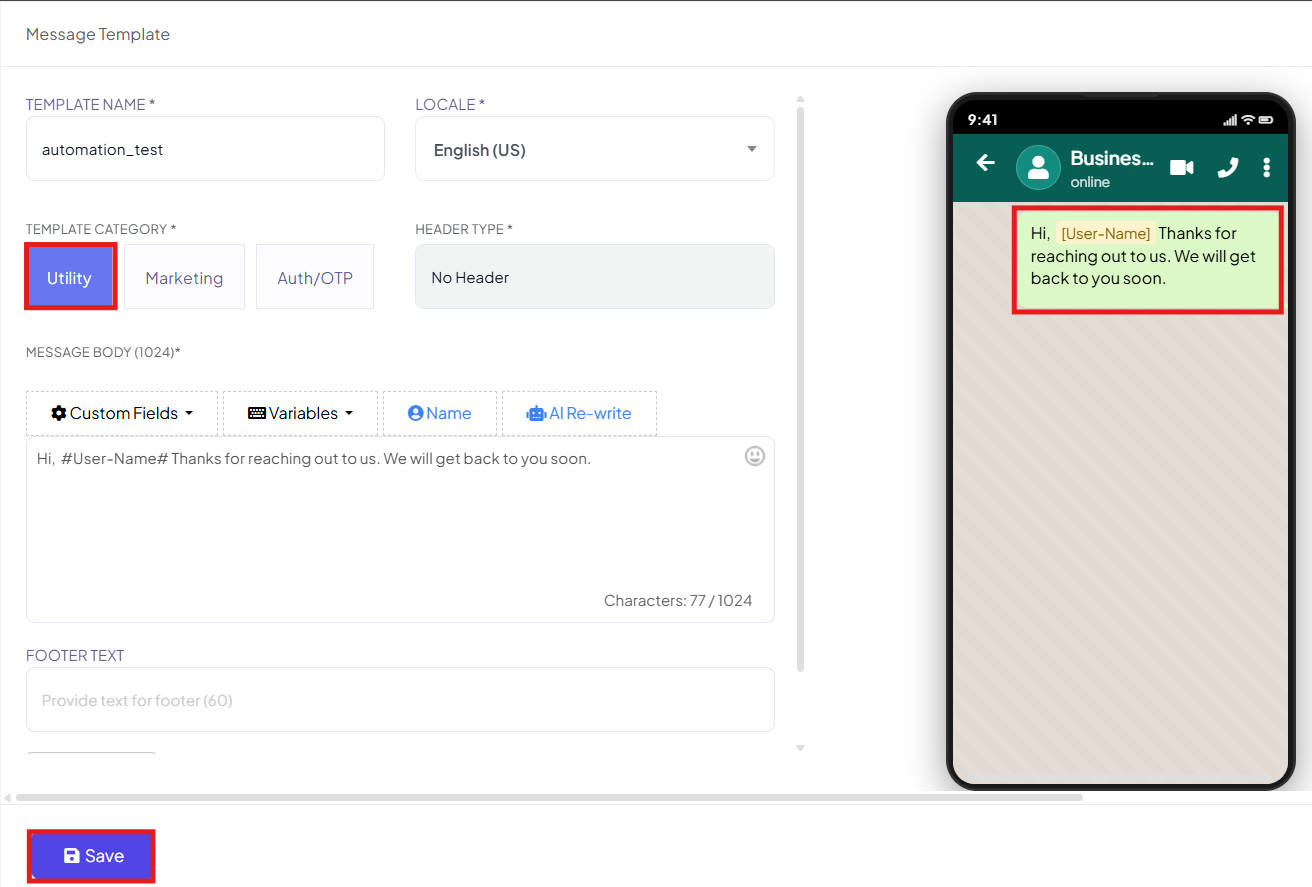
Step 2: Creating the Chat Flow:
- Under Bot Manager in BotBee, Go to Bot Reply.
- Click on Create.
We begin by designing a simple user interaction flow.
- A simple greeting message followed by Two Buttons.
- Interested → Triggers an HTTP API call to n8n
- Not Interested → Sends a fallback message
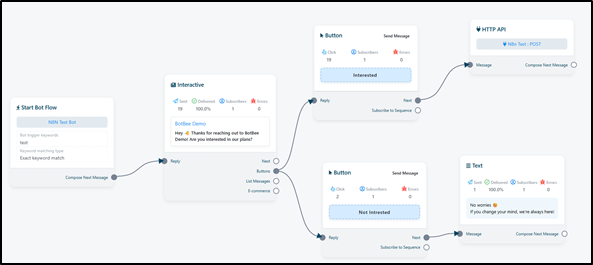
Step 3: Setting Up Webhook in n8n:
- Navigate to n8n and Click on new workflow.
- Click on the Plus Icon.
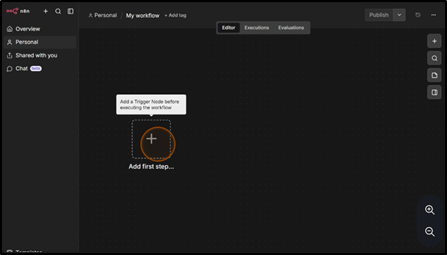
- Type "Webhook" and Click on it.
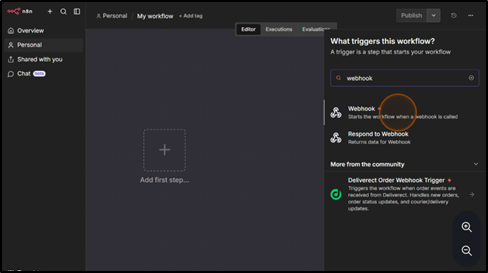
- Click on Test URL.
- Method: POST
- Respond: Immediately
- Copy the Test URL.
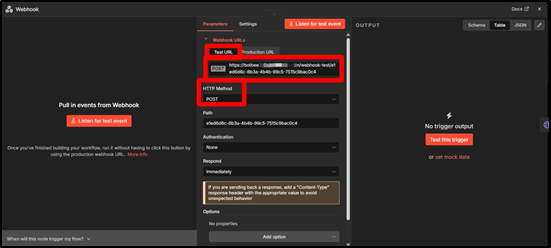
(Note: First we will go with the Test URL after finishing everything we will use Production URL. The workflow must be published in n8n to use the production URL.)
Step 4: Sending Data via HTTP API:
In the BotBee flow, the “Interested” button is connected to an HTTP API element.
- Under Bot Manager go to HTTP API in Integration Section.
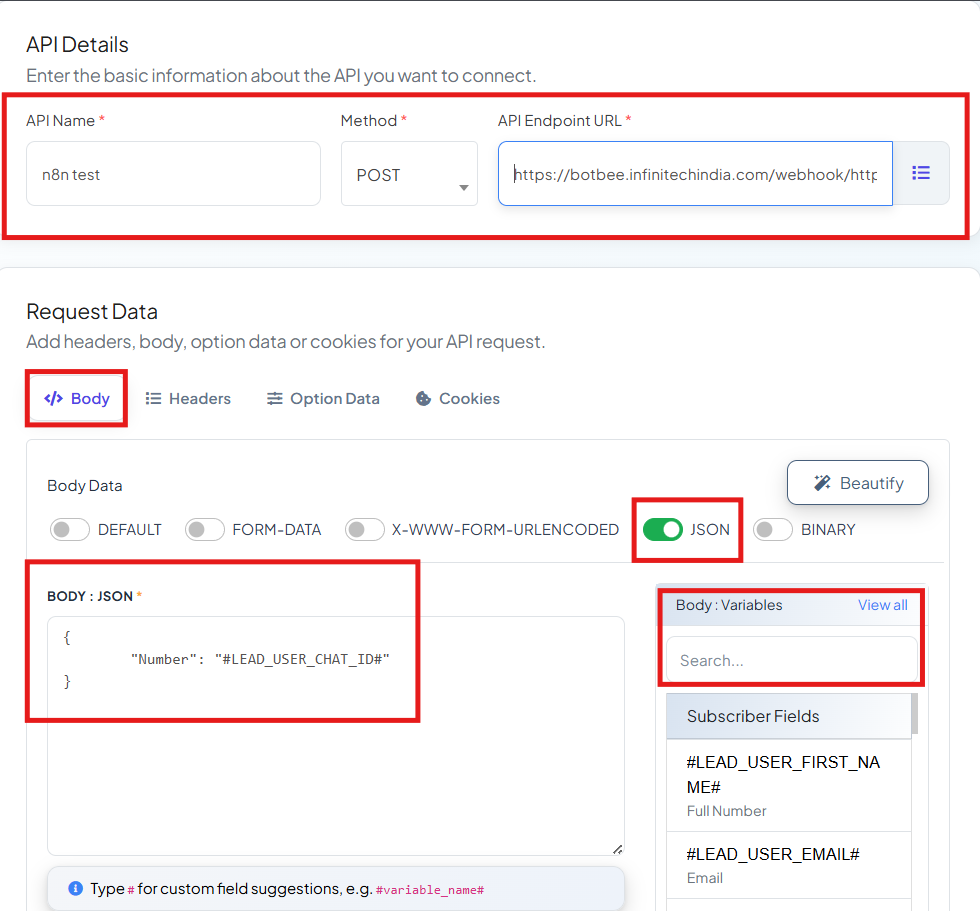
- Click on WhatsApp HTTP API, Click on Create.
- Give your Workflow a name.
- Method: POST
- URL: n8n Webhook test URL
- In Body Data, Choose JSON.
- For now we are only calling Lead Phone Number, you can choose to call other details like Name too.
- We are using a system field (#LEAD_USER_CHAT_ID#), to call out number. You can find it on the right side under Variables.
- Test and Verify: Give a test subscriber ID (You can get it from Subscriber Manager in BotBee)
- Click on Verify Connection and Save API.
- Come back to n8n.
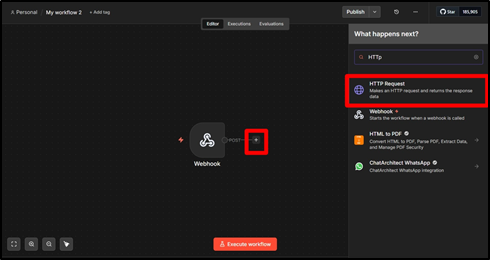
- Now close this Node and Click on Plus sign to open a new Node.
- Search for HTTP Request and Click on it.
- Go back to BotBee Dashboard and From the top right corner go to “API Developer”
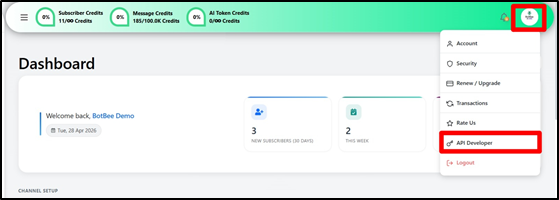
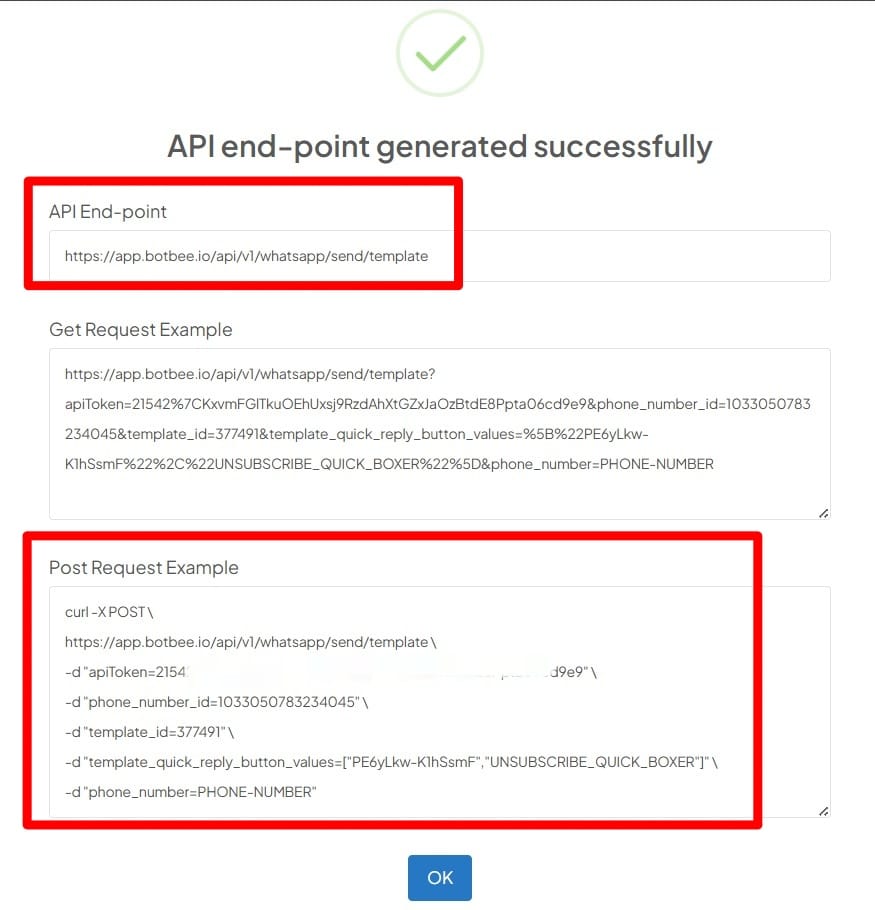
- Click on Send message and Select your template to get the POST endpoint URL.
- Copy the API Endpoint URL
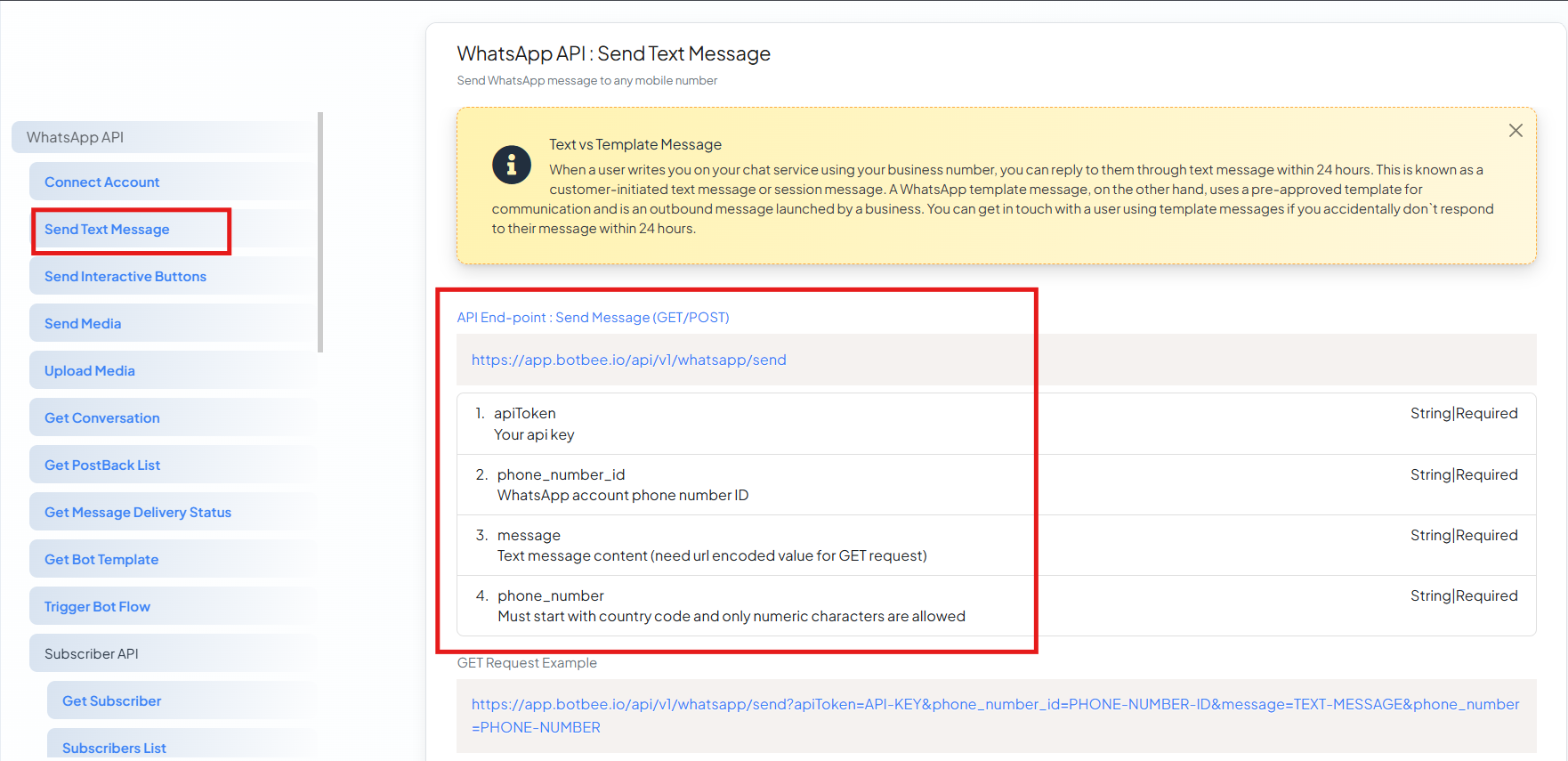
- Now we will Configuration as per this generated Endpoint.
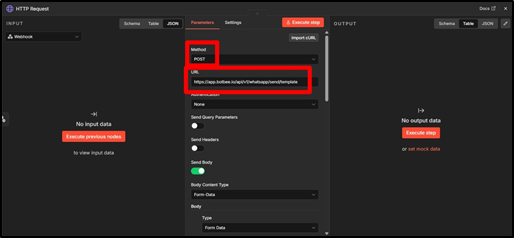
- Method: POST
- URL: Paste BotBee’s API Endpoint URL: https://app.botbee.io/api/v1/whatsapp/send /template
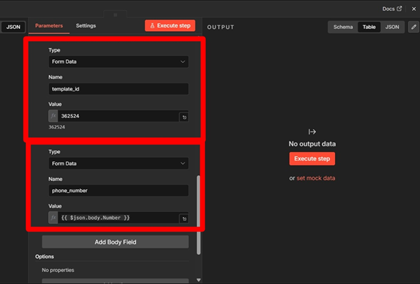
- Enable the toggle of “Send Body”.
- Body Content Type: Form-Data.
- Paste the API Token, Phone number ID, Template ID from the generated Endpoint URL in BotBee.
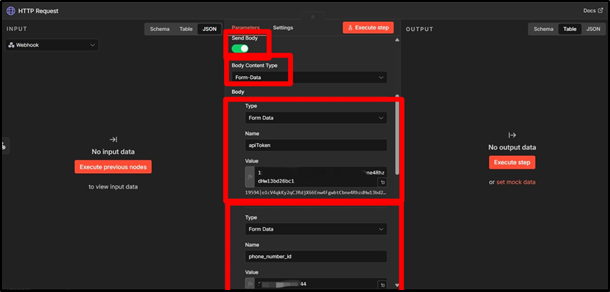
- Since Phone number is dynamic we will need to Execute the Previous Node.
- Send demo data via WhatsApp.
- Drag the json.body.number in Phone number field.
Step 5: Testing the Automation:
To verify that the automation is working correctly, follow these steps:
- Send a test message to the connected WhatsApp number to trigger the BotBee flow.
- Click on the “Interested” button in the chat.
- Ensure that the HTTP API element sends the data to the n8n webhook.
- Click on Execute Workflow in n8n.
- Check the Executions tab in n8n to confirm that the workflow is triggered successfully.
- Verify that the HTTP Request node executes without errors.
- Finally, confirm that the WhatsApp template message is received on the user’s phone number.
(Note: After making sure that everything is working , we will use Production URL. The workflow must be published in n8n to use the production URL.)
Expected Result
If everything is configured correctly:
- User interaction in BotBee triggers the webhook in n8n
- Dynamic user data (like phone number) is passed correctly
- The API call is executed successfully
- A WhatsApp template message is delivered to the user
Still Need Help?
If you face difficulties during onboarding:
- Take a screenshot or screen recording.
- Share details with our support team.
Our team will review the onboarding step and guide you further.
Contact: 08069645300
Found this article helpful?
( 3 Out of 6 Found Helpful )