How to Automatically Add WhatsApp Leads to HubSpot Using BotBee
In today’s fast-paced digital world, speed and automation can make or break your lead generation game. If you're manually transferring WhatsApp leads into your CRM, you're not just wasting time, you’re risking missed opportunities.
This guide walks you through how to automatically send WhatsApp leads into HubSpot using BotBee and HTTP API integration, creating a seamless, real-time lead capture system.
Why This Automation Matters
Before diving into the setup, let’s quickly understand the value:
- Capture leads 24/7 without manual effort
- Instantly sync customer data into your CRM
- Reduce response time and improve conversions
- Personalize follow-ups using CRM insights
Step 1: Set Up HubSpot API Access:
To allow BotBee to send data into HubSpot, you need secure API access.
Generate Access Token:
- Log in to your HubSpot account
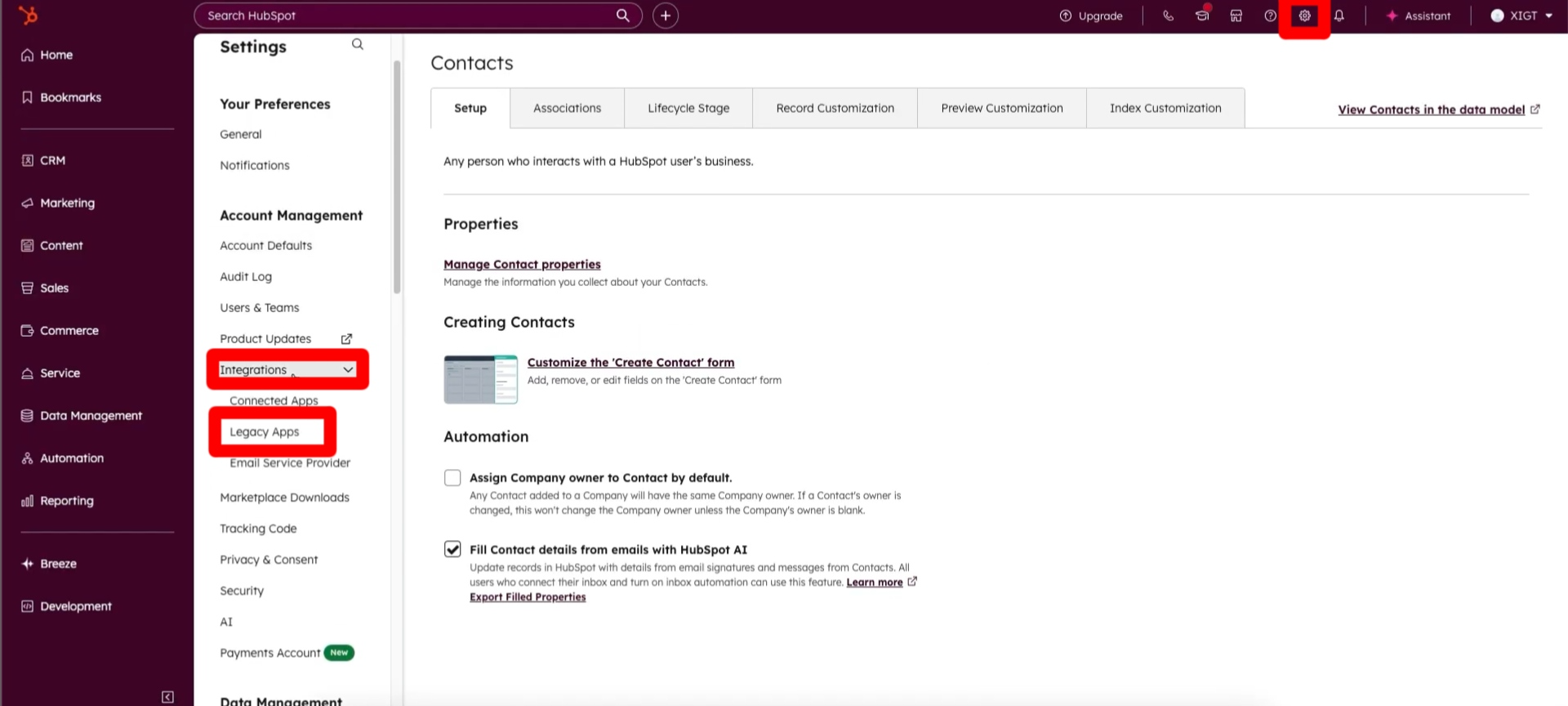
- Navigate to Settings → Integrations → Legacy Apps
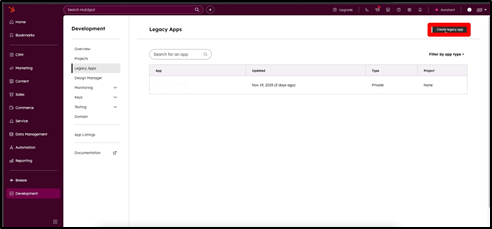
- Create a new Private Legacy app to secure connection with BotBee.
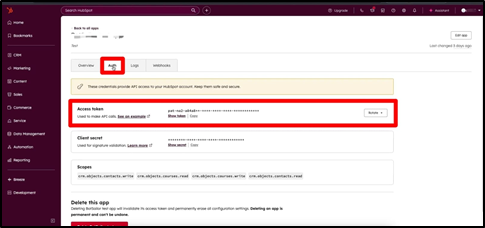
- Inside your Created App, Select the Authorisation Tab.
- Copy your Access Token (this acts as your authentication key)
- Note: Keep this token secure—it's the key to your CRM.
Identify Contact Properties
- For a deeper understanding of the HTTP API, consult HubSpot's official API documentation.
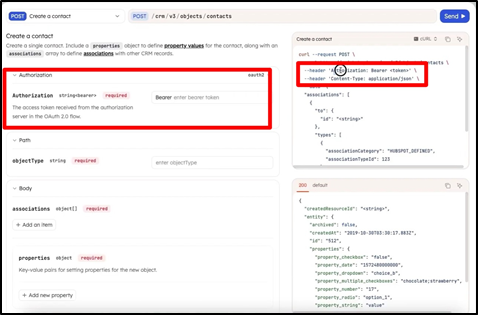
- To identifying contact properties, first go to HubSpot's contact section: developers.hubspot.com
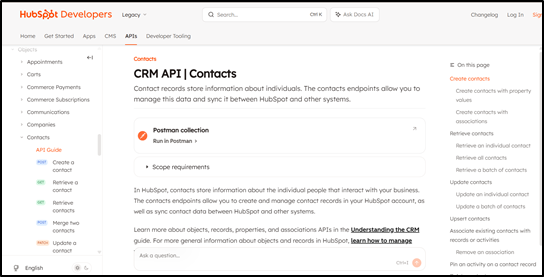
- Then identify the properties you wish to include when creating a contact. For example, email and phone number.
- The API request requires a specific structure including two headers and a JSON body.
- The authorization header will contain the authentication key you copied earlier. When testing the API in HubSpot, For BotBee, you only need the properties section of JSON body.
Step 2: Configure HTTP API in BotBee:
This is where the actual connection between BotBee and HubSpot is created.
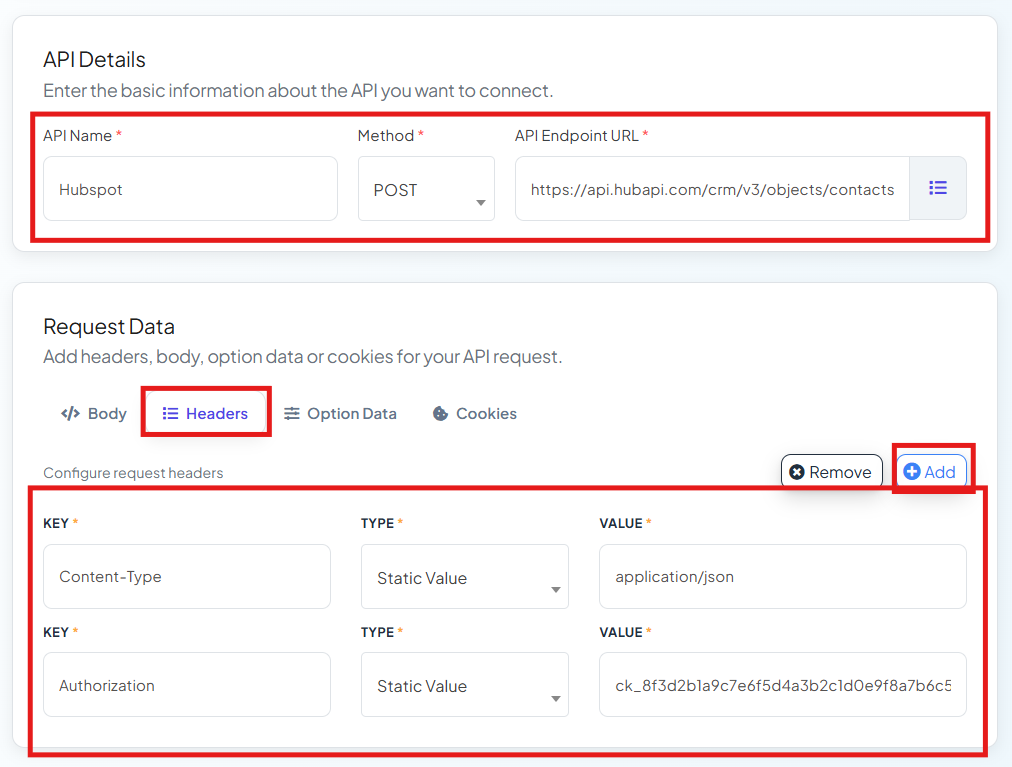
- In BotBee, Go to Bot Manager → HTTP API under Integration Setion.
- Create a new HTTP API
- Give it a name.
- Method: POST
- Give a test subscriber ID (You can get it from Subscriber Manager in BotBee)
- Get the Endpoint URL from HubSpot API Documentation: https://api.hubapi.com/crm/v3/objects/contacts
Add Headers
Include these two static headers:
- Content-Type: application/json
- Authorization: Bearer YOUR_HUBSPOT_ACCESS_TOKEN
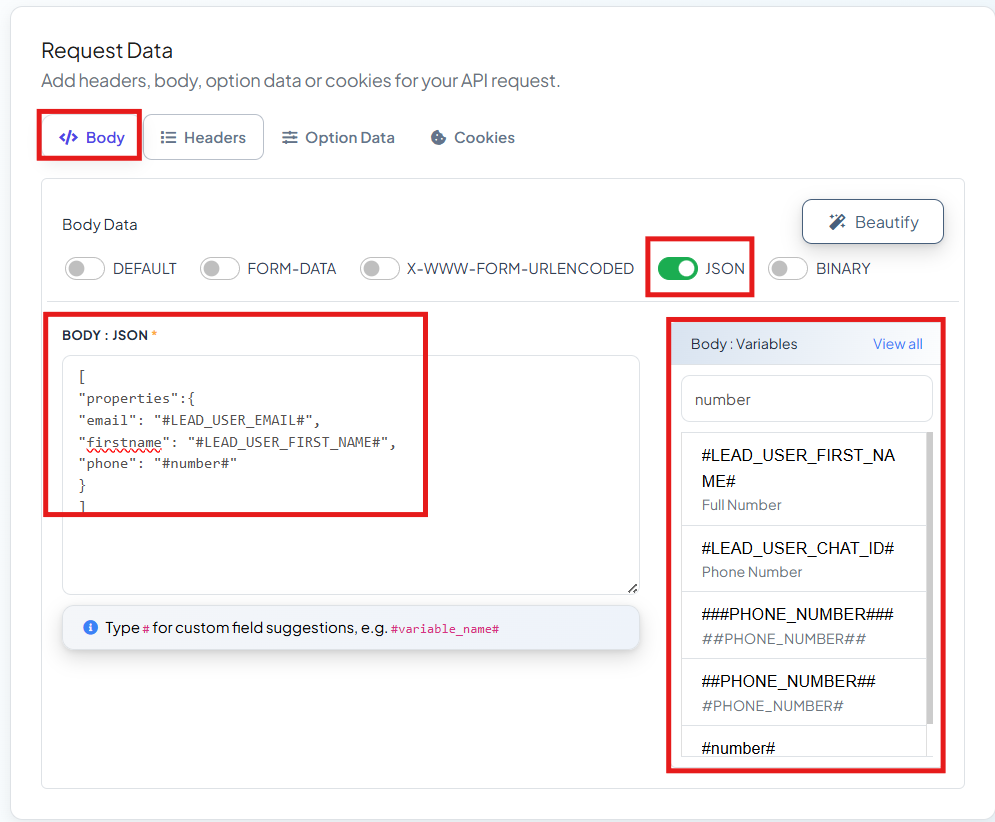
Define JSON Body
Structure your request body to match HubSpot’s format, using system variables like:
- Phone Number: (number) A custom Field made in BotBee
- First Name: #LEAD_USER_FIRST_NAME#
- Email: #LEAD_USER_EMAIL#
Test the Connection
- Use a test subscriber
- Verify if data is successfully sent
- Save the configuration once confirmed.
Step 3: Build Your WhatsApp Bot Flow:
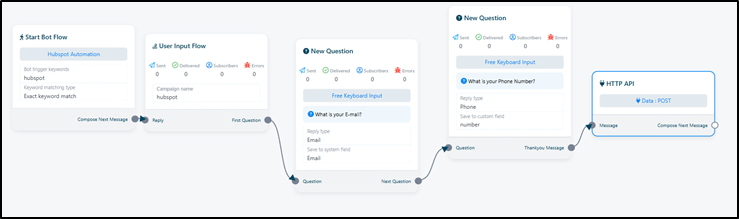
- Go to Bot Manager under WhatsApp in BotBee.
- Click on Keyword Replies → Create.
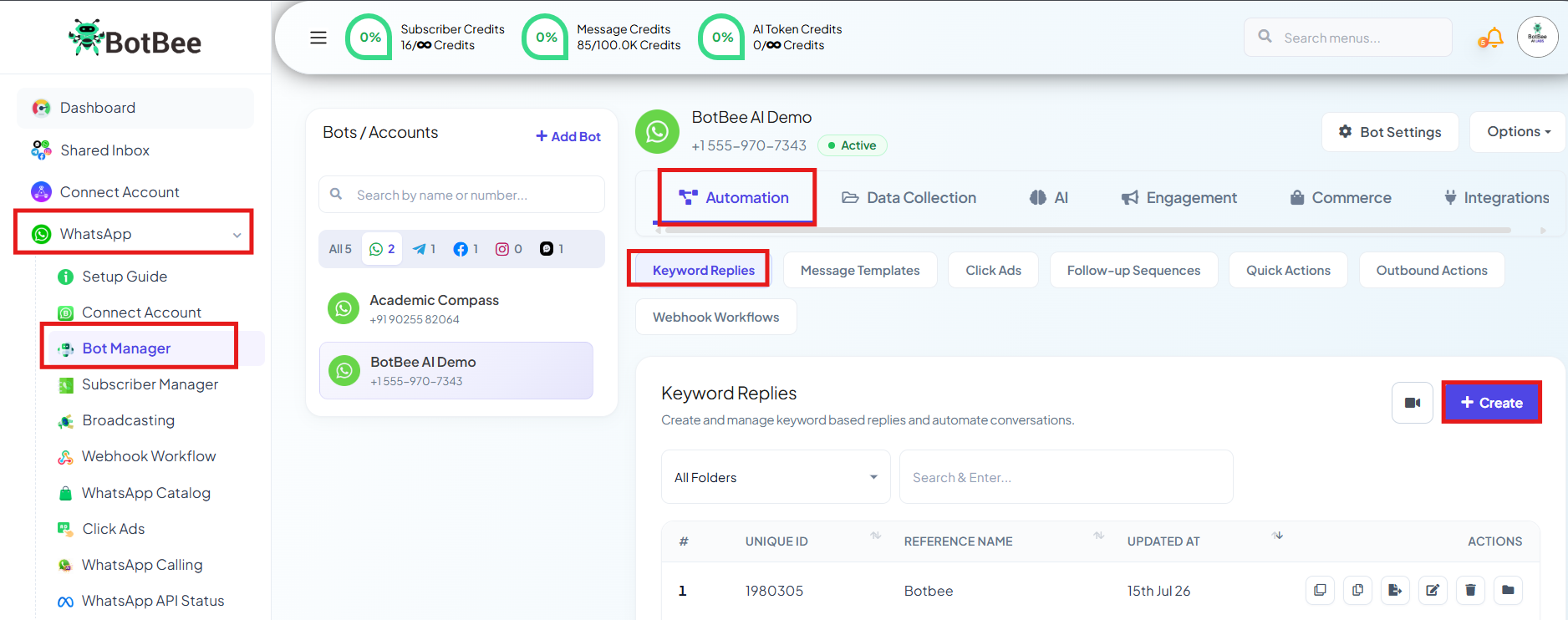
Set a trigger word to initiate the flow.
- Connect User Input Flow element and ask questions.
- Ask questions and store responses:
- Email Input | Reply type: Email | Save to system field: Email
- Phone Number | Reply Type: Phone | Save to a custom field
- Add an HTTP API card at the end of the flow
- Link it so that once the user finishes answering, the data is sent automatically to HubSpot.
- Lastly, Save the Bot Flow.
Step 4: Test and Verify:
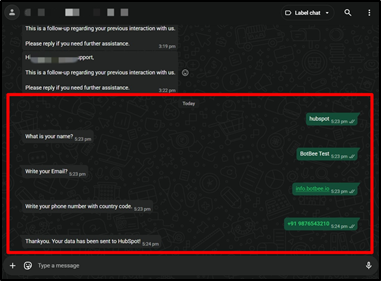
- Message your WhatsApp bot with the trigger keyword
- Complete the flow.
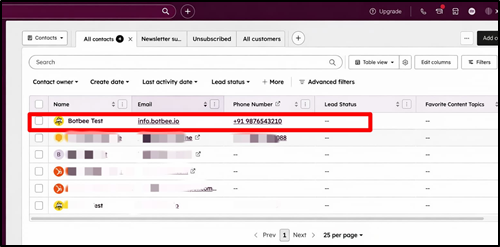
- Go to your Contacts list in HubSpot
- You should see a new contact created instantly with the submitted details.
This integration transforms your WhatsApp bot into a powerful lead generation engine. Instead of juggling between chats and spreadsheets, your system works silently in the background capturing, organizing, and preparing leads for conversion.
If you're serious about scaling your business, automation like this isn’t optional anymore it’s essential.
Still Need Help?
If you face difficulties during onboarding:
- Take a screenshot or screen recording.
- Share details with our support team.
Our team will review the onboarding step and guide you further.
Contact: 08069645300
Found this article helpful?
( 2 Out of 4 Found Helpful )