BotBee Call Flow: Automate Every Call
Managing calls manually can quickly become repetitive especially when every incoming, outgoing, or missed call needs a follow-up. BotBee Call Flow makes this process easier by turning your calls into automated workflows.
Set Up Your Profile:
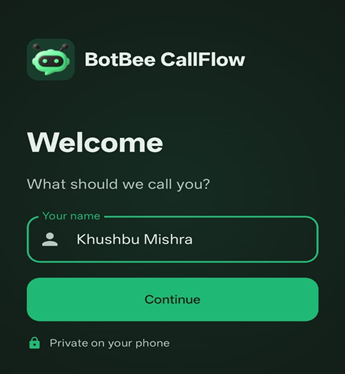
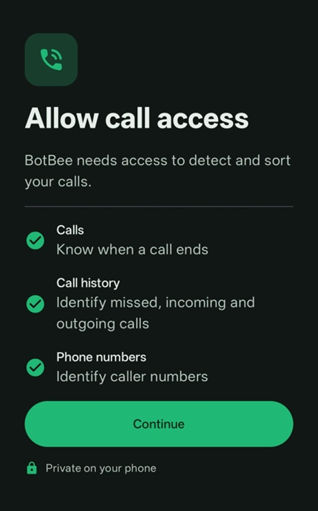
- Calls: Detect when a call starts and ends.
- Call History: Identify whether a call was missed, incoming, or outgoing.
- Phone Numbers: Access caller numbers to identify and process calls.
Check Configuration Health:
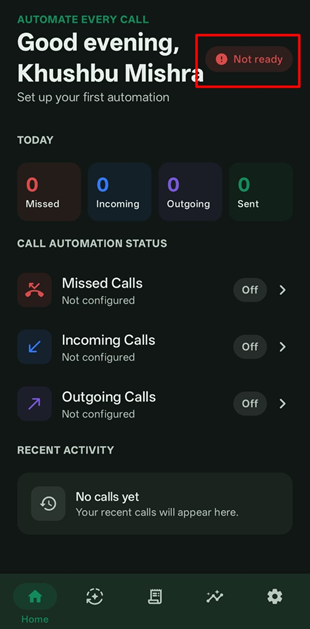
Once you reach the Home page, you’ll see a “Not ready” status in the top-right corner. Tap on it to open the Configuration Health screen.
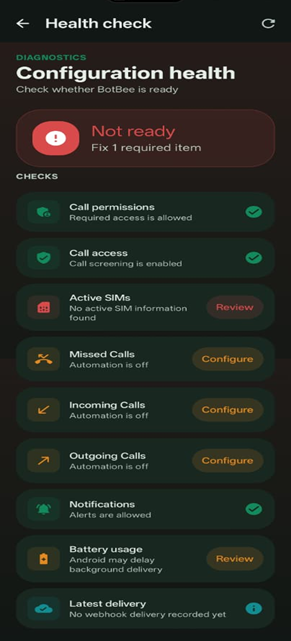
This section checks whether BotBee Call Flow is properly configured and ready to automate your calls. It provides an overview of the required permissions and settings, including:
- Call Permissions: Confirms that the required call permissions have been granted.
- Call Access: Ensures call screening/access is enabled
- Active SIMs: Checks whether an active SIM is available for call automation.
- Missed Calls: Shows whether missed-call automation is configured.
- Incoming Calls: Shows the configuration status for incoming-call automation.
- Outgoing Calls: Shows the configuration status for outgoing-call automation.
- Notifications: Confirms that notifications are enabled.
- Battery Usage: Checks whether Android's battery settings could affect background call processing.
- Latest Delivery: Displays the status of the latest webhook delivery.
Make sure everything is configured properly as it may affect the webhook delivery.
Configure Call Automations:
Once the initial settings are configured, you can start setting up your call automations.
Go to the Automations section, where you’ll find three options:
- Incoming Calls
- Outgoing Calls
- Missed Calls
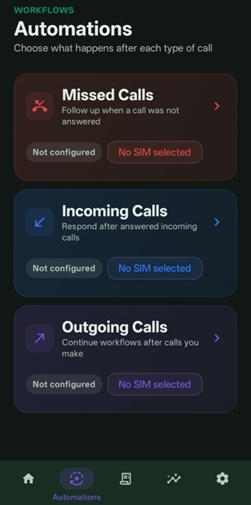
- Select the type of call you want to automate.
Each option opens its respective configuration screen, where you can set up a webhook to receive call-related updates automatically.
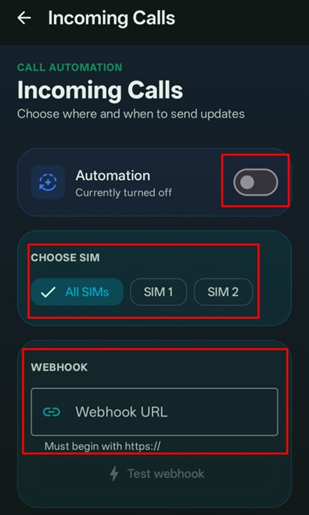
For example, in the Incoming Calls section, you can:
- Enable Automation: Turn the automation on to start processing incoming calls.
- Choose SIM: Select whether the automation should apply to all SIMs, SIM 1, or SIM 2.
- Enter Webhook URL: Add the HTTPS webhook endpoint where BotBee should send the call information.
- Test Webhook: Send Test Data to configure webhook before actual live configuration.
- Sign Webhook: Optionally secure webhook requests using a secret for verification.
- Include Contact Name: Choose whether the saved contact name should also be sent along with the caller's number.
- Business Hours: Use Business Hours to send updates only during selected hours.
- Do Not Disturb: Use Do Not Disturb to pause automation during specified quiet hours.
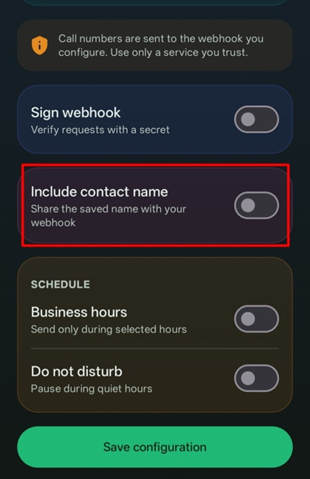
The same configuration approach can be used for Outgoing Calls and Missed Calls, allowing you to automate actions based on every type of call.
Example: Automating a Missed Call Follow-Up:
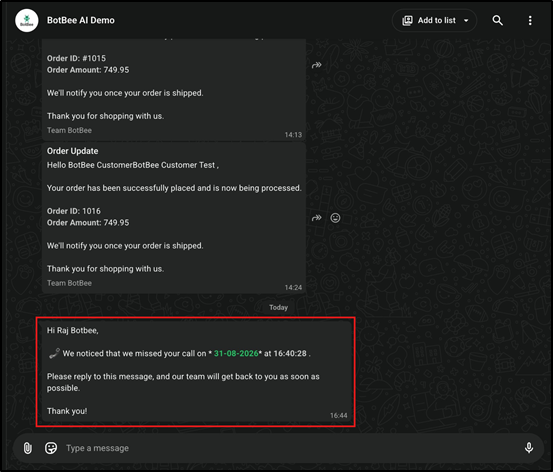
Let’s take a simple use case: automatically sending a WhatsApp message whenever a missed call is detected.
Step 1: Create Message Template:
- First, create a WhatsApp message template in Bot Manager in BotBee, I’ve made this utility template to be sent to the customers.
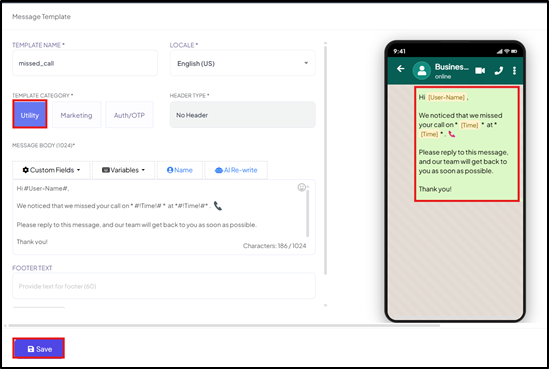
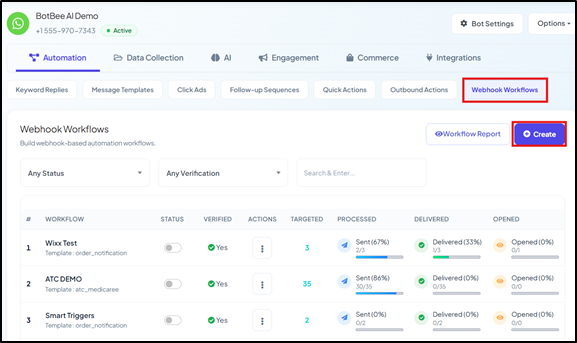
- Once the template is ready, Go to Webhook Workflows under Bot Manager and Click Create.
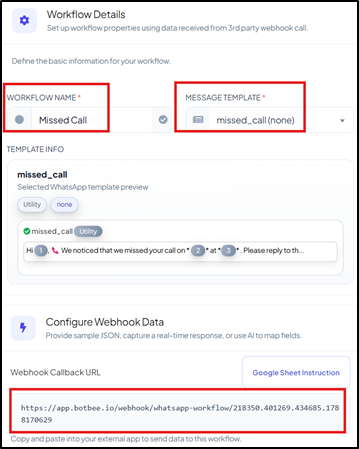
- Give a name to the campaign and select the approved template.
- BotBee will provide you a webhook URL, Copy the URL.
Step 2: Webhook configuration in Call Flow:
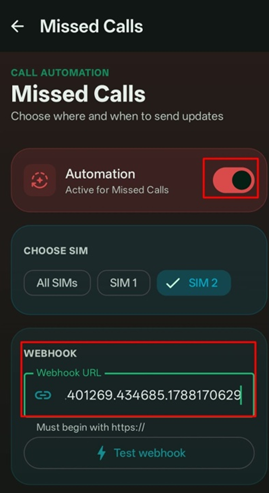
- Open the BotBee CallFlow App and Go to Autmations Section → Missed Calls
- Enable the automation, select the required SIM
- Now enter the webhook URL that you previously copied.
- Make sure the contact name option is enabled and Save the configuration.
Step 3: Mapping the variables:
- Now comeback to BotBee and Click on Capture Webhook Response.
- Now make a missed call on your number. After the missed call is made, botbee will receive the payload data.
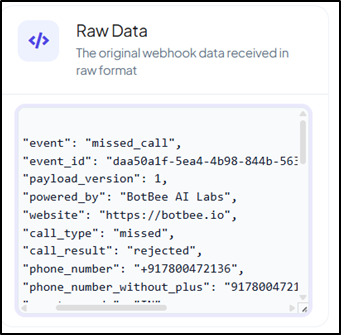
- Now that the payload has been received. Map the variables with the respective data:
- Phone Number → phone_number_without_plus
- User Name → contact_name
- Date → date
- Time → time
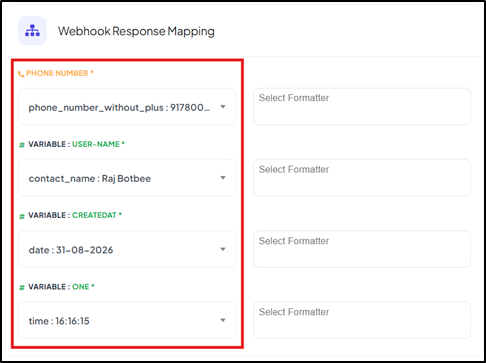
- Now save the Workflow. The customers will receive the template as soon as any missed call happens.
Monitor Webhook Logs:
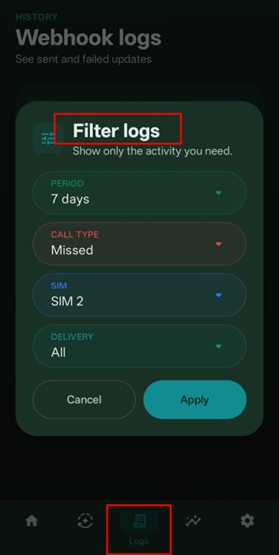
- The Logs section lets you track webhook deliveries and identify successful or failed updates.
- You can filter logs by: Period, Call Type, SIM, Delivery
Track Call Activity with Analytics:
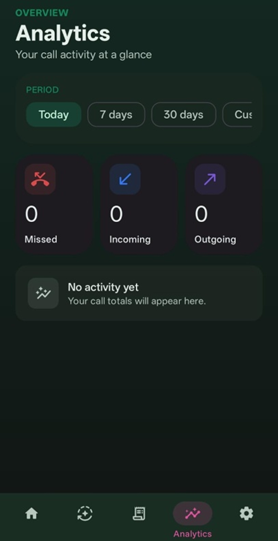
The Analytics section provides a quick overview of your call activity. You can filter data by Today, 7 Days, 30 Days, or a Custom date range.
It displays the total number of Missed, Incoming, and Outgoing calls, helping you track your call activity at a glance.
Manage Settings:
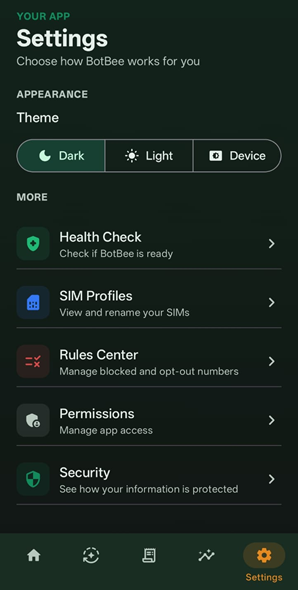
The Settings section provides essential controls for managing the app:
- Health Check: Check whether BotBee is ready for automation.
- SIM Profiles: View and rename your SIMs.
- Rules Center: Block numbers or add opt-out numbers to prevent them from receiving automated messages.
- Permissions: Manage app permissions and access.
- Security: Webhook details are stored securely, only HTTPS URLs are allowed, call history and settings stay on your device, and sensitive information is limited in logs.
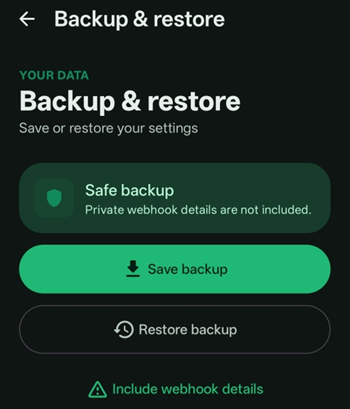
Data & Backup:
- Backup: Download webhook data as a secure JSON file without private details.
- Restore: Upload a backup and choose Add to Current or Replace Current Settings.
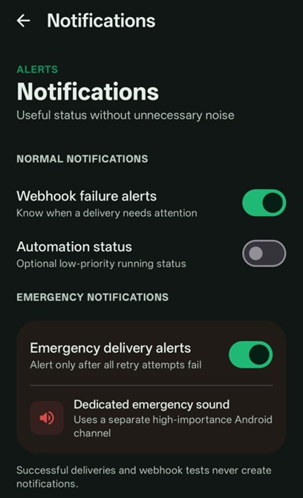
Manage Alerts:
The Alerts section controls notifications for call automation:
- Webhook Failure Alerts: Get notified when a delivery fails.
- Automation Status: Optional updates on automation activity.
- Emergency Alerts: Get an alert only when all webhook retry attempts fail, with a dedicated high-priority sound.
- Note: Successful deliveries and webhook tests do not trigger notifications.
With BotBee Call Flow, automate every incoming, outgoing, and missed call with webhook updates and WhatsApp templates while easily monitoring your activity through logs and analytics.
Need Help? We’re Here for You!
For any questions, assistance, or support with BotBee Call Flow, get in touch with our team:
Call us: 08069645300
WhatsApp us: 63831 59713
Email us: info@botbee.io
Found this article helpful?
( 3 Out of 6 Found Helpful )