BotBee FlowBridge: WooCommerce Automation & Webhooks
BotBee FlowBridge is a WooCommerce integration plugin that connects your online store with BotBee's automation platform. It automatically sends store events such as new orders, order updates, customer registrations, and other key data to BotBee workflows.
With FlowBridge, businesses can automate WhatsApp notifications, customer engagement, marketing campaigns, and support processes without complex setup or coding.
How to install BotBee FlowBridge
Installing BotBee FlowBridge is quick and simple. You can install it using either of the following methods:
Method 1: Install Directly from WordPress:
- Log in to your WordPress Admin Panel.
- Go to Plugins → Add New
- In the search bar, search for BotBee FlowBridge.
- Click Install Now, then click Activate.
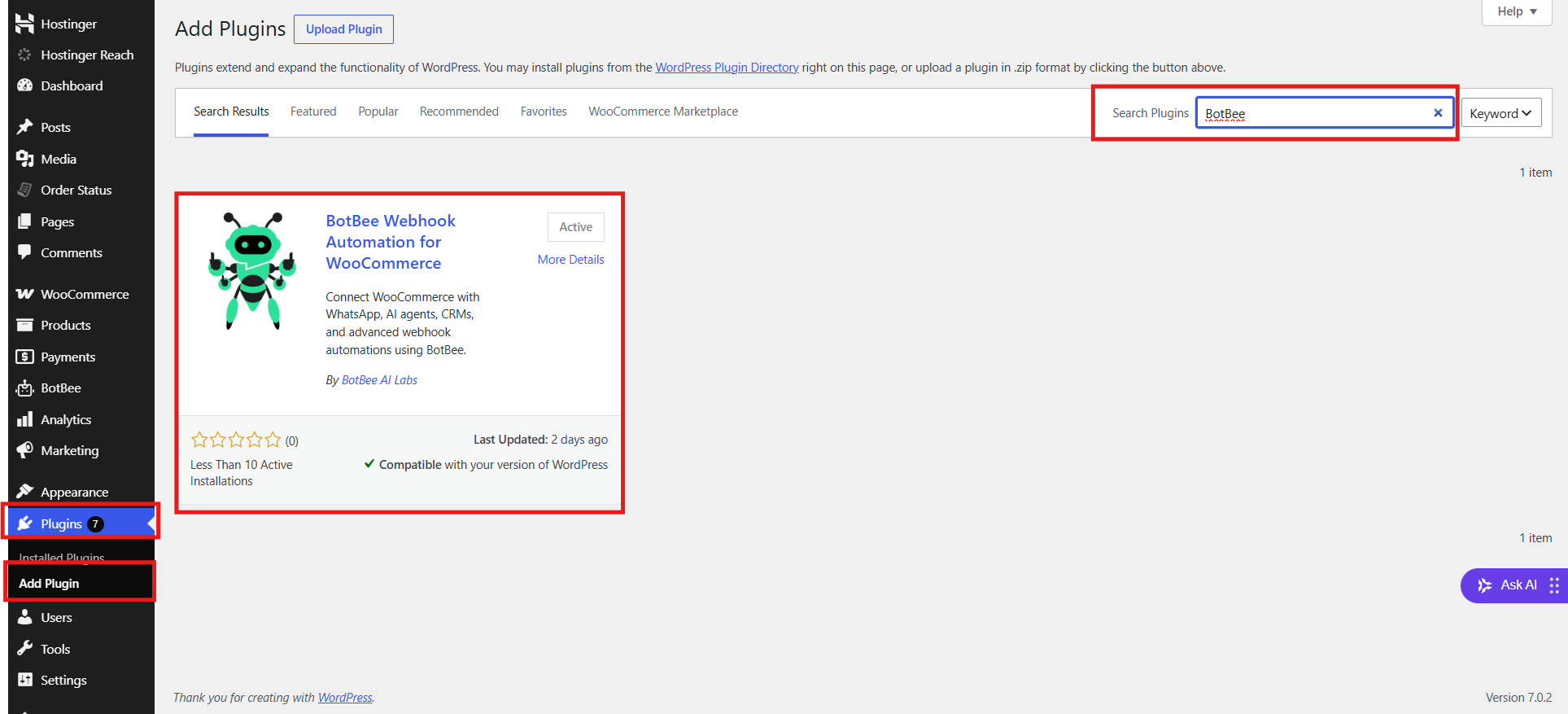
After activation, BotBee FlowBridge will be available in your WordPress dashboard, where you can proceed with the integration and configuration process.
Dashboard Overview
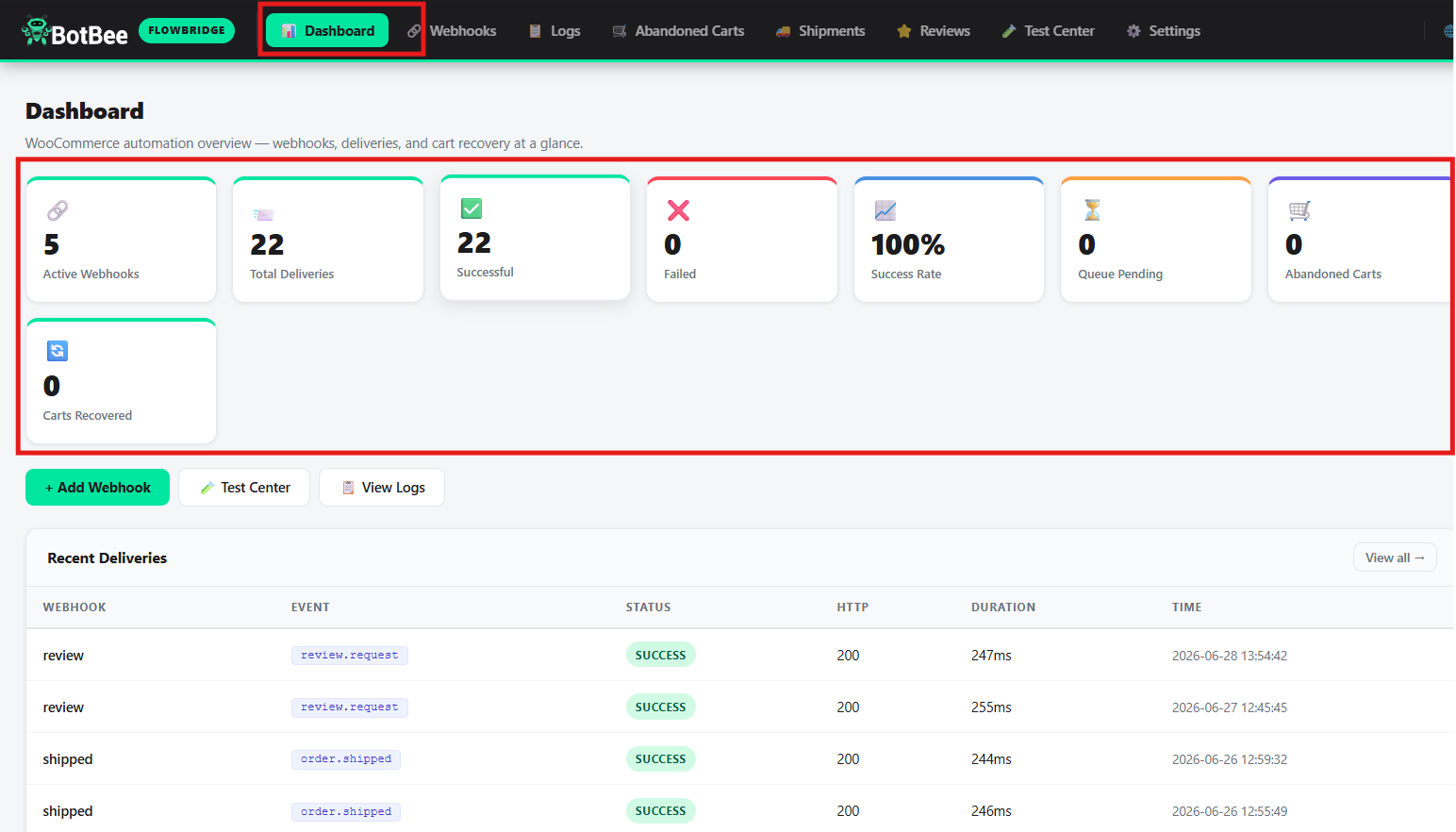
The BotBee FlowBridge dashboard provides a complete overview of your WooCommerce integration activity in one place.
Key analytics include:
- Total Webhooks: Total number of webhooks created.
- Active Webhooks: Currently active webhook connections.
- Successful Deliveries: Webhooks delivered successfully.
- Failed Deliveries: Webhooks that failed to deliver.
- Success Rate: Overall webhook delivery performance.
- Queue Pending: Events waiting to be processed.
- Abandoned Carts: Total abandoned cart events tracked.
- Recovered Carts: Abandoned carts successfully recovered.
The dashboard also displays Recent Deliveries, allowing you to monitor the latest webhook activities and quickly identify successful or failed event deliveries.
Webhooks & Event Triggers:
- To create an automation, go to Webhooks and click Add Webhook. Here, you can configure workflows based on events happening in your WooCommerce store.
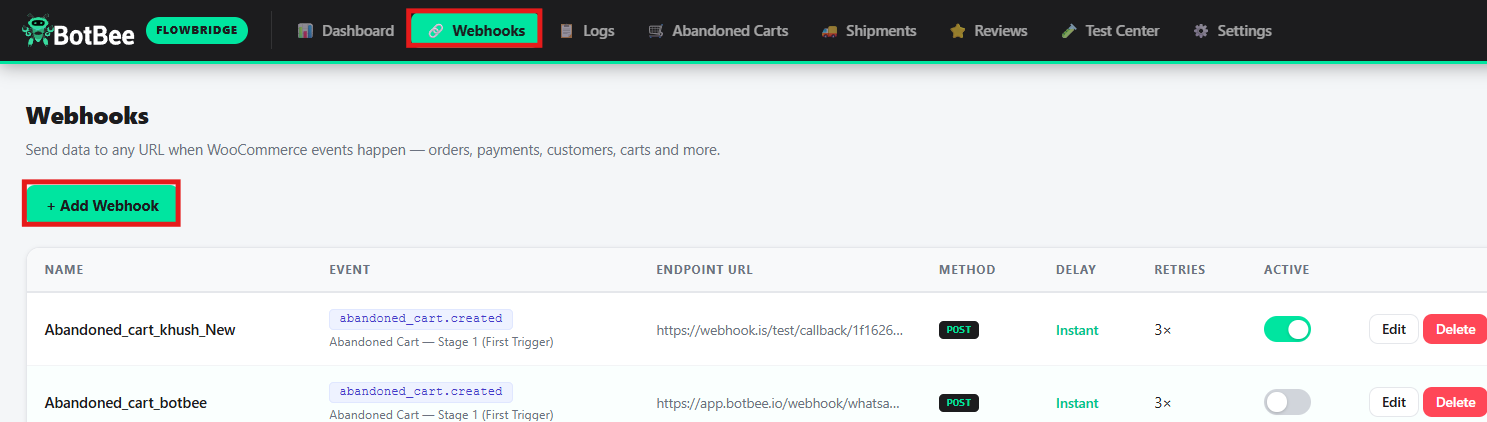
BotBee FlowBridge supports a wide range of triggers, including:
- Order Lifecycle: Track every stage of an order, from creation to completion, cancellation, refunds, and status updates.
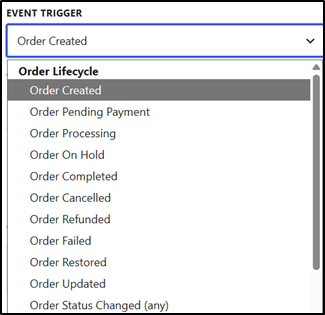
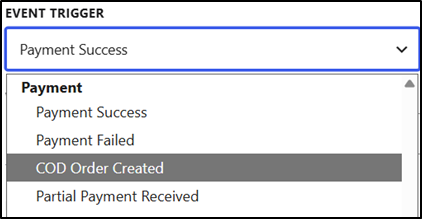
- Payment: Monitor payment-related activities, including successful payments, failed transactions, COD orders, and partial payments.
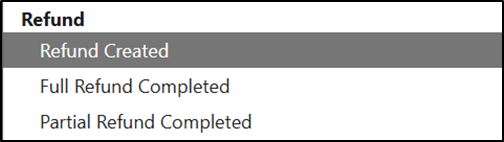
- Refund: Trigger automations whenever refunds are initiated or completed, whether full or partial.
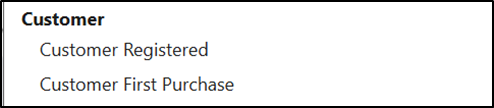
- Customer: Capture important customer milestones such as new registrations and first-time purchases.
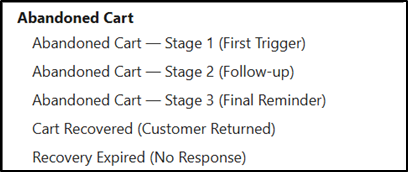
- Abandoned Cart: Engage customers who leave items in their cart with automated reminders and recovery workflows.
- Inventory: Stay informed about stock levels with automatic low-stock and out-of-stock alerts.

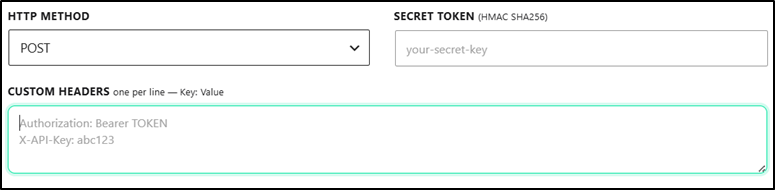
- FlowBridge also supports HTTP API integrations, allowing you to send data to external platforms using POST, GET, PUT, and PATCH request methods.
Conditional Webhooks:
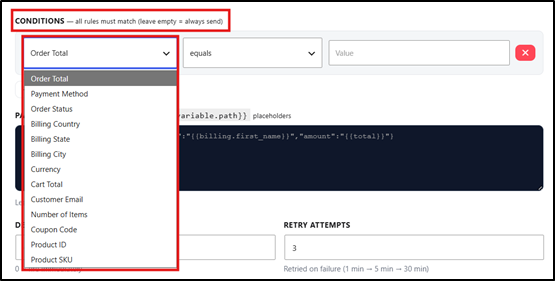
BotBee FlowBridge supports condition-based webhooks, allowing you to trigger automations only when specific criteria are met.
You can create rules based on parameters such as:
- Order Total
- Payment Method
- Order Status
- Billing Country, State, and City
- Currency
- Cart Total
- Customer Email
- Number of Items
- Coupon Code
- Product ID
- Product SKU
Conditions can be used to create targeted workflows, ensuring that webhooks are sent only for relevant orders, customers, or products.
Delays & Retry Attempts:
BotBee FlowBridge provides built-in Delay and Retry Attempt settings for every webhook.
- Delay allows you to schedule webhook delivery after a specified time interval instead of sending it immediately.
- Retry Attempts automatically resend failed webhook requests to improve delivery reliability and reduce the risk of missed events.
These features help ensure that your automations run smoothly, even when external systems experience temporary issues or when actions need to be triggered at a specific time.

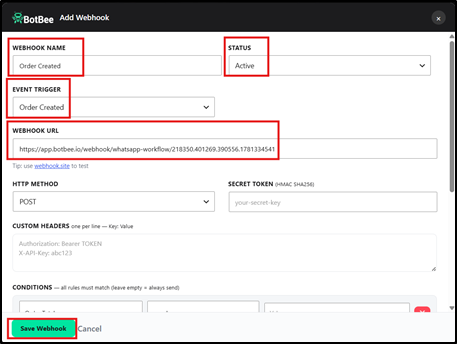
Example: Order Created Webhook
The following example shows how to configure an Order Created webhook. When a customer places an order, FlowBridge automatically sends the order data to your configured webhook endpoint, enabling real-time notifications and automation.
Abandoned Carts:
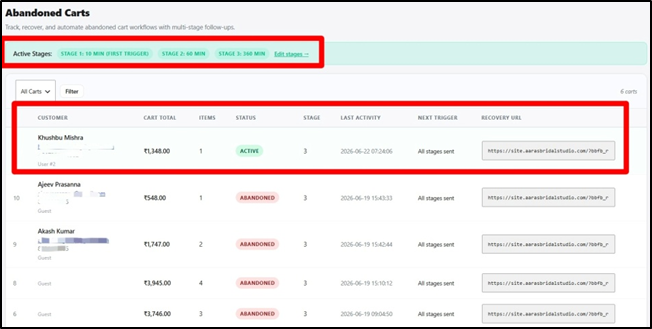
The Abandoned Carts section helps you track, recover, and automate follow-ups for customers who leave items in their cart without completing their purchase.
BotBee FlowBridge supports a multi-stage abandoned cart recovery system, allowing you to send reminders at different intervals. The timing for each stage can be fully customized to match your recovery strategy.
This section provides detailed insights into:
- Active Carts
- Abandoned Carts
- Recovered Carts
- Expired Carts
You can also view the cart value, customer details, current recovery stage, last activity, recovery URL, and the scheduled time for the next trigger, making it easy to monitor and optimize your cart recovery campaigns.
Shipment Tracking:
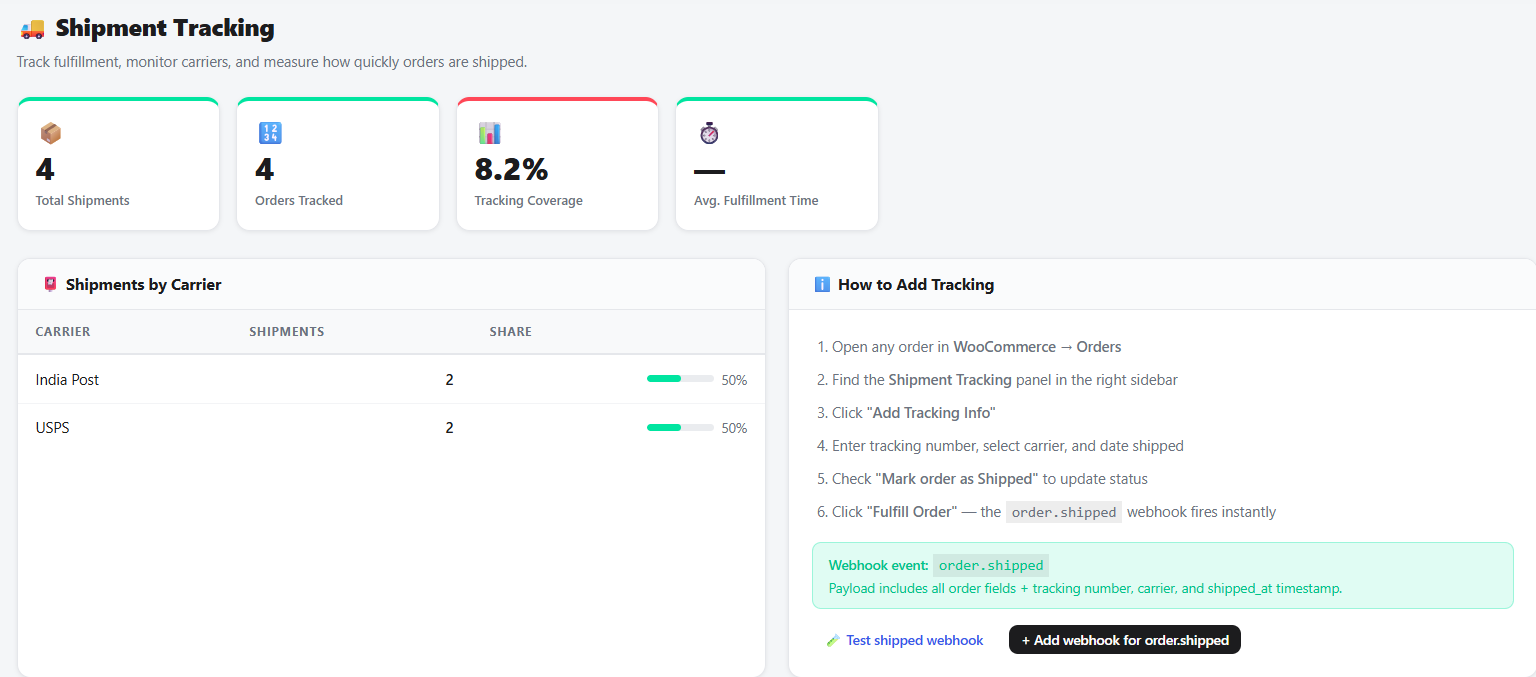
The Shipment Tracking feature helps you automate shipment updates and keep customers informed about their orders.
Key Features:
- View shipment analytics, including Total Shipments, Orders Tracked, Tracking Coverage, and Average Fulfillment Time.
- Monitor shipments by carrier and view recent shipments in one place.
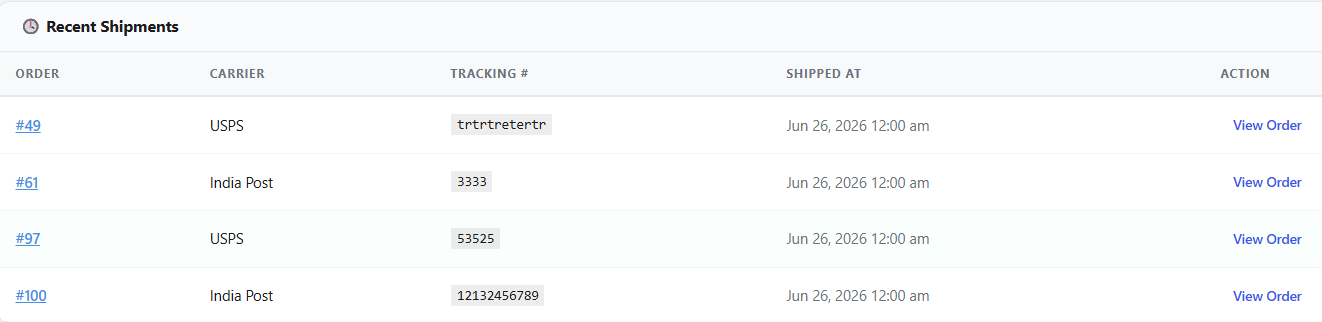
- Add a tracking number, carrier, and shipment date directly to WooCommerce orders.
- Automatically trigger the order shipped webhook when an order is marked as Shipped.
- Send real-time shipment tracking notifications to customers via WhatsApp or any connected platform.
Review Requests:
The Review Requests feature helps you automate customer review collection after an order is delivered.
Key Features:
- Automatically trigger review requests when an order reaches a selected status (e.g., Completed or Shipped).
- Configure the waiting period before sending the review request.
- Send a unique, one-time review link to customers via webhook automation on WhatsApp.
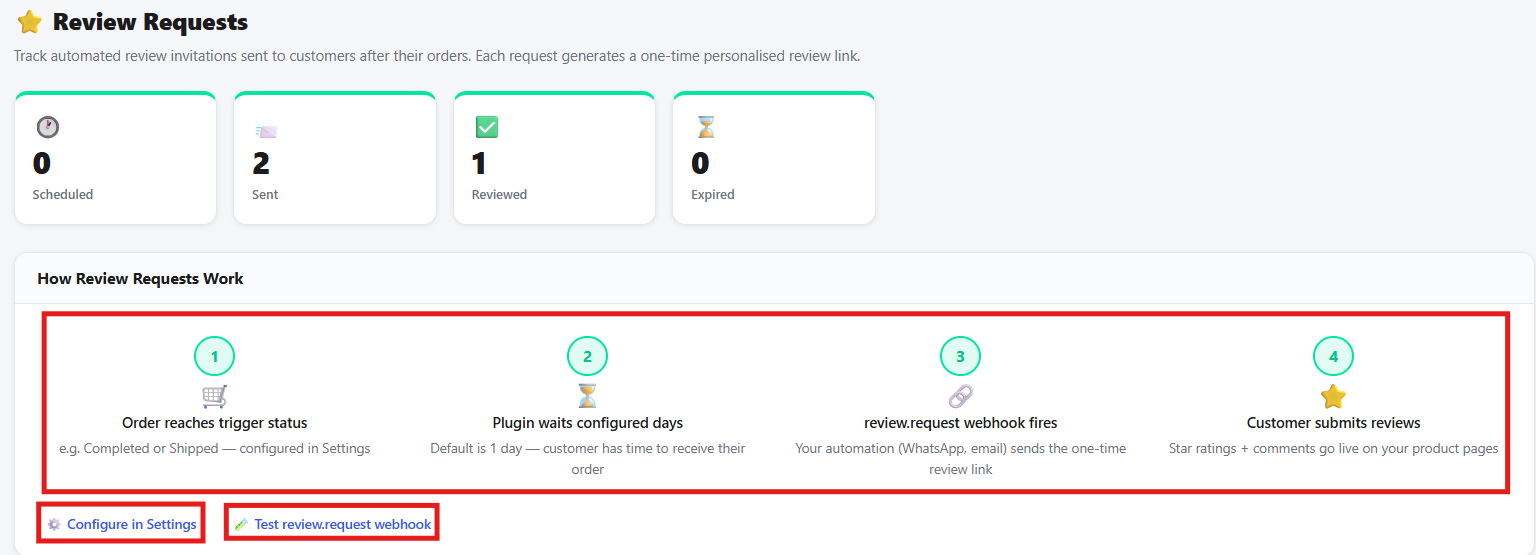
- Track review request analytics, including Scheduled, Sent, Reviewed, and Expired requests.
- View complete request history with order status, trigger, scheduled time, review status, and review link.

Test Center:
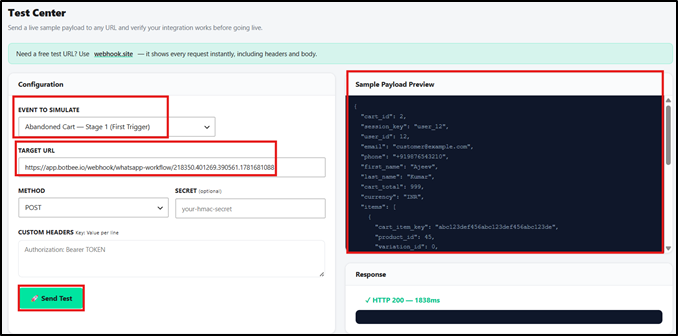
The Test Center allows you to send a live sample payload to any webhook URL before deploying your integration.
This helps verify that your endpoint is receiving data correctly and ensures your mappings and automations work as expected.
To run a test, simply select:
- Event Trigger
- Target Webhook URL
The Test Center also supports HTTP API testing, enabling you to validate integrations using different API endpoints before going live.
Settings:
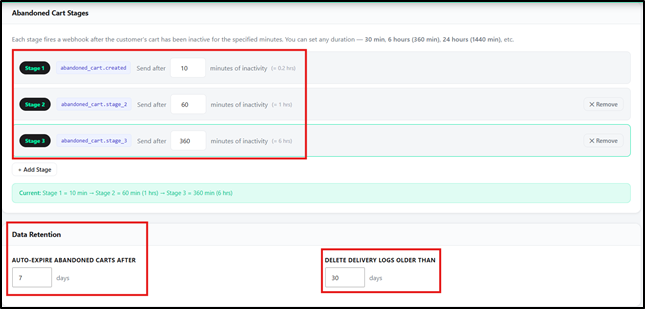
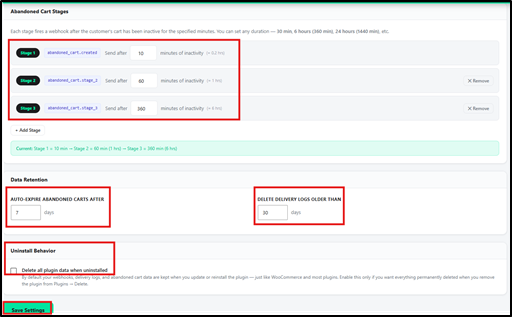
The Settings section allows you to customize how abandoned cart tracking and data retention are managed.
Available options include:
- Abandoned Cart Stages: Configure the time intervals for Stage 1, Stage 2, and Stage 3 and so on recovery triggers.
- Data Retention: Automatically expire abandoned carts after a specified period.
- Delivery Log Retention: Automatically delete webhook delivery logs older than a defined duration to keep your data organized and optimize storage.
- Uninstall Behaviour: If you enable this option all plugin data will be deleted when you uninstall the plugin.
These settings help you tailor cart recovery workflows and maintain efficient data management.
Review Request Settings:
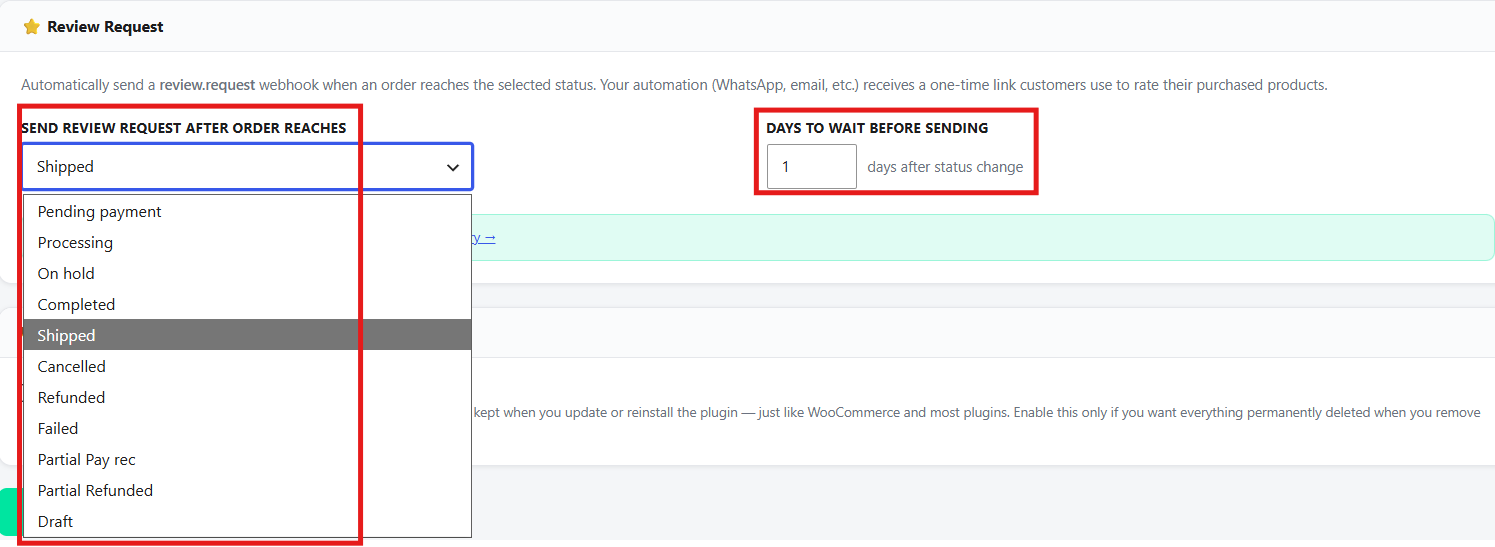
The Review Request Settings allow you to customize when review requests are sent to customers.
Key Features:
- Select the order status that triggers a review request (e.g., Shipped or Completed).
- Configure the number of days to wait before sending the review request.
- Automatically trigger the review.request webhook with a unique one-time review link.
- Option to delete all plugin data when uninstalling the plugin.
BotBee FlowBridge simplifies WooCommerce automation by connecting your store with webhooks, APIs, and BotBee workflows. With support for order events, abandoned cart recovery, conditional triggers, testing tools, and real-time analytics, it provides everything needed to build reliable and scalable automations.
Still Need Help?
If you face difficulties during onboarding:
- Take a screenshot or screen recording.
- Share details with our support team.
Our team will review the onboarding step and guide you further.
Contact: 08069645300
Found this article helpful?
( 4 Out of 8 Found Helpful )