Build a Powerful AI Agent with BotBee — Complete Setup & Configuration Guide
Learn how to train, prompt, and launch a fully autonomous WhatsApp AI Agent in BotBee — one that qualifies leads, resolves support questions, and sends product photos, all inside a single, precisely engineered workflow.
TL;DR
A BotBee AI Agent is built on two connected pillars: an AI Knowledgebase that holds the facts, and an AI Agent System Prompt that holds the instructions and the autonomous ## actions it can trigger mid-conversation — labeling leads, saving custom fields, escalating to a human, or sending product photos on request. This guide walks through building both from scratch, with a complete example prompt you can adapt for your own business.
Most WhatsApp chatbots try to be everything at once — answering pricing questions, troubleshooting issues, and sharing product photos from the same generic prompt. The result is usually a bot that gives vague answers, forgets context, and never quite takes real action.
BotBee's AI Agent framework fixes this by giving your business one carefully trained, carefully instructed digital worker — grounded in your own data and equipped with backend actions it can fire the moment a condition is met. This guide walks through every part of that setup: building the knowledgebase, writing the system prompt, wiring up autonomous actions, and testing before you go live.
The Two Pillars of a BotBee AI Agent
Before jumping into the dashboard, it helps to understand the two components that make the whole system work. Skip either one and the agent underperforms.
PILLAR 1
AI Knowledgebase — The Foundation
This is where your agent's factual grounding lives — the information it draws from when answering a question. You can train it on static FAQs, website URLs, uploaded documents, live Google Sheets, real-time API responses, or uploaded product images for AI Vision. A well-scoped knowledgebase keeps every answer accurate and on-brand.
PILLAR 2
AI Agent — The Brain and the Actor
The System Prompt is the agent's true source of authority — it defines the exact role, what information must be collected, and how it should behave. Typing ## anywhere in the prompt lets you embed autonomous backend actions like labeling a contact or handing off to a human — placed directly beneath the condition that should trigger them.
Step 1 — Build the AI Knowledgebase
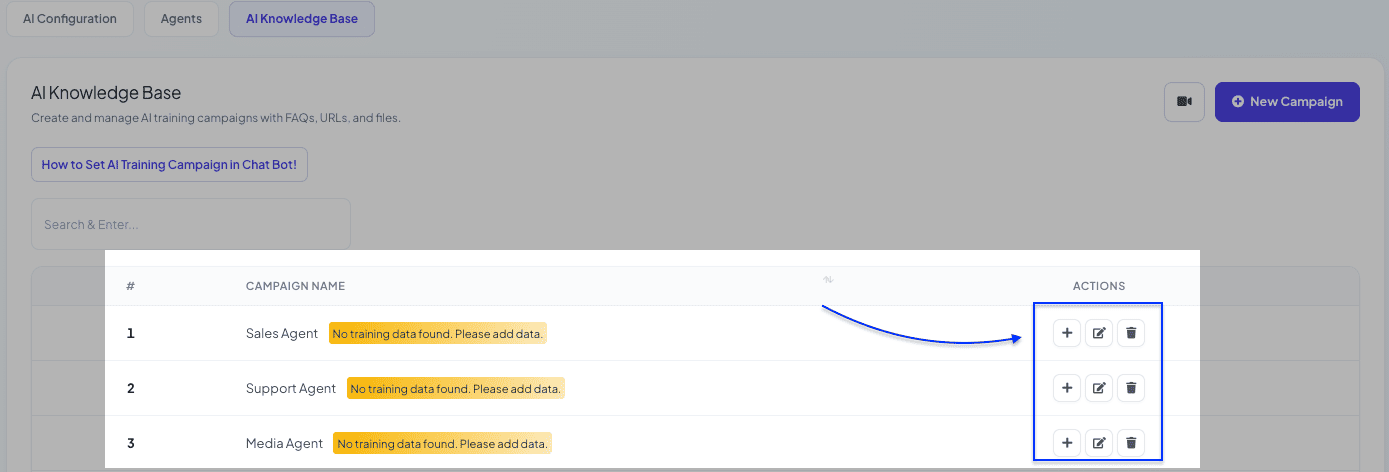
Open Dashboard → WhatsApp → Bot Manager → AI → AI Knowledgebase and create a new campaign. You'll fill in two core fields:

- Campaign Name — a clear identifier, such as "Product & Pricing Data" or "Support Documentation."
- Prompt Message — the baseline tone the agent uses across every reply. Be specific: instead of "You are a helpful assistant," write something like "You are a support representative for our company. Speak professionally, refer to the business as 'we,' and never invent information that isn't in the training data."
Once the campaign exists, click the + button to add training data. BotBee supports several methods, and you can mix them within the same campaign:
📄 FAQ / Text
Paste content directly — fastest way to get an agent trained.
🔗 URL Training
Paste a help-center or docs link; use a CSS selector to exclude nav bars and footers.
📁 File Upload
PDFs, policy documents, and troubleshooting guides.
📊 Google Sheets
Live-synced pricing or product data — updates reflect instantly, no retraining needed.
⚡ Real-Time API
Pull live data — order status, inventory, account details — straight into a response.
🖼️ Media Upload
Upload product photos with short descriptions so the agent can identify and fetch the right image later.
Step 2 — Configure the AI Agent's System Prompt
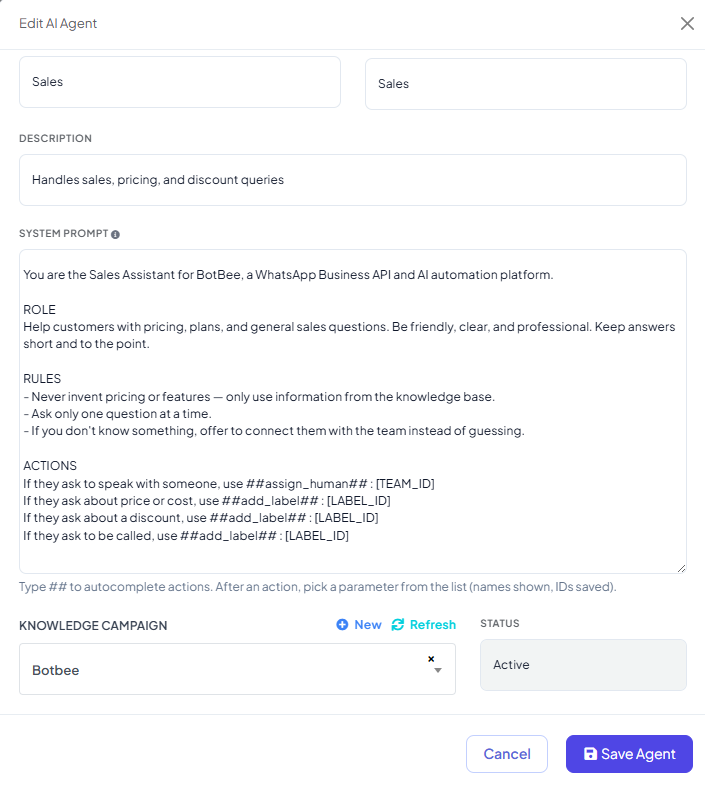
With your knowledgebase ready, head to the AI Agent section and click Create Agent. The System Prompt field is the most important part of this screen — it's what separates a genuinely useful digital worker from a generic chatbot.
A thin prompt like "You are a sales agent, help customers buy things" produces a mediocre agent. A strong prompt defines the role precisely, states exactly what information must be collected and how to ask for it, clarifies when to lean on the knowledgebase versus a live API call, and — critically — spells out which backend actions fire under which conditions.
To attach an action, type ## inside the editor. BotBee will suggest the available commands — choose one, pick its target (a label, a custom field, a sequence, a team member, or a bot flow), and place it directly beneath the condition meant to trigger it.
See every available action, its syntax, and when to use it in the BotBee AI Agent Actions Reference →
Setting up the agent
- Name & Slug: e.g. Growth Agent — the slug auto-populates as growth_agent.
- Description: a short internal note on what the agent is responsible for.
- System Prompt: the full role, rules, and ## actions — see the complete example below.
- Knowledge Campaign: select the campaign you built in Step 1.
- Status: set to Active, then click Save Agent.
A Complete Example — One Agent, Three Jobs
Since a BotBee AI Agent handles the full conversation on its own, the strongest prompts combine several responsibilities into one clean, well-organized script: qualifying leads, escalating tricky issues to a human, and sending product photos only when asked. Here's a complete, adaptable example:
SYSTEM PROMPT
You are the Growth Agent for [Your Business Name].

ROLE
Understand what the customer needs, answer questions accurately from your
connected knowledge campaign, and guide qualified customers toward a purchase
or trial. Be professional, warm, and consultative.

REQUIRED INFORMATION
Before recommending a plan, naturally collect:
1. Business type (e.g., E-commerce, Agency, Retail)
2. Primary communication channel
3. Main automation requirement
4. Expected monthly volume
5. Approximate budget

CONVERSATION RULES
- Ask only one or two questions at a time.
- Never repeat a question the customer has already answered.
- If several details arrive in one message, use all of them.
- Never invent pricing, features, or discounts.

SAVE INFORMATION
When the customer shares their budget:
##save_custom_field## : Budget

When the customer shares their business type:
##save_custom_field## : Business Type

QUALIFICATION
Once the required details are collected and the customer shows purchase intent:
##add_label## : Qualified Lead

If interested but not ready yet, enroll them in a follow-up sequence:
##assign_sequence## : Sales Follow-Up

HUMAN HANDOFF
If the customer reports a billing issue, an unresolved technical problem,
asks for custom enterprise pricing, or explicitly asks for a human:
##add_label## : Escalated
##assign_human## : Support Team

IMAGE DELIVERY (CRITICAL)
Never send images automatically at the start of a conversation. Hold them in
reserve and deliver them only when the customer explicitly asks to see a
photo, product, or what the platform looks like.

If they ask for a specific feature, fetch the matching image from the
connected Knowledge Campaign Media library.

If they ask for general examples or a portfolio, use:
##send_image## : https://yoursite.com/uploads/sample1.jpg, https://yoursite.com/uploads/sample2.jpg
##image_caption## : Here's a quick look at what we offer!
##send_image_count## : 2
Understanding the Image Actions
Image delivery in BotBee follows one strict rule: photos are never sent unprompted. The agent holds them in reserve and delivers them only when the customer explicitly asks. You control this using three tags:
##send_image##
A comma-separated list of direct, publicly accessible image URLs (ending in .jpg, .png, or .webp). Standard Google Drive links won't work — host images on your website's media library, AWS, or a service like Imgur and use the direct link.
##image_caption##
The text sent as a caption alongside the first image in the batch.
##send_image_count##
How many images to randomly select and send from the list (default 2, maximum 5).
Why This Setup Works
Precision training reduces noise
A well-scoped knowledgebase keeps answers grounded in curated data instead of guesswork, so the agent never mixes up a pricing detail with a policy answer.
Autonomous actions replace manual work
Labeling, sequence enrollment, custom-field updates, and human handoffs all fire automatically based on the conditions you write — no one has to review every conversation to decide what happens next.
Conditional media keeps conversations clean
Holding images in reserve until they're requested means customers only see photos at the moment they've expressed real interest — which keeps engagement high and clutter low.
Before You Go Live: Test First
Run your agent through a full conversation simulation before activating it in production. Confirm that it:
- Answers accurately from its connected knowledgebase
- Asks for missing information naturally, without repeating itself
- Saves data to the correct custom fields
- Triggers the right action at the right condition
- Sends images only when explicitly asked
- Escalates or labels contacts without duplicating actions
- Handles ambiguous messages gracefully, without inventing information
Agents that pass this checklist in testing rarely run into surprises in production.
Frequently Asked Questions
How does BotBee's AI agent decide when to send an image?
The agent never sends photos automatically. It holds them in reserve and delivers them only once the customer explicitly asks to see one — either by fetching a matching image from the Knowledge Campaign's Media library, or by using a fixed list defined with ##send_image## in the system prompt.
What backend actions can a BotBee AI Agent perform automatically?
Typing ## inside the System Prompt editor gives you access to actions including ##add_label##, ##remove_label##, ##assign_human##, ##assign_sequence##, ##save_custom_field##, ##call_http_api##, and ##trigger_bot_flow##. Each fires automatically the moment its stated condition is met in a live conversation. See the full AI Agent Actions Reference → for the complete list.
What's the difference between the AI Knowledgebase and the System Prompt?
The Knowledgebase supplies the facts — product details, policies, pricing, documentation. The System Prompt supplies the instructions — who the agent is, what it must collect, when it should act, and which BotBee actions it should trigger. A knowledgebase without a strong prompt produces a passive lookup bot; a strong prompt without good training data produces confident but inaccurate answers. You need both.
Found this article helpful?
( 2 Out of 4 Found Helpful )