How to Create an RCS Message Template
RCS message templates are required to send broadcasts in BotBee. These templates define the structure, media, and interactivity of your RCS messages, ensuring consistency and compliance. This article explains how to create an RCS message template step by step.
Step 1: Create an RCS Message Template:
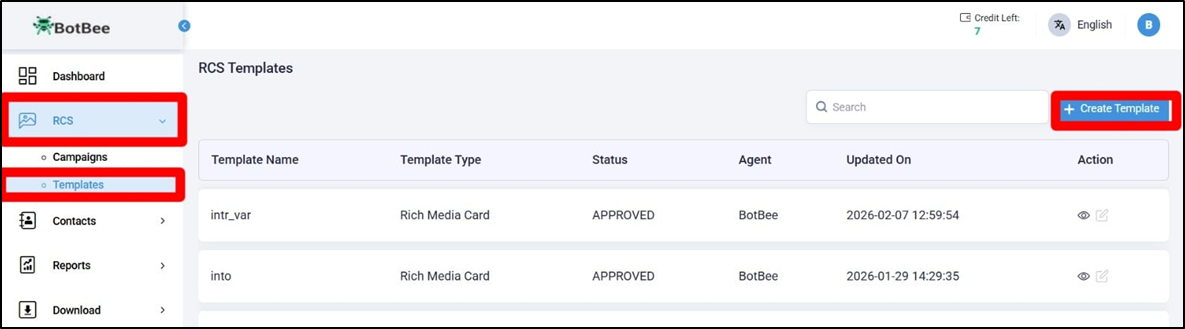
- Log in to your BotBee Dashboard.
- Navigate to the RCS section.
- Click on Templates.
- Select Create Template to begin creating your RCS message.
Step 2: Create the message template:
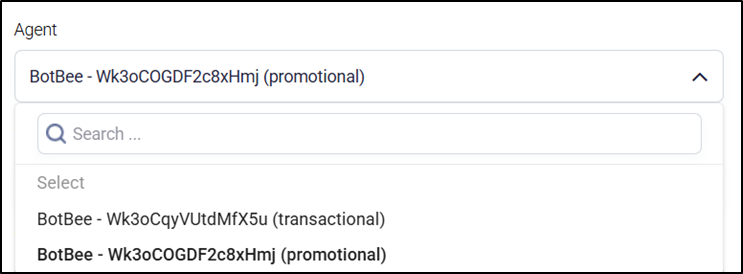
Agent: While creating the RCS template, you must choose the Agent type.
- Select whether your template will be Transactional or Promotional.
- Transactional messages are used for utility-based communication such as alerts, updates, or confirmations (similar to utility messages on WhatsApp).
- Promotional messages are used for marketing and campaign-related communication (similar to marketing messages on WhatsApp).
Template Type:
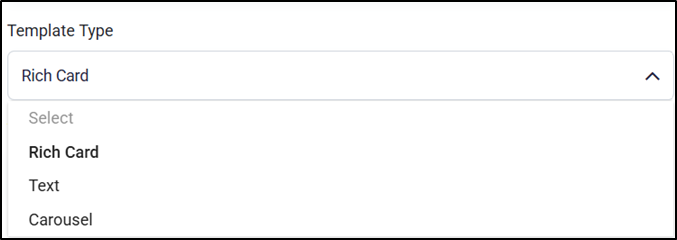
- BotBee supports the following RCS template formats:
- Text – Simple text-based messages for quick communication.
- Rich Card – Messages with images, text, and action buttons for better engagement.
- Carousel – Multiple rich cards that users can swipe through, ideal for showcasing products or offers.
Template Name:
- Enter a name for your RCS message template.
- The template name must contain only alphanumeric characters.
- Underscores (_) are allowed and can be used instead of spaces.
- Special characters are not allowed.
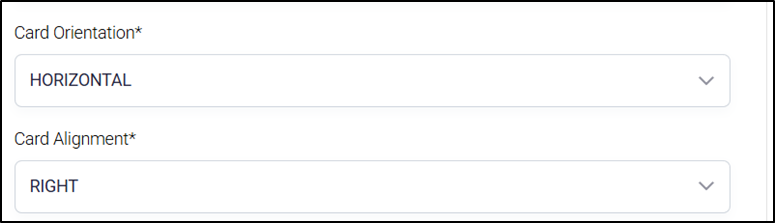
Card Orientation and Alignment:
- Select the card orientation for your RCS template: Vertical or Horizontal
- Choose the card alignment: Left or Right
- The orientation and alignment determine how your rich card content is displayed to users.
Step 3: Upload Media for the RCS Template:
- Upload the media file for your RCS message.
- BotBee allows you to add media in the following ways:
- Upload an image or video
- Provide a media URL
- Use variable media (dynamic media fetched via URL)
Media Upload Requirements:
Supported Image Sizes (Rich Card)
- Vertical – Short: 1440 × 480 px (Aspect Ratio 3:1)
- Vertical – Medium: 1440 × 720 px (Aspect Ratio 2:1)
- Horizontal: 768 × 1024 px (Aspect Ratio 3:4)
- Maximum File Size: 2 MB
- Supported Formats: JPG, JPEG, PNG, GIF
For detailed image size recommendations and best practices, refer to the official image guidelines here: Image Dimension Guidelines
If the uploaded media does not meet these requirements, you’ll be prompted to edit or replace it.
Card Title:
- Enter a card title for your RCS message.
- The card title acts as the main heading of your message.
Card description:
Write your message body here.
Action/Reply Button:
- Add action buttons or reply buttons to your RCS message.
- Action buttons allow users to take actions such as visiting a website, calling a number, or opening a link.
- Reply buttons let users respond instantly with predefined options.
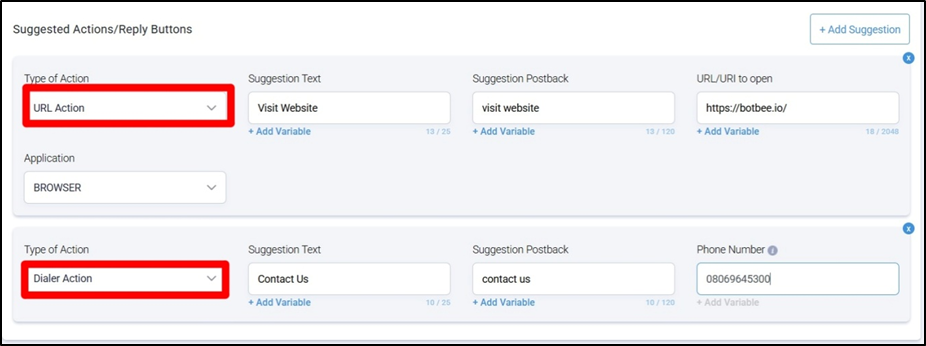
- You can see the preview on the right hand side.
- Save the Template.
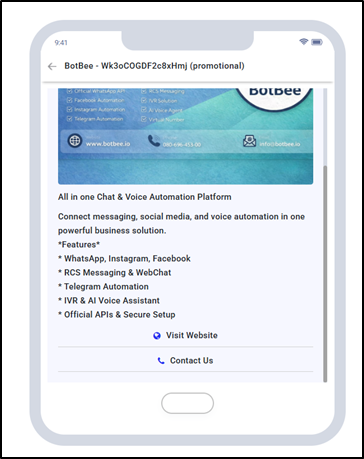
Now wait for the template to get approved.
Once the template is created and saved, it can be reused across multiple RCS broadcast campaigns, ensuring consistent messaging and faster campaign setup.
Still Need Help?
If you face difficulties during onboarding:
- Take a screenshot or screen recording.
- Share details with our support team.
Our team will review the onboarding step and guide you further.
Contact: 08069645300
Found this article helpful?
( 5 Out of 10 Found Helpful )