Sending Abandoned Cart Message to WhatsApp
Recovering abandoned carts is one of the easiest ways to boost your WooCommerce sales. Instead of letting potential customers slip away, you can gently remind them on WhatsApp—right where they’re most active.
In this guide, you’ll learn how to automate abandoned cart reminder messages using BotBee and WooCommerce.
Step 1: Create a WhatsApp Message Template:
- Go to BotBee Dashboard → Bot Manager → Message Template under Automation Section.
- Click on Create Template.
Configure the template:
- Set a Template Name
- Write your message body
- Add variables like Checkout URL so users can return to their cart instantly.
- By Default Abandoned Cart Templates go to Marketing Category, Click Save.
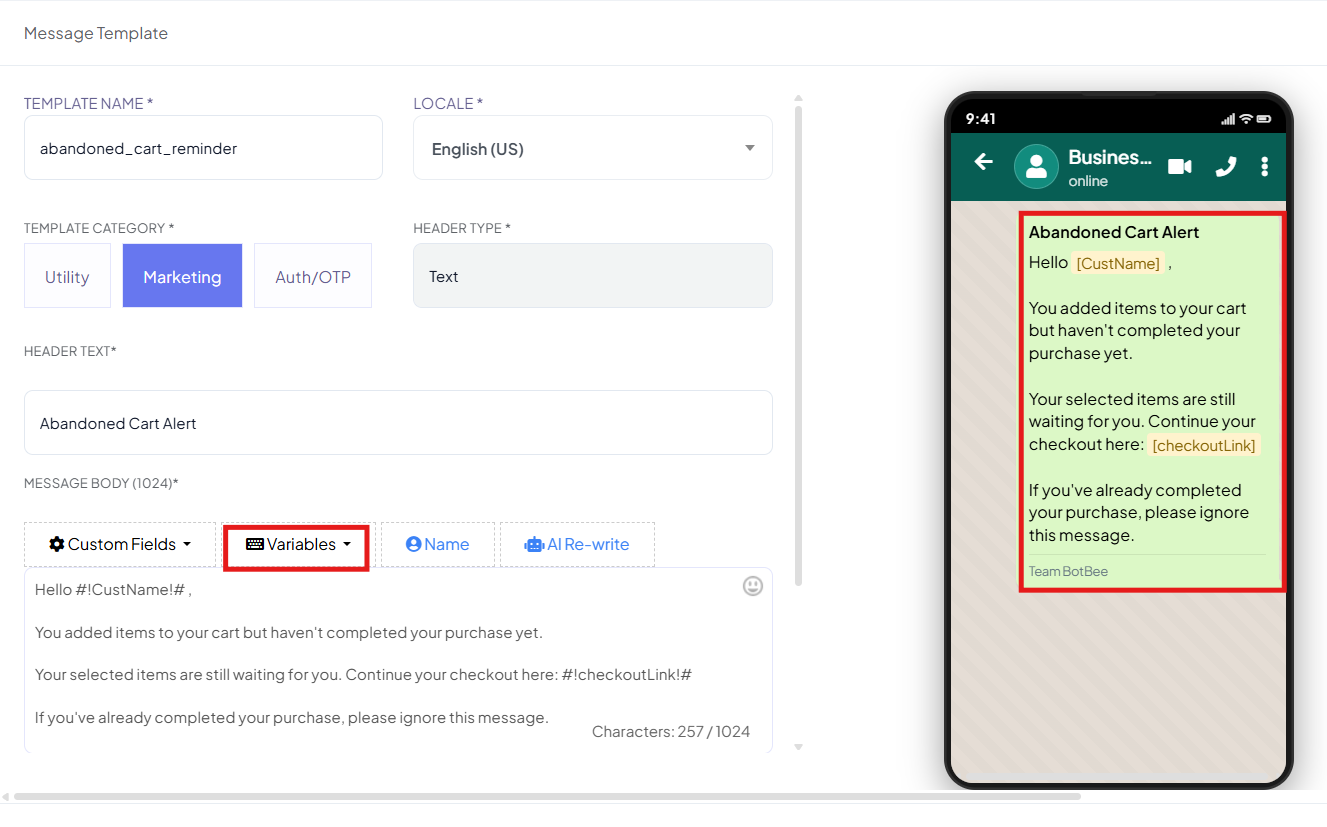
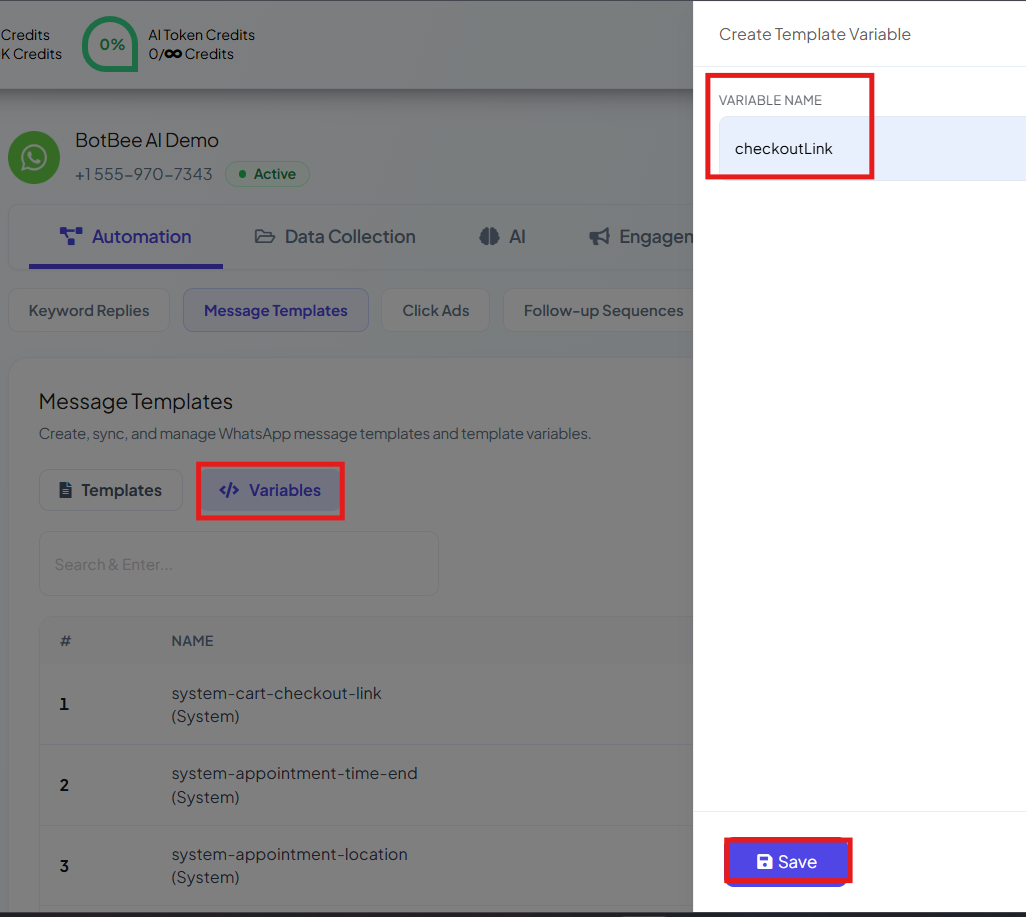
- Click on “Sync Templates” to ensure the template is Approved by WhatsApp.
- Messages won’t send unless the template is approved.
Step 2: Set Up the Webhook Workflow in BotBee:
- Go to Webhook Workflow under WhatsApp.
- Click Create Workflow
- Give a Workflow Name
- Select your WhatsApp Account
- Choose the Message Template you created
- Click Create Workflow.
- Copy the generated Webhook URL.
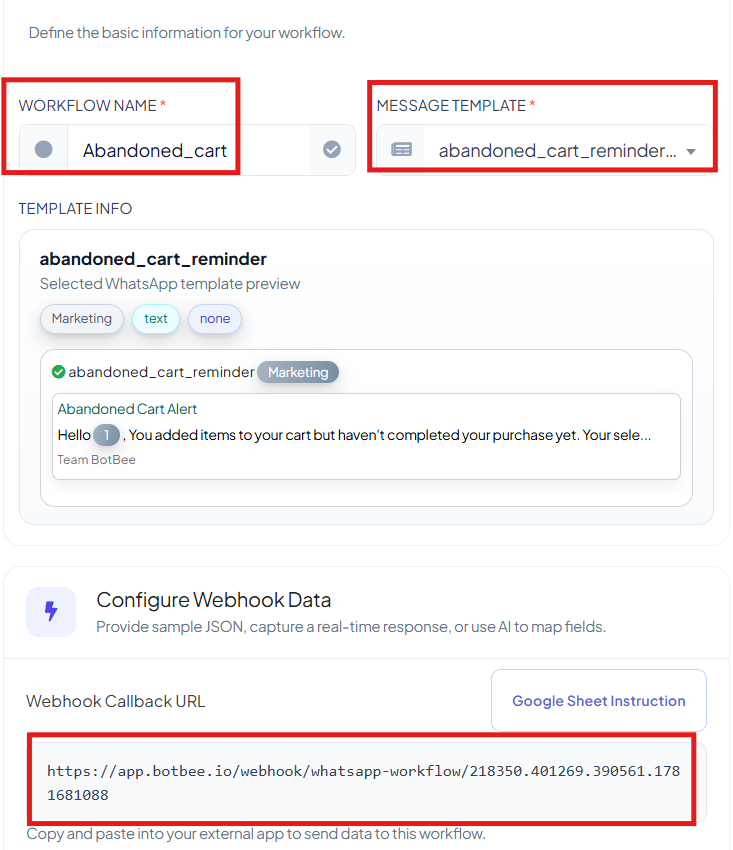
Step 3: Configure WooCommerce Settings:
- Install the plugin: Abandoned Cart Recovery Lite for WooCommerce
- Go to Tools in BotBee Dashboard.
- Download the “Abandoned Cart Recovery” Plugin.
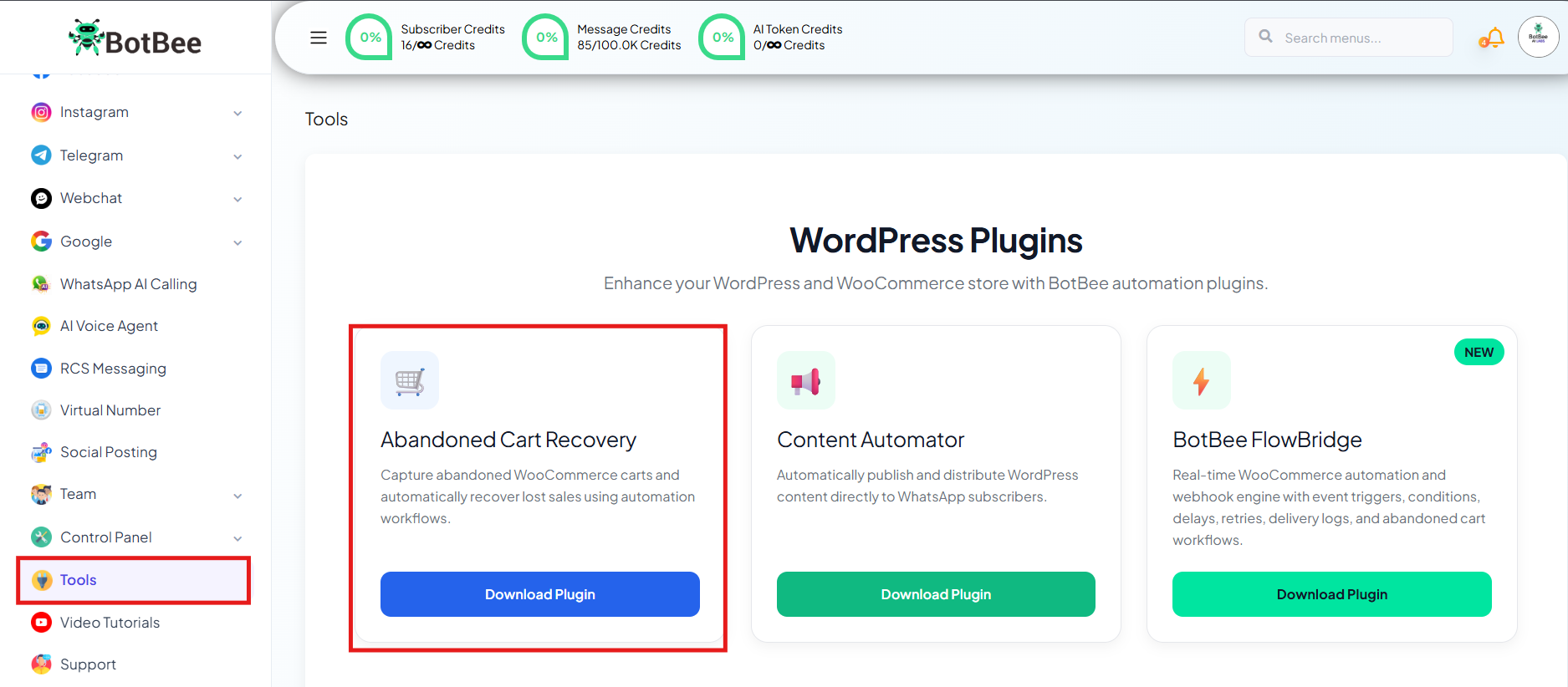
- Login to WordPress website dashboard.
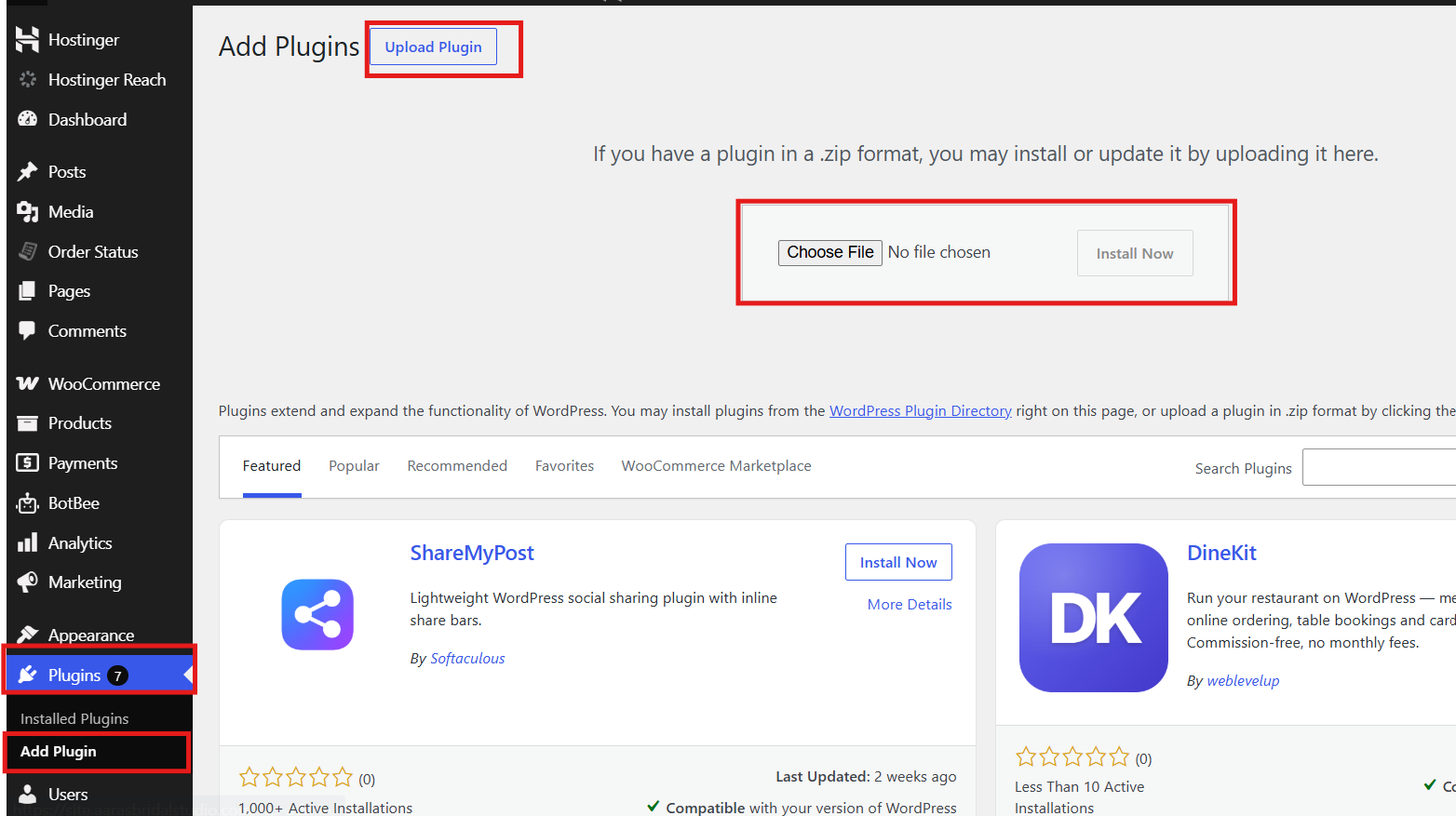
- Go to Plugin → Add Plugin
- Click on Upload Plugins and upload the downloaded ZIP File.
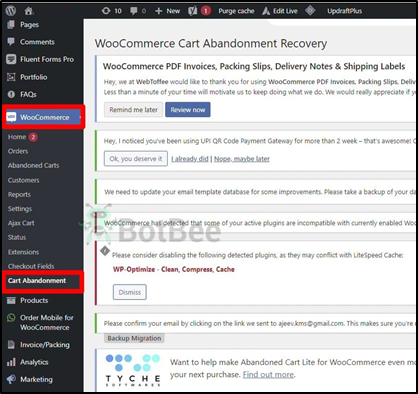
- Now go to WooCommerce → Cart Abandoned
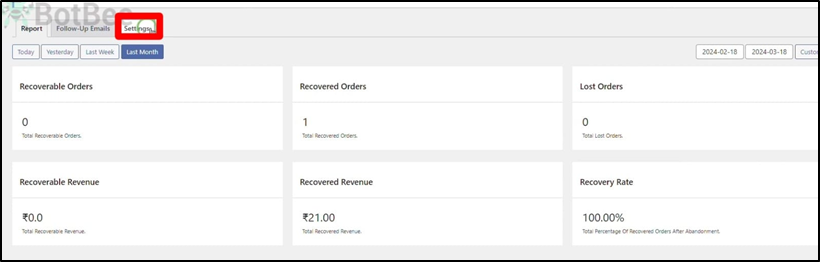
- Go to Settings.
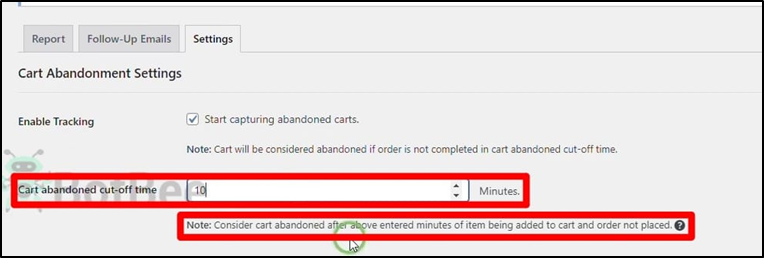
Adjust:
- Cart abandoned cut-off time (e.g., 10–15 minutes)
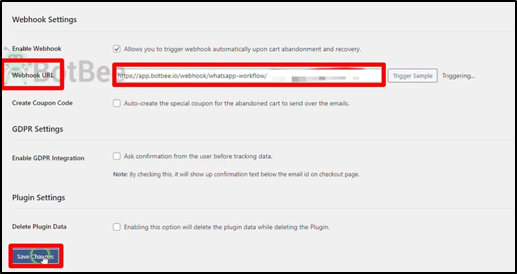
- Open Webhook Settings inside the plugin.
- Paste the Webhook URL you copied from BotBee
- Click Save Changes.
Step 4: Capture Sample Data & Map Fields:
- Go to your store and simulate a user:
- Add items to cart
- Do NOT complete the purchase
- Close the tab
- Wait around 10 minutes
- Go back to BotBee → Webhook Workflow
- Check if sample data is received.
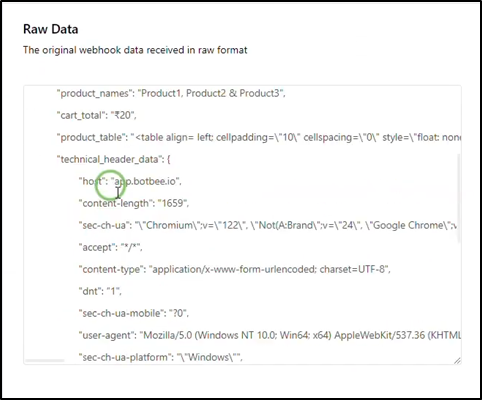
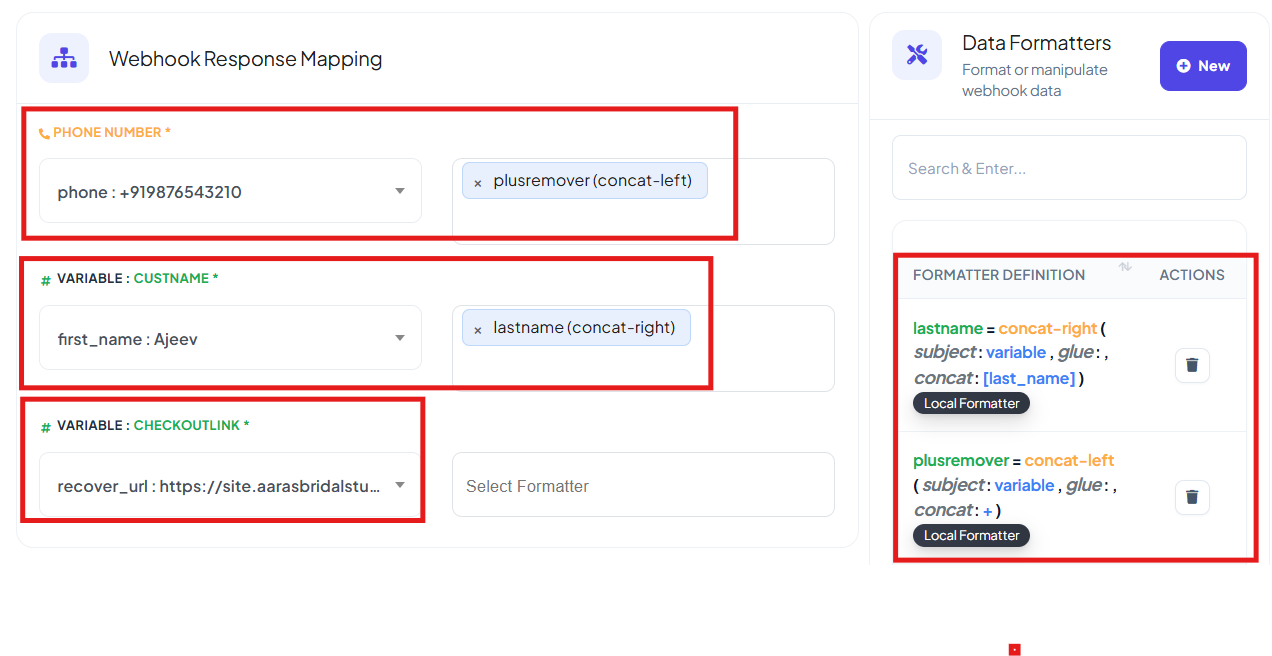
Now we have to configure the web hook response mapping in the phone number field.
- Map the Fields: Match WooCommerce data to WhatsApp variables:
- Phone Number: We have to select the phone number from JSON data, here it's under the billing.
(Note: The number should be shown without the “+” sign. if the number appears with a “+” sign in the output json, use a formatter and apply trim left to remove the “+” sign.)
- Customer Name: Select first name. You can also use formatter to add last name.
- Product List: Select the product list, here it is under product_name.
- Checkout URL: Select Checkout URL
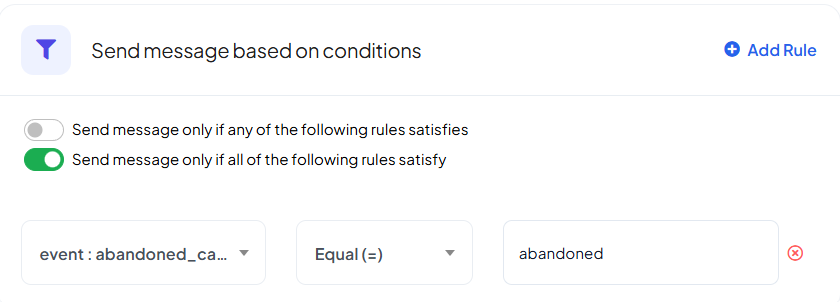
Add Logic Conditions:
To avoid sending messages unnecessarily
Select the first option then click on “Add rule”
Set condition:
- Order Status: Abandoned
- Operator: Equal
- Value: Abandoned
- Click Save Workflow
Final Result
Your automation is now live. Whenever a customer abandons their cart:
- BotBee captures the data
- Workflow gets triggered
- WhatsApp reminder is sent automatically
Reference Video:
If you prefer video tutorials here are the links:
English: https://youtu.be/WrIftYvrwMM?si=109d13gCAa6Mk6lF
Still Need Help?
If you face difficulties during onboarding:
- Take a screenshot or screen recording.
- Share details with our support team.
Our team will review the onboarding step and guide you further.
Contact: 08069645300
Found this article helpful?
( 3 Out of 6 Found Helpful )