Sending COD Order Confirmation messages on WhatsApp
Cash on Delivery (COD) orders are convenient for customers, but they often create a challenge for online stores—fake or unconfirmed orders. Many businesses end up shipping products only to find that the customer never intended to accept the order.
Using WhatsApp COD verification with BotBee, you can automatically confirm whether the customer genuinely wants the order before processing it. This simple automation sends a confirmation message to the customer on WhatsApp with buttons to Confirm or Cancel the order. Let’s walk through how to set it up.
BotBee allows you to send WooCommerce COD Confirmation messages on WhatsApp using two different methods depending on your requirements.
Method 1: Using Default Templates:
Step 1: Select your Message Templates:
- BotBee automatically generates variables and default templates that you can use for order notifications.
- To get the default templates, Go to Messagage templates in Bot Manager.
- Click on Create then Default Templates.
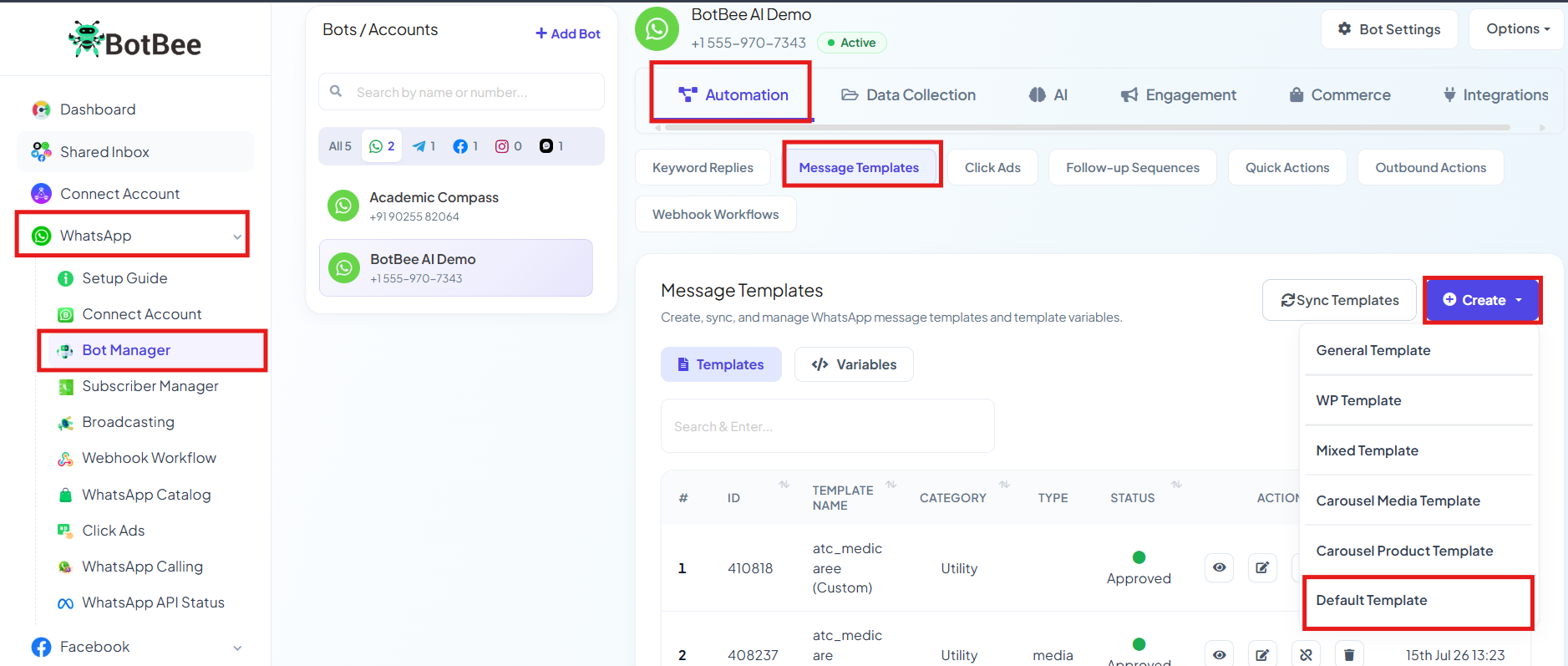
- The system will show default template along with pre made variables.
- Confirm that the template status is Approved.
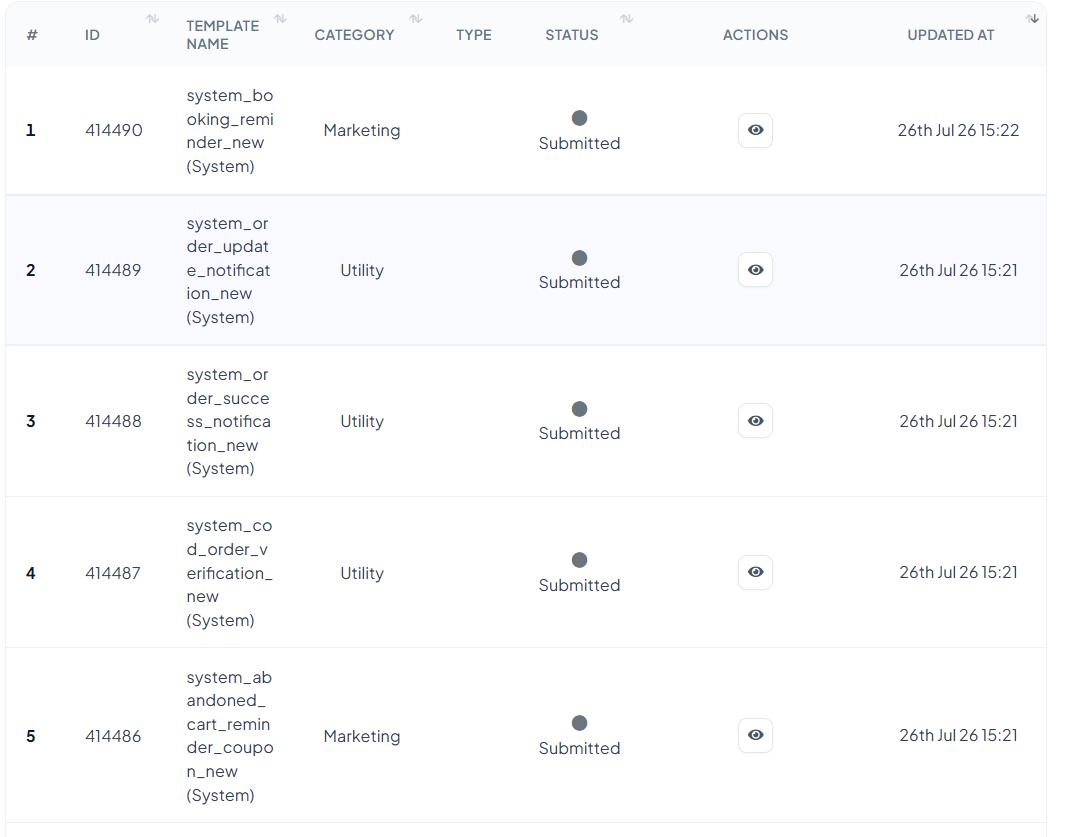
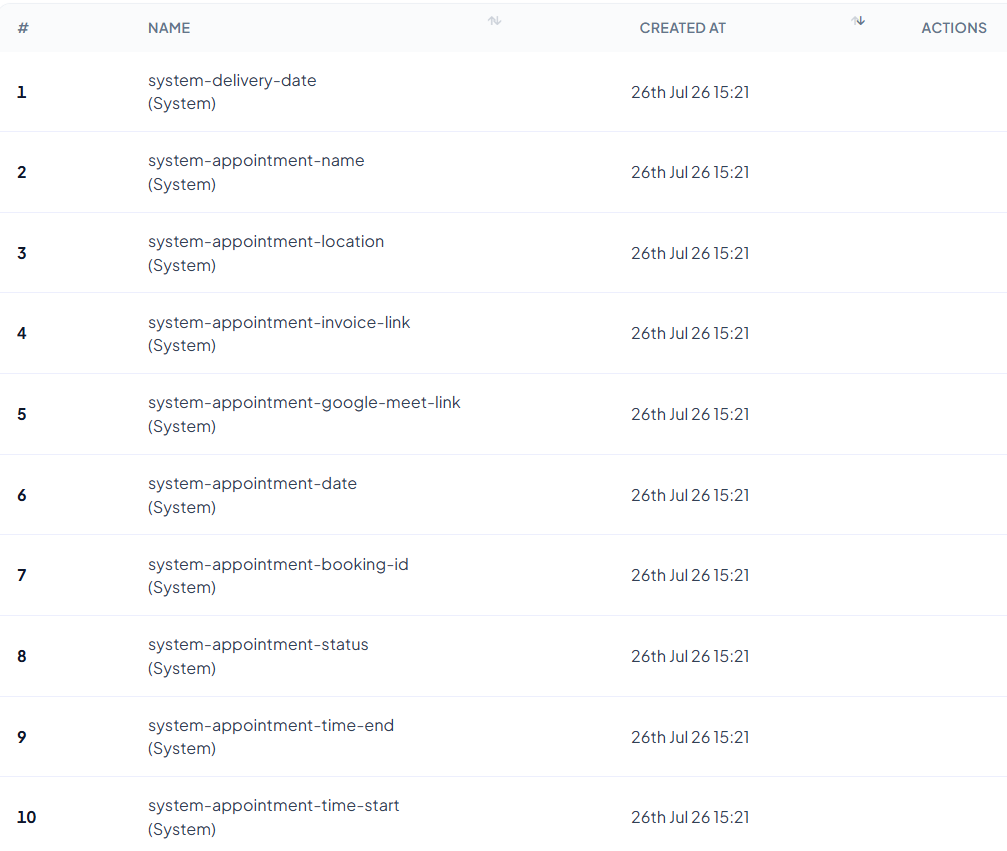
Step 2: Create the COD Verification Automation Campaign:
After setting up the templates, the next step is creating the automation campaign that will trigger the confirmation message.
Access Automation:
- In the Bot Manager, Go to "Store Automation" under Commerce Section.
- Click Create to start a new automation campaign.
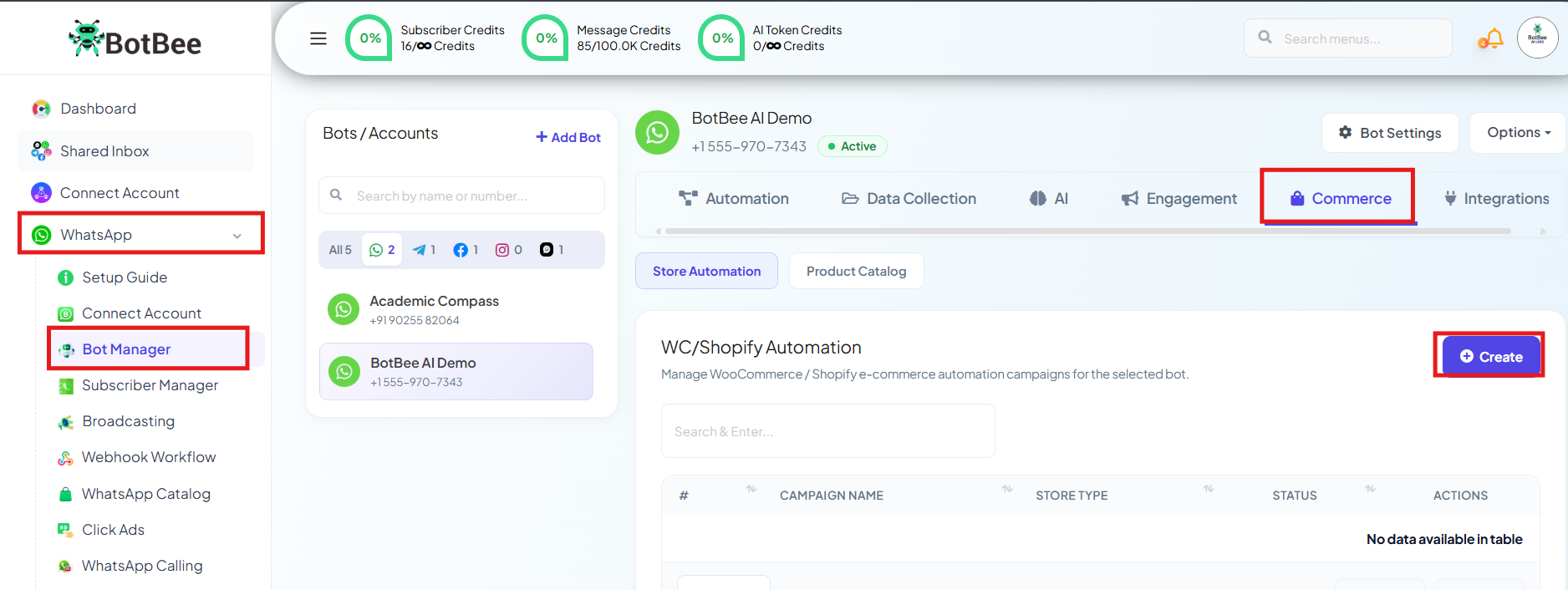
Fill the Campaign Form:
You will need to configure several fields:
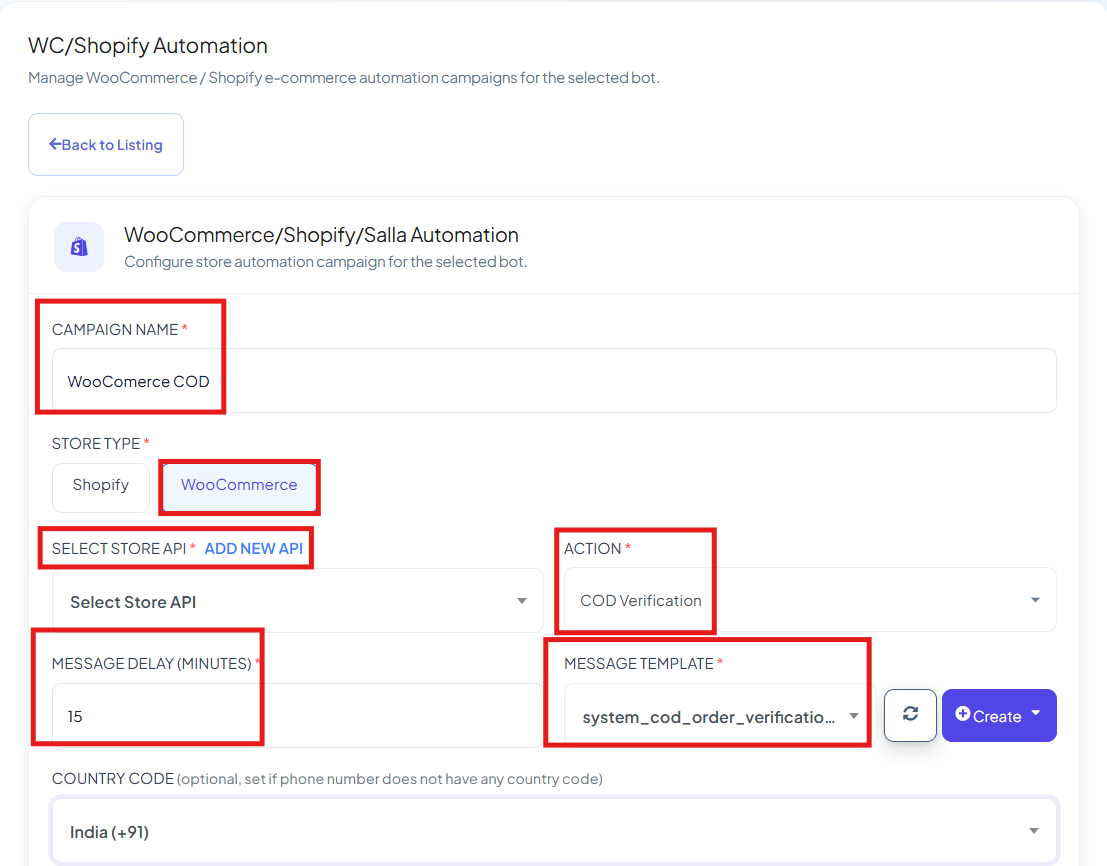
- Campaign Name: Enter a name for your campaign so it’s easy to identify later.
- Store Type & API: Select the platform you connected earlier (WooCommerce or Shopify) and choose the corresponding API.
- Action: From the dropdown menu, select COD Verification.
- Message Delay: Set how long BotBee should wait before sending the WhatsApp message.
- The default is 15 minutes, but you can adjust it depending on your workflow.
- Template Selection: BotBee automatically selects the appropriate template for COD verification. This message contains two buttons:
Important:
Make sure both buttons in the COD verification template are connected to the bot flow. This ensures the conversation continues properly after the customer clicks a button.
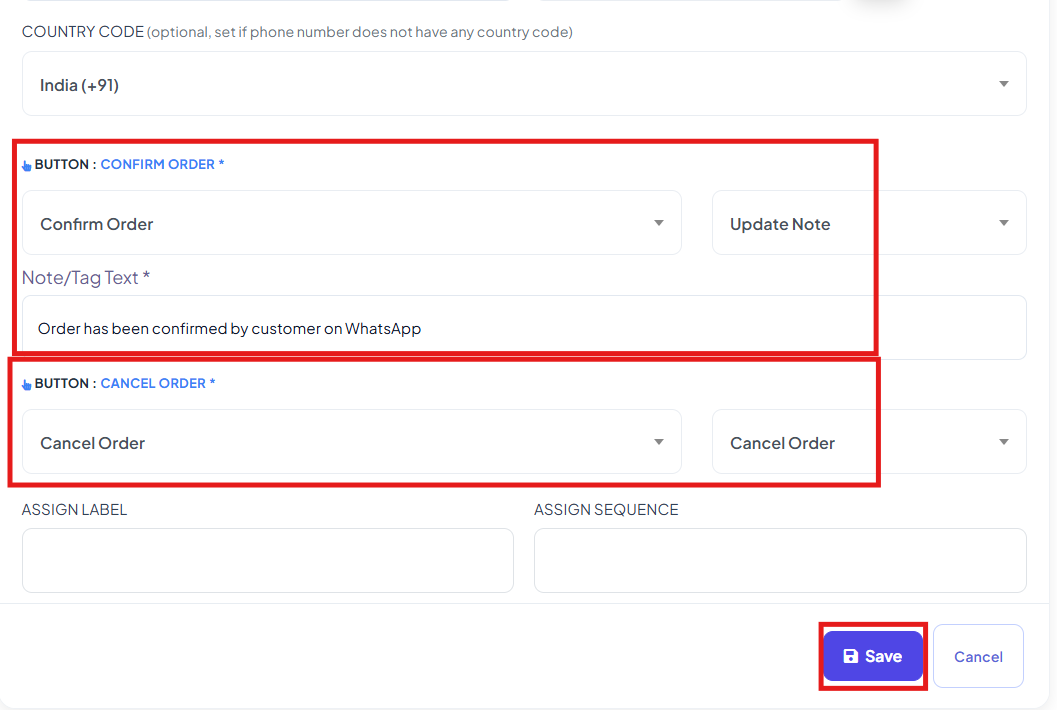
- Confirm Order: When the customer clicks this button, the bot should send a confirmation message such as “Your order has been successfully confirmed. We will start processing it shortly.”
- Cancel Order: When the customer clicks this button, the bot should send a message like “Your order has been cancelled.” and the order status in your WooCommerce or Shopify store will automatically update to Cancelled.
Update Note & Note/Tag Text
- Update Note: Select this option for the Confirm Order button to automatically add a note to the order when the customer confirms it on WhatsApp.
- Note/Tag Text: In this field, enter a tag like order-confirmed.
Assign Labels (Optional): You can assign labels or sequences to customers based on their interaction.
- After filling in the details, click Save to activate the automation campaign.
Method 2: Using Custom Templates with Webhook Integration:
Step 1: Create custom message template:
- Go to Bot Manager → Message Template.
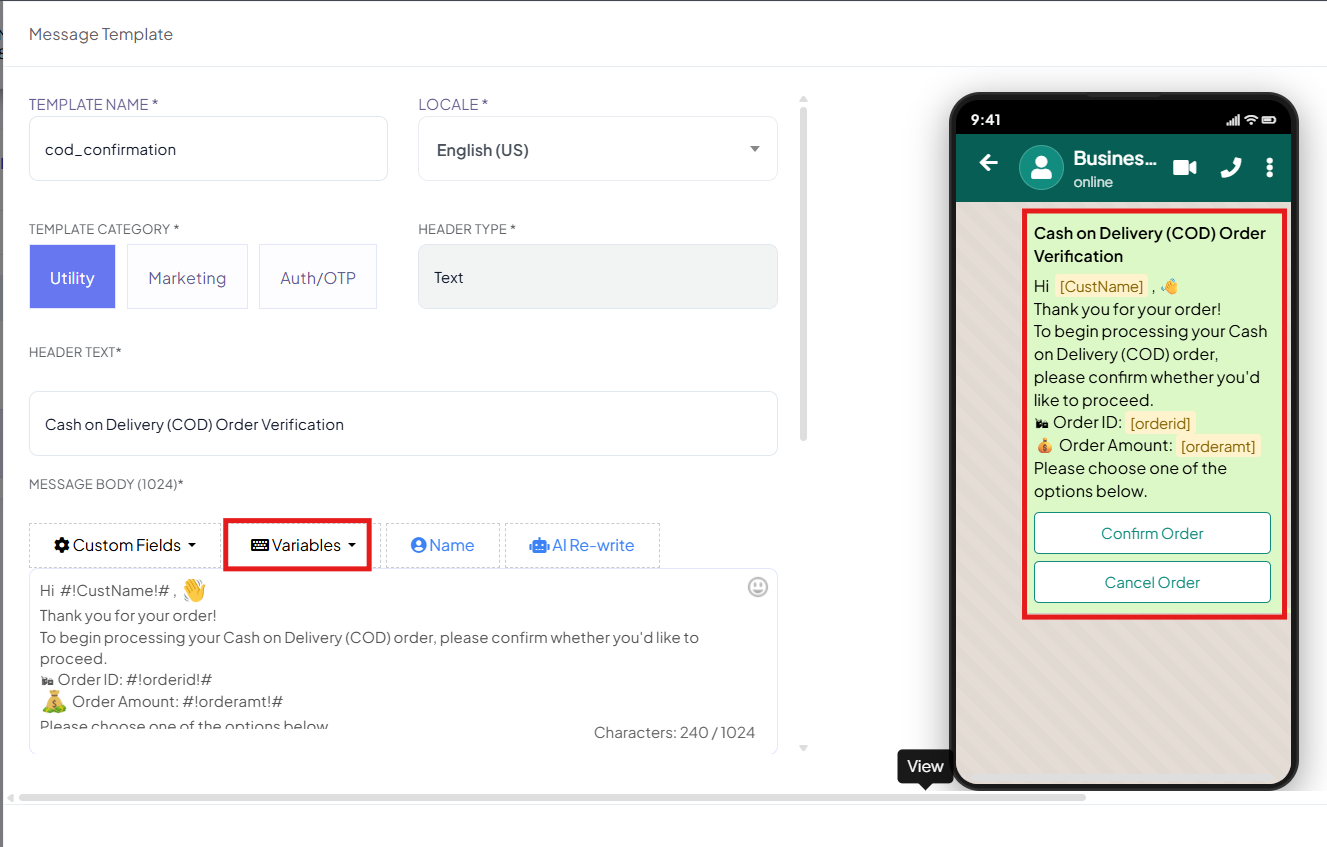
- Click Create and enter a name for your template.
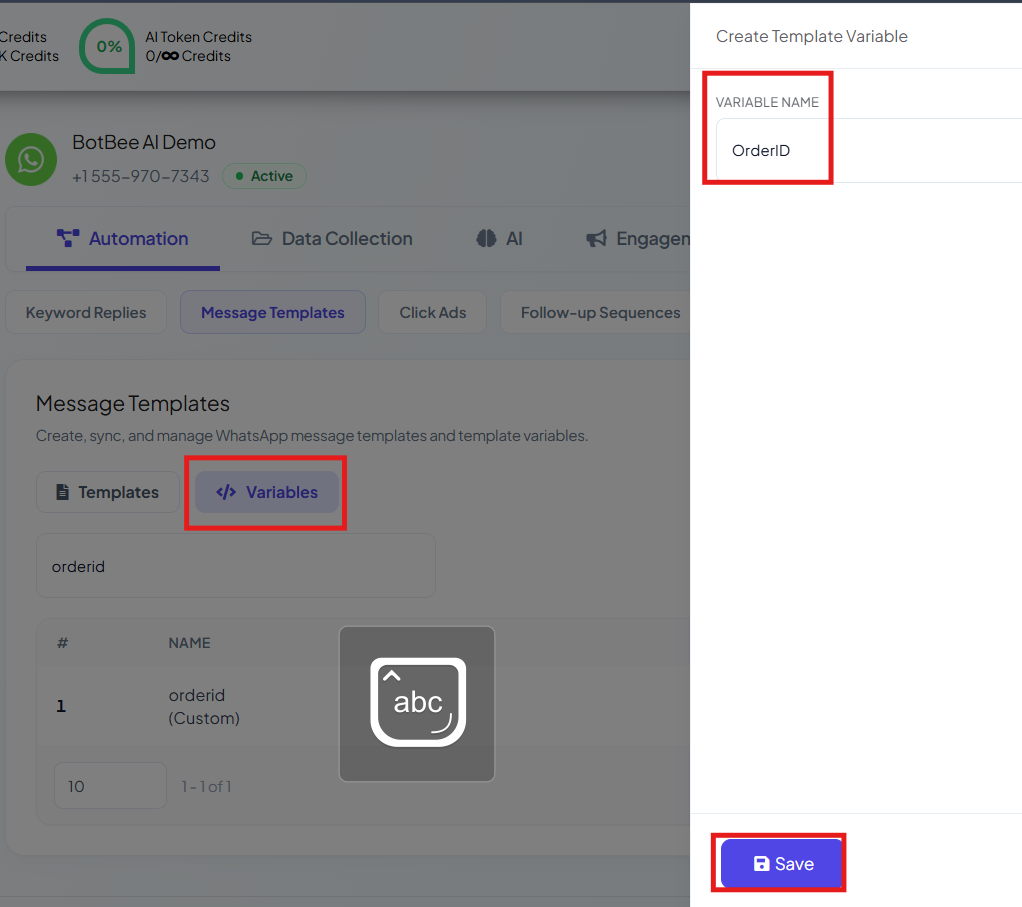
- Write the message body and include variables for dynamic data.
- Common variables include: Order ID, Order Price.
- Add two Custom Buttons: Confirm , Cancel Order.
- Click Save and wait for the template to be approved by WhatsApp.
Step 2: Create Postbacks for Buttons:
- These define what happens when a user clicks a button.
- Go to Bot Manager → Keyword Replies
- Click on Create.
- Write the message you want to send after someone clicks on Confirm/Cancel.
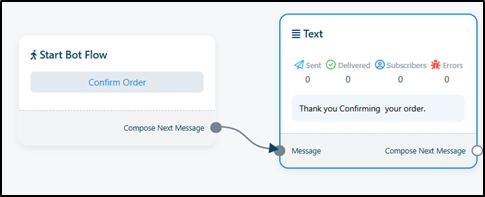
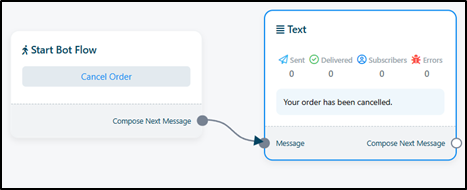
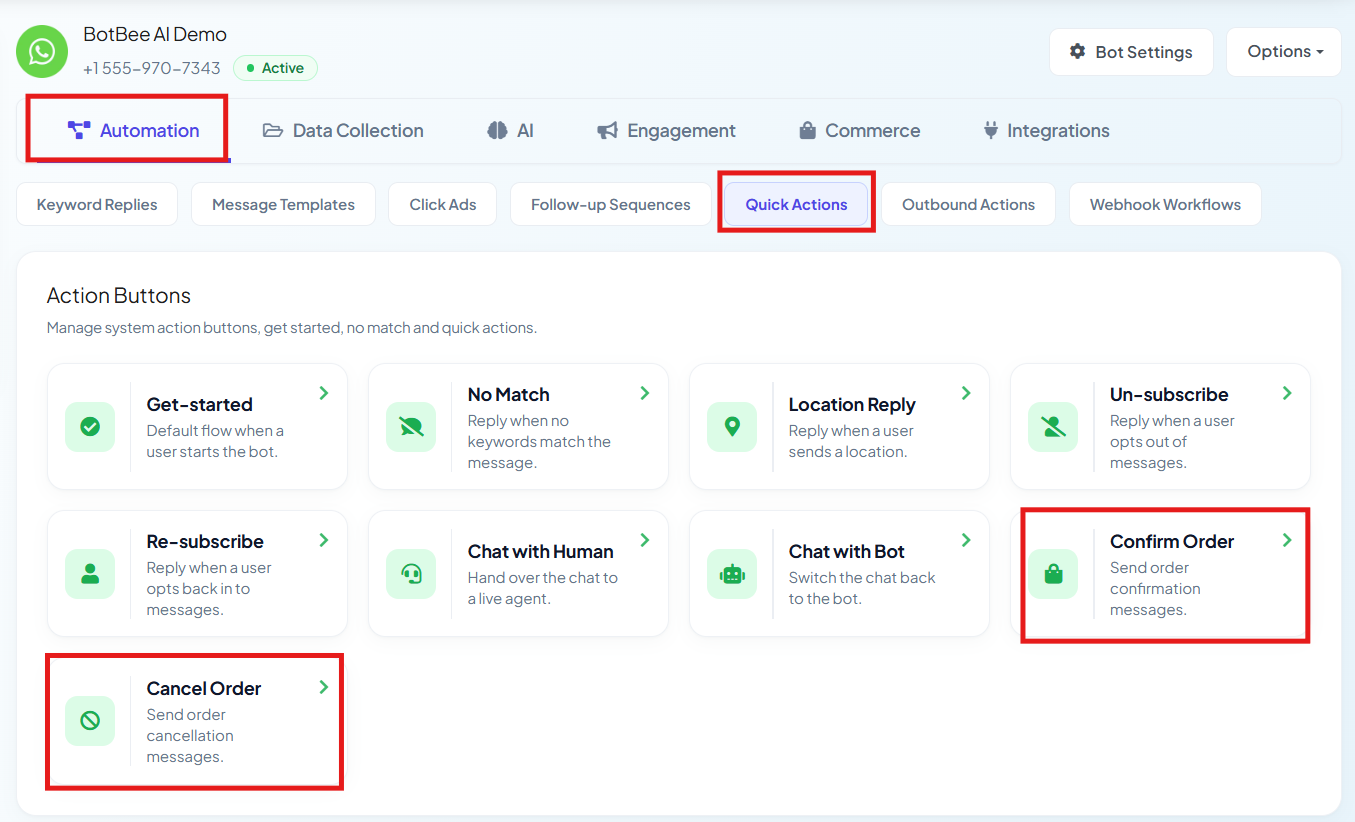
- You can also use default action for both.
- In the Bot Manager, Go to “Quick Actions” under Automation Section.
Step 3: Set Up the Webhook Workflow in BotBee:
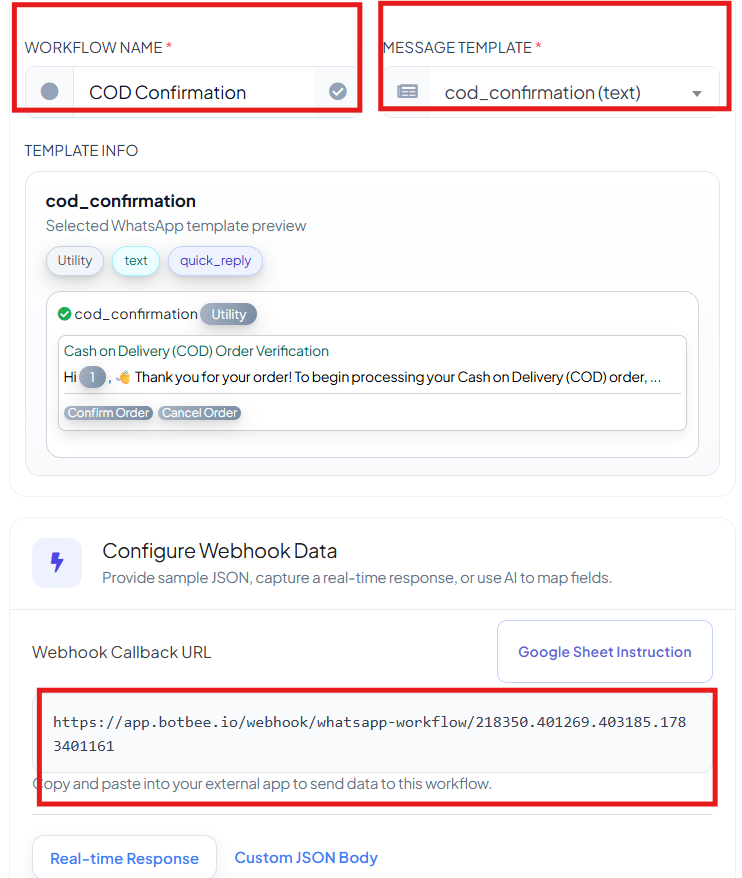
- Go to Webhook Workflow under WhatsApp and click Create.
- Enter a workflow name.
- Select the message template you created earlier.
- Choose the WhatsApp account that will send the message.
- Click Create Workflow.
- BotBee will generate a unique Webhook URL.
- Copy this URL, as it will be required in WooCommerce.
Step 4: Configure WooCommerce Webhook:
- Log in to your WooCommerce Admin Panel.
- Navigate to Settings → Advanced → Webhooks.
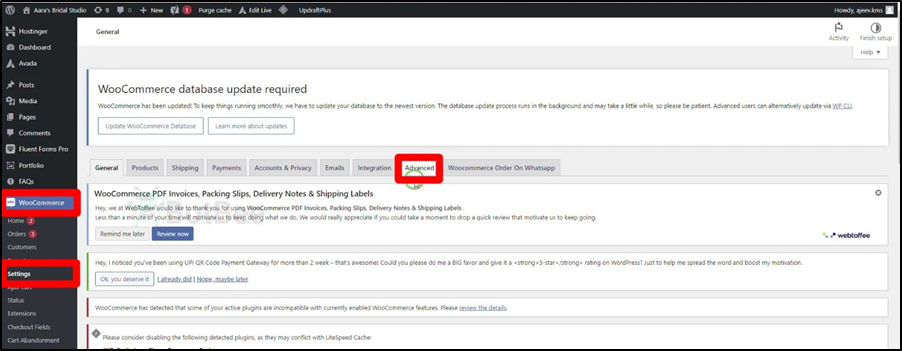
Click Add Webhook and configure the following:
- Name: Any recognizable name
- Status: Active
- Topic: Order Created
- Delivery URL: Paste the Webhook URL copied from BotBee
- Click Save Webhook.
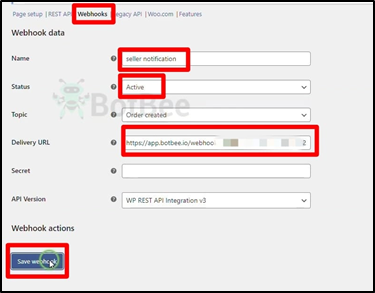
- Go back to BotBee and click on Capture Webhook Response.
Step 5: Place a Demo Order in COD (Testing):
- Open your WooCommerce store.
- Add a product to the cart.
- Place a test order using dummy details.
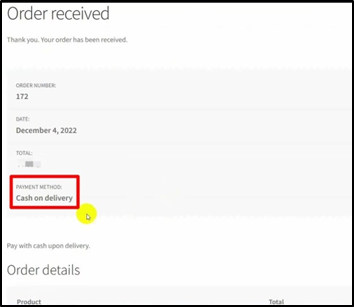
Step 6: Webhook Response Mapping:
- After configuring the WooCommerce webhook and placing a test order, the next step is Webhook Response Mapping. This step ensures that the data received from WooCommerce is correctly connected to the variables used in your WhatsApp message template.
- When WooCommerce sends order information to BotBee, it sends the data in JSON format. Response mapping allows you to select specific fields from this data and link them to the variables defined in your template.
- Once the webhook is triggered, you will see the sample response data received from WooCommerce.
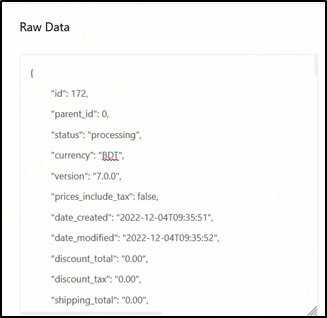
- Now we have to configure the web hook response mapping in the phone number field.
- We have to select the phone number from JSON data , here it's under the billing.
(Note: The number should be shown without the “+” sign. if the number appears with a “+” sign in the output json, use a formatter and apply trim left to remove the “+” sign.)
- Now select the total price variable from the list.
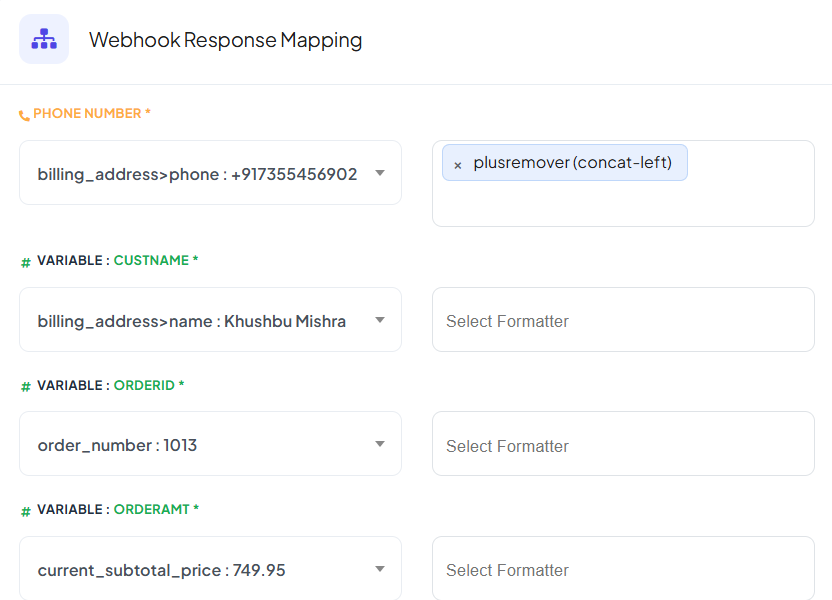
- You can also Make a variable product List.
- Then select a value for the product list variable it is line items under the list items.
Line items may have multiple items so we will have to use a formatter.
- Name: Give a name to the formatter.
- Action: concat list items
- Glue: Put a comma sign “,”
- Position: name
- Save the formatter now.
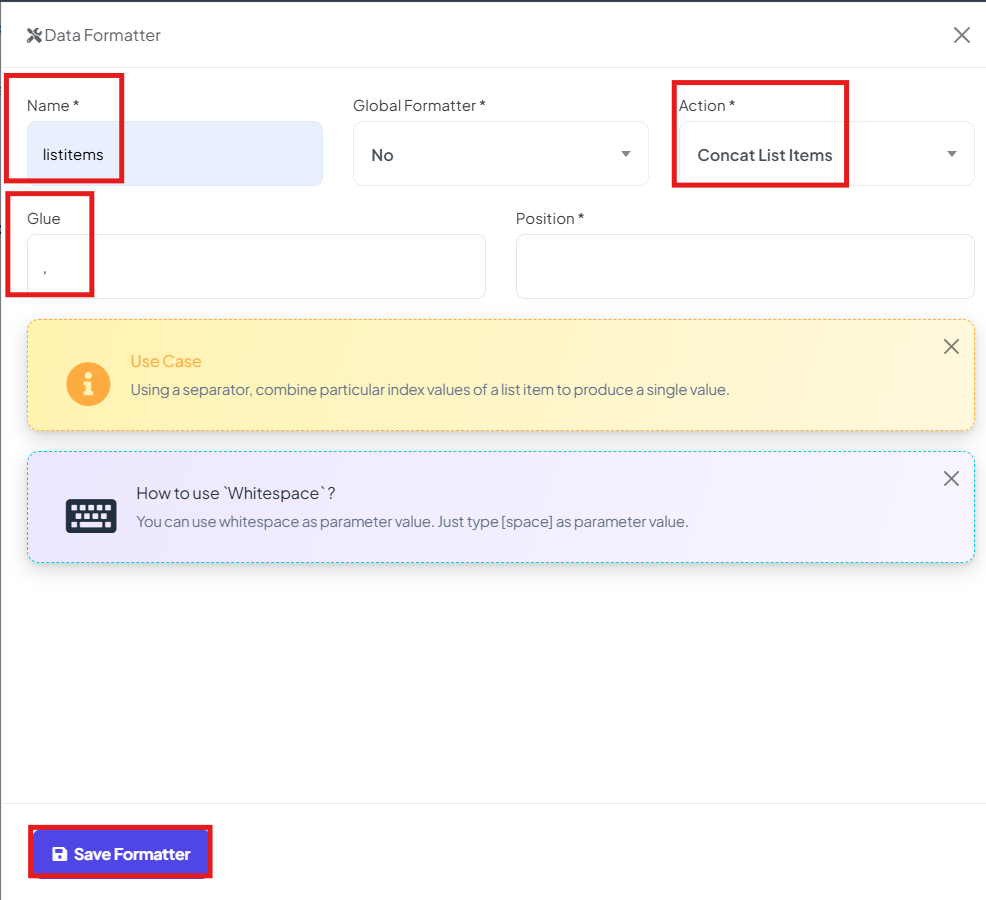
- Select the formatter that we have just created.
- Select post backs for the custom buttons that we have used on the message template. We have already created two different chatbots for buttons. Let's select the postback for each of the custom buttons so when the user clicks on the button they will get a reply.
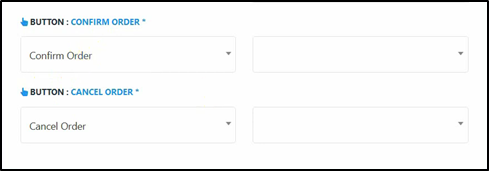
- Also we need to confirm or cancel the order according to the button they click, for that we will use Callback APIs.
- Now we will set up the API for confirming or cancelling the order.
- Click on the New button.
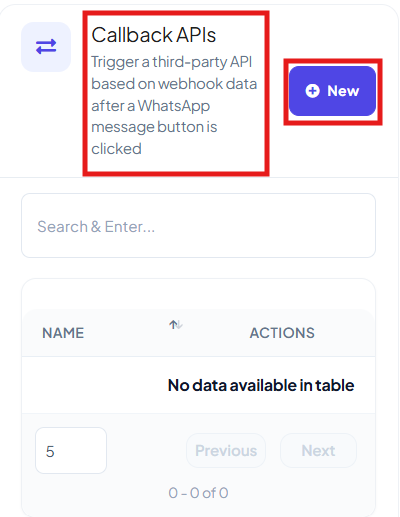
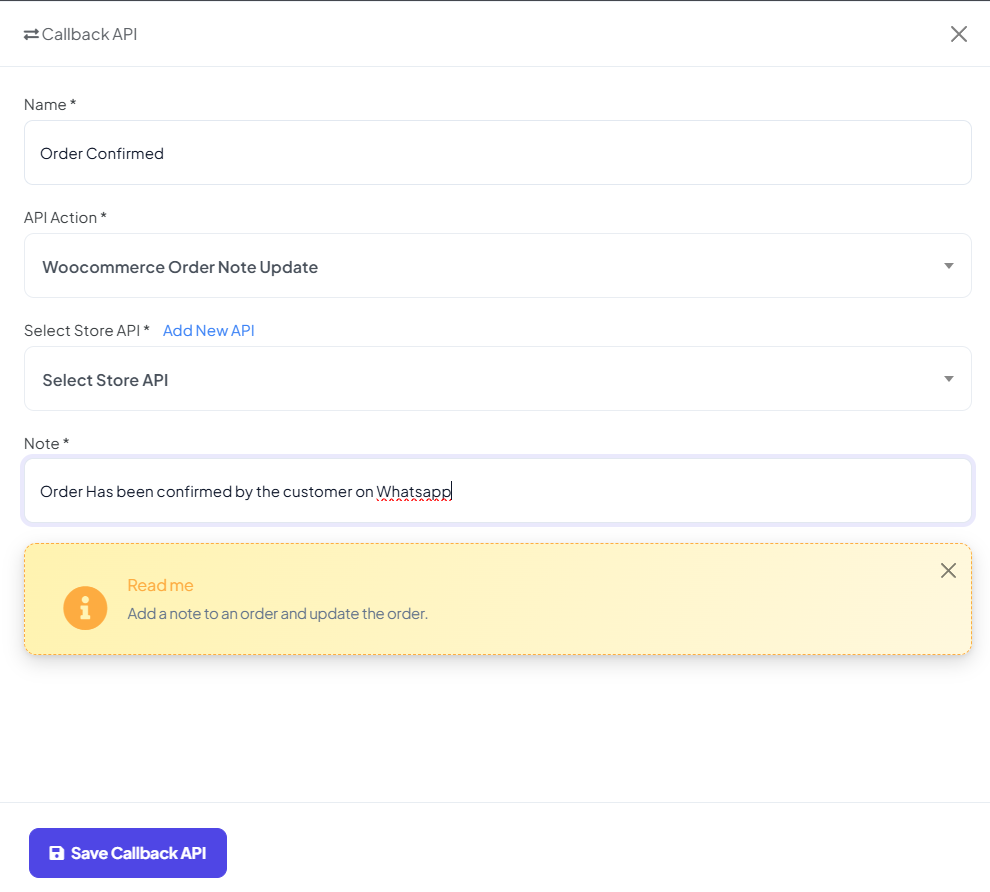
- Give a name to the Callback API.
- Select the API action, here we will select Woocommerce order Note update.
- We need to put the store URL, put the base URL of your Woocommerce store.
- Then we need to add consumer key and consumer secret let's see how to create these on Woocommerce.
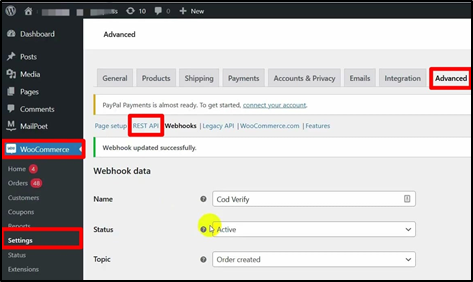
- Go to Woocommerce settings.
- Under the advanced tab click on rest API.
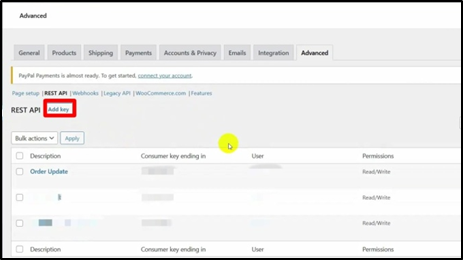
- Select the “Add Key” option.
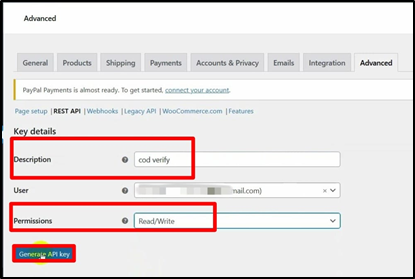
- Put a description.
- Select “read and write” from the permissions menu.
- Click on the generate API key.
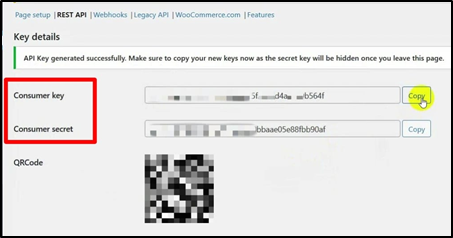
- Copy the Consumer key and paste it in the Consumer key field.
- Then copy the Consumer secret and paste it in the consumer secret field.
- Then comes the order number, the order number is an ID for Woocommerce
- Put a note here that you want to add to the order for confirmation.
- Click on save Callback API.
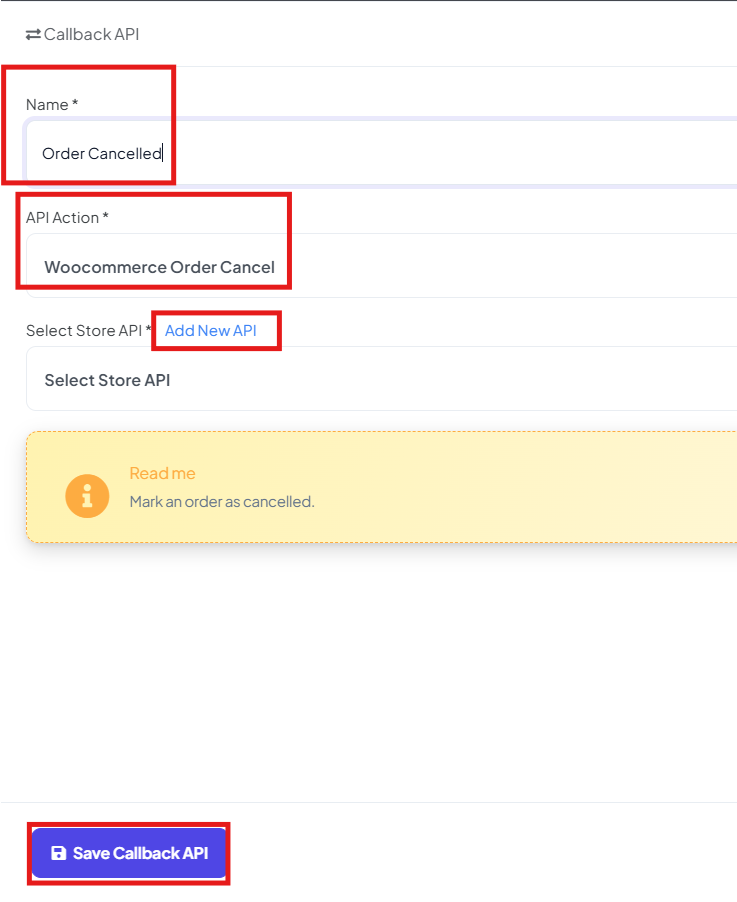
- Make a new Callback API for cancellation button too.
- Now select the Callback API which we have just created for the respective buttons.
Step 7: Set Sending Conditions (COD Only):
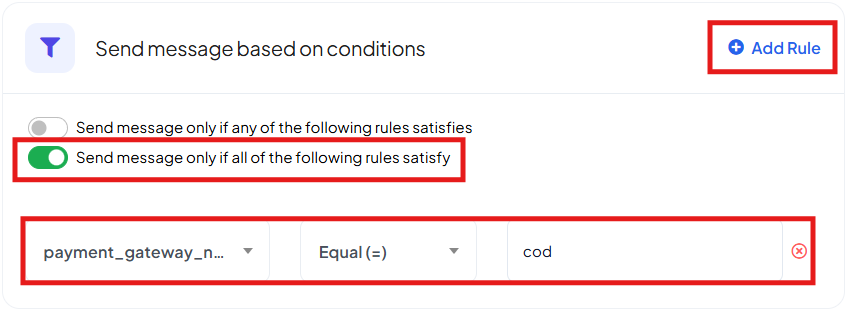
- To avoid sending messages to prepaid orders we will set a condition so that this message will be sent only to those who placed an order with cash on delivery.
- Select the first option then click on “Add rule”
- Select the payment method as cash on delivery.
- Select the operator as equal.
- In the value put “cod”
- Finally click on the save button.
How the COD Confirmation Works for Customers
Here’s what happens after the automation is active.
- Order Placement: When a customer places a Cash on Delivery order on your WooCommerce store, BotBee detects the order automatically.
- After the set delay, the customer receives a WhatsApp message asking them to confirm the order.
Customer Interaction:
The message contains two action buttons.
- Cancel Order: If the customer taps Cancel, BotBee automatically updates the order status in your store to Cancelled.
- Confirm Order: If the customer taps Confirm, the order is verified and ready for fulfillment.
This process helps store owners ensure they only process genuine COD orders, reducing unnecessary shipping costs and operational waste.
Reference Video:
If you prefer video tutorials here are the links:
English: https://youtu.be/j_5Ttet4DlY?si=1bMzL20vR1Akr2Uz
Still Need Help?
If you face difficulties during onboarding:
- Take a screenshot or screen recording.
- Share details with our support team.
Our team will review the onboarding step and guide you further.
Contact: 08069645300
Found this article helpful?
( 4 Out of 7 Found Helpful )