Creating a Persistent Menu in Telegram
A Persistent Menu in Telegram allows users to easily access important commands of your bot at any time. Instead of typing commands manually, users can simply tap on the menu options available in the chat interface. This improves user experience and helps guide users through your bot’s features more efficiently.
In this article, we will walk through the step-by-step process of creating a Persistent Menu for your Telegram bot using BotBee.
Step 1: Access the Bot Manager:
- Log in to your BotBee dashboard.
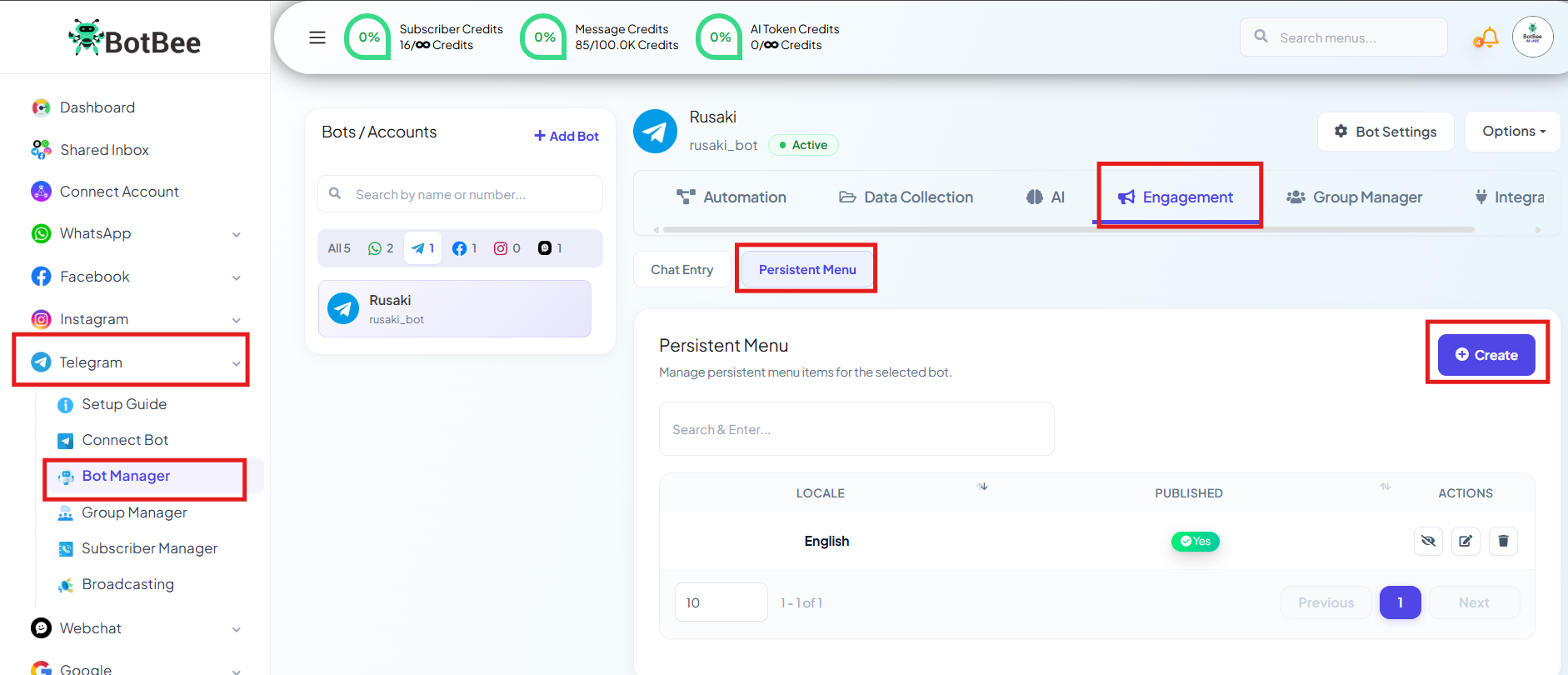
- From the left sidebar, navigate to the Bot Manager section under Telegram.
- Navigate to Engagement Section and click on "Persistent Menu"
- Press the Create button to start a new menu configuration.
Step 2: Configure Language and Commands:
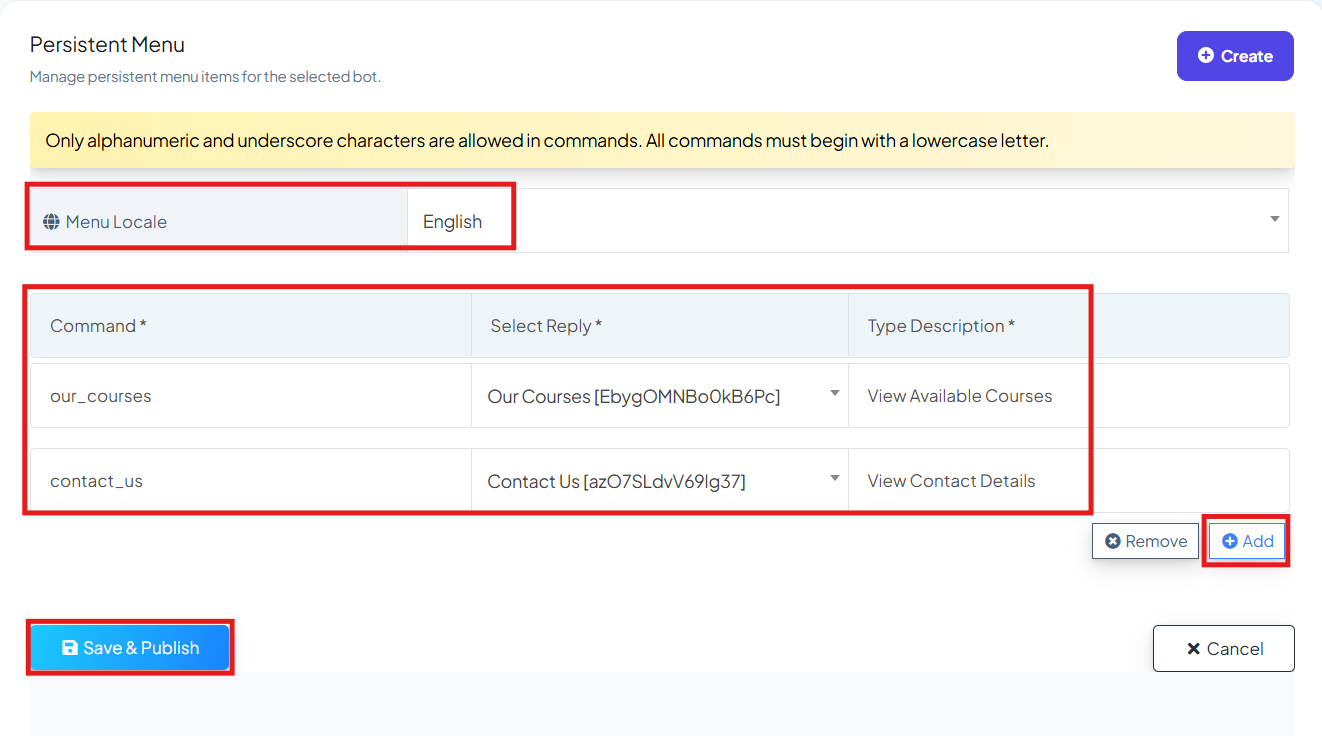
- Select Locale: Choose the language for the menu, you can create separate menus for different languages.
- Set the Command: Enter the command name that will trigger the action.
Command rules:
- Must start with a lowercase letter
- Can include letters, numbers, and underscores
- No spaces or special characters allowed
- Example: start_bot, help_menu
- Add Description: Write a short description explaining what the command does. This description will appear in the Telegram menu so users understand the function of each option.
Add Multiple Commands: If you want more menu options:
- Click the Add button
- Create additional commands and descriptions
- You can add as many commands as needed depending on your bot’s functionality.
- Click Save and Publish.
Step 3: Link Commands to Bot Replies:
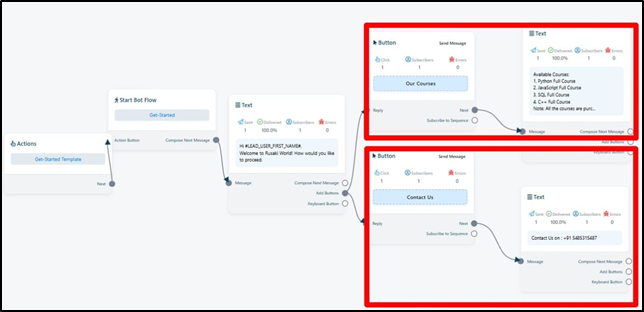
- Creating a command alone is not enough. Each command must be connected to a response.
- For every command you create, you need to set up a corresponding Bot Reply inside the bot flow. This tells the bot what action to perform when a user taps that menu item.
For example:
/contact_us → Contact Details
/our_courses → List of available courses
- Without linking a command to a bot reply, the command will not trigger any response.
Step 4: Verify the Persistent Menu:
- Finally, check if everything is working correctly.
- Open your bot in Telegram.
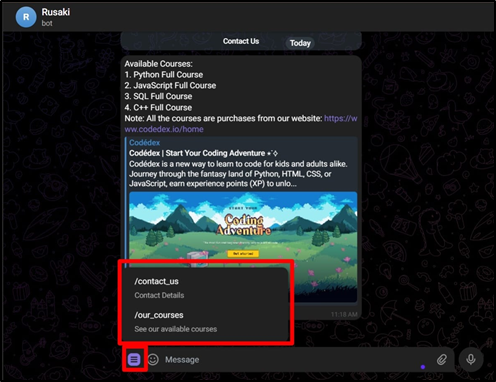
- Tap on the menu icon in the chat.
- You should now see the commands you created.
- If you configured multiple languages, you can test them by changing your Telegram app language. The bot menu will automatically switch to the corresponding version you created for that locale.
Creating a Persistent Menu in Telegram using BotBee makes your bot easier to use and improves user navigation. Instead of remembering commands, users can simply select options from the menu. By setting clear commands, descriptions, and linking them to bot replies, you can create a more organized and interactive Telegram bot experience.
Reference Video:
If you prefer video tutorials here are the links:
English: https://youtu.be/-nuFCR4JcBk?si=YCF1IuV9DPlHNWZk
Still Need Help?
If you face difficulties during onboarding:
- Take a screenshot or screen recording.
- Share details with our support team.
Our team will review the onboarding step and guide you further.
Contact: 08069645300
Found this article helpful?
( 3 Out of 6 Found Helpful )