Integrating a Telegram Bot into Your Group
Adding a Telegram bot to a group allows you to automate replies, moderate chats, and perform automated actions when members send messages. By integrating a bot into your Telegram group, you can turn your group into an automated community where the bot responds to commands and interactions.
This guide explains how to integrate a Telegram bot into a group step-by-step.
Step 1: Open Your Telegram Group:
- First, open the Telegram group where you want to add the bot.
- Open the group chat where you want the bot to work.
- Tap on the group name at the top of the screen to open group settings.
- This section allows you to manage members and add new participants to the group.
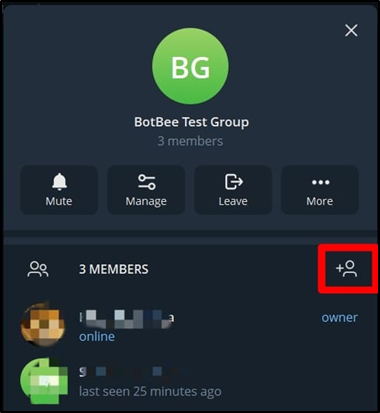
Step 2: Add the Bot to the Group:
- Next, you need to add the bot as a member of the group.
- Inside the group settings, tap Add Members.
- In the search bar, type the username of your bot.
- Select the bot from the search results.
- Tap Add to include the bot in the group.
- Once added, the bot will appear in the group just like a normal member.
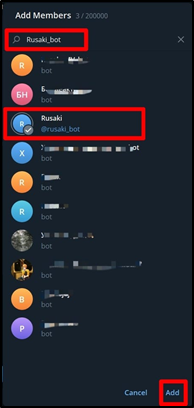
Step 3: Give the Bot Administrator Permissions:
- Open Manage again.
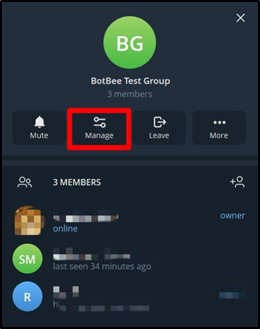
- Tap Administrators.
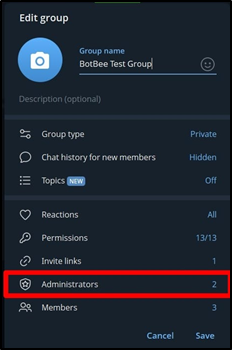
- Select Add Administrator.
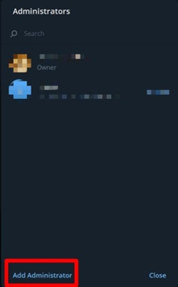
- Choose your bot account.
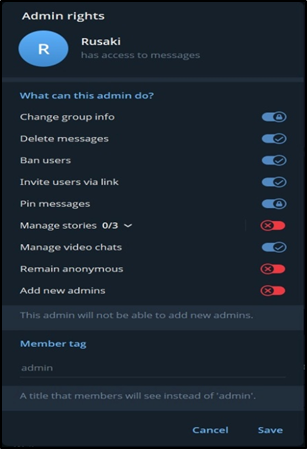
- Enable the permissions you want the bot to have.
- Granting admin access ensures the bot can interact with the group effectively.
Step 4: Understand Bot Privacy Mode:
Sometimes the bot might not respond to messages immediately. This usually happens because of Telegram’s privacy mode.
- When privacy mode is enabled: The bot only reads messages that mention the bot or reply to the bot.
- When privacy mode is disabled: The bot can read all messages in the group and respond automatically.
- If the bot does not reply to messages, you may need to disable privacy mode using BotFather settings.
Step 5: Test the Bot in the Group:
Try the following:
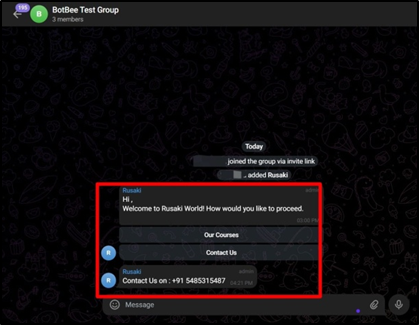
- Send a command like /start
- Mention the bot in a message
- Trigger any automation you created for the bot
- If the setup is correct, the bot will respond in the group.
Common Issues and Fixes
Bot only replies when mentioned:
- This happens because privacy mode is enabled. Mention the bot in messages or disable privacy mode.
Bot does not reply at all:
Check these things:
- The bot has admin permissions
- The bot is properly connected to your automation platform
- Commands are typed correctly
Reference Video:
If you prefer video tutorials here are the links:
English: https://youtu.be/HVRKwA6niNM
Still Need Help?
If you face difficulties during onboarding:
- Take a screenshot or screen recording.
- Share details with our support team.
Our team will review the onboarding step and guide you further.
Contact: 08069645300
Found this article helpful?
( 3 Out of 6 Found Helpful )