Facebook Comment and DM Automation
Facebook comment automation helps you instantly reply to users who interact with your posts and automatically send them direct messages. With BotBee, you can manage comments, filter messages, and send automated replies without manual effort.
Below is a step-by-step guide to set up Facebook comment and DM automation.
Step 1: Initial Connection:
- Log in to your BotBee Dashboard.
- Navigate to Facebook → Connect Account.
- Log in using your Facebook credentials.
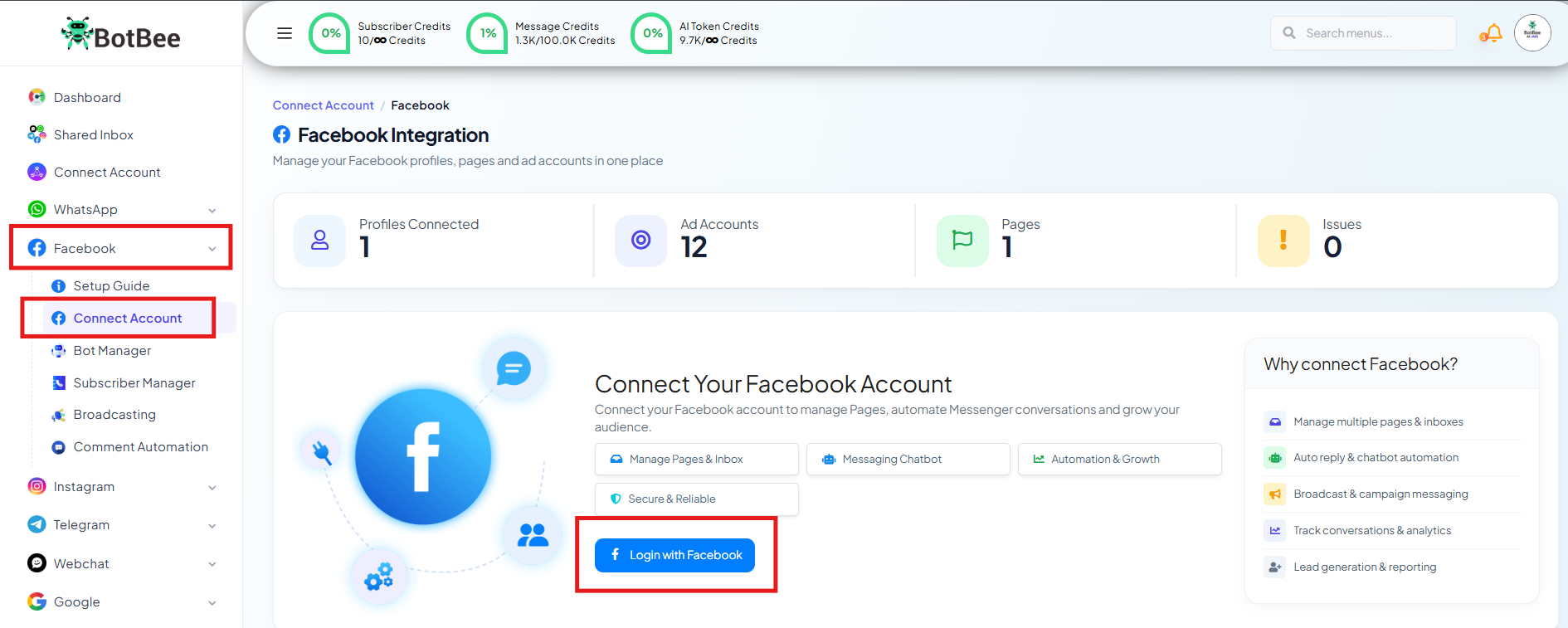
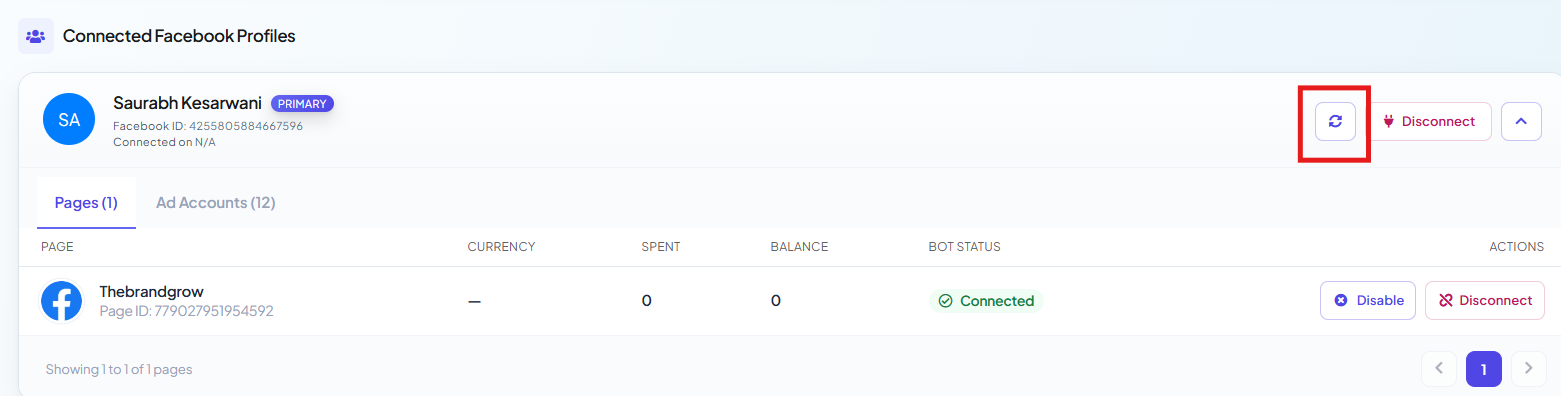
- Select the Facebook pages you want to connect.
- Click on the Enable button on the specific Facebook page you want to automate.
Step 2: Open Comment Automation Settings:
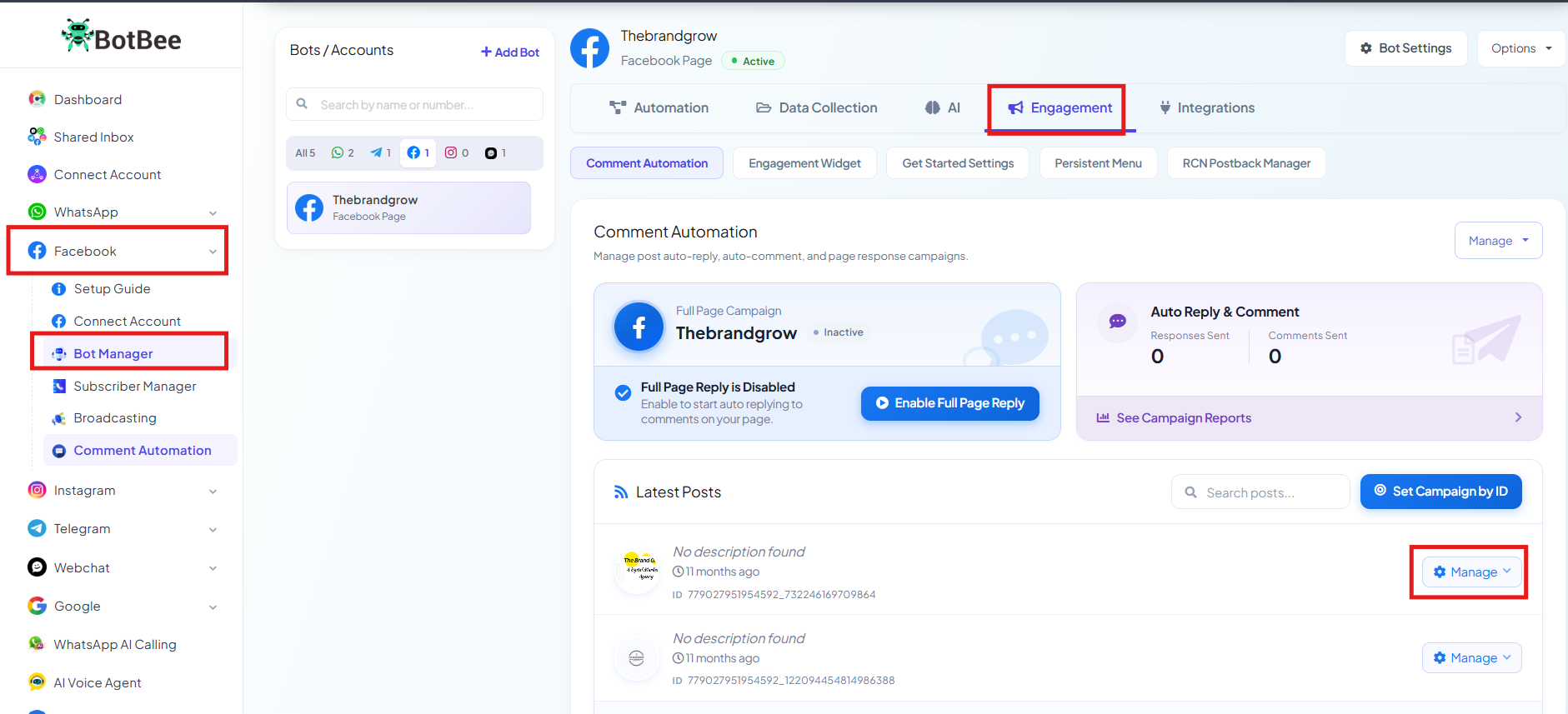
- Go to Facebook → Bot Manager.
- Go to Comment Automation under Engagement Section.
- You will see a list of posts from your Facebook page.
- Click the Manage / Gear icon next to the post where you want automation.
Step 3: Set Up Comment Filtering & Moderation:
- Click on “Enable Auto Reply”.
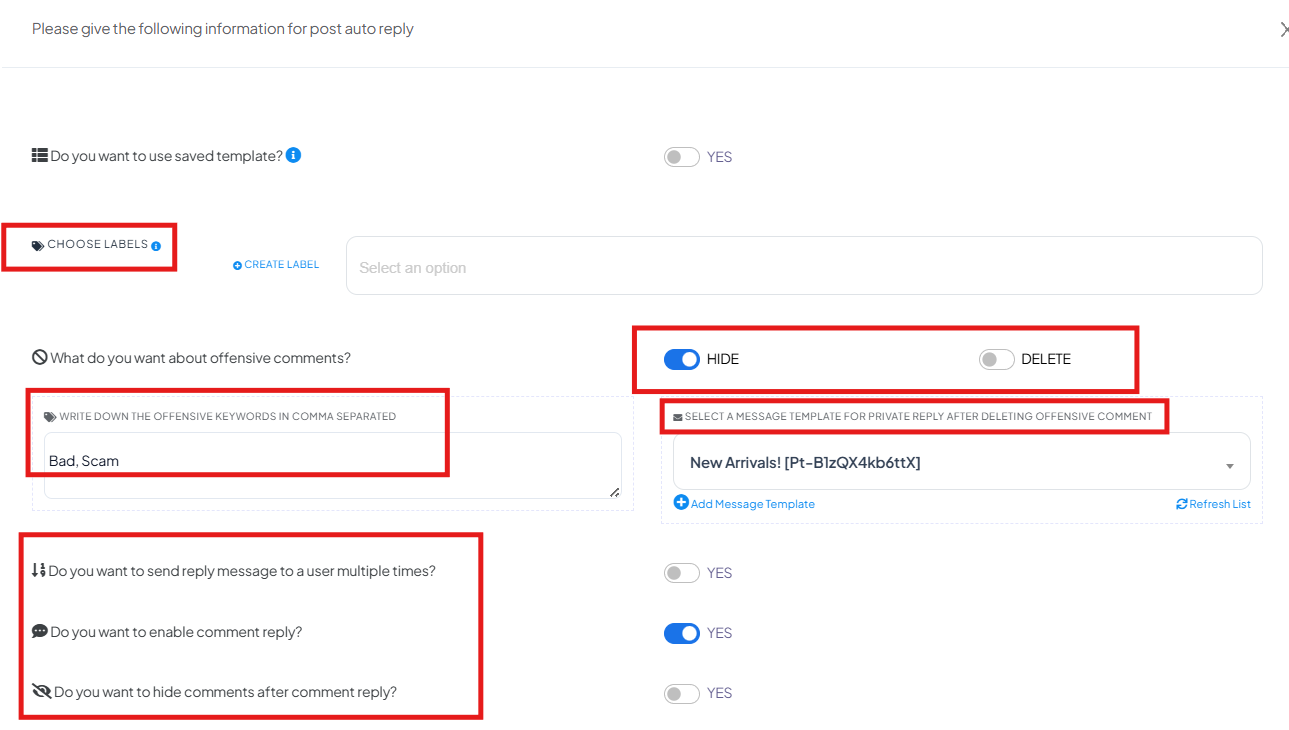
Before setting replies, you can configure moderation settings.
Labels:
- Create labels to categorize users who interact with your posts.
- These labels help in segmenting users for future marketing campaigns.
Offensive Comment Filtering:
- Enable smart keyword filtering.
- If a comment contains abusive or restricted words: The comment can be hidden or deleted automatically.
- A warning DM can also be sent to the user.
- This keeps your comment section clean and professional.
Send Reply Message Multiple Times:
- You can choose whether the automation should reply to the same user multiple times.
- Enabled (Yes): The bot will send a reply every time the user comments on the post.
- Disabled (No): The bot will reply only once to each user, even if they comment multiple times.
Enable Comment Reply:
- This setting controls whether the bot will reply publicly to comments.
- Enabled: The bot will post an automated reply under the user's comment.
- Disabled: No public reply will be posted.
- You can still send private messages even if the public reply is disabled.
Hide Comments After Reply:
- You can choose to automatically hide a user's comment after the bot replies.
This is useful when:
- You are sharing links or sensitive information
- You want to avoid competitors copying your response.
Step 4: Choose the Reply Method:
BotBee allows three different ways to reply to comments depending on your use case.
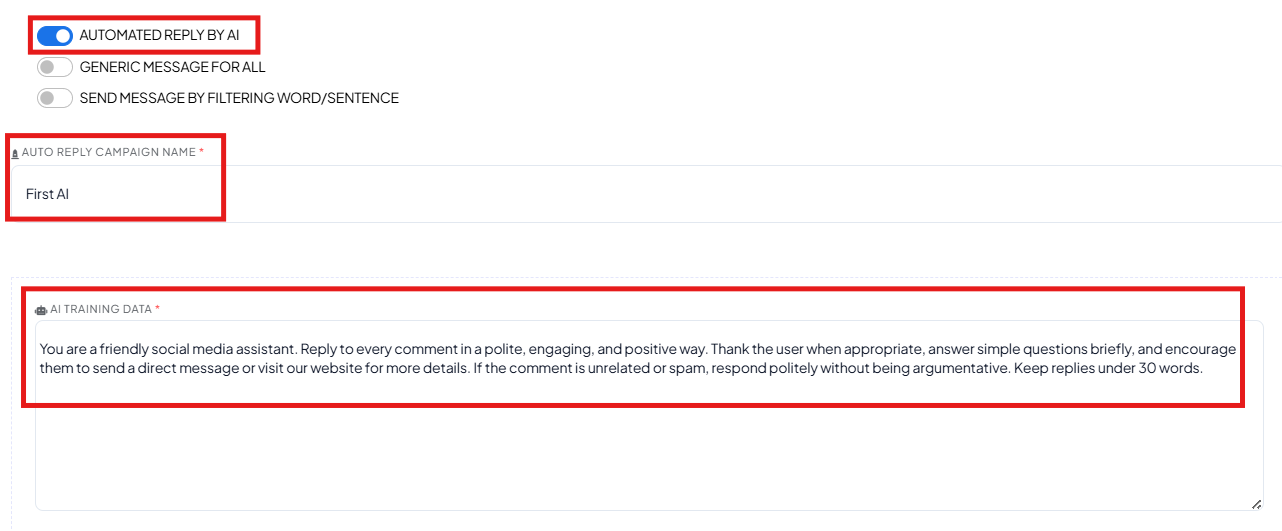
AI-Powered Replies:
- You can connect AI models such as ChatGPT or DeepSeek.
How it works:
- Train the AI with custom knowledge or post information.
- The AI reads the user’s comment.
- It generates a natural, contextual response automatically.
- This is useful when you expect many different types of questions.
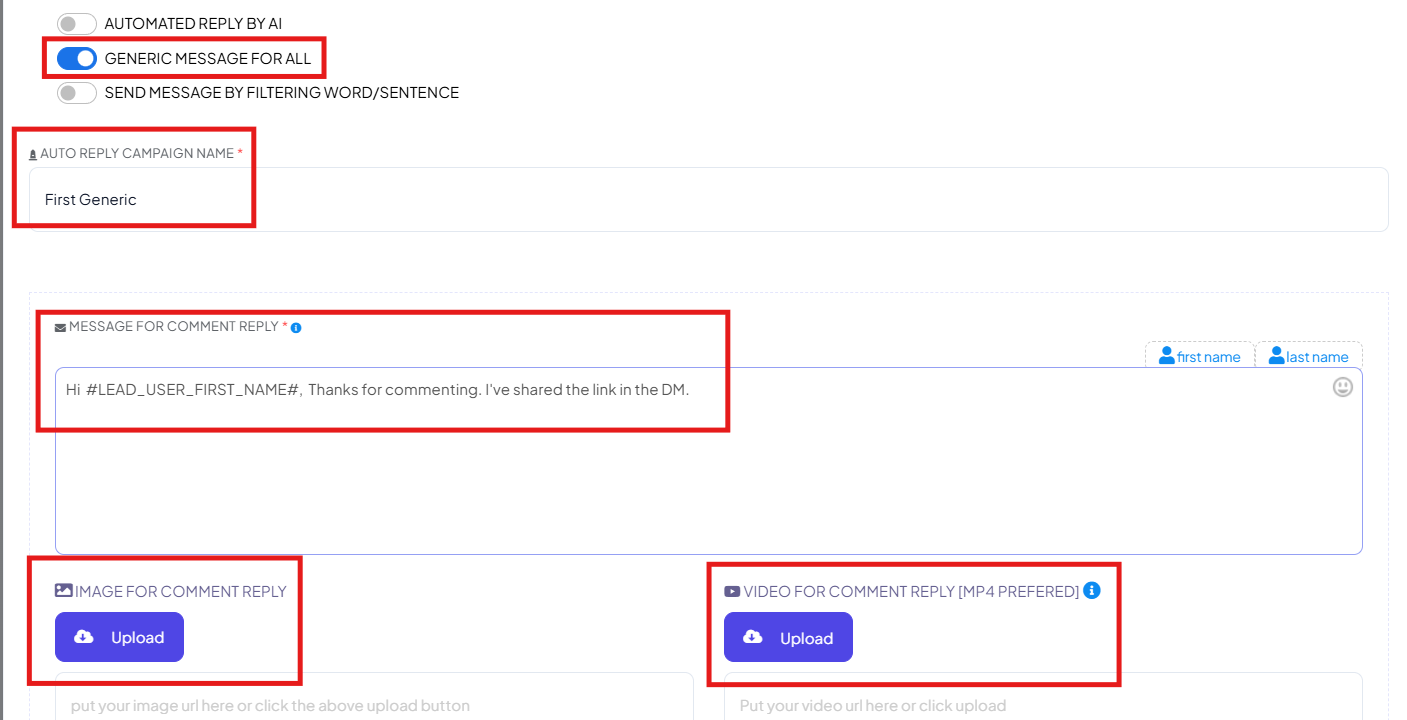
Generic Reply Message:
- This is the simplest method.
How it works:
- Create one predefined message.
- Every user who comments receives the same reply.
- You can include: Text, Images, Videos, Links.
- This works well for promotions like:
- “Comment ‘Link’ to receive the product link.”
Send Message by Filtering Word/Sentence:
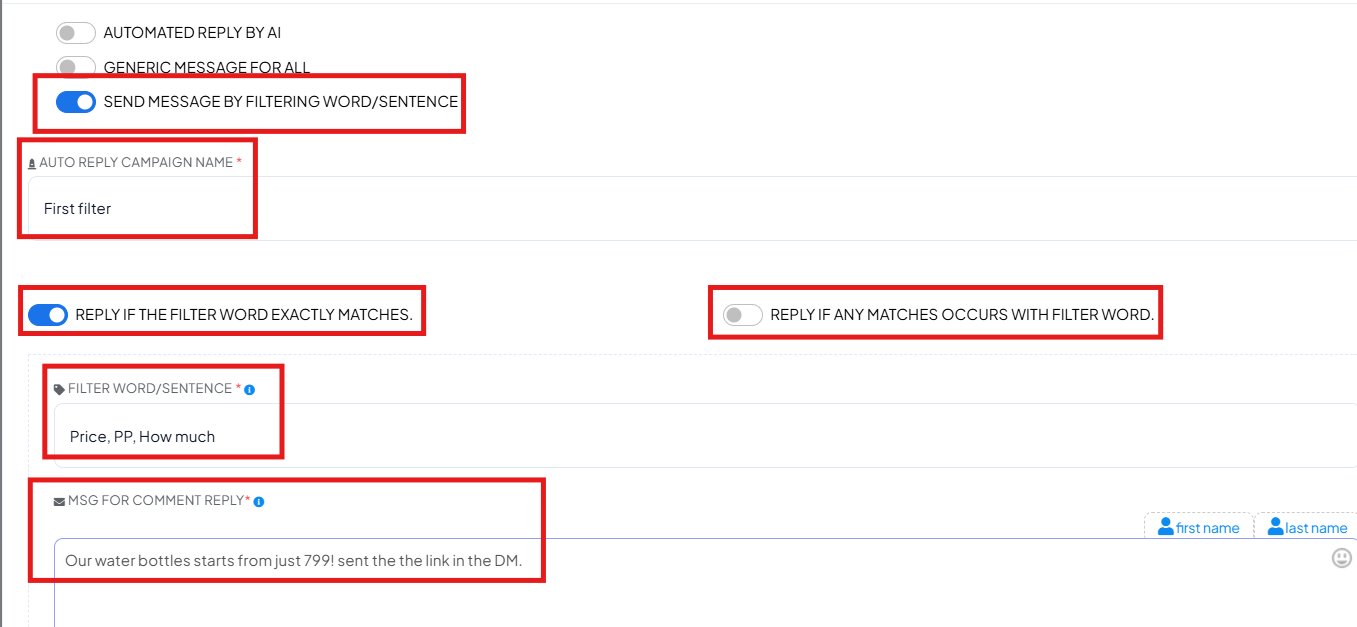
- This option allows you to trigger automated replies when users comment specific keywords or phrases on your post.
- Enter the keyword or phrase that should trigger the reply (e.g., Link, Price, Details).
- Reply if the Filter Word Exactly Matches: The bot replies only when the comment exactly matches the keyword you entered.
- Reply if Any Matches Occur with Filter Word: The bot replies when the keyword appears anywhere in the comment sentence.
- Message for Comment Reply: Write the public reply message that will appear under the user’s comment.
- Image for Comment Reply: Upload an image that will be sent along with the comment reply.
- Video for Comment Reply: Upload a video (MP4 preferred) to reply with richer content.
- Add More Filtering: Allows you to create multiple keyword-based automation rules for the same post.
- Comment Reply if No Matching Found: Set a default reply message if a user's comment does not match any of the defined keywords.
Step 5: Create Private DM Automation:
- After selecting the reply type you’ll see an option of “Select a message template for Private Reply.”
- Click on Add Message Template if you want to create one.

- You will be redirected to a flow builder.
- Create a Private Reply Template.
- Add the message you want to send.
- Currently, BotBee supports two messages in sequence for private replies.
- Save the template and add it.
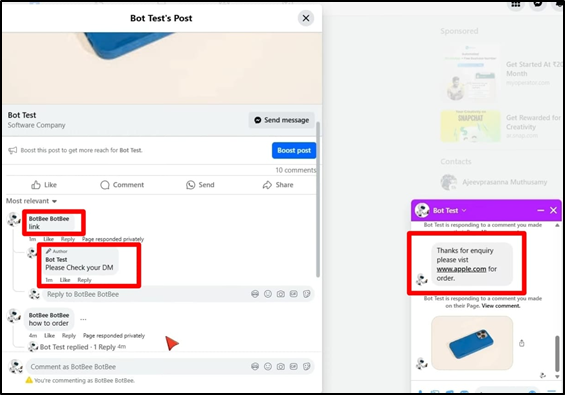
Now whenever someone comments on the post, the system will:
- Reply publicly
- Send them a private DM instantly
Step 6: Auto Comment for Engagement:
- BotBee also allows you to schedule automatic comments on your own post.
- You can schedule these comments every few minutes to keep the post active and increase engagement.
- Click the Manage (gear) icon next to the post.
- Enable the “Auto Comment” option.
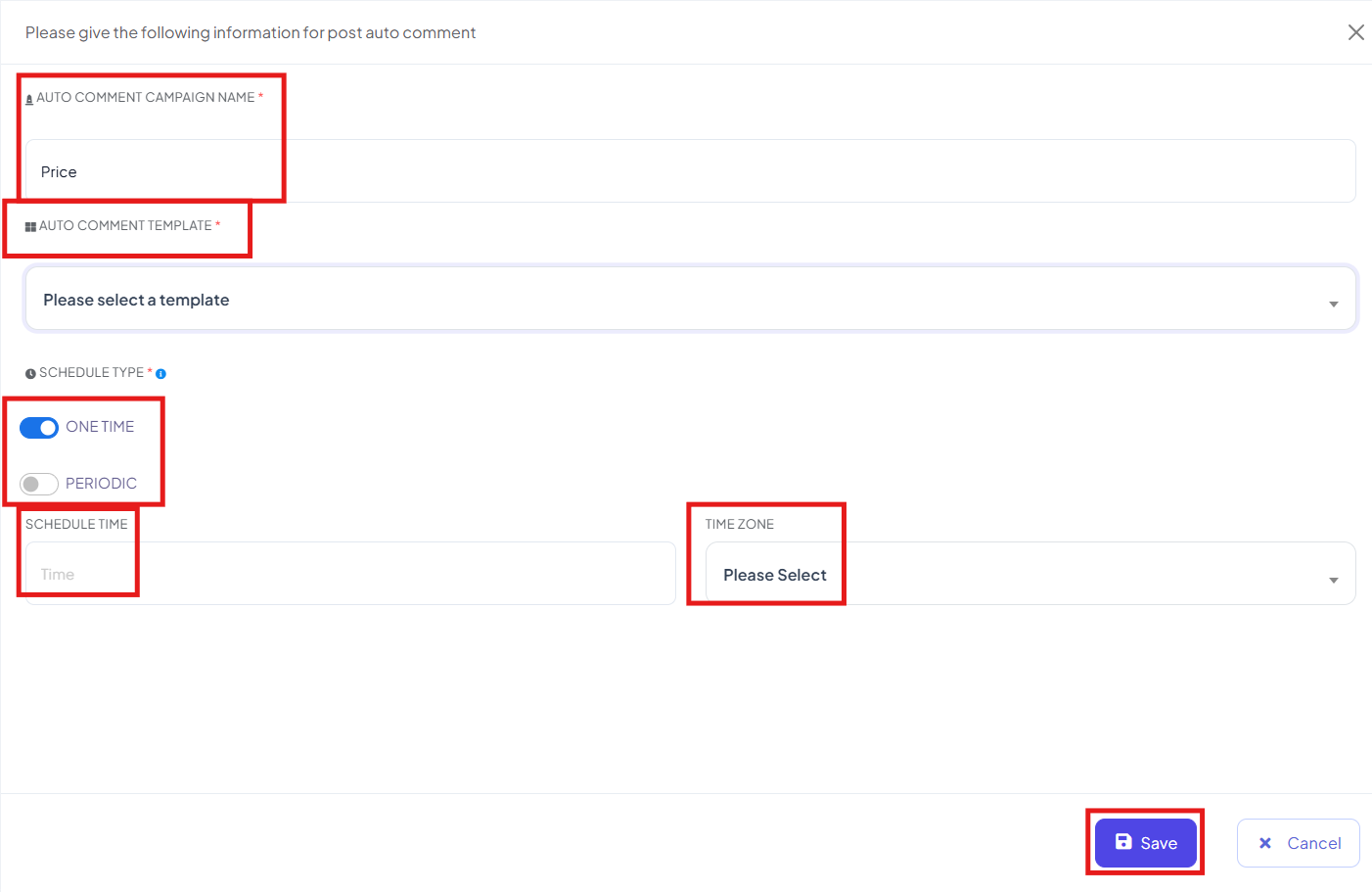
- Auto Comment Campaign Name: Enter a name for the auto comment campaign to easily identify it later.
- Auto Comment Template: Select the message template that will be used for the automated comment.
- Schedule Type You can choose how the auto comment will be posted:
- One Time – The comment will be posted only once at the scheduled time.
- Periodic – The comment will be posted repeatedly at defined intervals.
- Schedule Time: Set the exact date and time when the comment should be posted.
- Time Zone: Select the correct time zone to ensure the comment is posted at the intended time.
Additional Features:
Full Page Campaign:
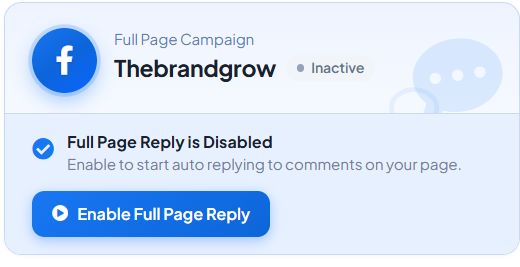
- Apply Automation to All Posts
- If you want the same rule across your page:
- Enable Full Page Reply.
- The automation will apply to all posts on your page.
(Note: Pause individual post automations before enabling this feature.)
See Campaign Reports:
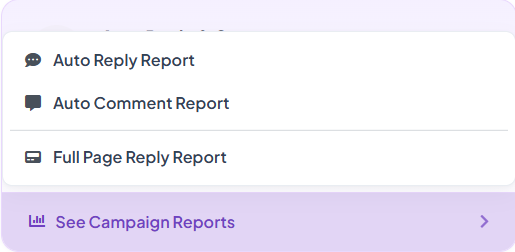
- BotBee also provides analytical reports.
- The report shows:
- All user comments
- Automated replies sent
- Private messages triggered
- Engagement data
- This helps track how well your automation is performing.
Facebook Comment and DM Automation in BotBee helps businesses respond to users instantly, capture leads, and maintain high engagement without manual effort. By combining AI replies, keyword triggers, and automated DMs, you can turn every Facebook comment into a potential conversation or customer interaction.
Reference Video:
If you prefer video tutorials here are the links:
English: https://youtu.be/JsrLX0rqFfM?si=Y5JenAD3v7Hc2HmV
Tamil: https://youtu.be/mX_LBRtPOaQ?si=GkSHNQJdNemUpZvl
Still Need Help?
If you face difficulties during onboarding:
- Take a screenshot or screen recording.
- Share details with our support team.
Our team will review the onboarding step and guide you further.
Contact: 08069645300
Found this article helpful?
( 4 Out of 8 Found Helpful )