Setting Up Facebook Messenger Essentials in BotBee
Creating a smooth and engaging first interaction on Facebook Messenger is crucial for any business. With BotBee, you can easily set up powerful features like the Get Started button, Persistent Menu, Greeting Text, and Icebreakers to enhance user experience and boost engagement.
This guide walks you through each step to get your Messenger bot fully optimized.
1. Enabling the “Get Started” Button & Welcome Message:
The Get Started button is the first interaction point when a user opens your Messenger chat. It sets the tone for your entire conversation flow.
- Go to the BotBee Dashboard
- Navigate to Bot Manager under Facebook
- Under the Engagement section, Click on Get Started Settings
- Enable Get Started Status
- Click on Get Started Template
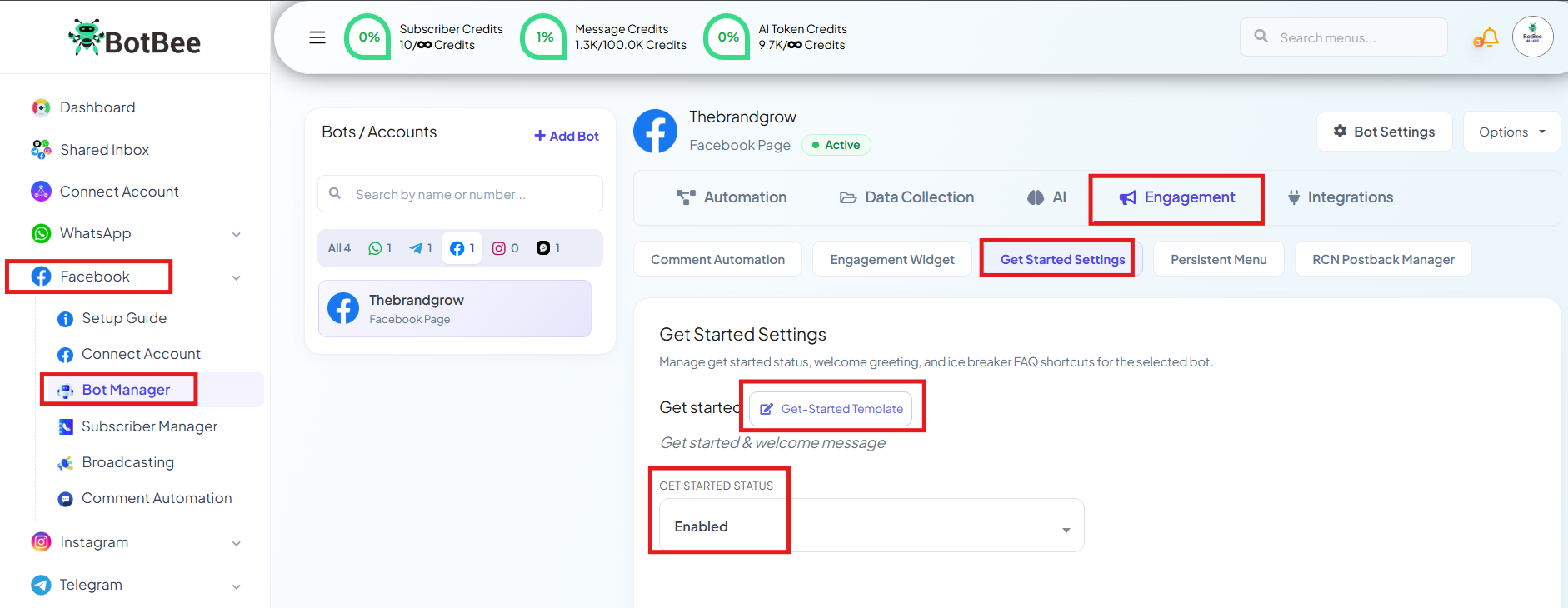
- You can customize the message and structure as per your business needs.
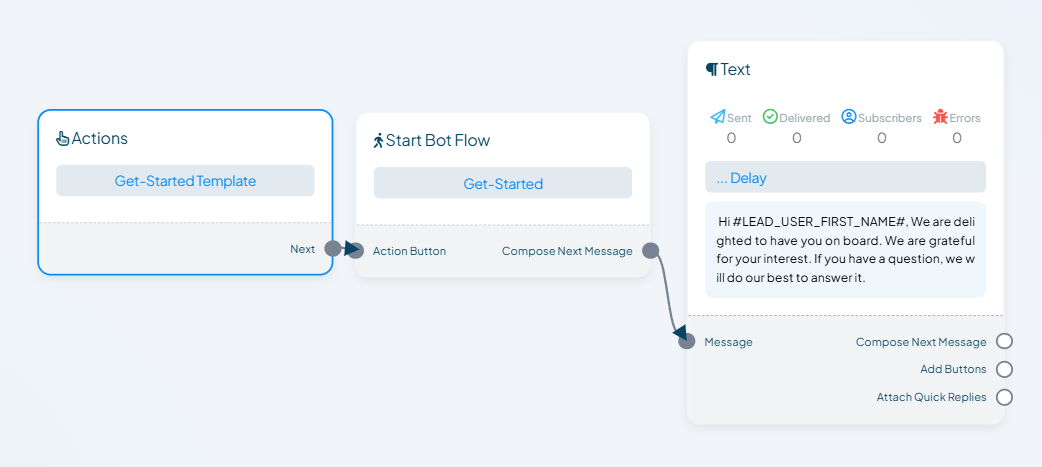
- Click Save, then return and click Save Settings again to finalize.
Why It Matters: This ensures every user begins with a structured, guided experience instead of a blank chat.
2. Creating Greeting Text:
The Greeting Text appears before the user clicks on the “Get Started” button. Think of it as your first impression.
Best Practices:
- Keep it short and clear
- Include what your bot does
- Add a simple value proposition or tagline
Why It Matters: A strong greeting increases the chances of users engaging with your bot.
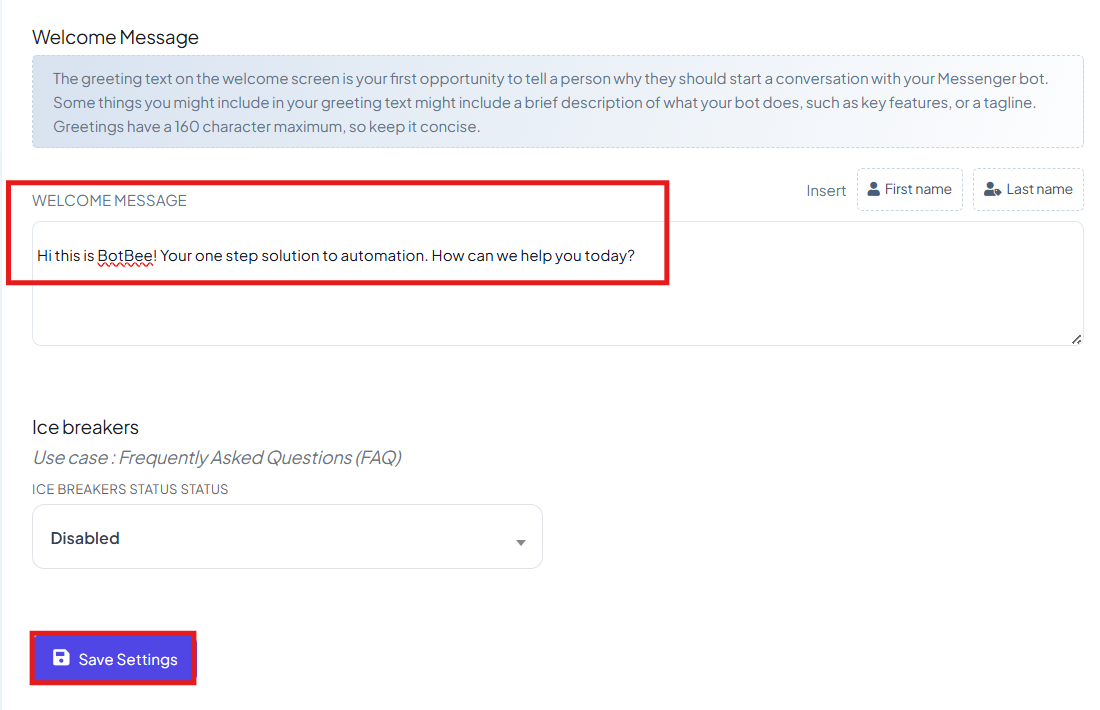
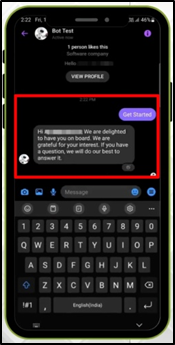
- You can see your welcome message in the About section.
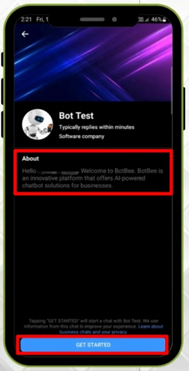
- By clicking on Get Started you will receive your Get Started message.
3. Setting Up Icebreakers:
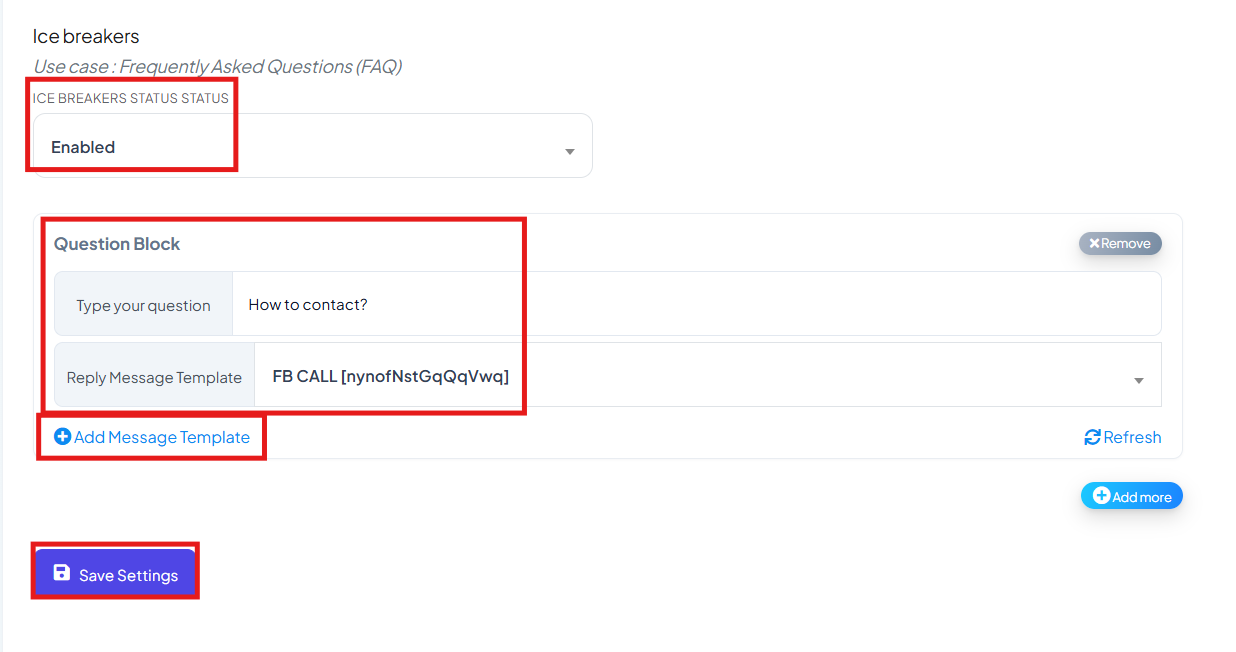
- Icebreakers are clickable questions that help users start conversations instantly.
- Important Requirement: You must disable the “Get Started” button to enable Icebreakers
- Write your question for the icebreaker.
- For answer select any existing bot or create new one by clicking on “Add Message Template”.
- Click on save settings to save it.
Why It Matters: Icebreakers remove friction and guide users toward meaningful interactions right away.
4. Setting Up the Persistent Menu:
The Persistent Menu acts like a navigation bar inside Messenger, allowing users to access key options anytime.
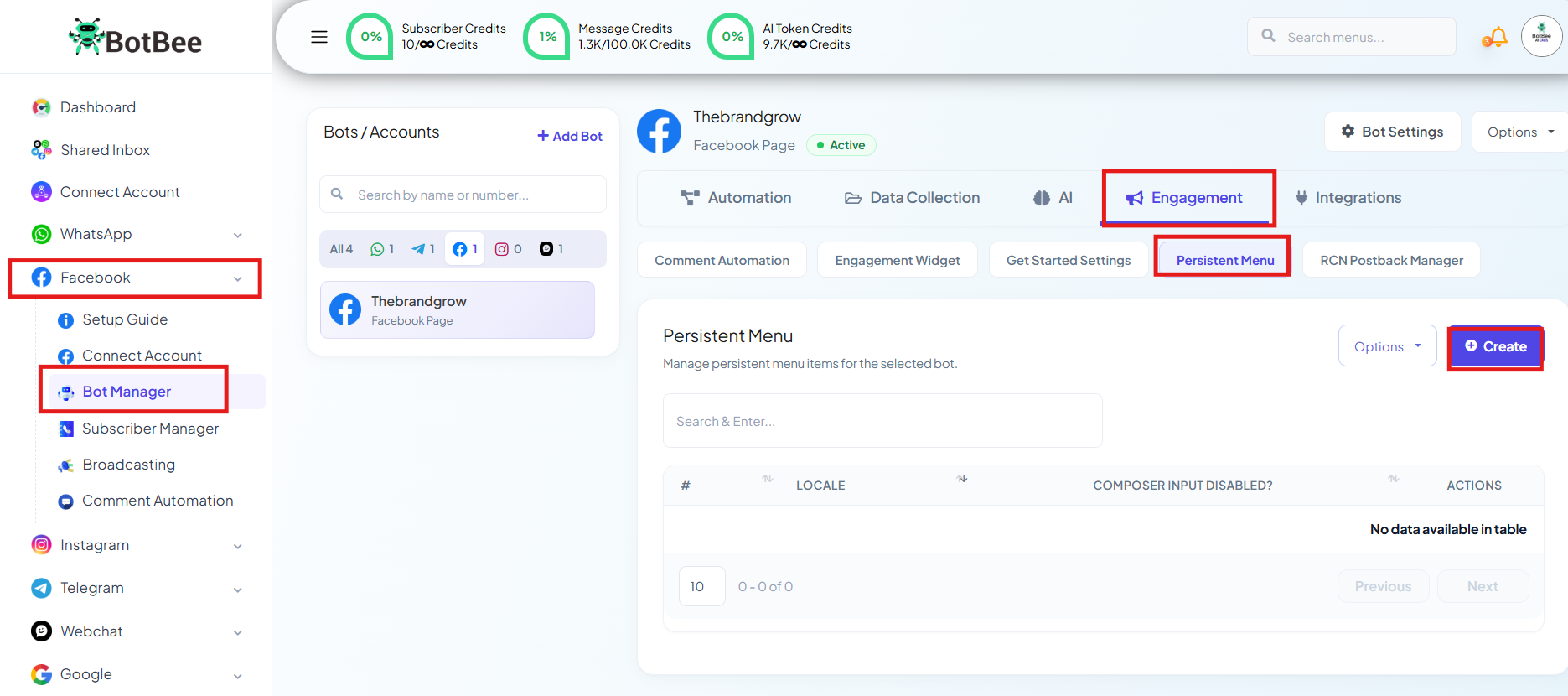
- Go to Persistent Menu under Engagement section in the Bot Manager.
- Click Create.
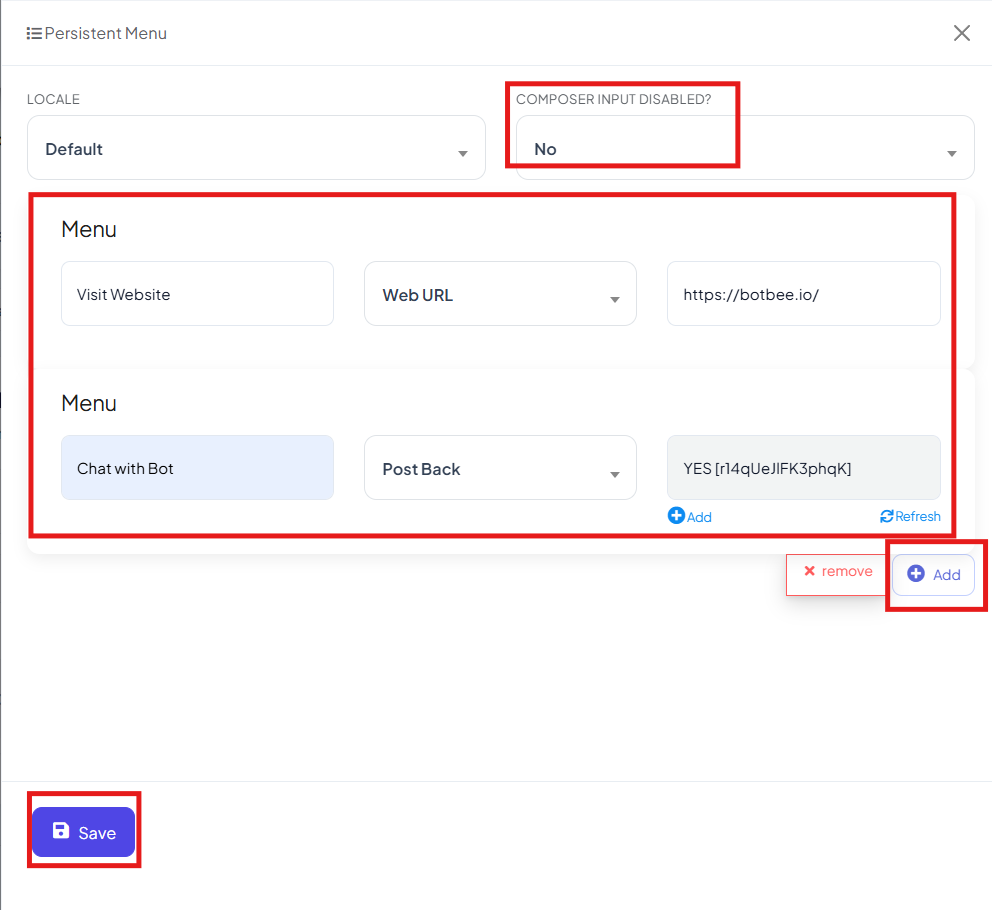
Optional Setting:
- Disable Composer Input: If set to Yes, users can only interact via menu buttons (no typing allowed)
Add Menu Items:
- Postback: Link to existing or new bot responses
- Web URL: Redirect users directly to your website
- Click Save and Then select Publish Persistent Menu
(Note: Changes may take some time to appear due to Facebook caching.)
- You can see the persistent menu in the messenger by clicking on three lines on the bottom right corner.
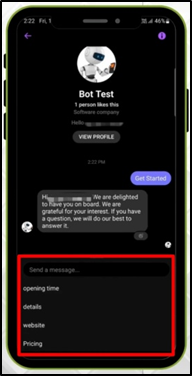
Why It Matters: It gives users quick access to important information without needing to restart the conversation.
Reference Video:
If you prefer video tutorials here are the links:
English: https://youtu.be/-npOMZPTuxo
Still Need Help?
If you face difficulties during onboarding:
- Take a screenshot or screen recording.
- Share details with our support team.
Our team will review the onboarding step and guide you further.
Contact: 08069645300
Found this article helpful?
( 3 Out of 6 Found Helpful )