How to Create a WhatsApp Carousel Template
WhatsApp carousel templates are a powerful way to showcase multiple products, services, or offers in a single interactive message. With BotBee, you can easily create carousel templates and connect
them to automated bot flows making your WhatsApp communication more engaging and conversion-friendly.
This article walks you through three key parts:
1. Creating a Carousel Media Template
2. Using the template inside a bot flow
3. Creating a Carousel Product Template
Part 1: Creating a Carousel Media Template:
Carousel Media Templates allow you to display multiple cards with images or videos, text, and action buttons inside a single WhatsApp message.
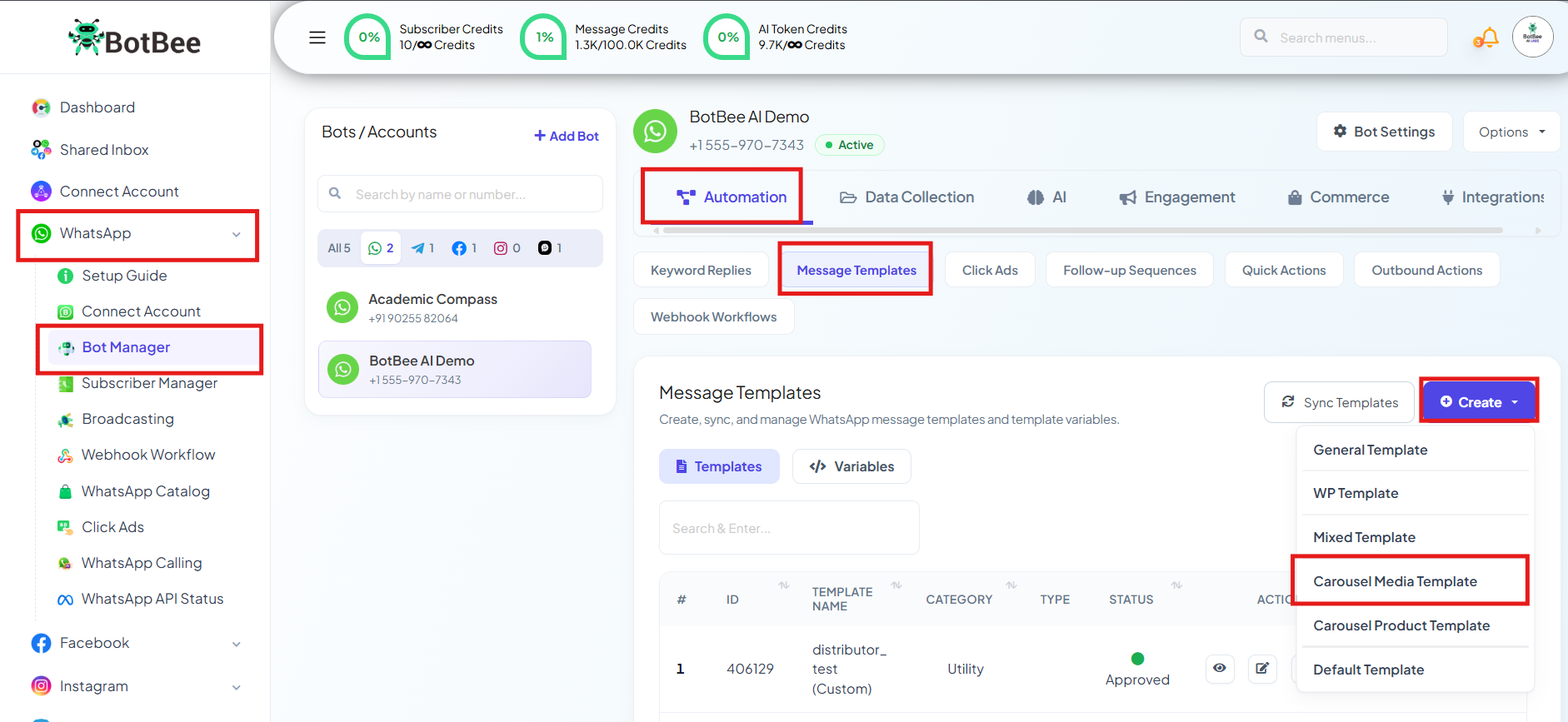
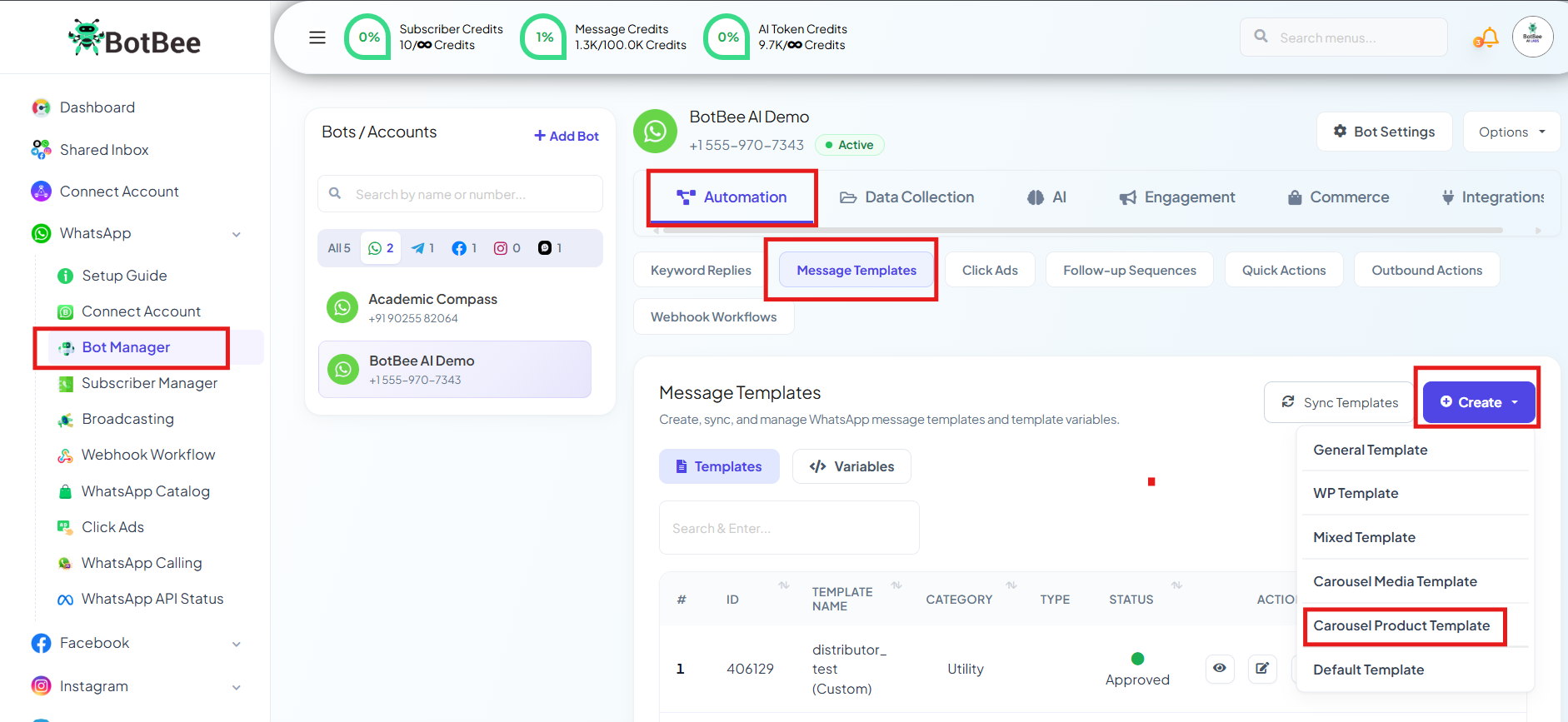
Step 1: Navigate to Message Template:
- Log in to your BotBee dashboard.
- From the left menu, go to Bot Manager under WhatsApp Section.
- Click on Message Template under Automation Section.
- Click on the Create option and choose Carousel Media Template.
Step 2: Create your Carousel Template:
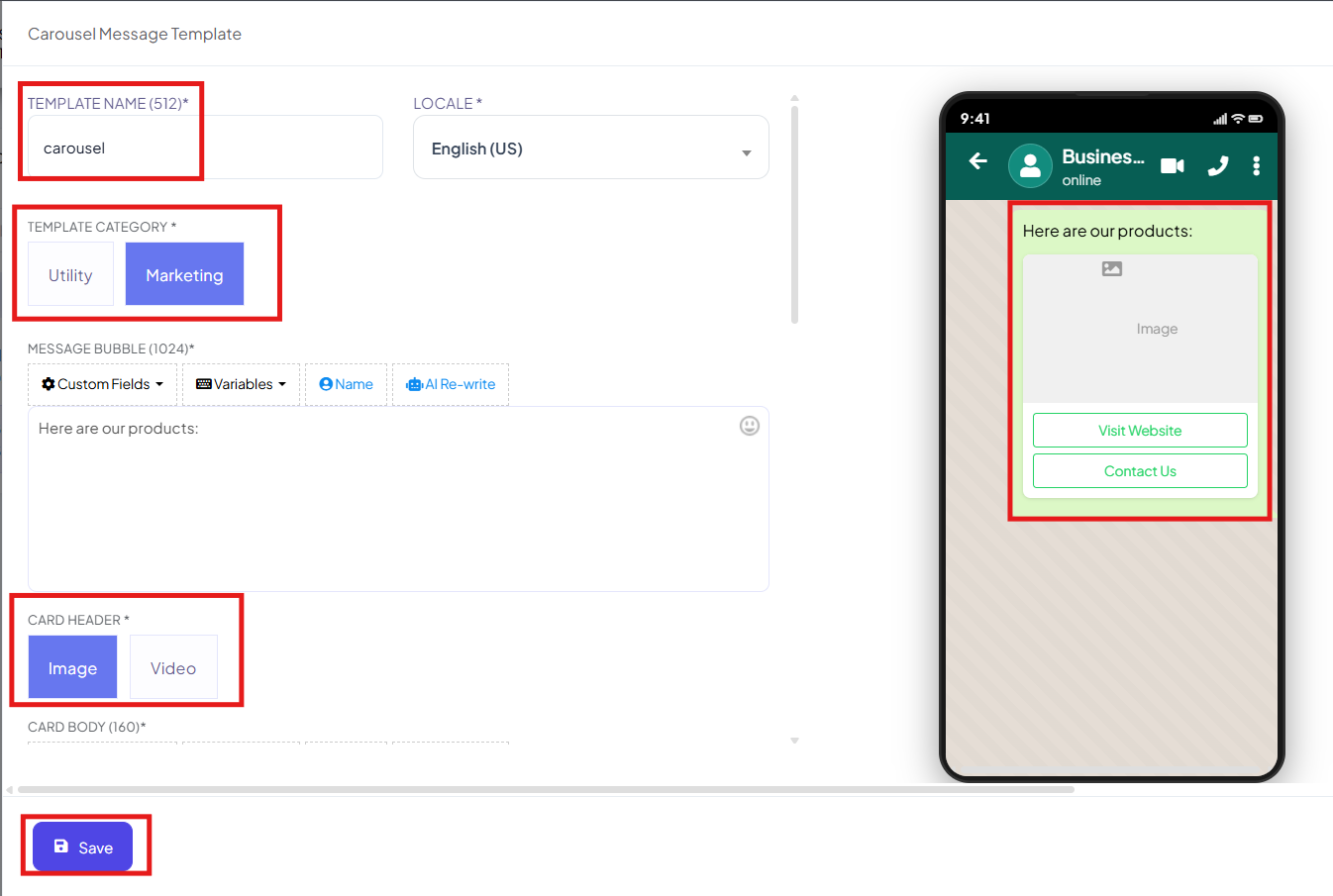
- Enter a clear template name. (in lower characters only and with no spaces)
- Select Marketing as the template category.
- In the Message Bubble section:
- Add your main message text (this appears above the carousel).
- You can also include custom fields or variables to personalize the message for users.
Step 3: Configure Carousel Cards:
- Each carousel card represents one product or offer.
- Header Image / Video: Upload or select an image or video for the card header.
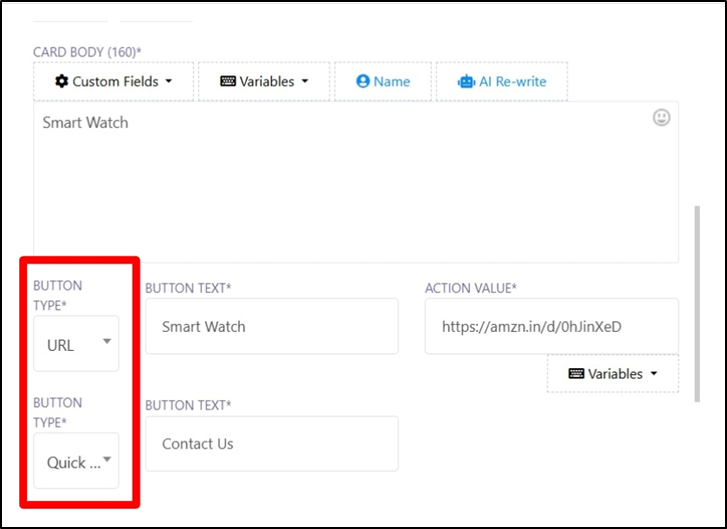
- Card Body: Add the product name or any relevant description text.
- Button Options: You can add buttons to each card.
- URL Button: Add button text like “Buy Now” and the destination URL.
- Quick Reply Button: Add button text like “Contact Us” or “Know More”.
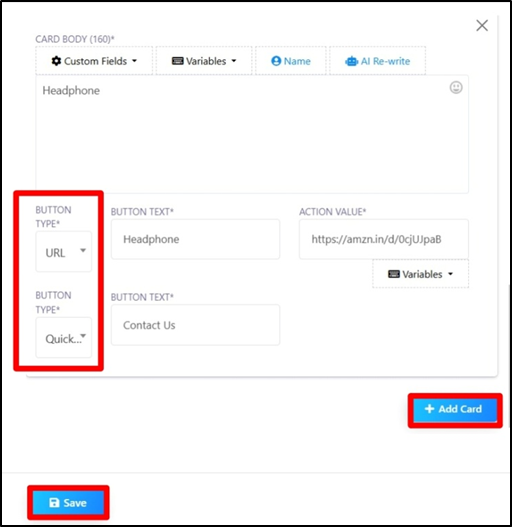
- Add More Cards: You can add up to 10 cards in a single carousel.
- Important rule: The button types and their order must be the same across all cards.
- Once all cards are configured, click Save.
- Click on Sync Templates and your carousel media template will now be sent for WhatsApp approval.
Part 2: Using the Carousel Template in a Bot Flow:
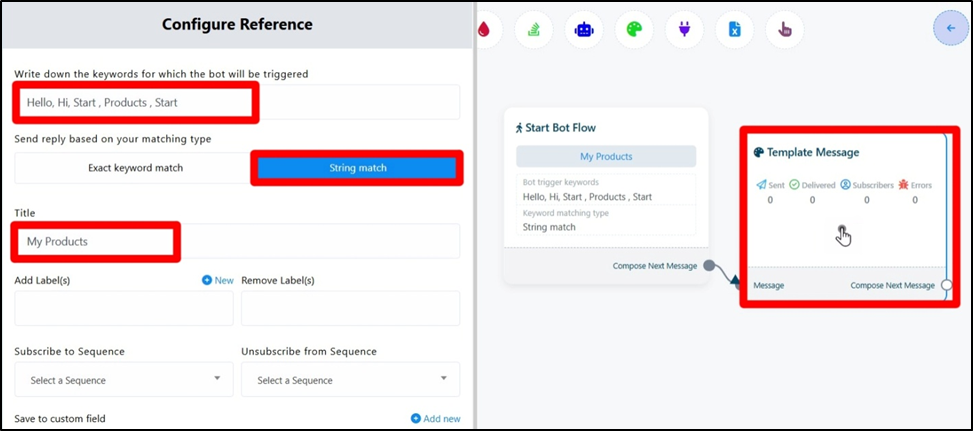
Step 1: Create a Bot Reply:
- Under Bot Manager, Click on Keyword replies.
- Double click on start bot flow and Add a keyword that will trigger the bot.
- Give the bot flow a title and Click Save.
- Drag and drop the Template Message block into the flow.
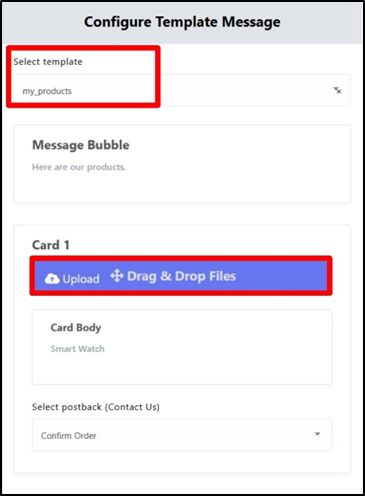
Step 2: Select the Approved Carousel Template:
- Double tap on Message Template.
- Search for the approved carousel message template you created.
- Select it from the list.
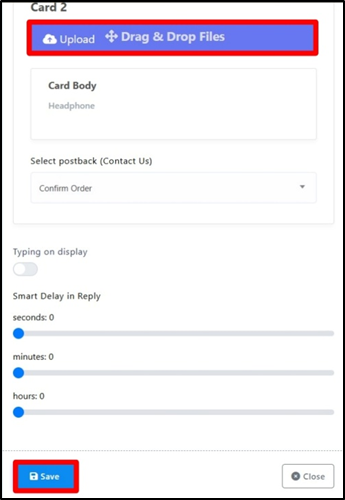
- Upload the product images that will be used in the carousel cards.
- Your bot is now ready to send carousel messages automatically on WhatsApp.
Part 3: Creating a Carousel Product Template:
Carousel Product Templates are useful when you want to display a fixed number of products in a structured format.
Step 1: Select Carousel Product Template:
In the Bot manager click on Message Template under Automaton section and then Create.
In the Create option, choose Carousel Product Template.
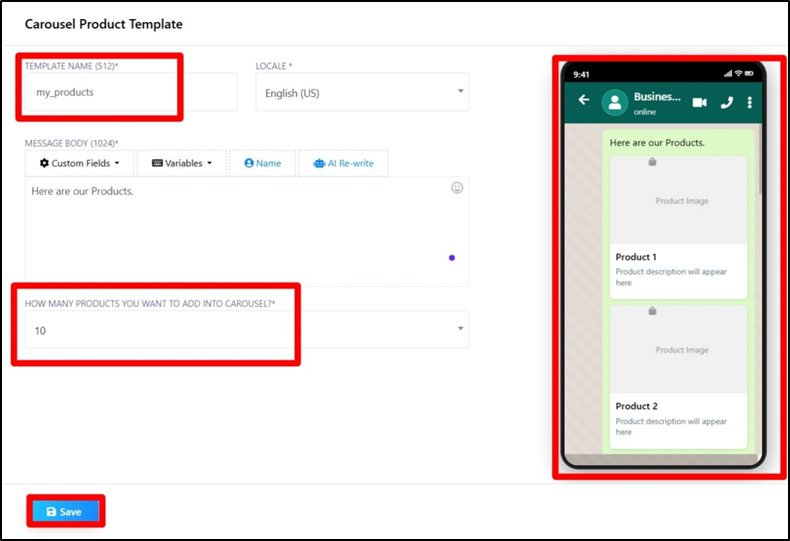
Step 2: Name the Template and Set Product Quantity:
- Give the template a name. (in lower characters only and with no spaces)
- Specify how many products you want to show in the carousel.
(Note: You can add up to 10 products in a single Carousel).
- Click Save.
- This product carousel template can now be reused across campaigns and bot flows.
Carousel templates help brands stand out on WhatsApp by combining visuals, information, and actions in one message. With BotBee, creating and automating these templates is straightforward even for non-technical teams. Whether you’re promoting products, showcasing offers, or guiding users to take action, WhatsApp carousels can significantly improve engagement and response rates.
Reference Video:
If you prefer video tutorials here are the links:
English: https://youtu.be/MVWhOEwtxlg?si=w7_XyEiz5AmVduo8
Still Need Help?
If you face difficulties during onboarding:
- Take a screenshot or screen recording.
- Share details with our support team.
Our team will review the onboarding step and guide you further.
Contact: 08069645300
Found this article helpful?
( 3 Out of 6 Found Helpful )