Shared Inbox Overview
BotBee’s Shared Inbox centralizes customer messages from multiple channels into a single, organized dashboard, helping teams manage conversations, respond faster, and collaborate efficiently. Let’s take a look at the key features BotBee offers in its Shared Inbox and how they simplify customer communication.
How to Access the Shared Inbox:
- Log in to your BotBee account.
- Open the Dashboard.
- In the left-side menu, find Shared Inbox (just below Dashboard).
- Click on Shared Inbox to open it and view all conversations in one place.
- You can also open it from the shortcut in the dashboard.
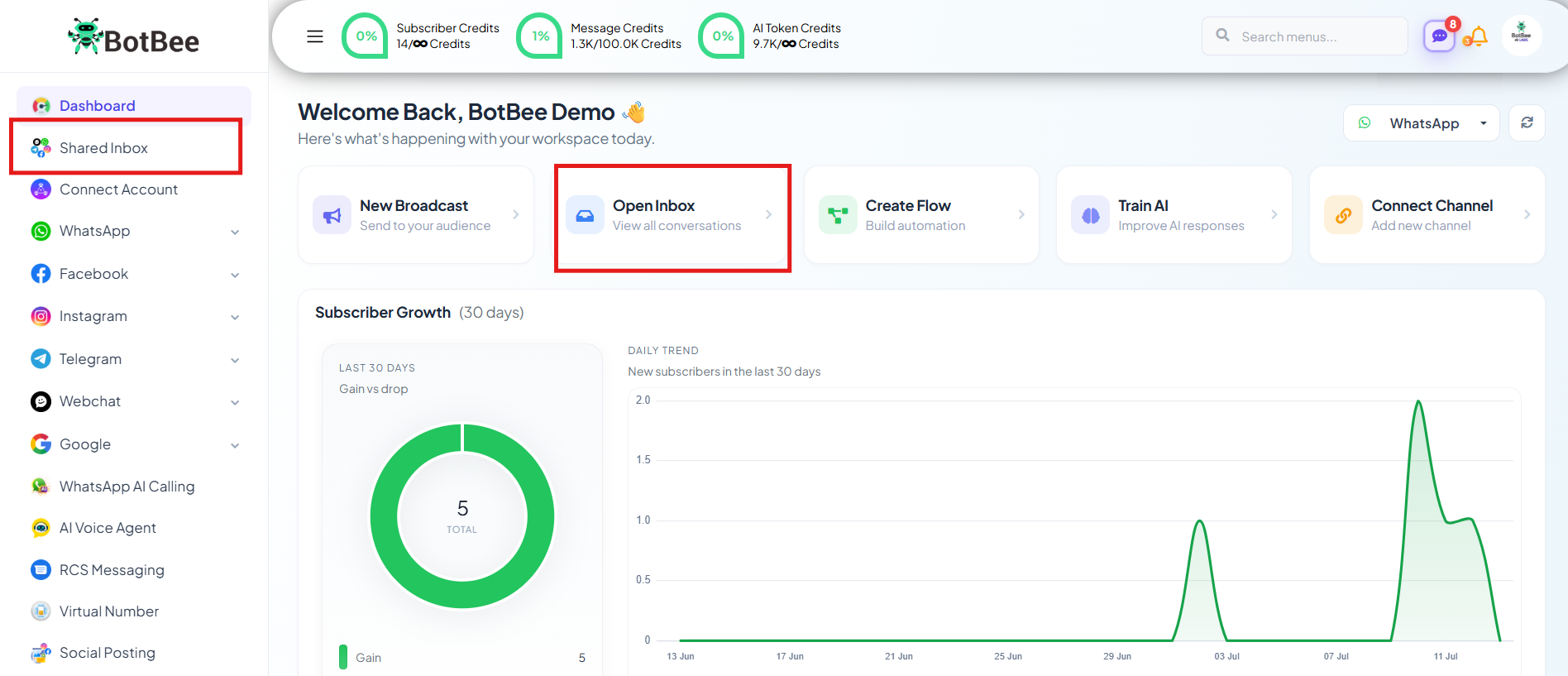
This is the BotBee Shared Inbox interface.
- From here, you can manage all customer conversations in one place. Let’s explore each of these features one by one and understand how they help streamline communication and team collaboration.
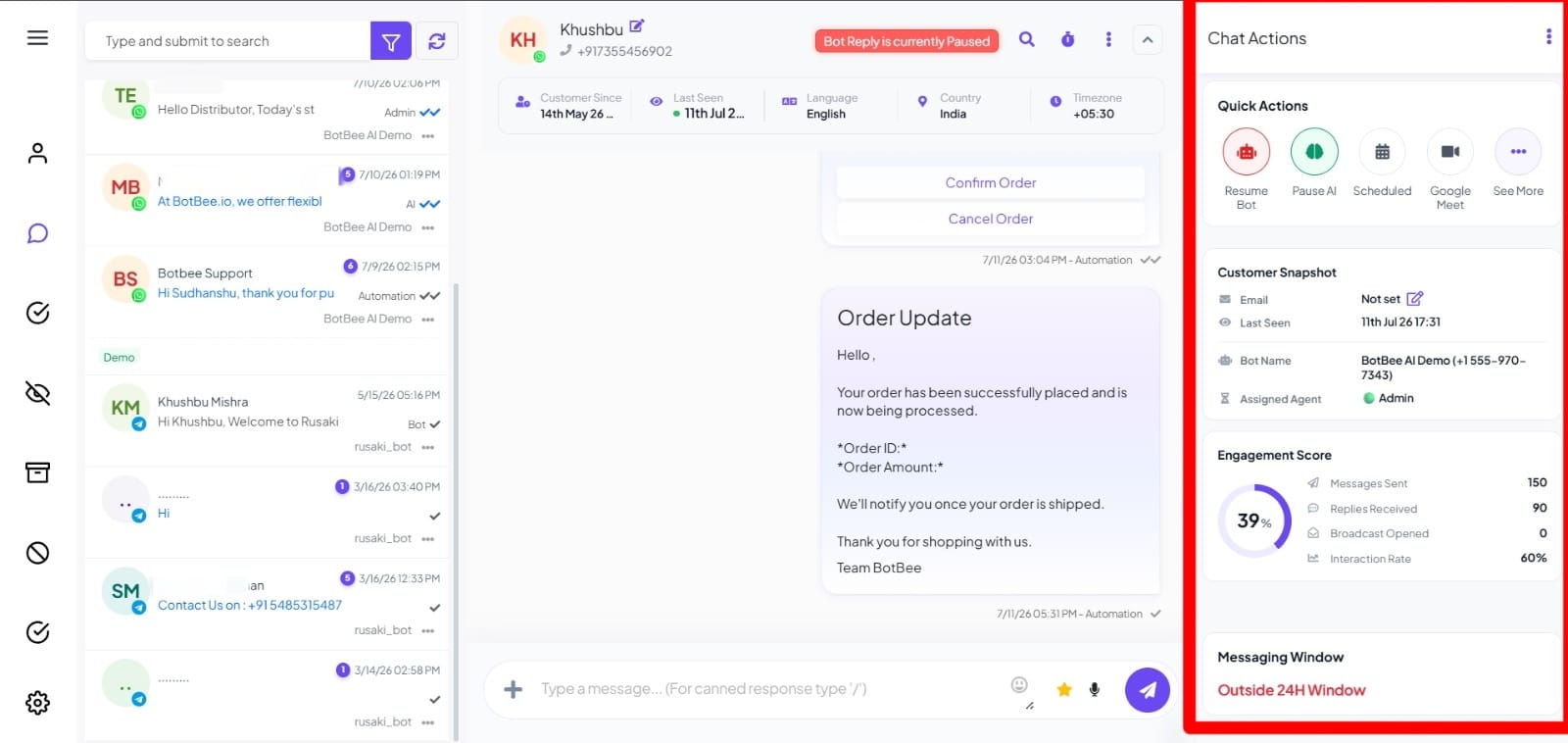
Chat Actions: The Chat Actions panel allows agents to manage conversations, automate workflows, and update customer information without leaving the chat window.
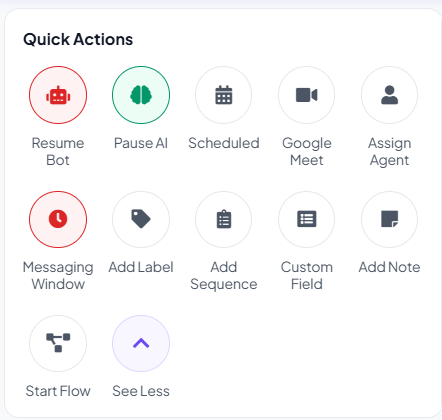
Quick Actions:
- Pause/Resume Bot: Temporarily stop or Re-enable the chatbot after it has been paused or handed over to an agent.
- Pause/Resume AI: Temporarily stops AI responses, allowing an agent to handle the conversation manually.
- Schedule: Schedule follow-up messages or tasks for a later date and time.
- Google Meet: Generate and share a Google Meet link directly within the chat.
- Assign Agent: Transfer the conversation to a specific support agent.
- Messaging Window: View whether the customer is inside or outside WhatsApp's 24-hour messaging window.
- Add Label: Organize conversations by applying labels such as Lead, VIP, or Support.
- Add Sequence: Enroll the customer in a predefined message sequence or follow-up campaign.
- Custom Field: Update or store customer-specific information like order ID, city, or membership status.
- Add Note: Add internal notes that are only visible to your team.
- Start Flow: Launch any chatbot flow manually during an active conversation.
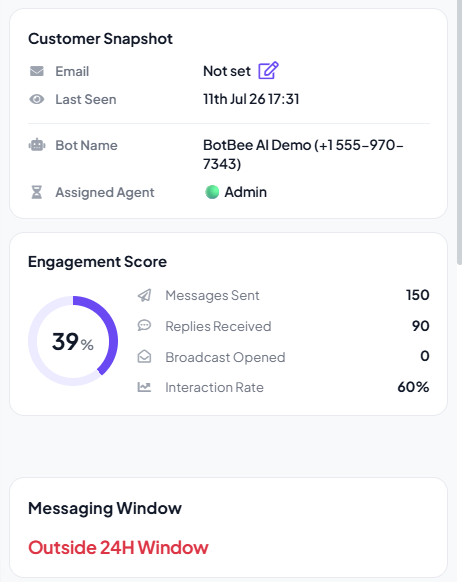
- Customer Snapshot: The Customer Snapshot provides key customer information at a glance, including contact details, assigned bot, assigned agent, and last activity.
- Engagement Score: The Engagement Score measures how actively a customer interacts with your business. It displays metrics such as: Messages Sent, Replies Received, Broadcast Opens, Overall Interaction Rate
- Messaging Window: Shows whether the customer is currently inside or outside WhatsApp's 24-hour customer service window, helping agents understand whether they can send free-form messages or need to use message templates.
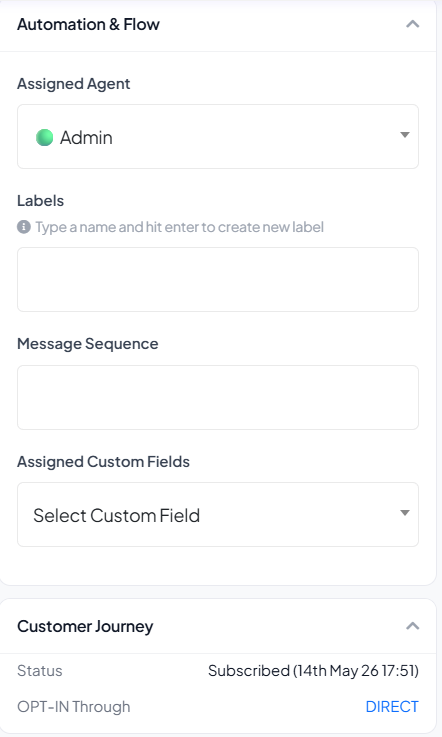
Automation & Flow: Displays the customer's current automation status, including the assigned agent, labels, active message sequences, and linked custom fields.
Customer Journey: Provides a timeline of the customer's journey, including subscription status, opt-in source, and how they entered the chatbot.
Custom Fields: Displays all saved customer data collected during conversations or integrations, such as address, payment details, selected service, pickup slot, and other personalized information. These fields can be used to personalize future conversations and automate workflows.
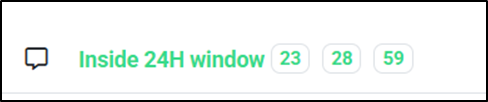
- 24 Hour window:
Inside 24 hr window: If the customer is within the 24-hour window, you can chat freely then no Meta charges apply and no message credits are used.
Outside 24 hr window: If the customer is outside the 24-hour window, there are two scenarios:

Customer messages first:
The 24-hour window automatically reopens, and the conversation continues without any charges or credit usage.
You message the customer first:
You can only send a message template. This will be charged as per Meta fees and message credits will be deducted (usually 3–4 credits per message).
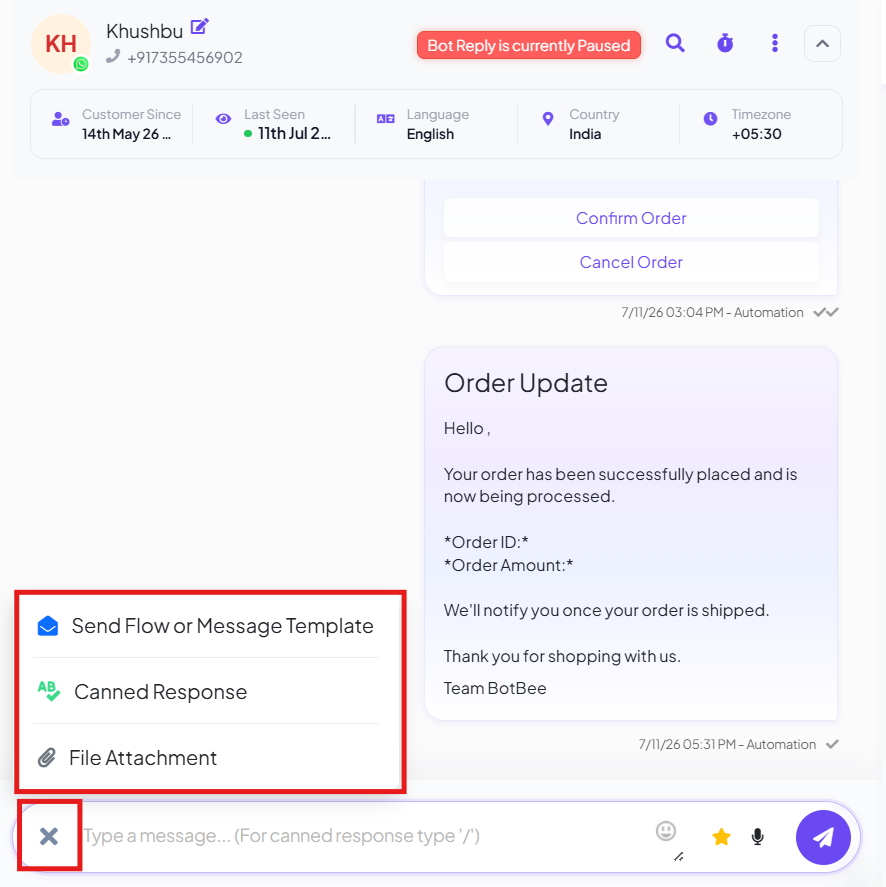
Plus (+) Icon Features:
- Send Flow or Message Template: Send any chatbot flow or approved message template directly to the customer from the chat.
- Canned Responses: Use quick replies for faster responses.
- You can also add images as canned responses (up to 5 images, 2MB per image).
- Simply type “/” in the chat to instantly access canned responses.
- File Attachment: Attach and send files (documents, images, etc.) directly to the customer within the conversation.
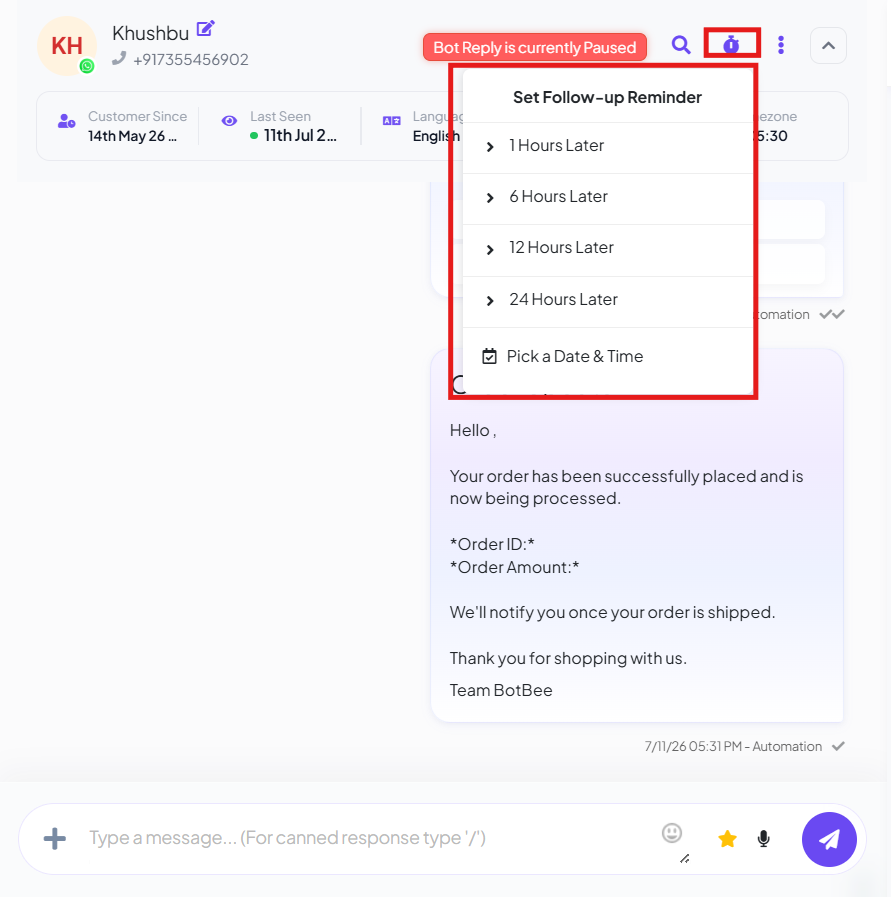
Follow Up Reminders:
- Use the clock icon to schedule reminders for future follow-ups.
- You can set reminders for 1 hour, 6 hours, 12 hours, 24 hours, or choose a custom date and time.
- When the scheduled time arrives, you’ll receive a notification on the dashboard so you never miss a follow-up with the customer.
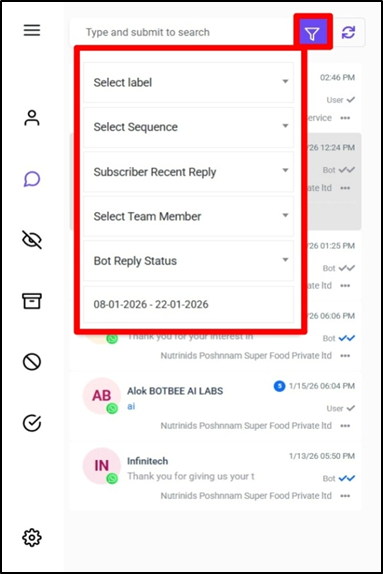
Filter Chats: The filter option helps you organize and find conversations using multiple criteria:
- Labels: Shows only the customers who are assigned to the selected label.
- Sequence: Displays customers who entered the chat by clicking on that specific sequence message.
- Date Range: Filter conversations within a selected time period.
- Recent Reply: Sort chats based on the latest user activity.
- Bot Reply Status: Filter by whether bot replies are active or paused.
- Team Members: View conversations assigned to specific agents or team members.
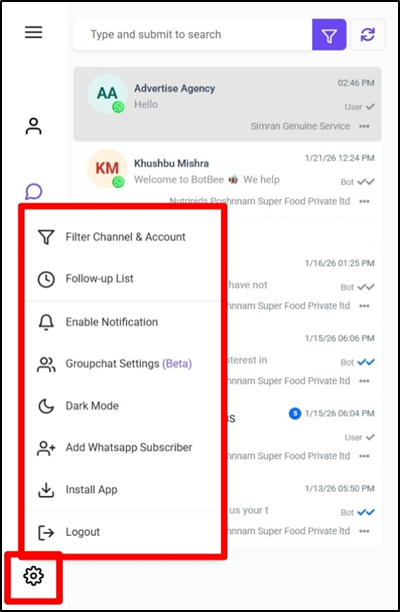
Settings Icon:
- Filter Channel & Account: Filter chats based on the connected WhatsApp numbers and also by the different bots created on each number. This helps manage multiple bots and accounts from one shared inbox.
- Follow-Up Lists: View and manage all scheduled follow-up reminders in one place for easy tracking and timely responses.
- Add WhatsApp Subscriber: Manually add a contact to a specific bot by entering the customer’s name and phone number.
(Note: The phone number must include the country code but without the (+) sign. Example (India): 91XXXXXXXXXX).
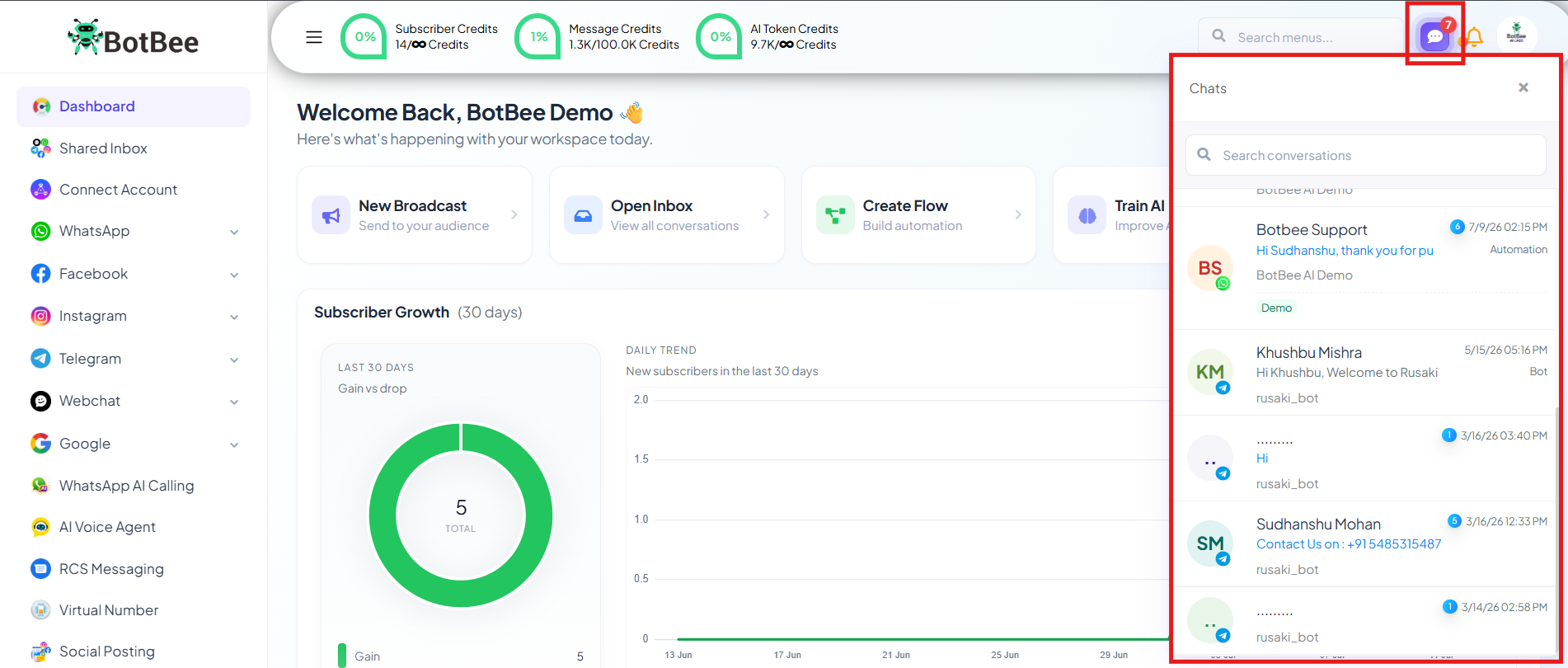
Floating Chat Tabs:
Floating Chat Tab option lets you see in the top right corner, in the BotBee Dashboard it let you manage multiple conversations without leaving your current screen. You can open, minimize, and switch between chats while continuing your work.
With BotBee’s Shared Inbox, managing customer conversations becomes simpler, smarter, and more efficient everything your team needs, in one place.
Still Need Help?
If you face difficulties during onboarding:
- Take a screenshot or screen recording.
- Share details with our support team.
Our team will review the onboarding step and guide you further.
Contact: 08069645300
Found this article helpful?
( 5 Out of 10 Found Helpful )