Subscriber Manager
Botbee’s Subscriber Manager transforms contact management into a powerful communication engine. By storing all subscribers in one centralized system, it enables brands to deliver personalized messages, automate scheduled broadcasts, and build stronger customer relationships at scale. It’s not just about managing contacts it’s about creating meaningful, data-driven engagement.
Accessing the Subscriber Manager:
- Open the BotBee dashboard.
- Click on Subscriber Manager under WhatsApp.
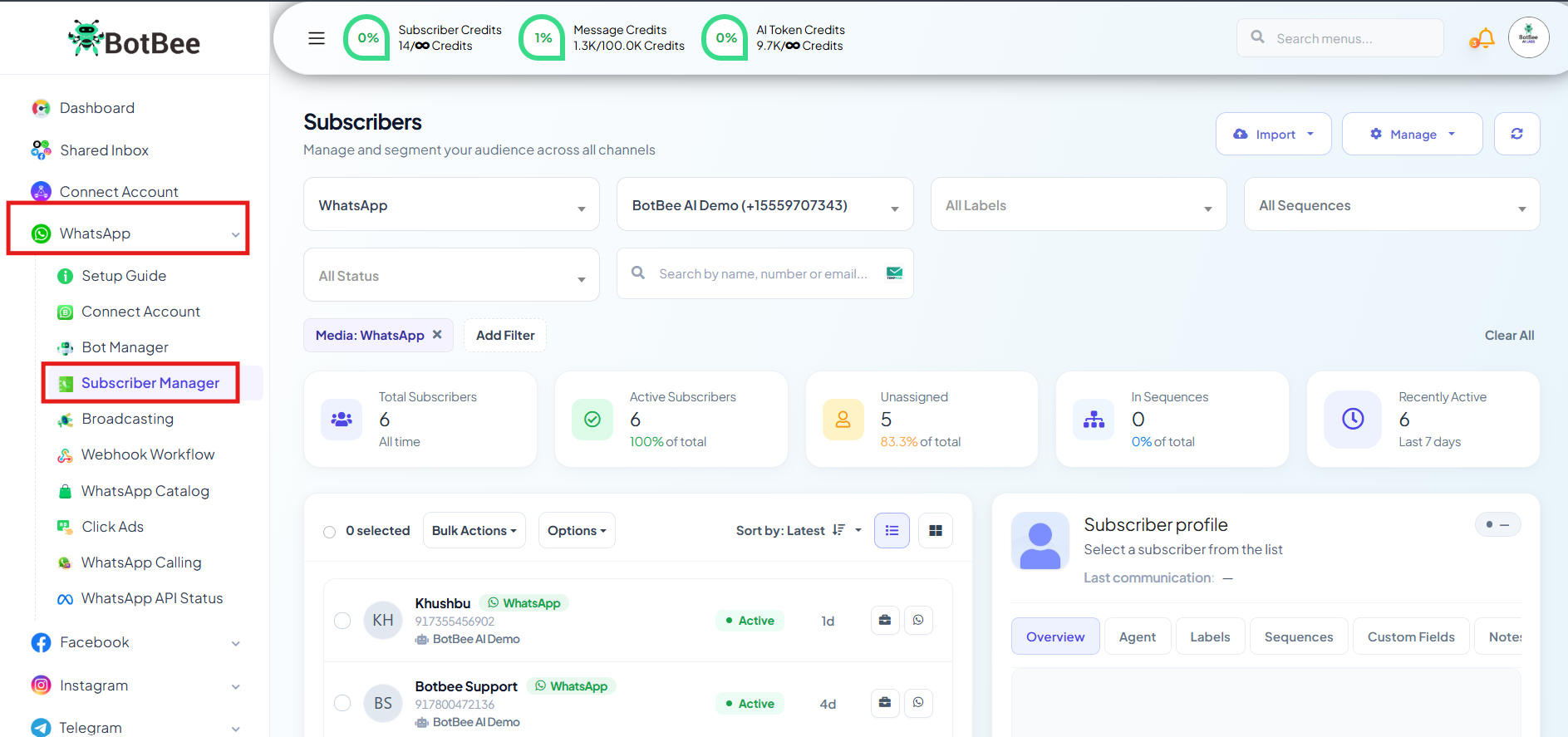
You will now see all saved contacts and management options in one place.
Creating and managing Labels:
- Labels help you organize subscribers based on your business needs and targeting strategy.
- You can assign number-based labels to contacts for easy sorting and segmentation.
- With label-based filtering, broadcasting becomes more accurate, efficient, and personalized instead of sending generic messages to everyone.
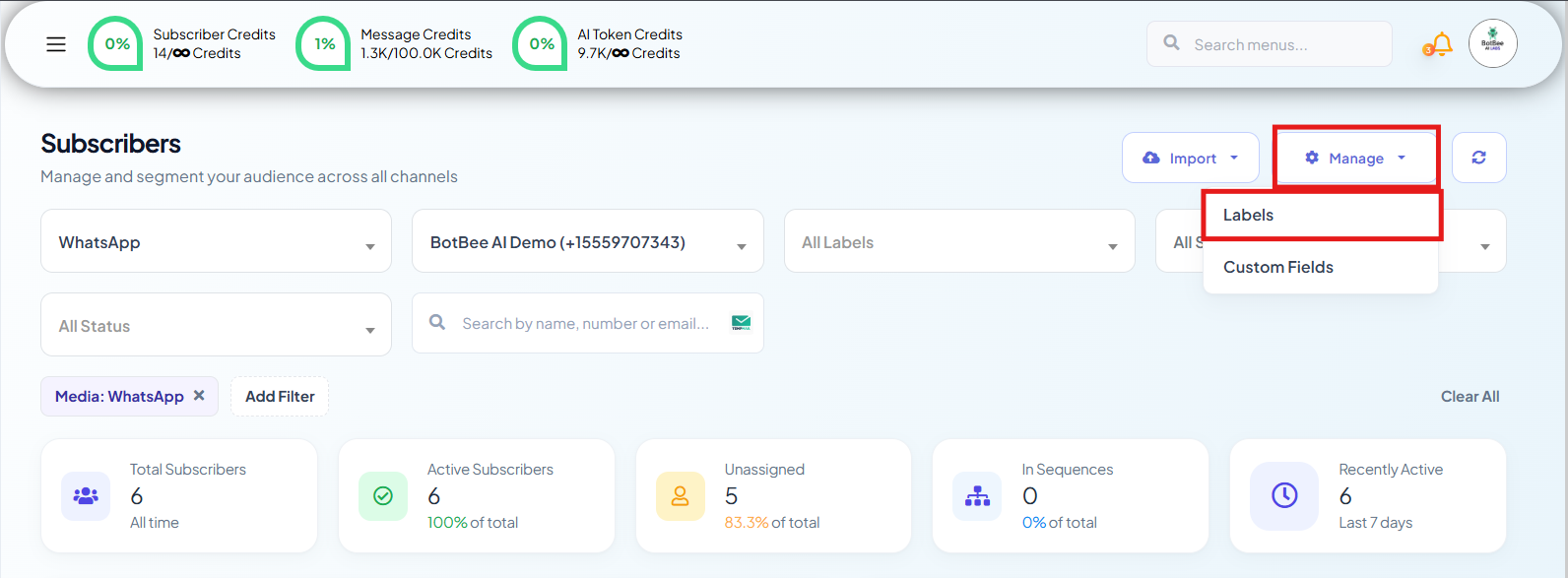
- In the Subscriber Manager, Click on the “Manage” dropdown next to WhatsApp Subscriber Manager.
- Select Labels.
Create New Label:
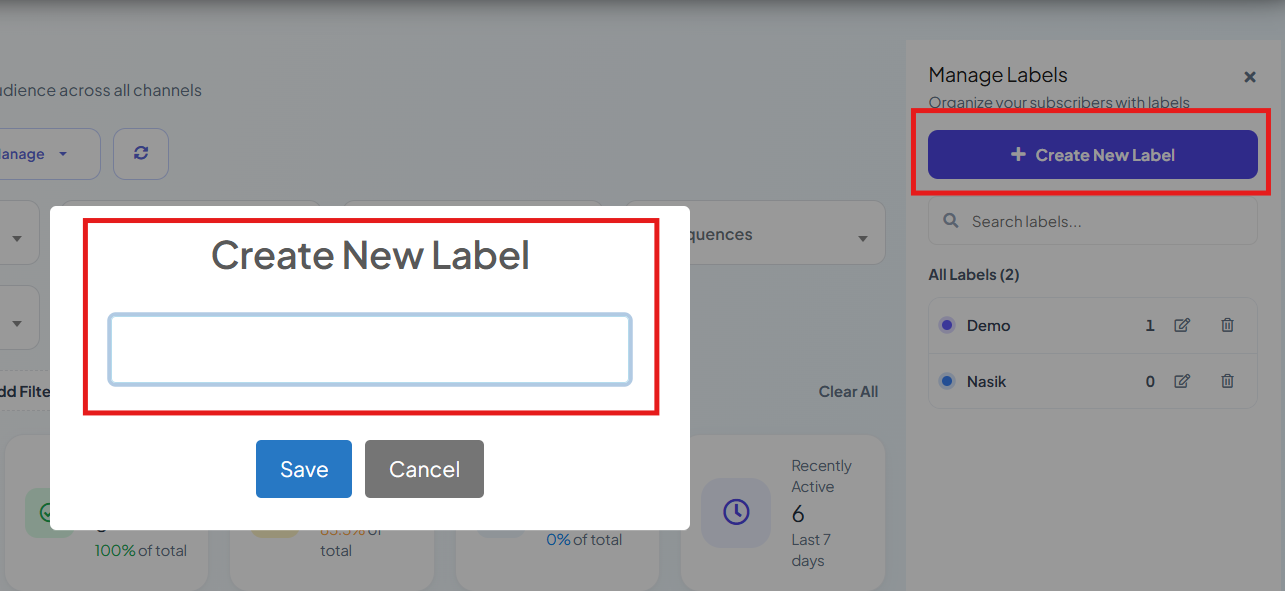
- Click on Create Button. A pop-up form will appear with a field: “Label Name”.
- In the “Label Name” field, enter the name for the label you want to create.
- Click the Save button.
Deleting A Label:
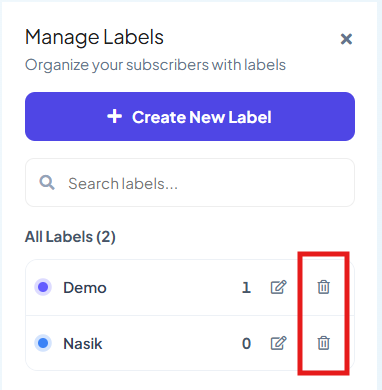
You can also delete a label by clicking on the Delete icon associated with the label name.
Creating and Managing Custom Fields:
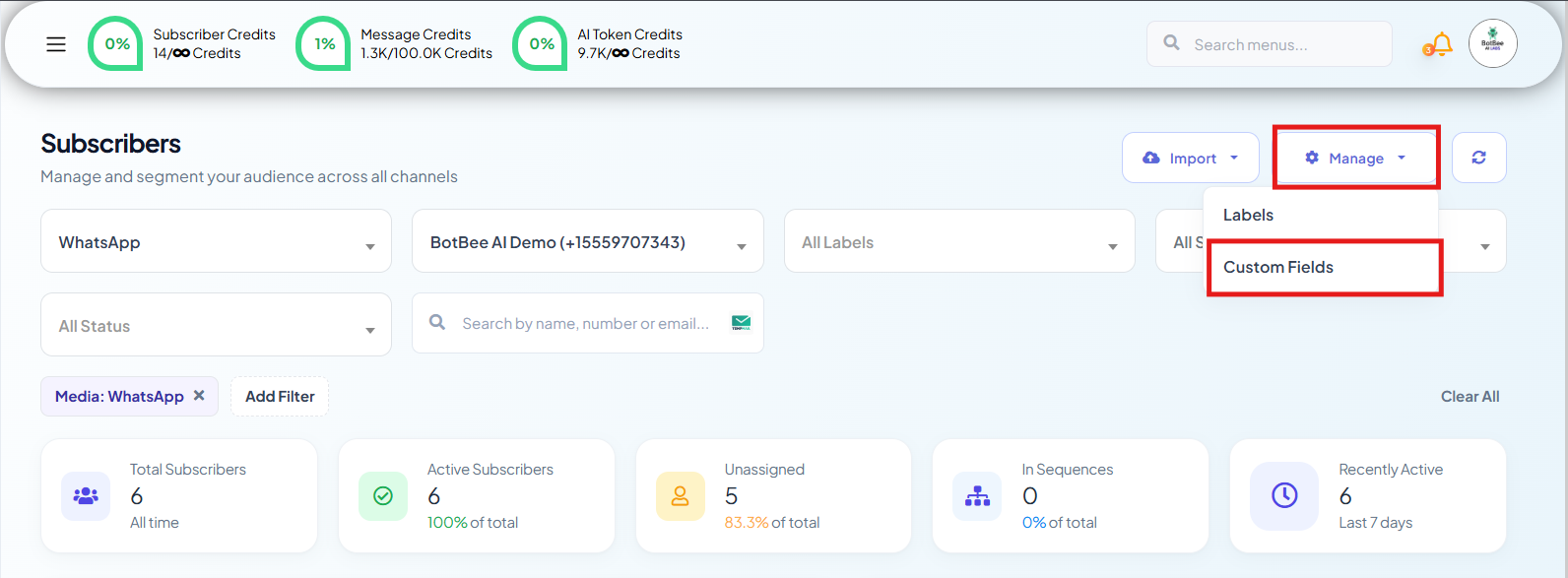
- To create custom fields Click on the “Manage” dropdown next to WhatsApp Subscriber Manager.
- Select Custom Fields.
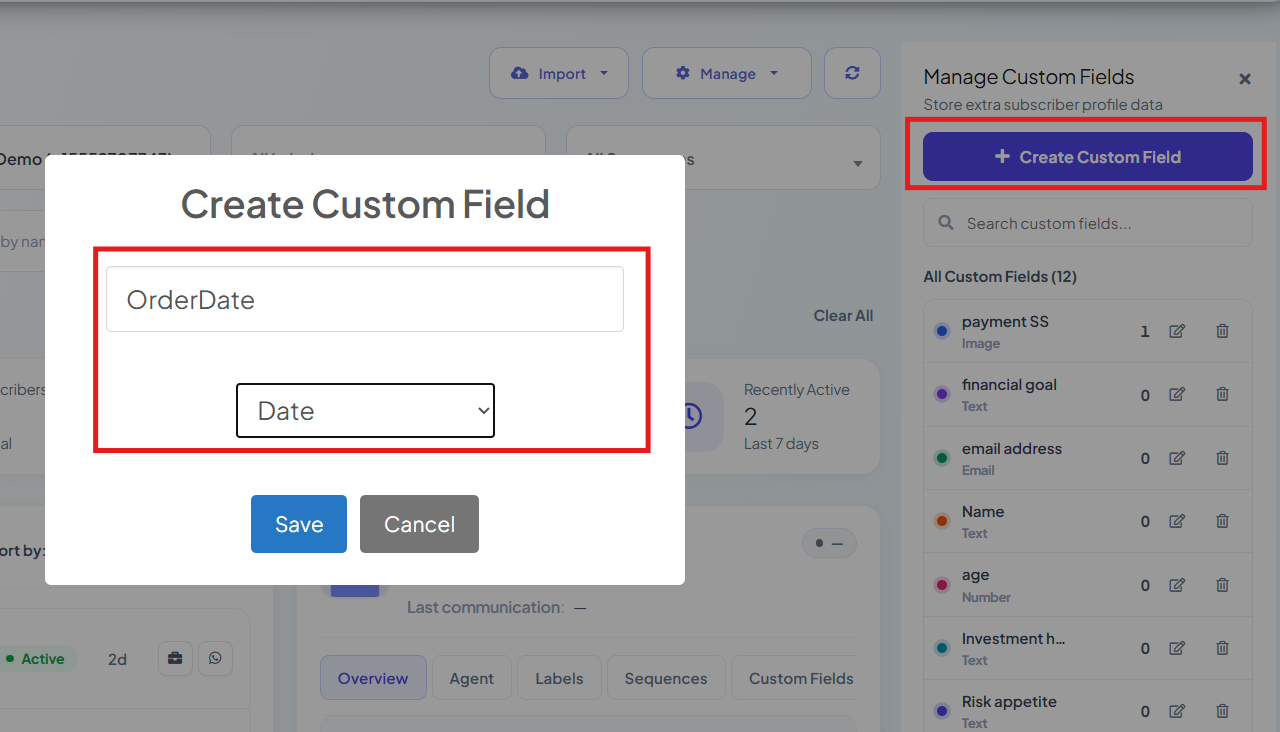
- Click on Create Button. A pop-up form will appear with two fields: “Field Name” and “Reply Type.”
- In the “Field Name” field, enter the name for the custom field you want to create, Eg: Order ID, Employee ID.
- In the “Reply Type” field, choose the respective Reply Type.
- Click the Save button.
Adding New Subscribers:
You can add new numbers in two simple ways:
- Import from CSV File: Upload an Excel sheet in CSV format to bulk import subscribers at once.
- Manual Entry: Add subscribers one by one by entering their details manually.
Import from CSV File:
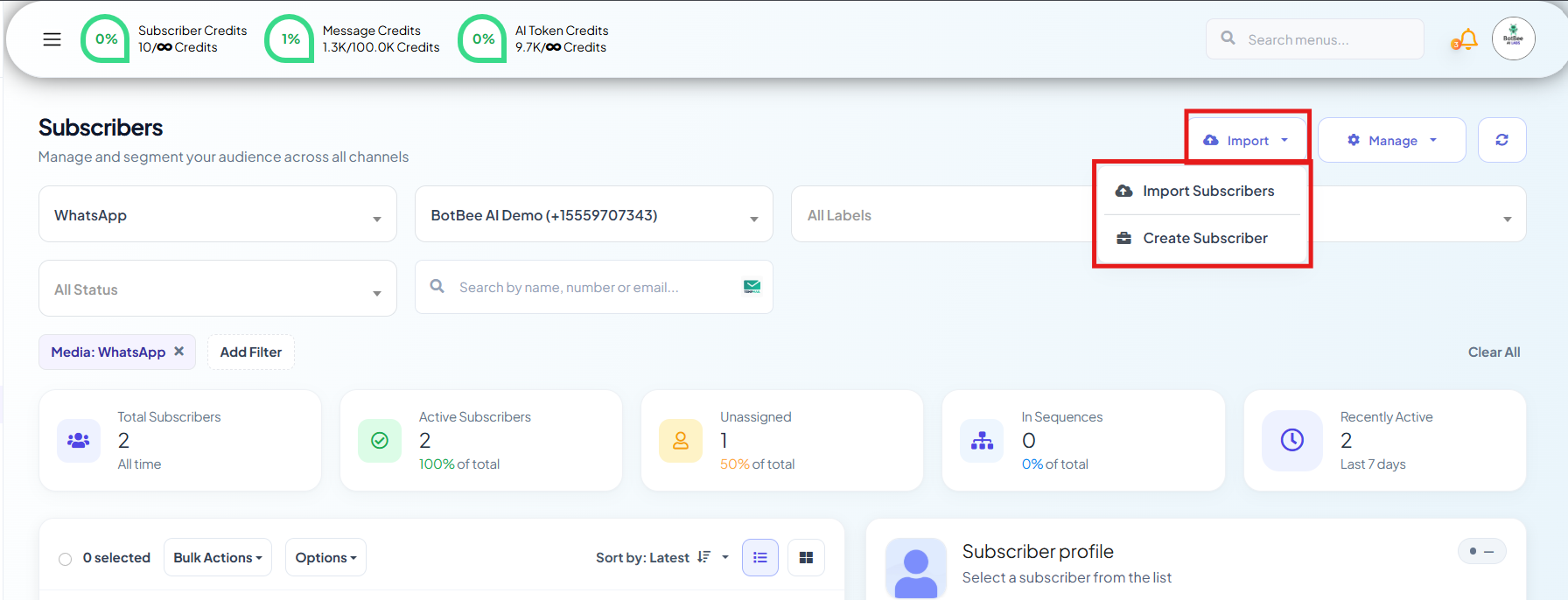
- Click on Import Subscribers from the Import Button.
- Select an existing label or create a new one for the subscriber list.
Step 1: Prepare Your CSV File:
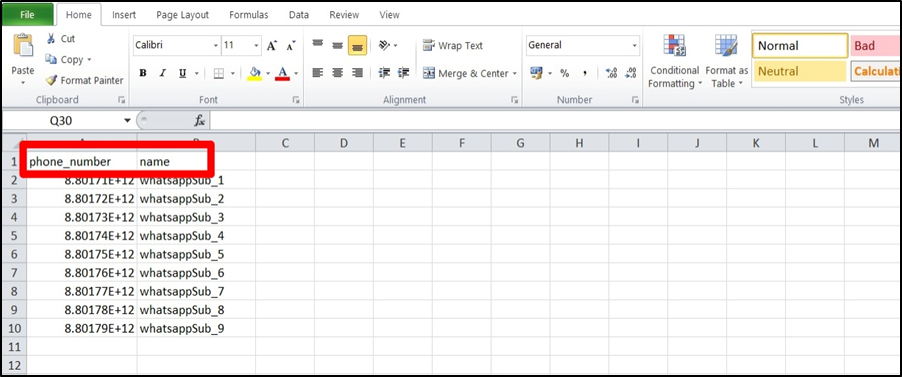
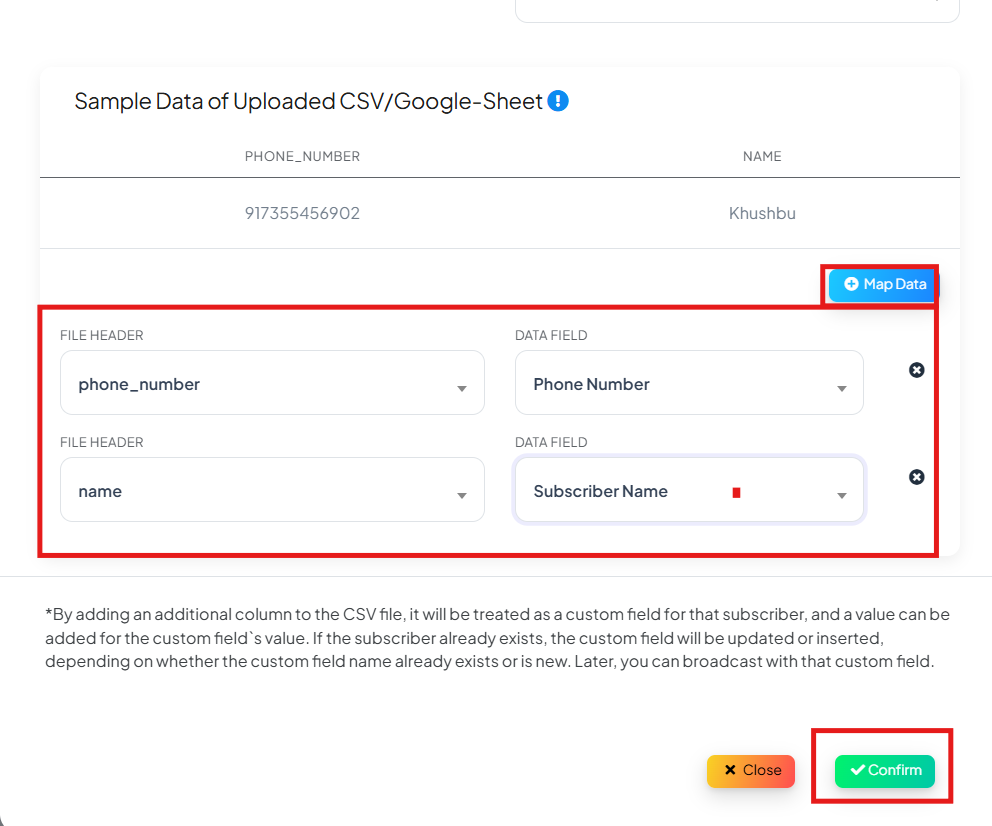
- Download the sample CSV file to understand the correct format.
- Ensure your CSV contains the required columns with the same column names as shown in the sample file. And don’t remove the headings.
(Note: Your Phone numbers must include the country code but Not include the "+" sign. Example: For India: 91xxxxxxxxxx)
- Click on “Map Data” and make sure your fields are aligned correctly. Click on Confirm then.
- Once completed, you will see the message "Subscribers imported successfully.
Manual Entry of Subscribers:
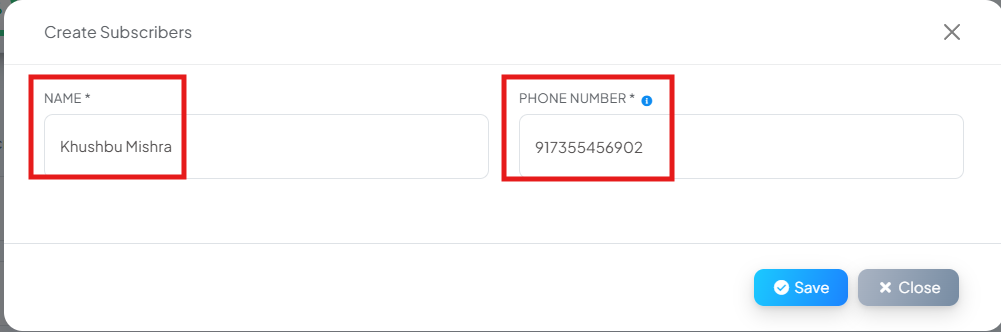
- Click on Create Subscribers.
- Enter the Name and Phone Number (With 91)
- Click Save to add the subscriber successfully.
Assigning Labels:
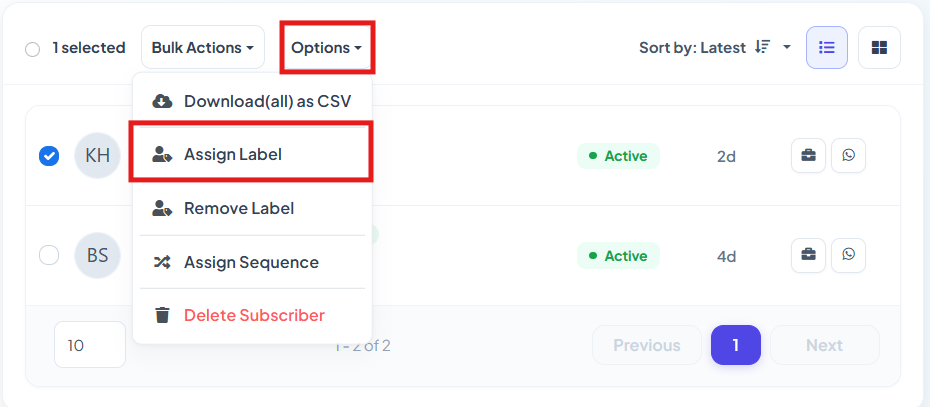
- Select the subscribers you want to assign.
- Click on “Assign Label” from the options.
- Choose a label or labels and click the “Assign” button to assign the label to the selected subscribers.
Assigning Sequence:
- Sequences allow you to automate message delivery to subscribers over predefined time intervals.
- Once assigned, the user automatically receives scheduled messages based on the sequence flow.
- This helps in automating onboarding, follow-ups, nurturing campaigns, and long-term engagement without manual effort.
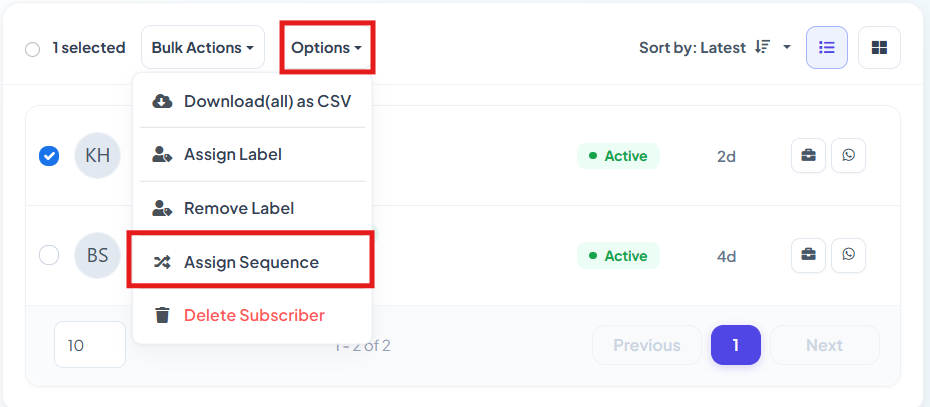
- Select the subscribers you want to assign to a sequence to and Click on “Assign Sequence” from the options.
- Choose the sequence and Click the “Assign” button to assign the sequence to the selected subscribers.
BotBee’s Subscriber Manager turns simple contact storage into a complete engagement system. With features like labeling, automated sequences, personalized messaging, and targeted broadcasts , it helps businesses manage communication smarter, faster, and more effectively all from one centralized platform.
Still Need Help?
If you face difficulties during onboarding:
- Take a screenshot or screen recording.
- Share details with our support team.
Our team will review the onboarding step and guide you further.
Contact: 08069645300
Found this article helpful?
( 4 Out of 7 Found Helpful )