Catalog Settings Explained: A Complete Guide to Configuration Options
Catalog Settings play a crucial role in how your product catalog is displayed, managed, and shared with customers on WhatsApp. From controlling product visibility to managing sync behavior and customer interactions, each configuration option directly impacts the shopping experience and order flow. This article provides a detailed explanation of all available Catalog Settings, helping you understand what each option does and how to configure it correctly for smooth catalog management and better customer engagement.
Accessing the WhatsApp Catalog:
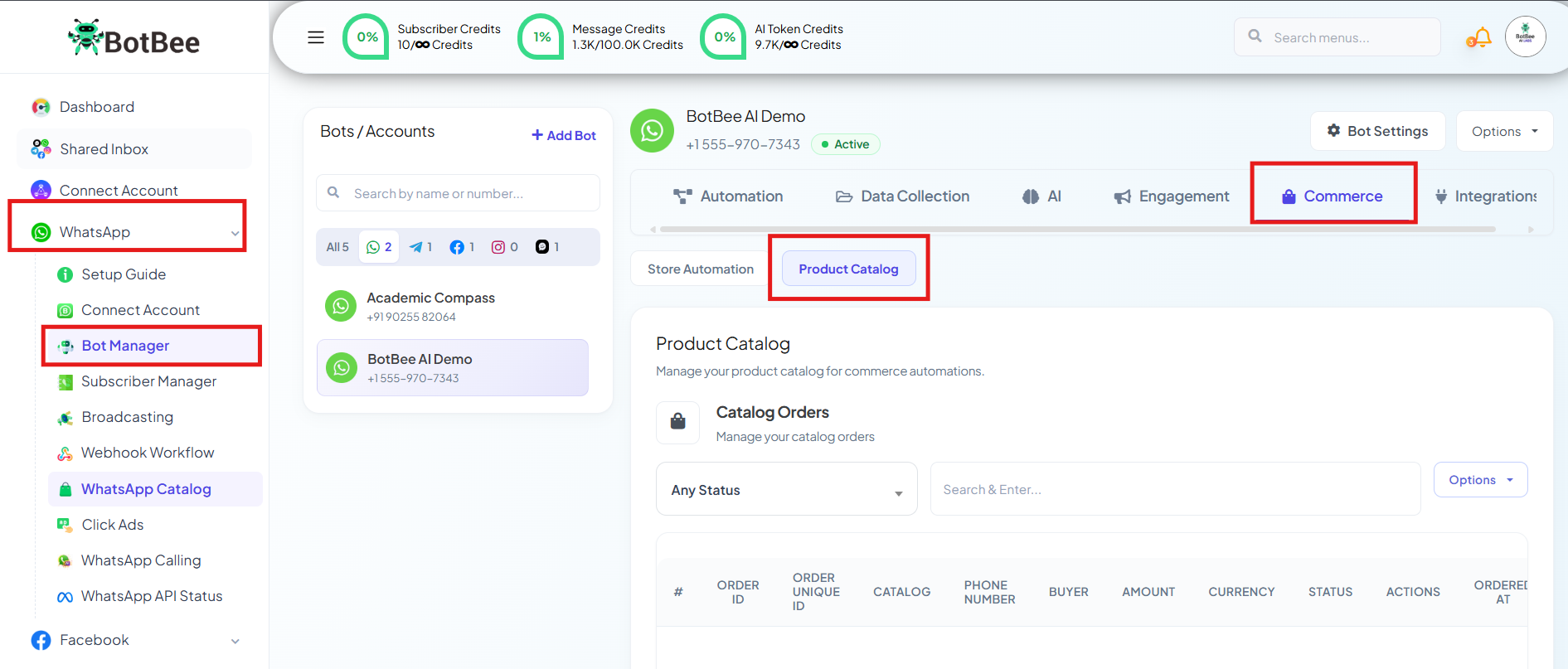
- Log in to your BotBee Dashboard.
- From the left-hand menu, Go to Bot Manager under WhatsApp section.
- Click on "Product Catalog" under Commerce Section.
- You will be redirected to the catalog section, where you can manage products and configure catalog settings.
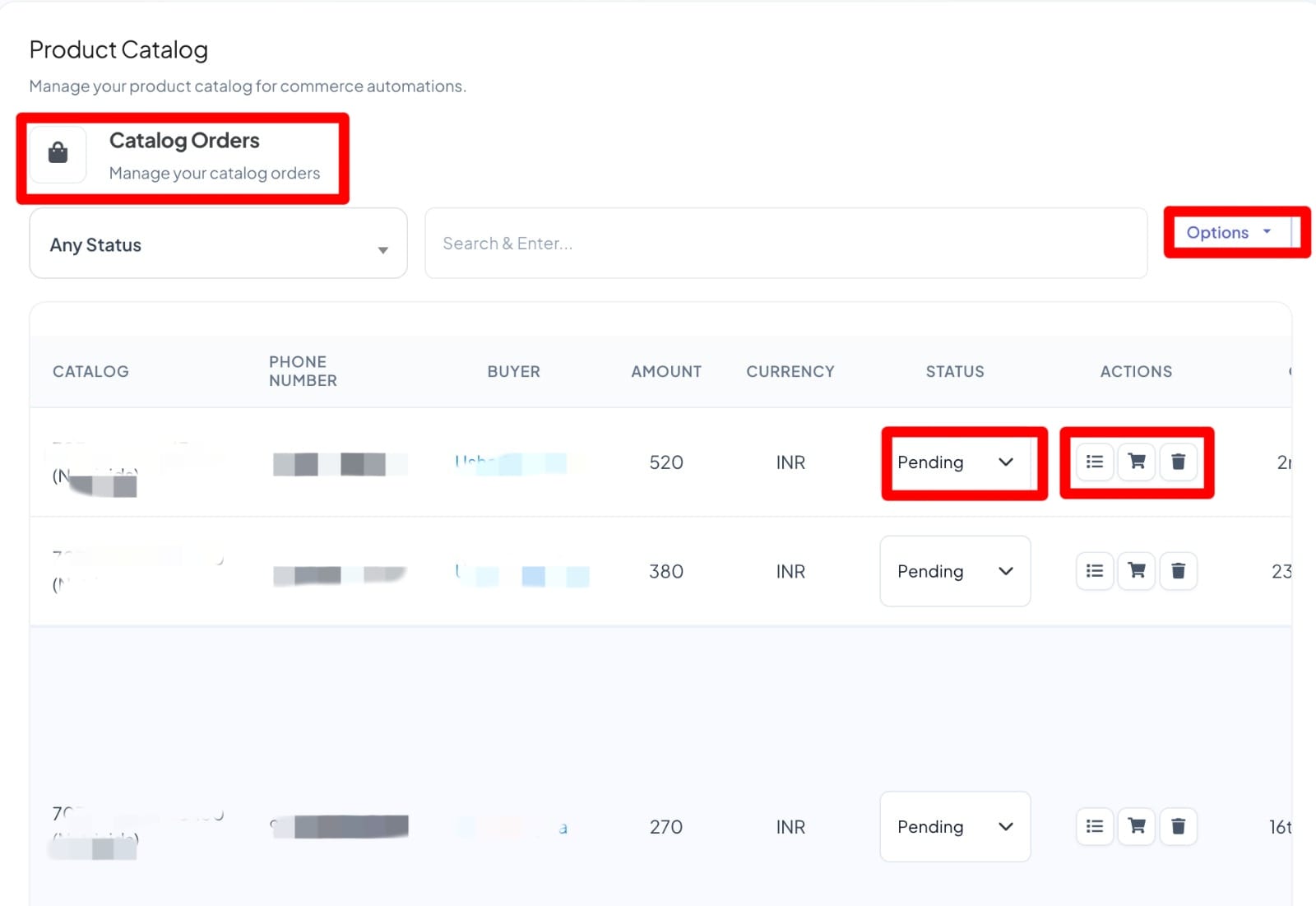
Catalog Orders:
- The Catalog Orders section displays all customers who have placed orders through the WhatsApp catalog.
- Each order shows key details such as customer information and current order status and date of order.
- You can update the order status based on the fulfilment stage, such as: Pending, Shipped, Delivered, Refunded (and other available statuses, if enabled)
- Click on the three-line (menu) icon next to an order to view detailed order information.
- This view shows the products ordered along with their respective quantities.
- You can also download the CSV file of this order list by clicking on the “options” button in the right hand side corner.
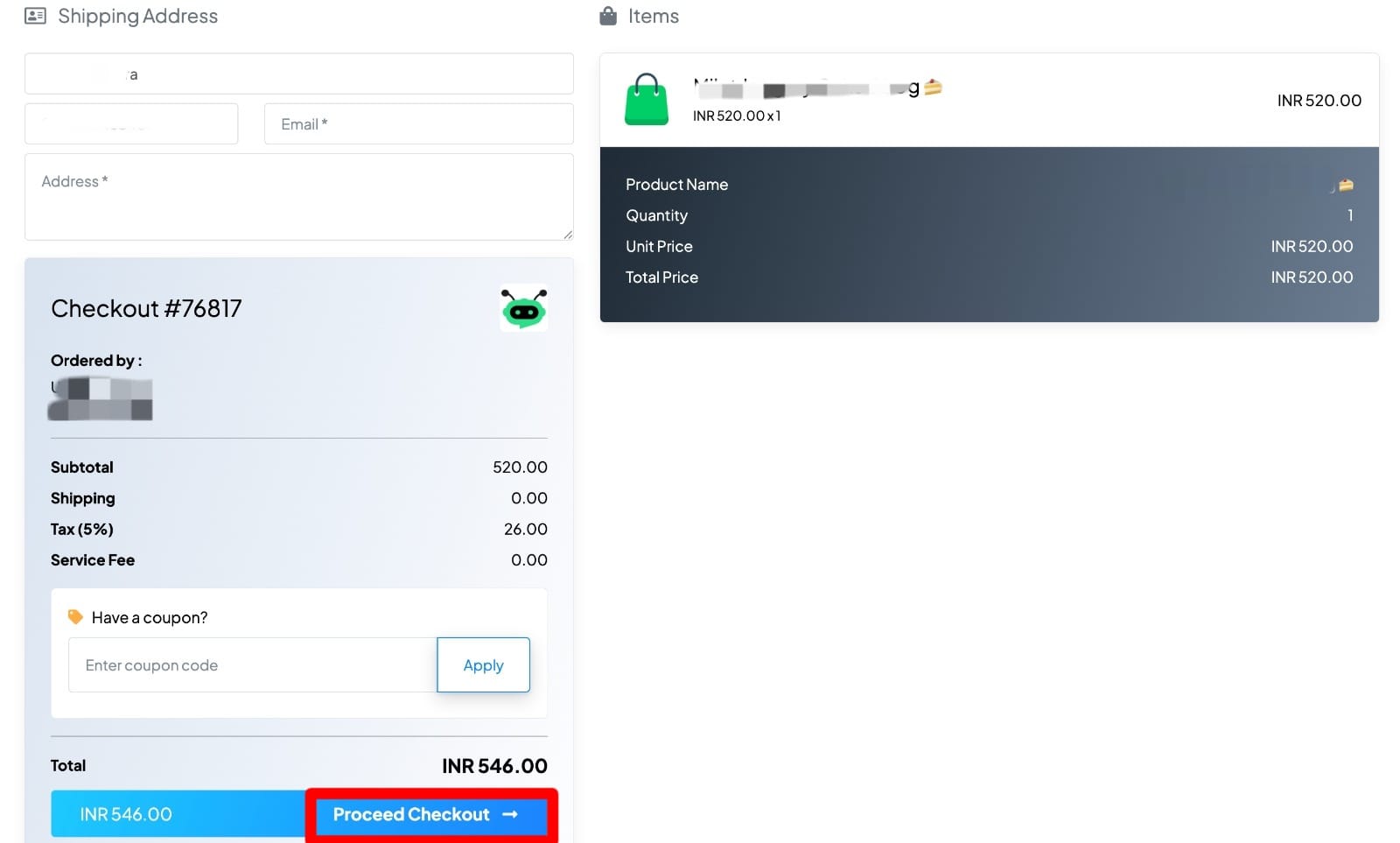
- Clicking the cart icon redirects you to the Checkout page.
- The Shipping Address section displays the customer’s name, contact details, email, and delivery address.
- Order details such as the checkout/order ID and customer information are shown for reference.
- The Items section lists all products in the cart with their quantity and price.
- A price summary shows subtotal, shipping, tax, service fee, and the final payable amount.
- Click Proceed Checkout to confirm the order and continue with payment (if enabled).
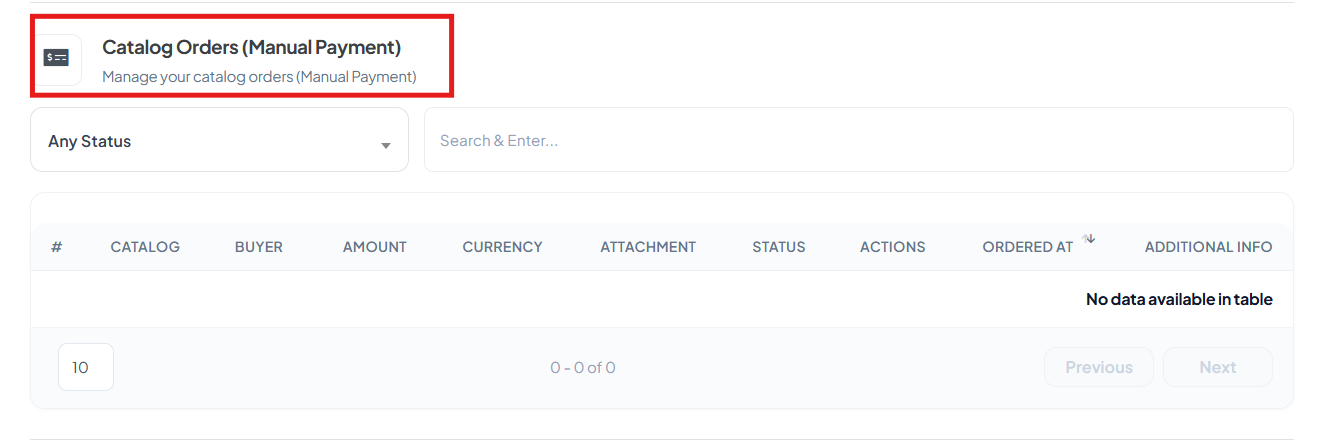
Catalog Orders (Manual Payments):
- The Manual Payments section displays customers who choose to pay manually or opt for Cash on Delivery (COD).
- Orders listed here are those where payment is not completed online.
- Admins can track and manage these orders separately for manual payment confirmation and fulfilment.
Catalog Manager:
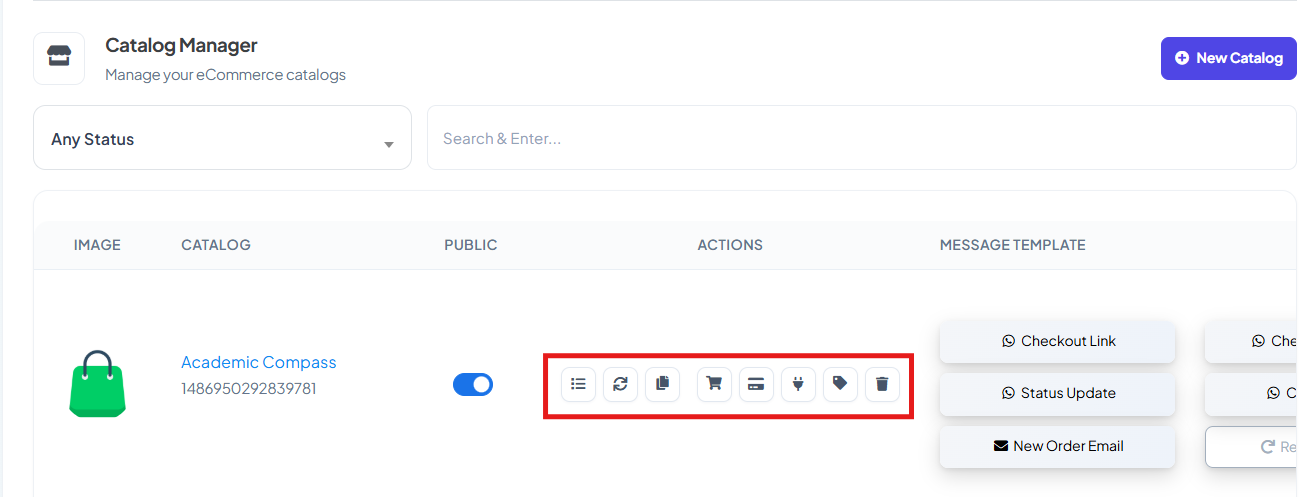
- The Catalog Manager allows you to manage your connected WhatsApp catalog from a single place.
- It provides multiple action options to control and update your catalog. Let’s look at each action option one by one in detail.
Catalog products:
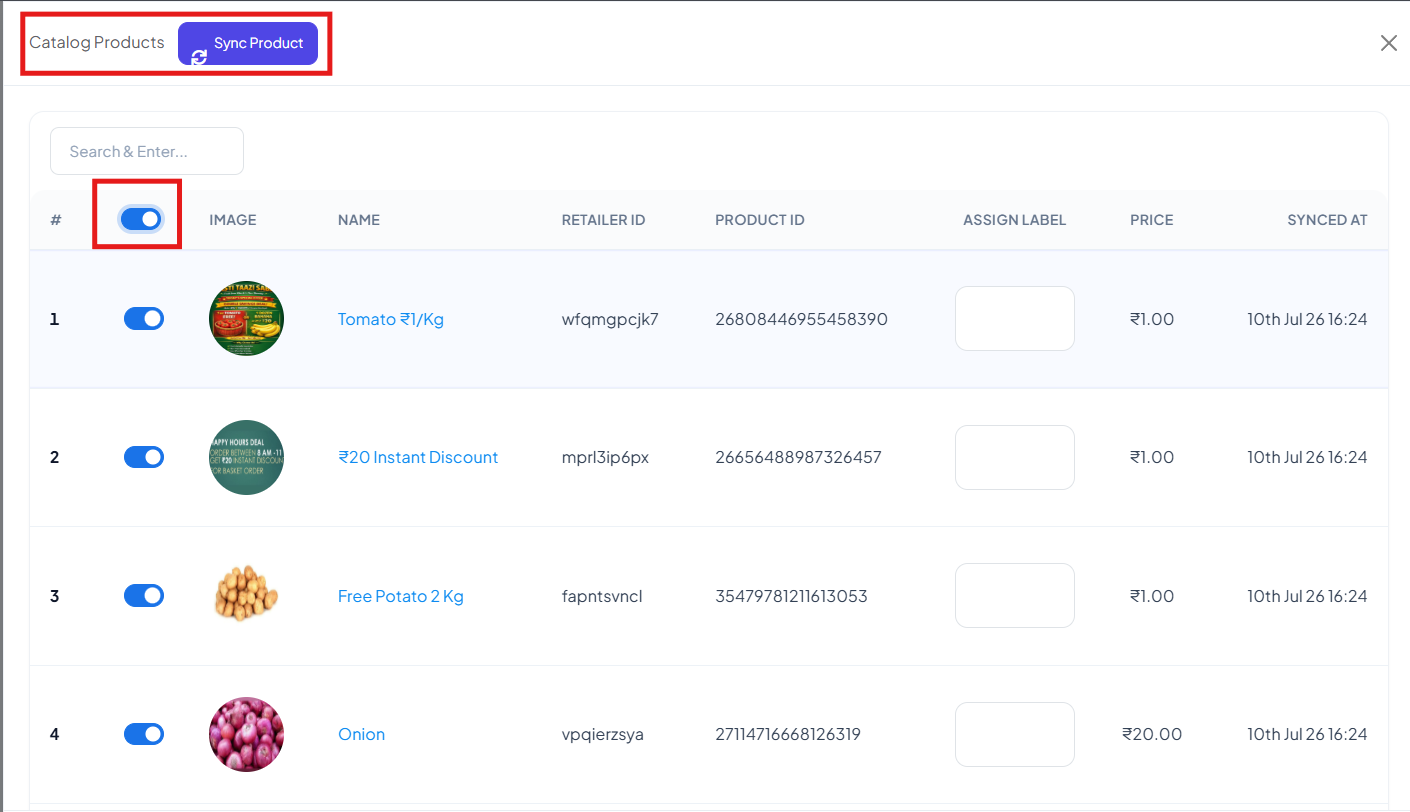
- Click on the three-line (menu) icon to view all the products available in the connected catalog.
- This section displays the complete list of products added to the catalog.
- You can also sync products by clicking on the Sync Products button to update the catalog with the latest product data.
Sync Catalog:
By clicking on the sync button, you can sync your catalog with BotBee.
(Note: After you update a product in a catalog, you are first required to sync the product then sync the catalog)
Copy Catalog URL:
You can copy the Catalog URL by clicking on the copy button.
Payment Settings:
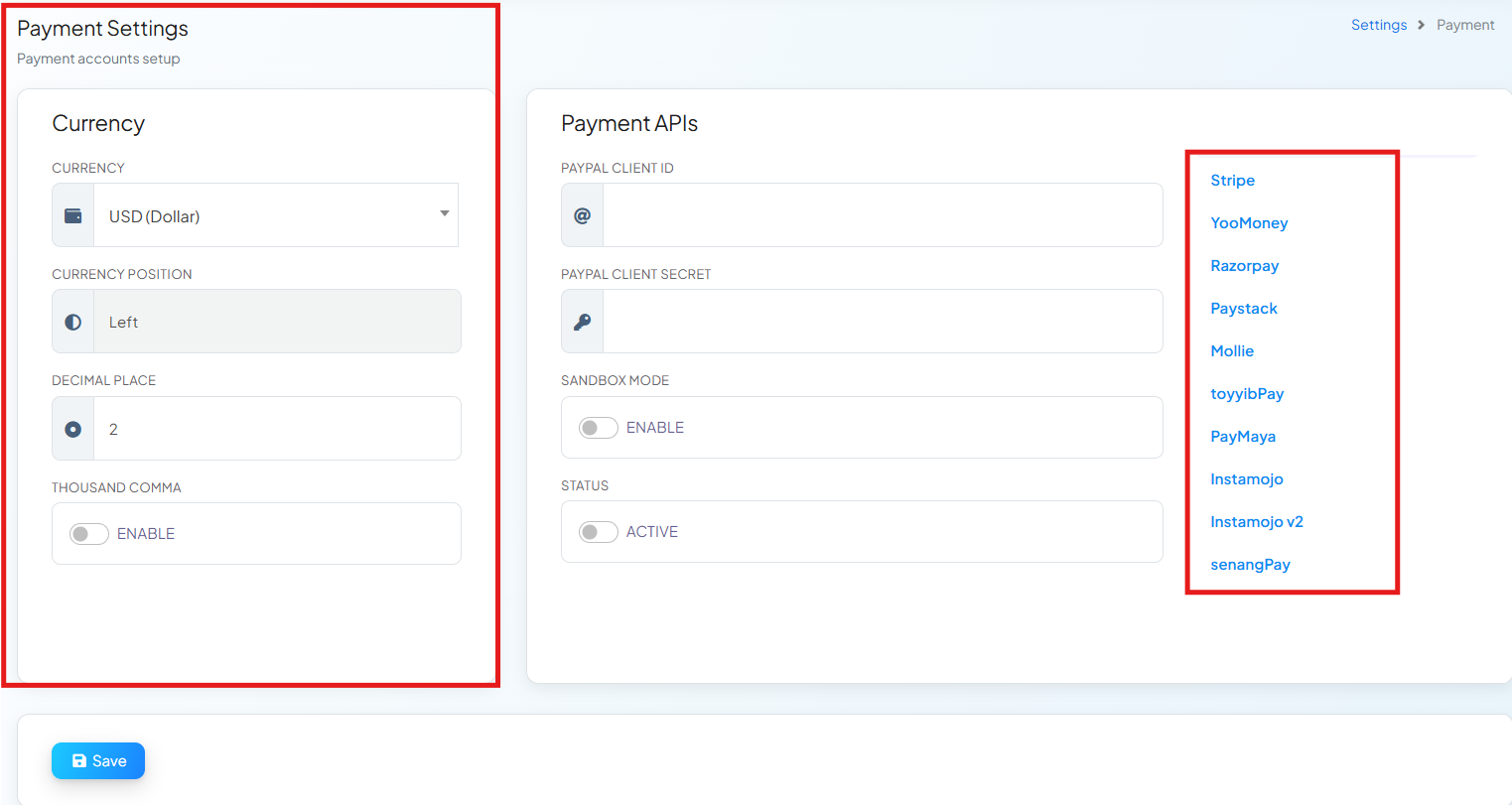
- Clicking on Payment Settings redirects you to the Payment configuration page.
- This section allows you to set up and manage how payments work for catalog orders.
Currency Settings:
- Select the currency (e.g., INR).
- Configure the currency position (left or right).
- Set the decimal places for prices.
- Enable or disable thousand separators (comma) for better price readability.
Payment APIs:
- Configure online payment gateways such as PayPal, Razorpay, Stripe, etc.
- Enter required credentials like Client ID and Client Secret for the selected gateway.
- Enable Sandbox Mode for testing payments before going live.
- Set the payment status to Active to start accepting payments.
Cart Settings:
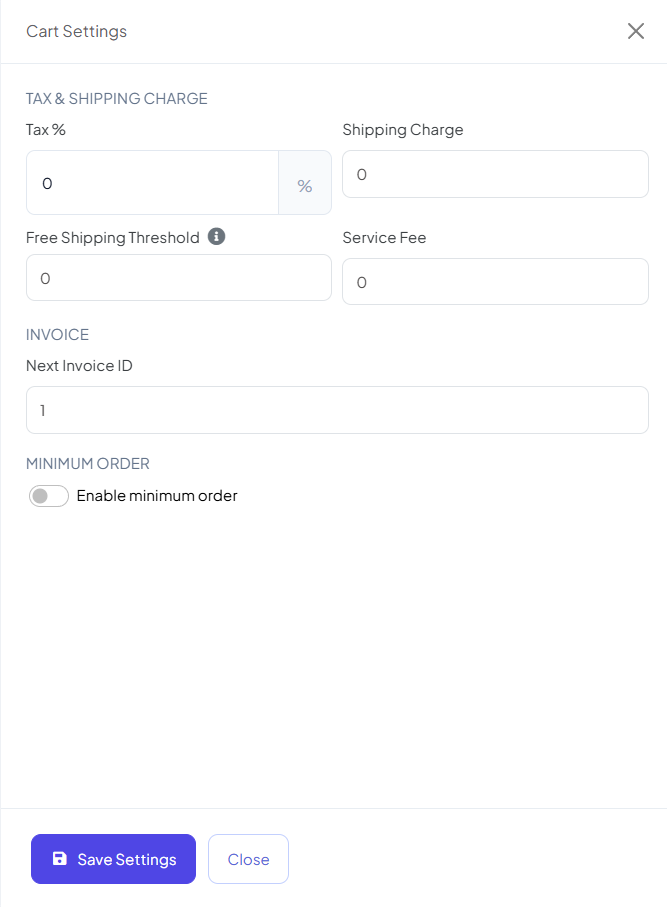
- Clicking on Cart Settings opens the cart configuration panel.
- Set the Tax (%), Shipping Charge, and Service Fee for catalog orders.
- Configure the Next Invoice ID, which auto-increments for each new order.
- Click Save Settings to apply changes or Close to exit.
Delete Catalog:
You can also delete the catalog by clicking on Bin Icon.
Catalog Settings:
Now let’s talk about these settings one by one in detail.
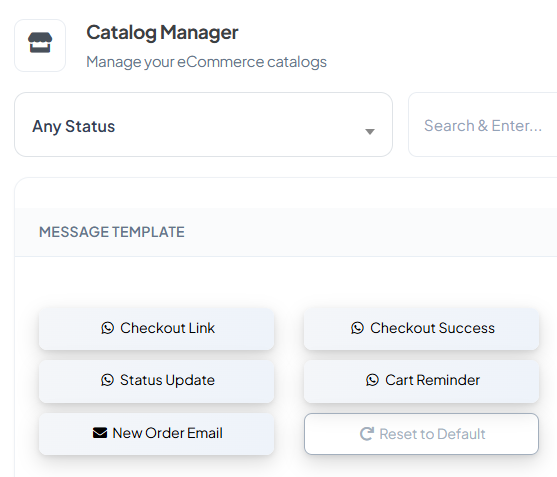
Checkout Link:
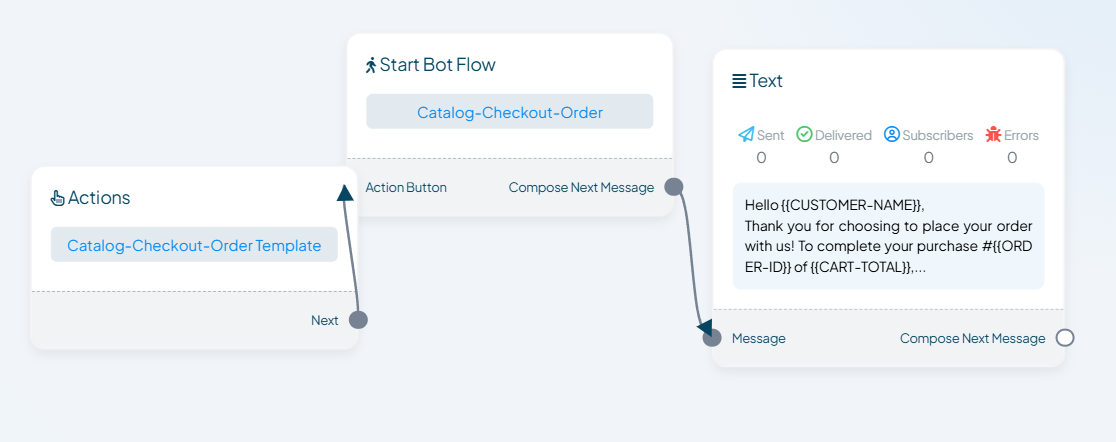
- Clicking on the Checkout Link redirects you to the Bot Flow Builder.
- Here, you can design the flow that customers will receive after selecting a product from the catalog.
- This allows you to customize messages, actions, and confirmations during the checkout process.
- You can add your UPI QR code for manual payments.
- You can also ask customers for their delivery address as part of the checkout flow.
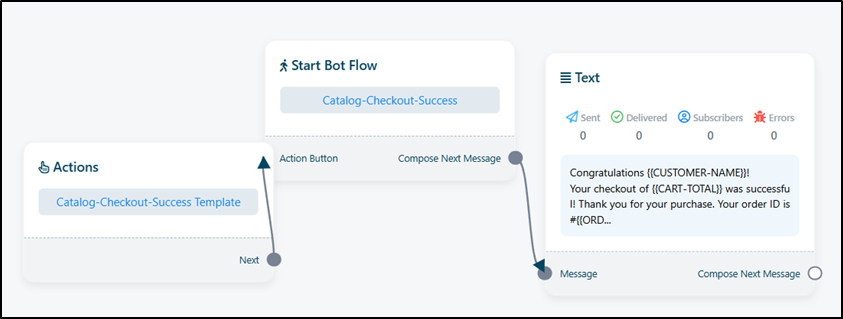
Checkout Success:
- Clicking on Checkout Success redirects you to the Bot Flow Builder.
- You can create the flow that customers will receive after the payment is successful, such as confirmation messages or order details.
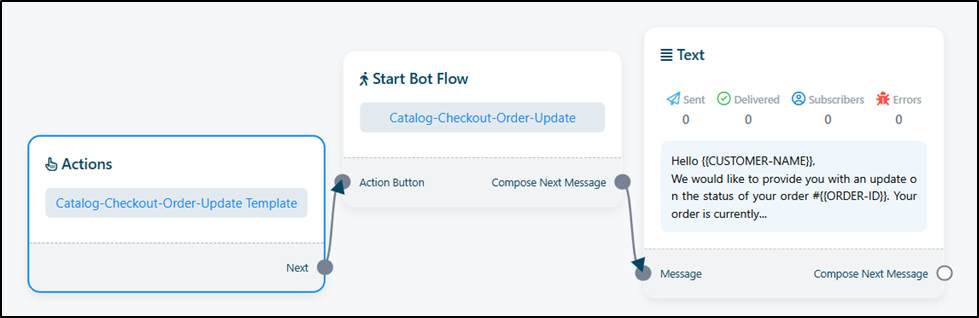
Status Update:
- Clicking on Status Update redirects you to the Bot Flow Builder.
- You can design the flow for order update messages that customers receive when the order status changes (e.g., shipped, delivered).
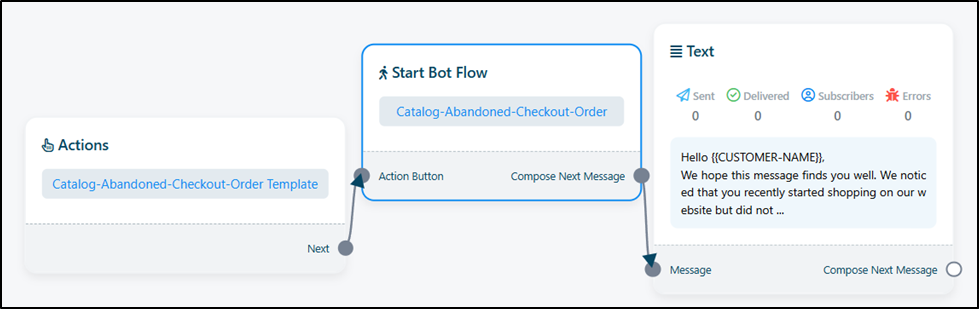
Cart Reminder:
- Clicking on Cart Reminder redirects you to the Bot Flow Builder.
- Here, you can create an abandoned cart reminder message for customers who added products but didn’t complete the checkout.
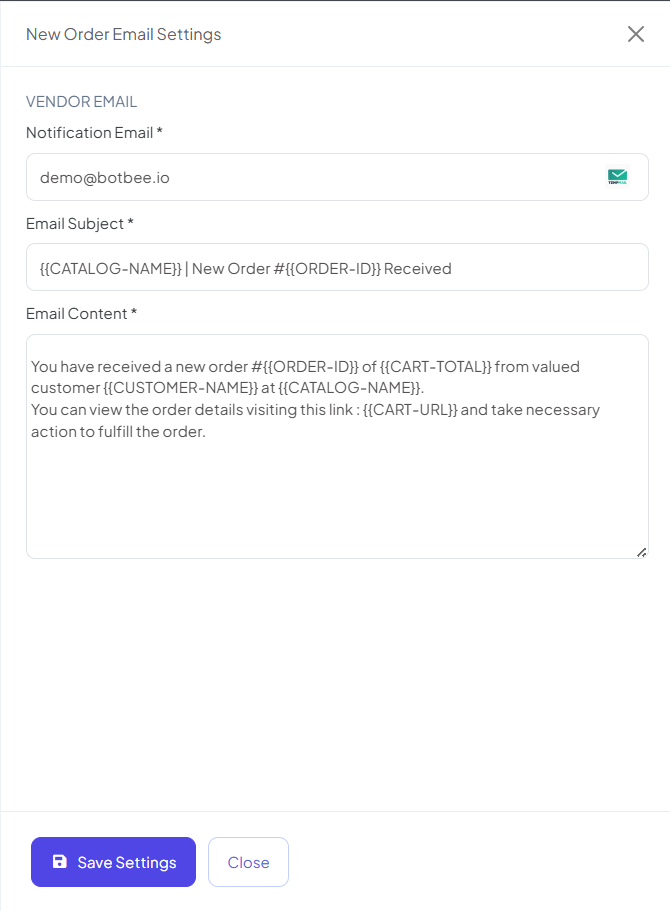
New Order Email:
- Clicking on New Order Email allows you to create an email notification.
- This email is sent to customers after they successfully place an order, containing order details and confirmation.
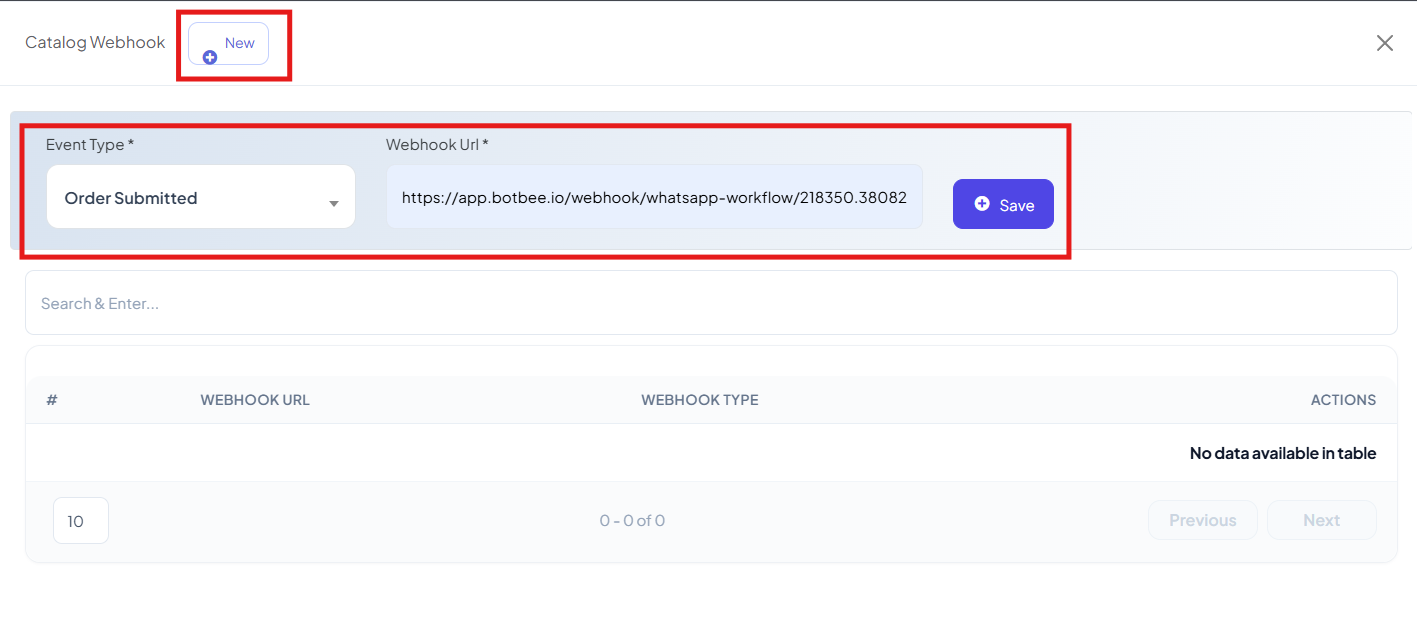
Webhook:
- Clicking on the Webhook button allows you to create a catalog webhook.
- This connects the catalog with a third-party application to send or receive order and catalog-related data automatically.
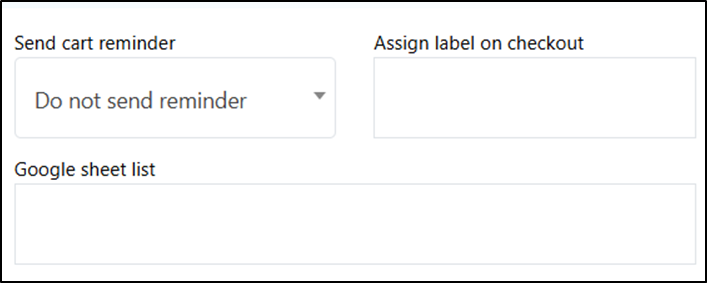
- You can select the time after which you want to give a cart reminder to your customers.
- You can also assign a label on checkout.
- You can integrate your Google Sheet list too.
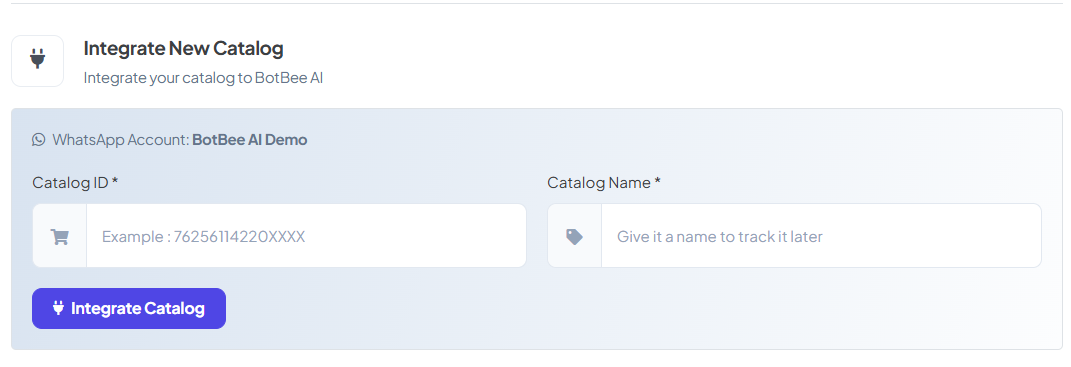
Integrate New Catalog:
- Here you can integrate the catalog that you’ve already made in WhatsApp Business App.
- Select the WhatsApp Account in which your Catalog is made.
- Enter the Catalog ID and Catalog Name.
- Click on Integrate Catalog.
Catalog Settings in BotBee provide complete control over how your WhatsApp catalog operates—from product management and order tracking to payments, checkout flows, and automated notifications. By configuring each option correctly, you can ensure a smooth purchasing experience for customers while streamlining order management and integrations for your business. Proper use of these settings helps you run an efficient, scalable, and customer-friendly catalog on WhatsApp.
Still Need Help?
If you face difficulties during onboarding:
- Take a screenshot or screen recording.
- Share details with our support team.
Our team will review the onboarding step and guide you further.
Contact: 08069645300
Found this article helpful?
( 3 Out of 7 Found Helpful )