Click to WhatsApp Ads
Click-to-WhatsApp ads allow businesses to start instant conversations with customers directly on WhatsApp. Instead of sending users to a website, these ads open a chat where users can quickly ask questions or learn more about a product or service.
By using automation tools like BotBee, businesses can add icebreaker questions and automated responses to guide users and provide information instantly. This guide explains the simple steps to create Click-to-WhatsApp ads with automated icebreaker replies using BotBee.
Phase 1: Initiate the Ad Campaign:
Step 1: Open Click Ads:
- Log in to your BotBee dashboard.
- Navigate to Bot Manager under WhatsApp Section.
- Click on Click Ads under Automation.
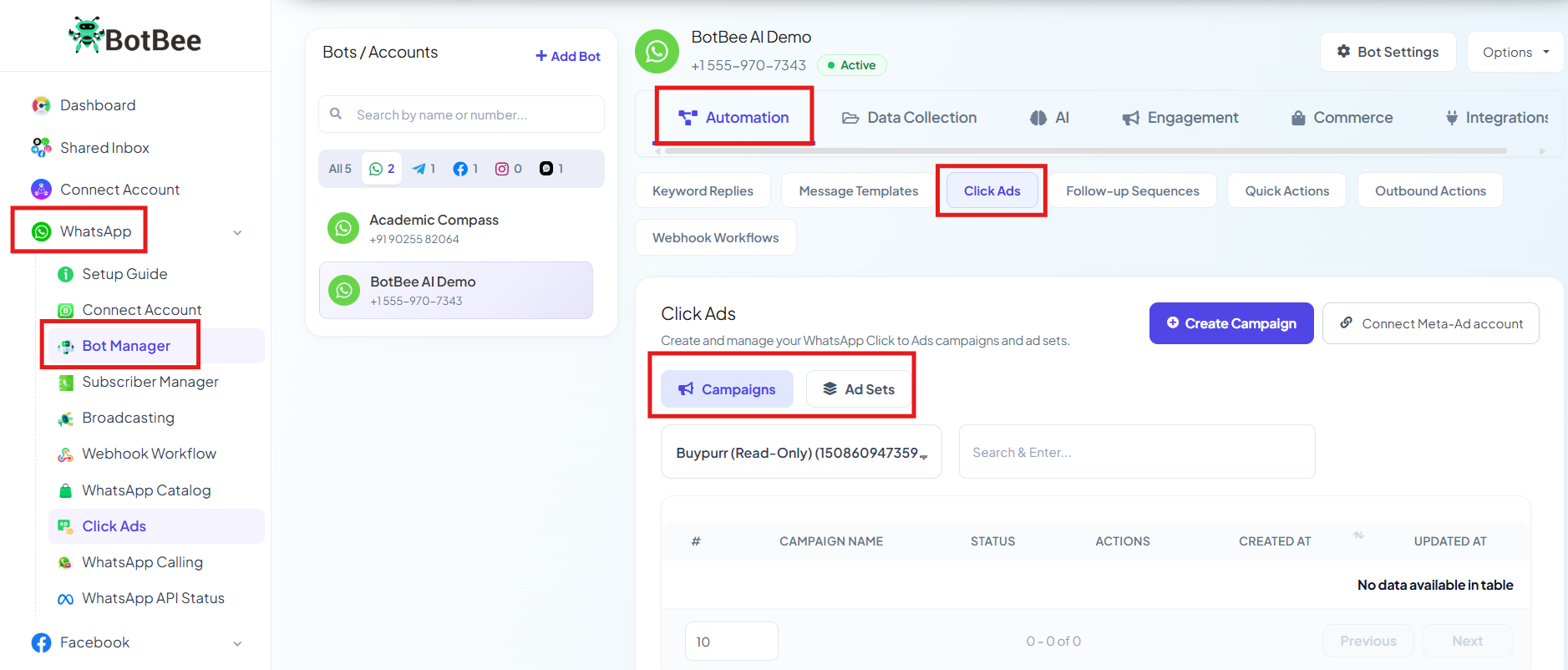
Step 2: Create a New Campaign:
- Click Create Campaign.
- Enter a Campaign Name (Example: Discount Promo).
- Set the Objective to Outcome Engagement.
- Special Ad Category: Select the appropriate Special Ad Category for your ad.
Options include:
- Housing: Real estate or property ads.
- Financial Products & Services: Banking, loans, or financial offers.
- Employment: Job or recruitment ads.
- Issues, Elections, or Politics: Political or public issue ads.
- If your ad doesn’t belong to these categories, choose None.
- Change the Status to Active.
- Click Next.
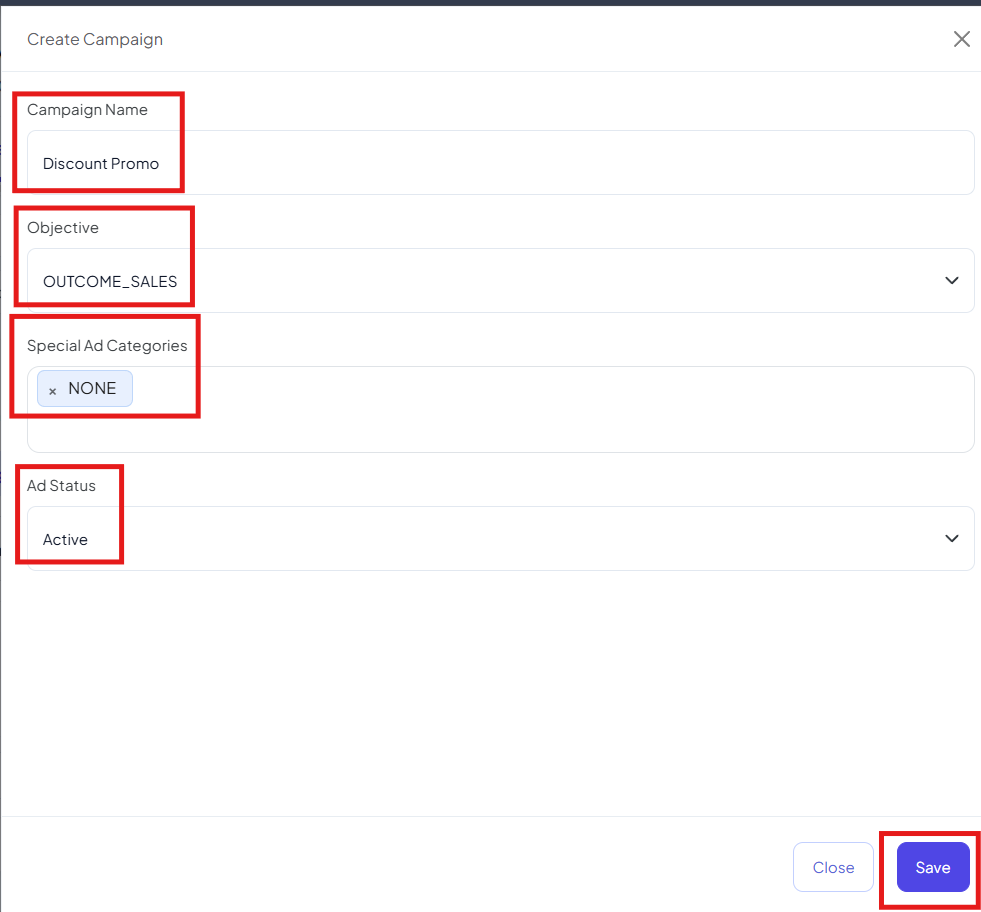
Step 3: Configure the Ad Set:
Select Campaign:
- Click on Create beside Campaign Ad set.
- Select the campaign you just created.
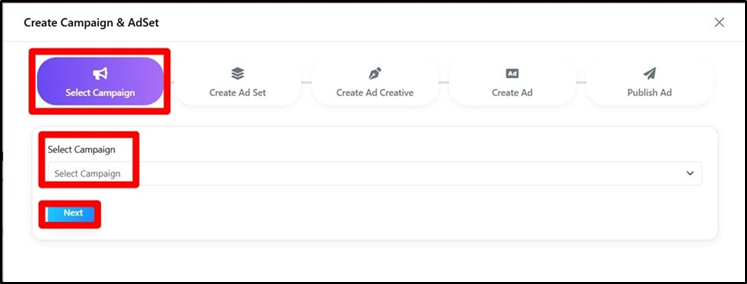
Create Ad Set:
- Enter your Bid Amount.
- Choose a Budget Type: Daily Budget, Lifetime Budget
Optimization Goal:
a) Impressions: Shows your ad to maximum people.
- Increase visibility and reach.
- Best for Brand awareness, offers, promotions.
b) Conversations: Get more WhatsApp chats/messages.
- Drive user interaction.
- Best for Lead generation, sales, inquiries.

- Select the Facebook Page connected to your WhatsApp Cloud API number.
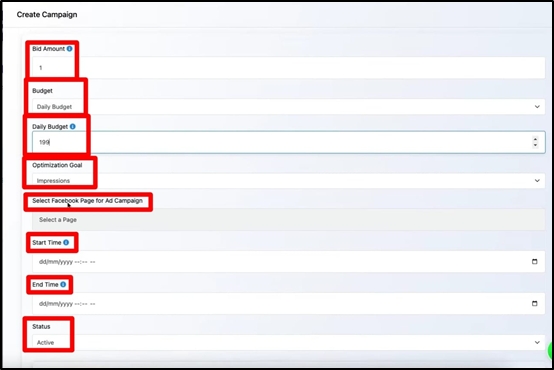
Set:
- Campaign Start Date
- Campaign End Date
Target Location Settings
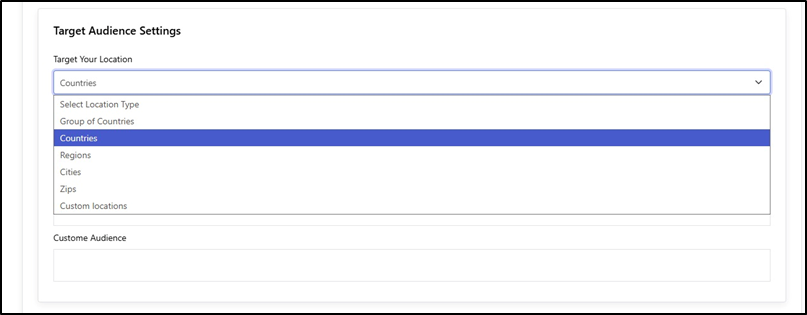
Location Types:
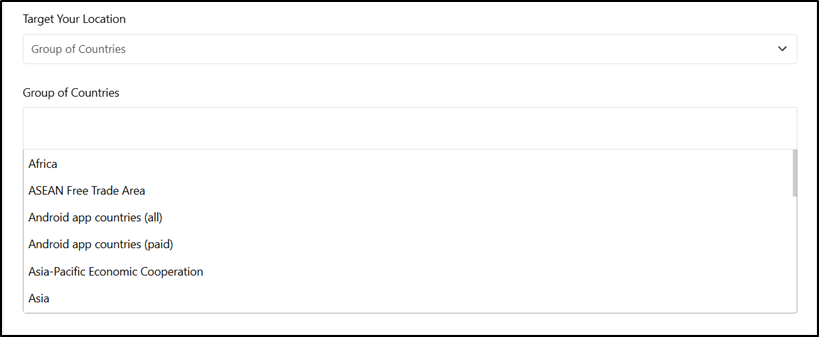
a) Group of Countries: Target multiple countries together (e.g., Asia, Gulf countries, Africa).
- Best for broad/global campaigns.
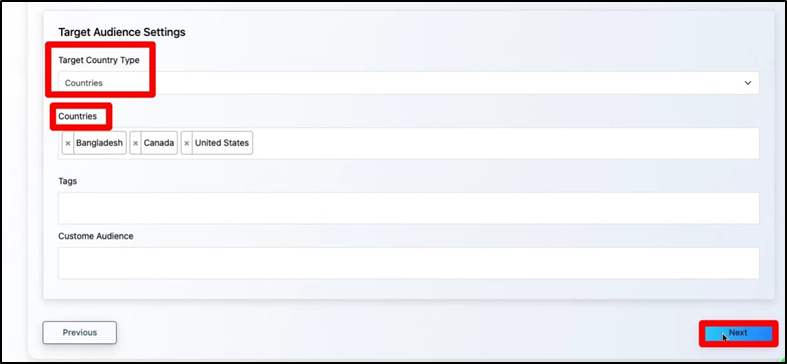
b) Countries: Select specific countries (e.g., India, USA).
- Most commonly used option.
c) Regions: Target specific states or regions within a country.(e.g. Gujrat, California.)
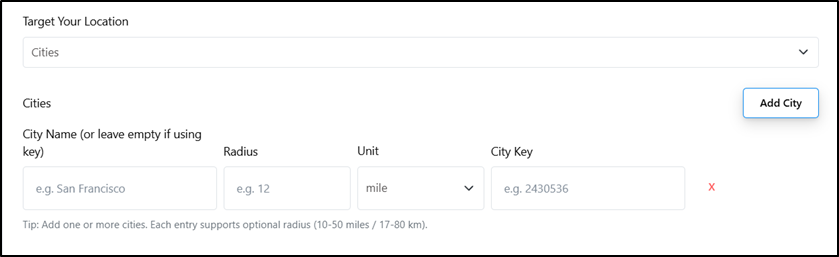
d) Cities: Target specific cities. (e.g. Delhi, Mumbai.)
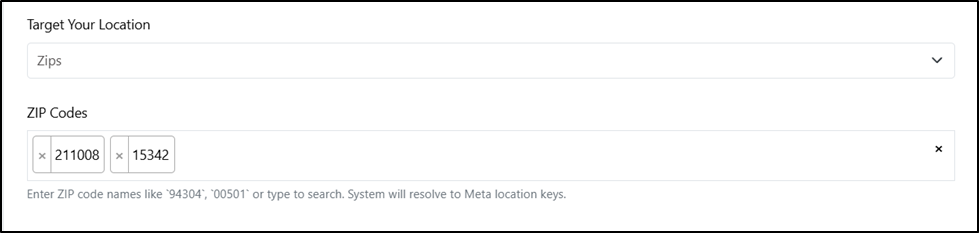
e) Zips (Postal Codes): Very precise targeting using ZIP/PIN codes.
- Useful for local businesses.
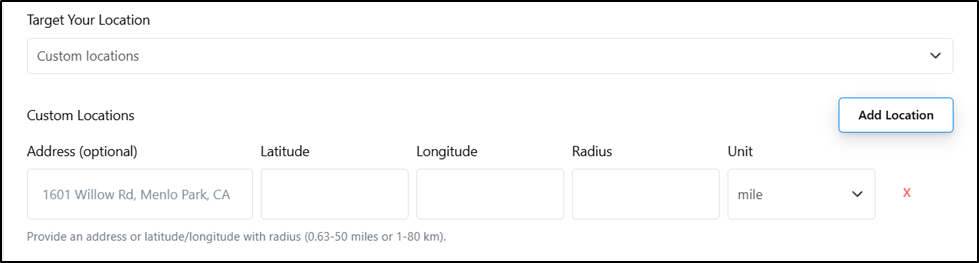
f) Custom Locations: Manually define a specific area (radius targeting)(e.g. 5 km around a store.)
- Click Next.
Phase 2: Design the Ad and Greeting:
Step 1: Add Ad Content:
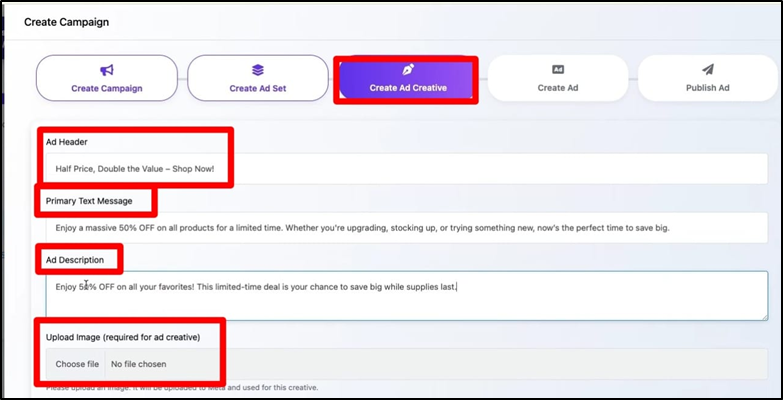
- Enter the Ad Header.
- Add the Main Text describing your offer.
- Write a short Description.
- Upload a visually engaging image for the advertisement.
Step 2: Configure WhatsApp Greeting:
- Go to WhatsApp Greeting Message.
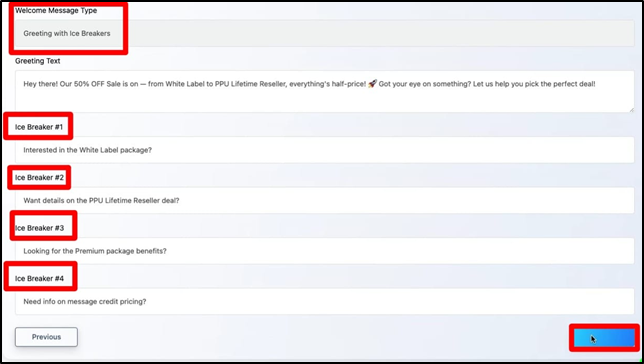
- Select Greeting with Ice Breakers: Ice breakers are customizable tapable text prompts that appear at the beginning of a chat, making it easy for users to start a conversation with predefined options.
- This message will automatically appear when a user clicks on your ad.
- Add Greeting Message
- Add Icebreaker Questions: You can add up to four questions, such as:
- Click Save and Next.
Phase 3: Enable Meta Business Automation:
Step 1: Access WhatsApp Settings:
- Go to WhatsApp → Connect Account
- Click Manage Account on your connected account.
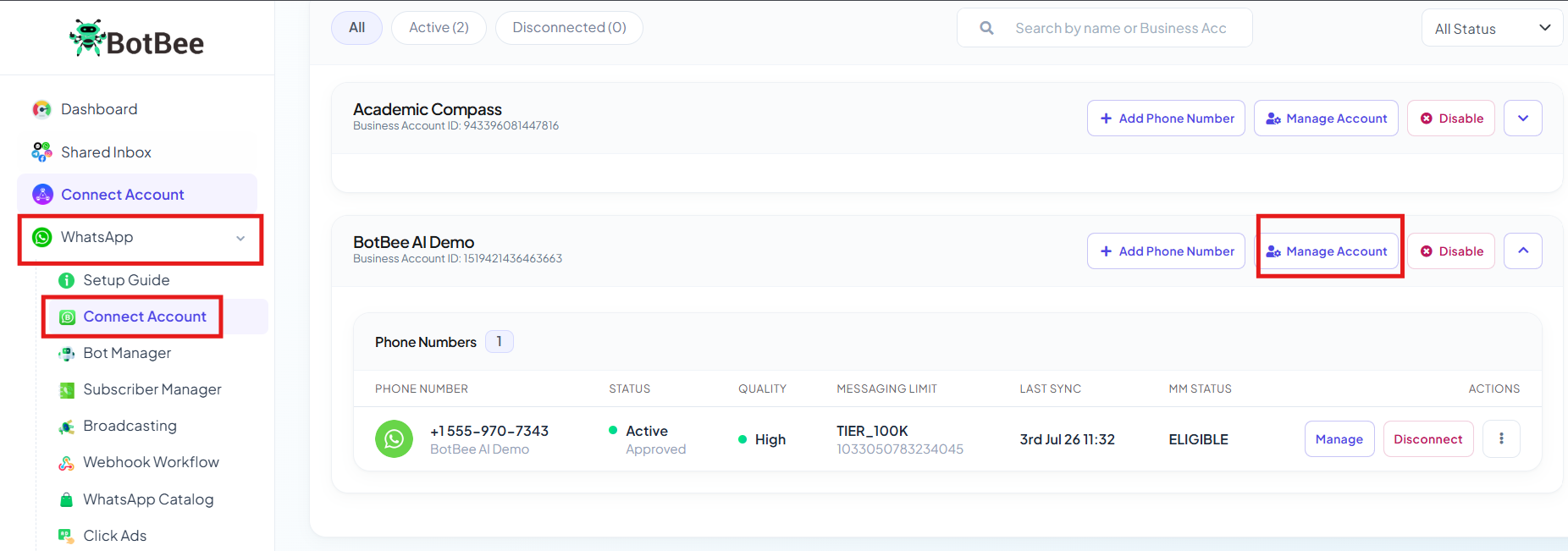
Step 2: Navigate to Phone Number Settings:
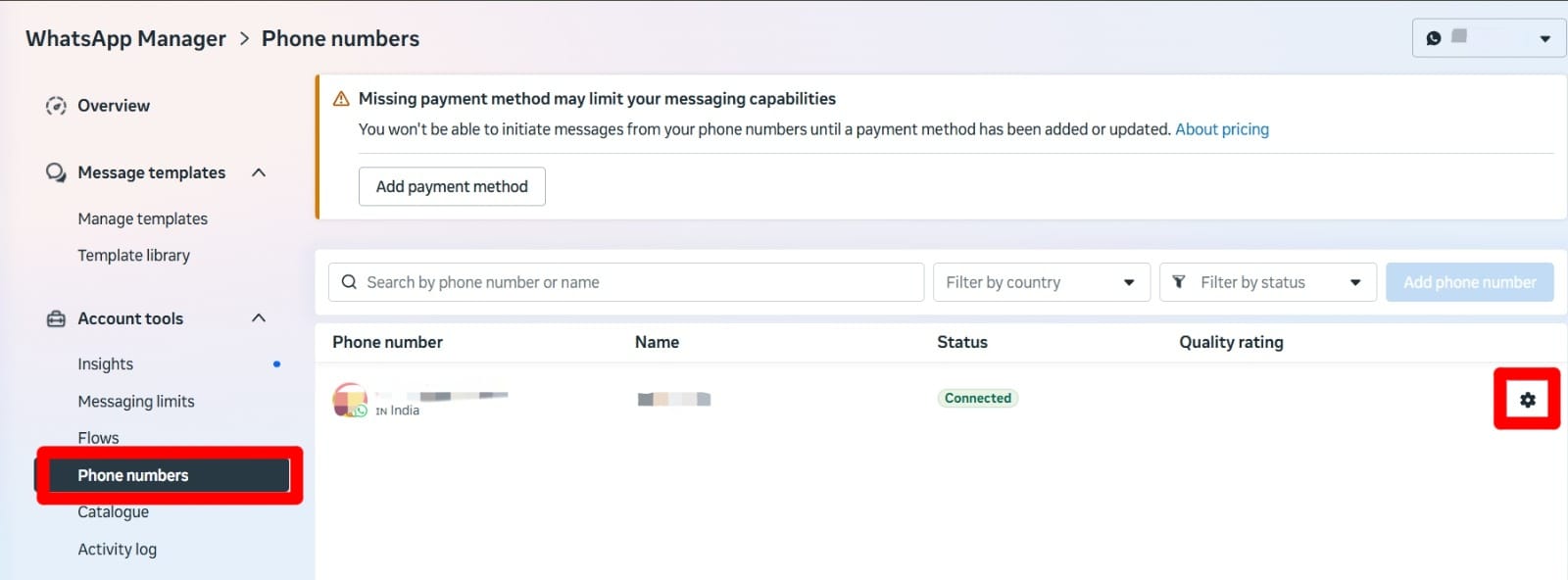
- You will be redirected to Business overview, From the left menu, Open Phone Numbers.
- Click the Settings (Gear Icon) at the top right.
Step 3: Enable Ice Breakers:
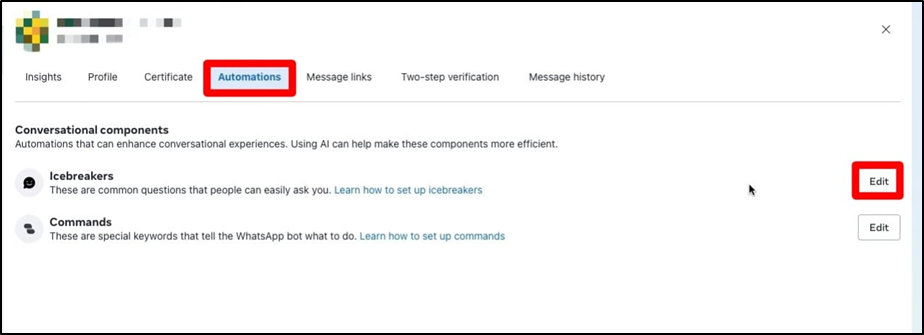
- Go to Automation.
- Click Edit next to Ice Breakers.
Step 4: Add Icebreaker Questions:
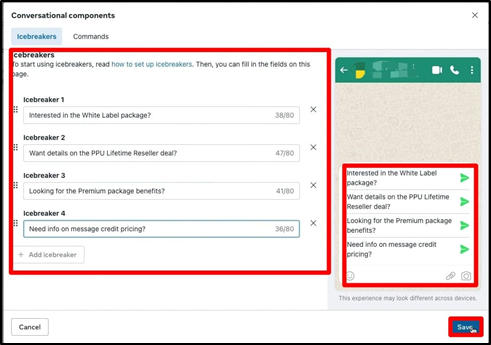
- Add the exact same questions you used in the ad campaign.
- The icebreaker questions in Meta must exactly match the ones in your ad.
- Save the changes.
Phase 4: Create Automated Bot Responses:
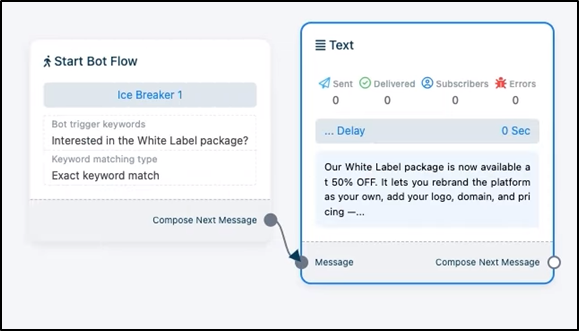
Step 1: Create a Bot Flow:
- Go to Bot Manager in BotBee.
- Create a new automation flow for each icebreaker question.
- The keyword must match the icebreaker question exactly.
- You can add different response types: Text message, Media (image/video), Button responses, CTA URL buttons.
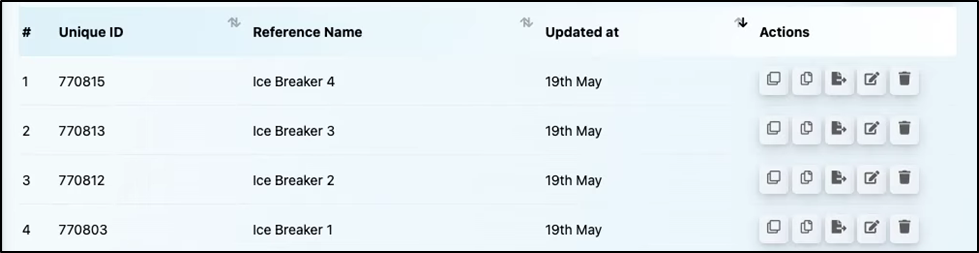
Step 2: Connect all icebreakers with bots:
- Repeat for All Icebreakers
- Create a separate bot flow for each icebreaker question.
Phase 5: Launch and Monitor the Campaign:
Step 1: Finalize the Campaign:
- Go back to your Click Ads setup.
- Ensure that Campaign status is Active
- Ad content is correct
- Icebreakers are configured
- Bot flows are linked
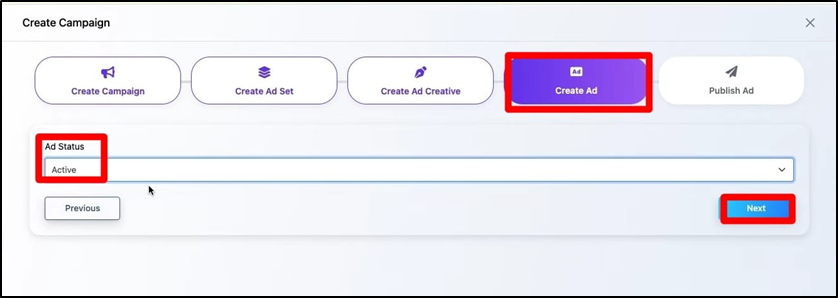
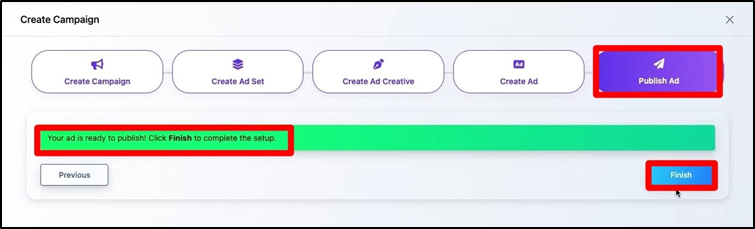
- Click Finish.
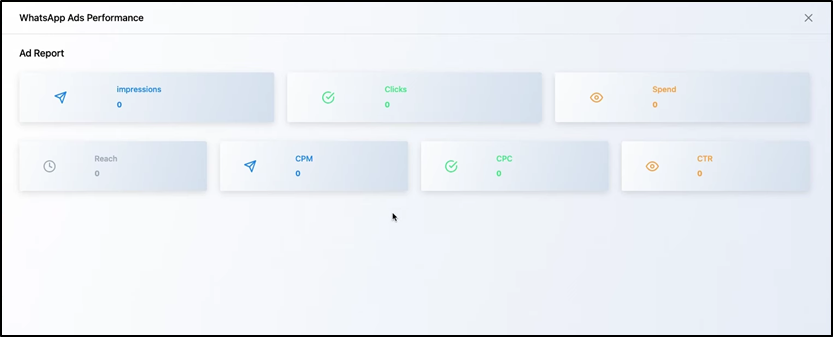
Step 2: Monitor Campaign Performance:
Inside BotBee dashboard, you can track:
- Impressions: Number of times the ad was shown.
- Clicks: Number of users who clicked the ad.
- Ad Spend: Total budget spent.
Step 3: Test the User Experience:
- When a user clicks the ad:
- They are redirected to WhatsApp.
- The greeting message and icebreaker questions appear.
- When the user selects an icebreaker:
- The automated bot response is triggered instantly.
Using Click-to-WhatsApp ads with automation helps businesses turn ad clicks into real conversations. With BotBee, you can set up icebreaker questions and automated responses that instantly assist users on WhatsApp. This not only improves customer engagement but also makes communication faster and more efficient for businesses.
Still Need Help?
If you face difficulties during onboarding:
- Take a screenshot or screen recording.
- Share details with our support team.
Our team will review the onboarding step and guide you further.
Contact: 08069645300
Found this article helpful?
( 4 Out of 10 Found Helpful )