How to Create a Dynamic URL in WhatsApp Message Templates
Dynamic URLs allow you to send personalized or flexible links inside WhatsApp message templates. Instead of creating multiple templates for different pages (like pricing, contact, offers, etc.), you can use one template and dynamically change the URL destination using variables. This makes automation scalable, clean, and professional.
Why Dynamic URLs Are Powerful:
- No need to create multiple templates
- Clean automation structure
- Personalized user journeys
- Easy campaign management
- Scalable for marketing, sales, and support flows
Use Cases:
- Pricing pages
- Product pages
- Booking links
- Offer pages
- User-specific dashboards
- Payment links
- Campaign tracking
This guide explains step-by-step how to create, approve, and send dynamic URLs using BotBee.
Step 1: Create the Message Template:
- Go to the BotBee Dashboard.
- Click in Bot Manager from the left menu under WhatsApp.
- Select your Bot Account.
- Scroll down and Click on Message Template under Automations Section.
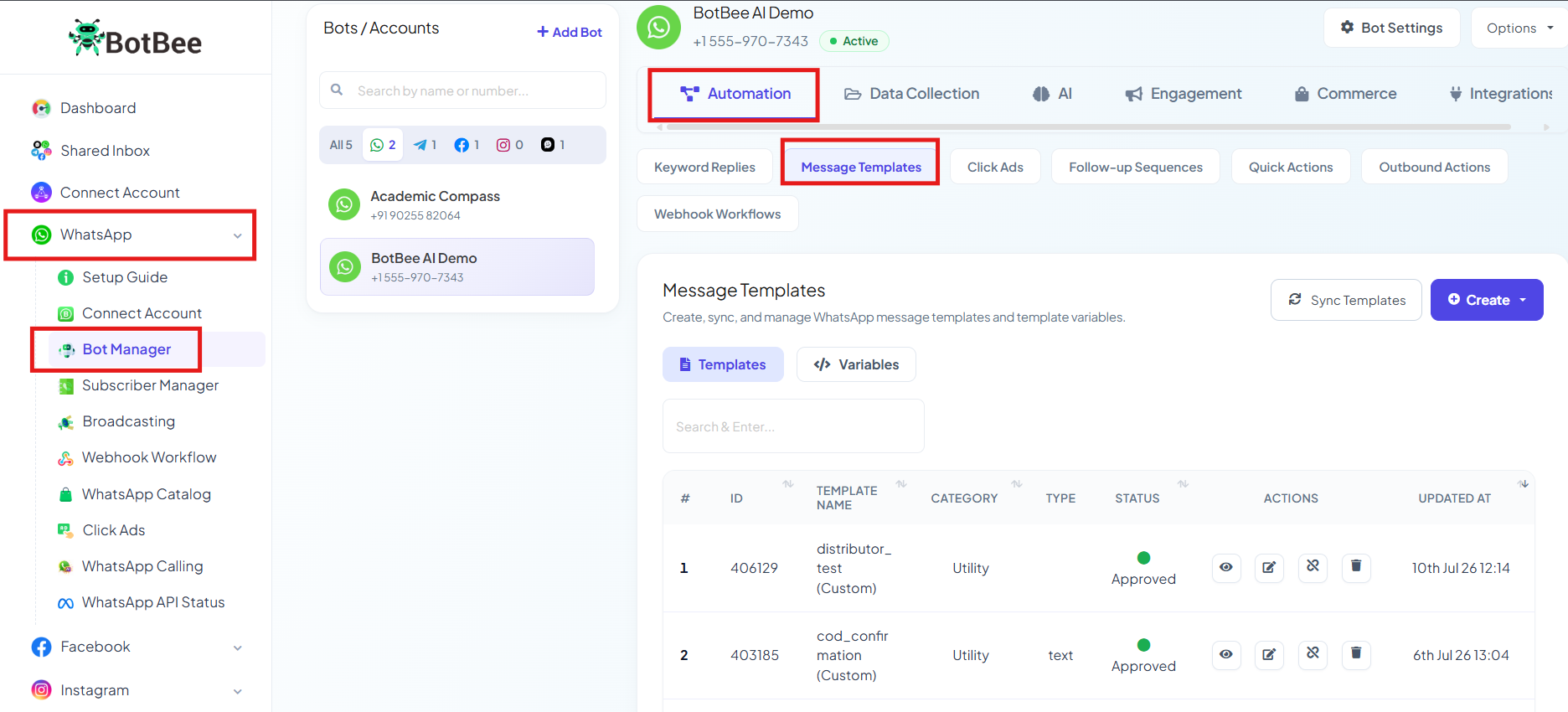
Step 2: Start a New Template:
- Click the Create button and Mixed Template.
- Enter a Template Name
- Write your message body (example: "Click the button below to explore our website")
- Choose Call to Action (CTA) as the button type.
- Enter your button name(example: Website, Visit Page, Open Link)
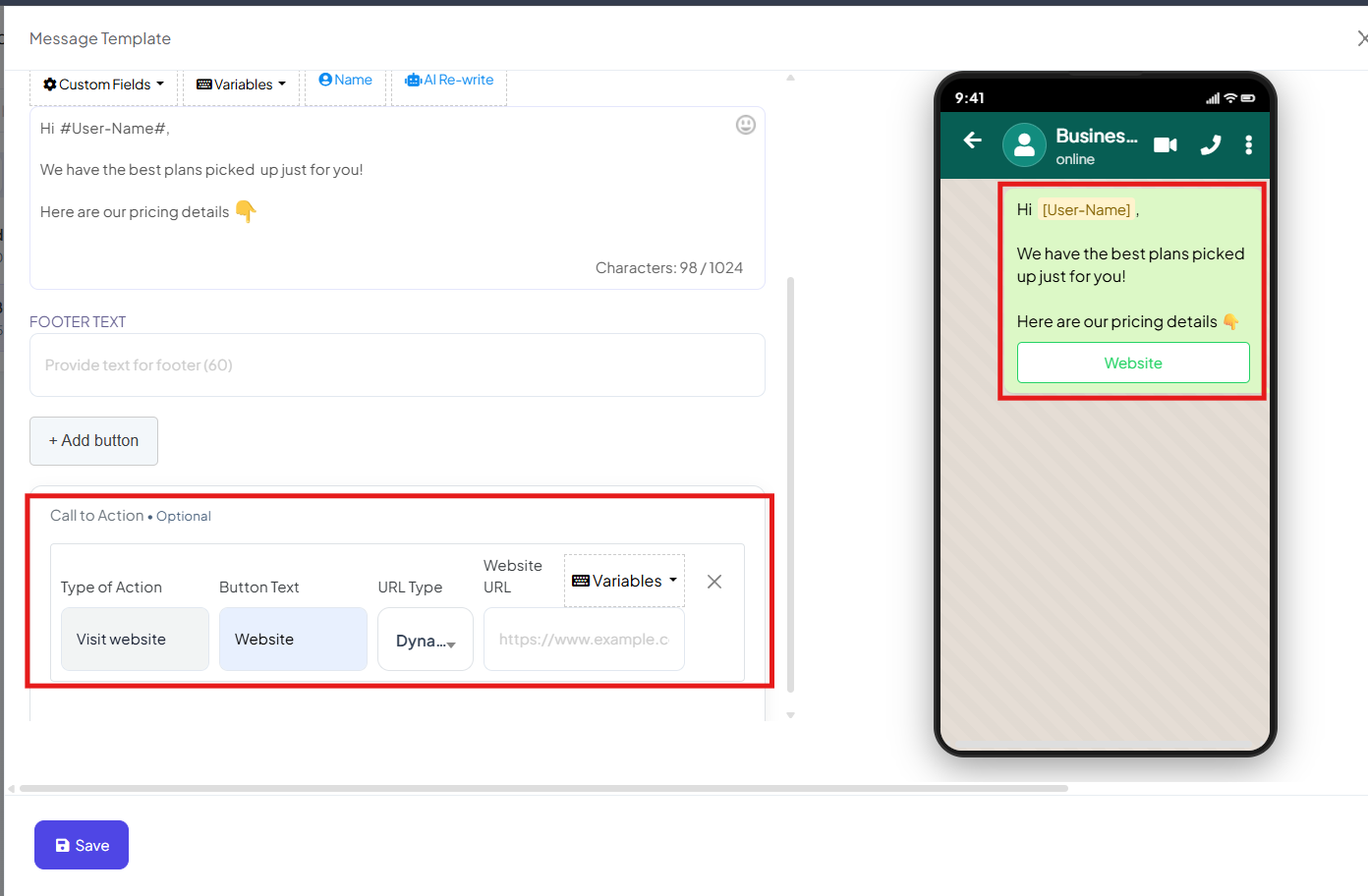
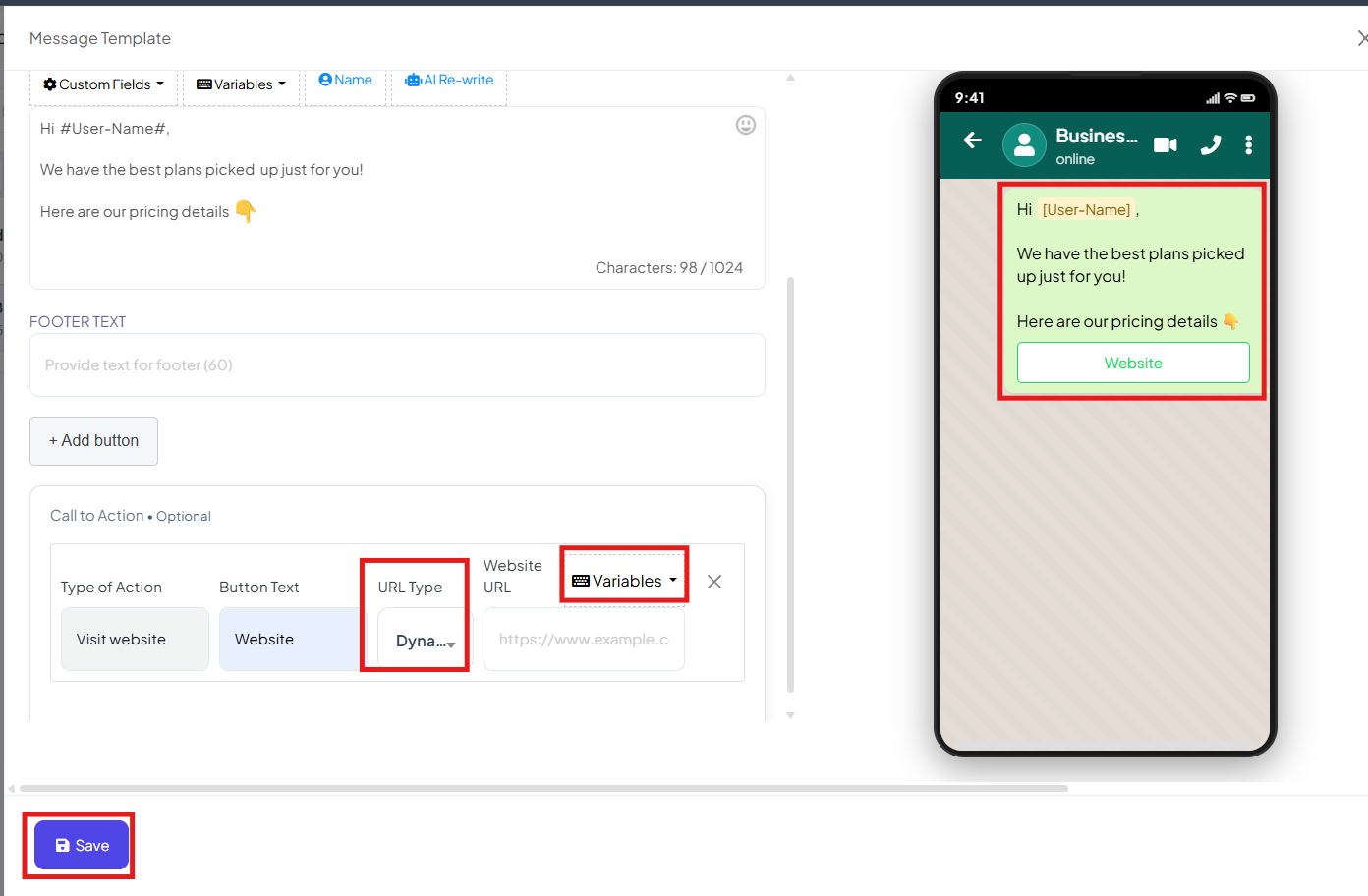
Step 3: Set Dynamic URL:
- Set URL type as “Dynamic”.
- In the Action Value field, type your base website URL. (Example: https://yourwebsite.com/)
- Click on Variables
- Select “Link” to append a variable to the URL
- It will look like: https://yourwebsite.com/{{link}}
- Click Save
- This {{link}} variable will later be replaced dynamically while sending the message.
Step 3: Sync and Approve the Template:
- Click on Sync Template to send it for WhatsApp approval.
- Wait for the status to change from Pending → Approved.
- If needed, click Sync again to refresh the status.
Step 4: Send the Dynamic Message:
- Navigate to the Shared Inbox section in BotBee
- Select Template
- Click Send Flow / Message Template
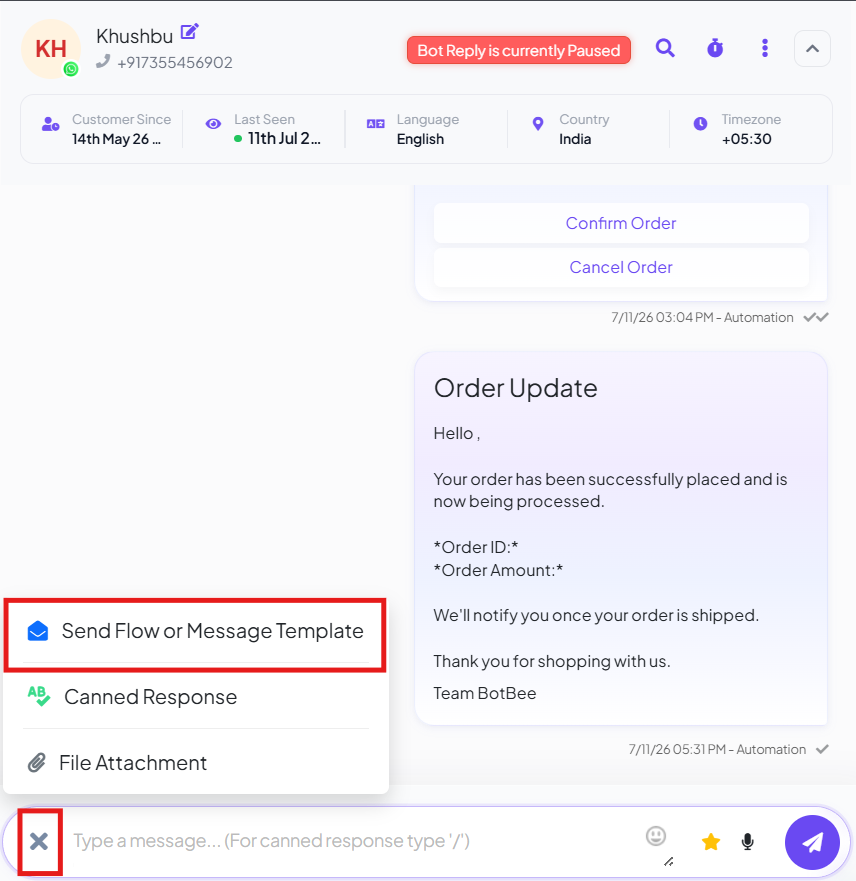
- Choose the approved template you created.
- You will see a prompt for the variable (e.g., link or link page)
- Enter the page path you want the user to visit. (Examples: pricing, contact, login, offers)
- Click Submit to send the message.
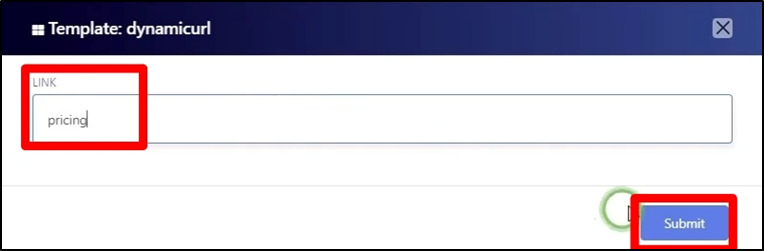
- The final dynamic URL becomes: https://yourwebsite.com/pricing.
Dynamic URLs make WhatsApp automation smarter and more flexible. By using a single approved template with a dynamic variable, you can route users to different pages in real-time without breaking WhatsApp policies or duplicating templates. This is an essential feature for building scalable chatbot flows, marketing automation, and intelligent customer journeys using BotBee.
Reference Video:
If you prefer video tutorials here are the links:
English: https://youtu.be/-FJrmGKb6xg?si=08ILdFTDkccNKT2-
Still Need Help?
If you face difficulties during onboarding:
- Take a screenshot or screen recording.
- Share details with our support team.
Our team will review the onboarding step and guide you further.
Contact: 08069645300
Found this article helpful?
( 3 Out of 6 Found Helpful )