How to Install BotBee Live Chat App
In today’s fast-paced business world, customers expect instant replies no matter where you are. With the BotBee Live Chat app, you can manage customer conversations not just from your desktop, but also directly from your Android or iOS phone. This means you never miss a message, even when you’re away from your desk.
Why Use BotBee Live Chat Across Devices?
- Seamless access on PC, Android, and iOS
- One account, multiple devices
- Faster customer response time
- Flexibility to manage chats anytime, anywhere
- Improved customer experience and team productivity
Whether you’re a business owner or a support agent, your phone becomes a complete chat management tool.
Here’s a complete guide on how to install the BotBee Live Chat app on PC, Android, and iOS, and how it helps you manage chats on the go.
On PC (Desktop):
- Log in to your BotBee Dashboard using your registered email ID.
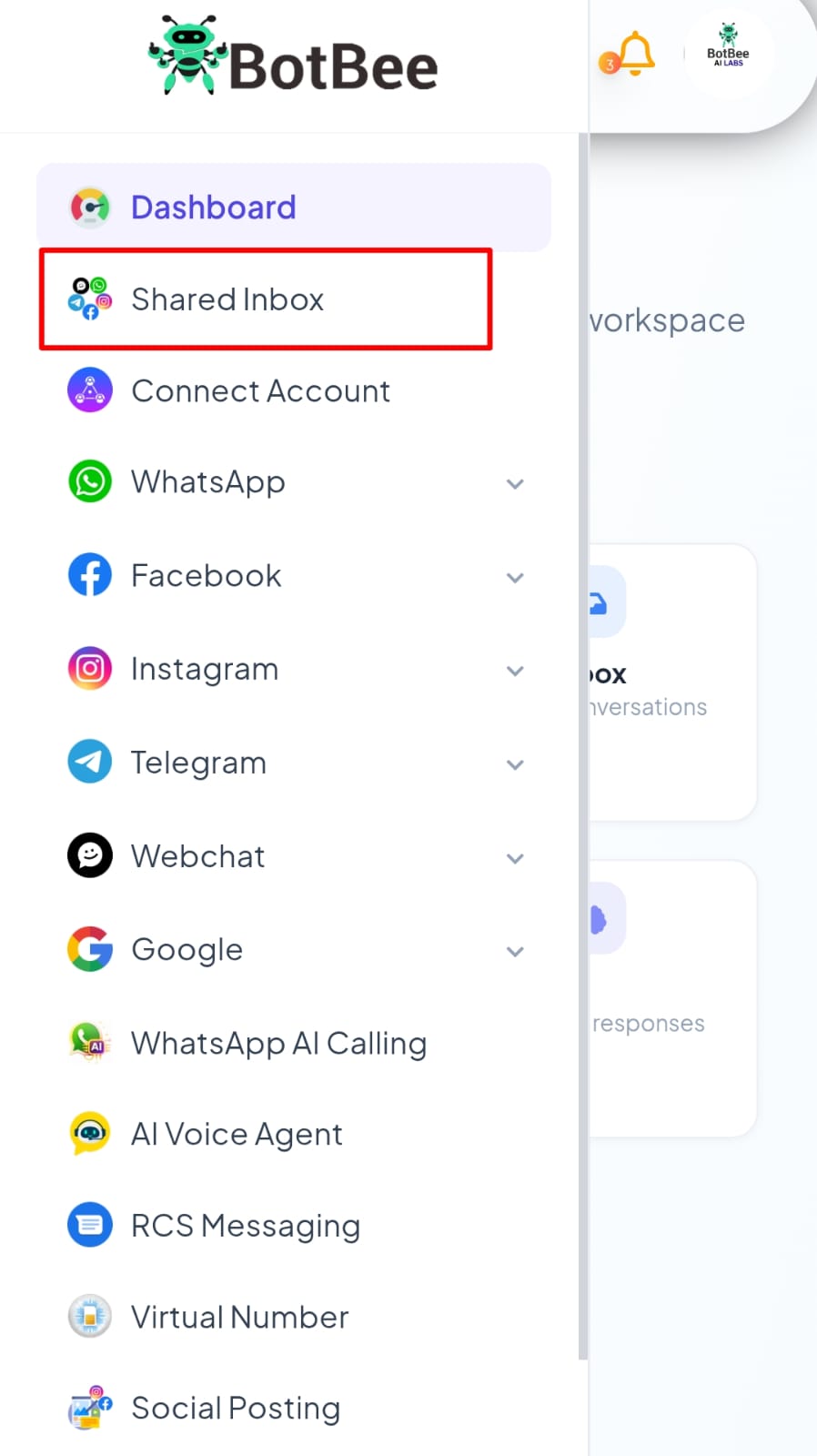
- From the dashboard, navigate to the Shared Inbox in the left side menu.
- You can also open it from the dashboard shortcut.
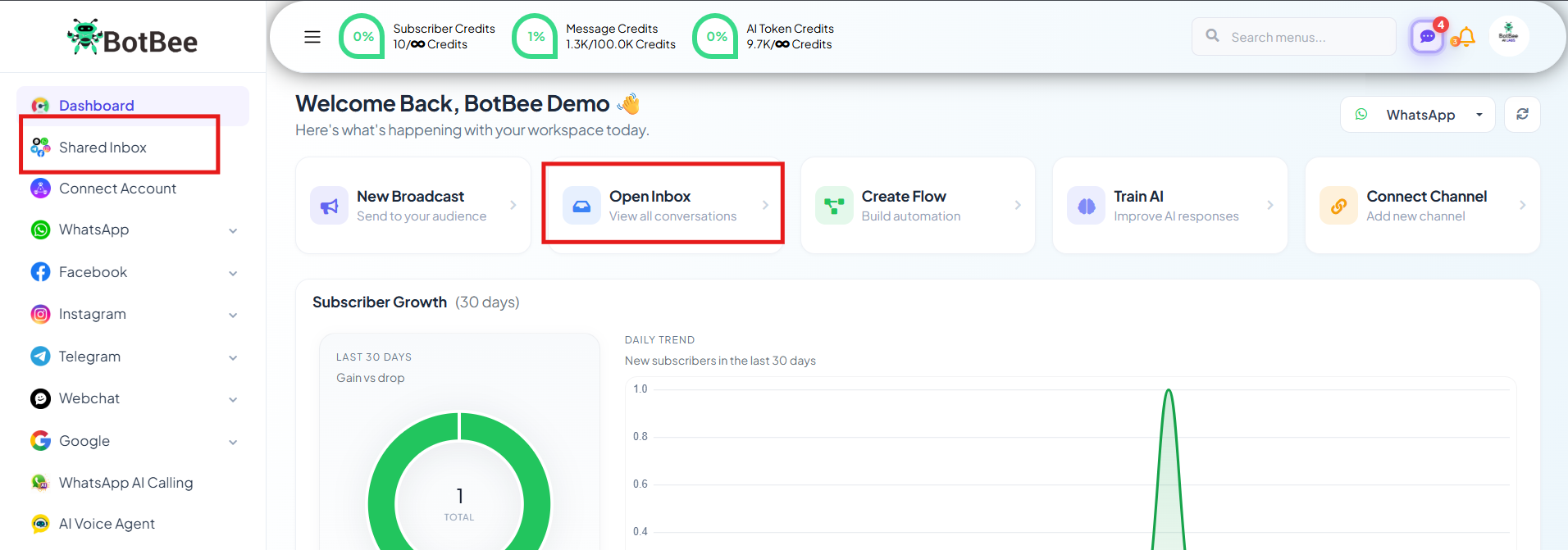
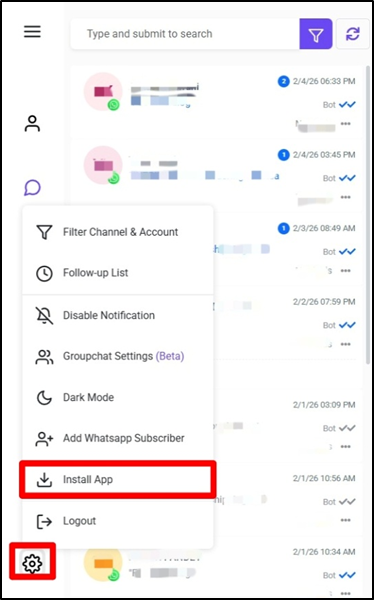
- Click on Settings Icon on the bottom left corner.
- Click on Install App.
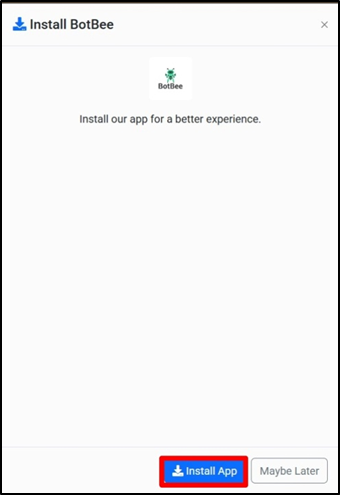
- You will receive a pop up on the right hand side, click on Install App.
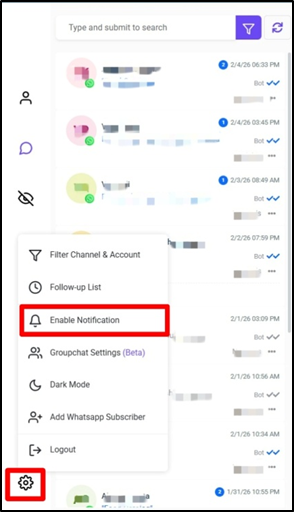
- Your app will installed in your PC now make sure to enable your notifications in the app.
- Go to settings icon in the installed app.
- Click on enable notification.
Best for: Customer support teams, sales teams, and agents working from office systems.
On Android:
- Log in to your BotBee Dashboard using your registered email ID.
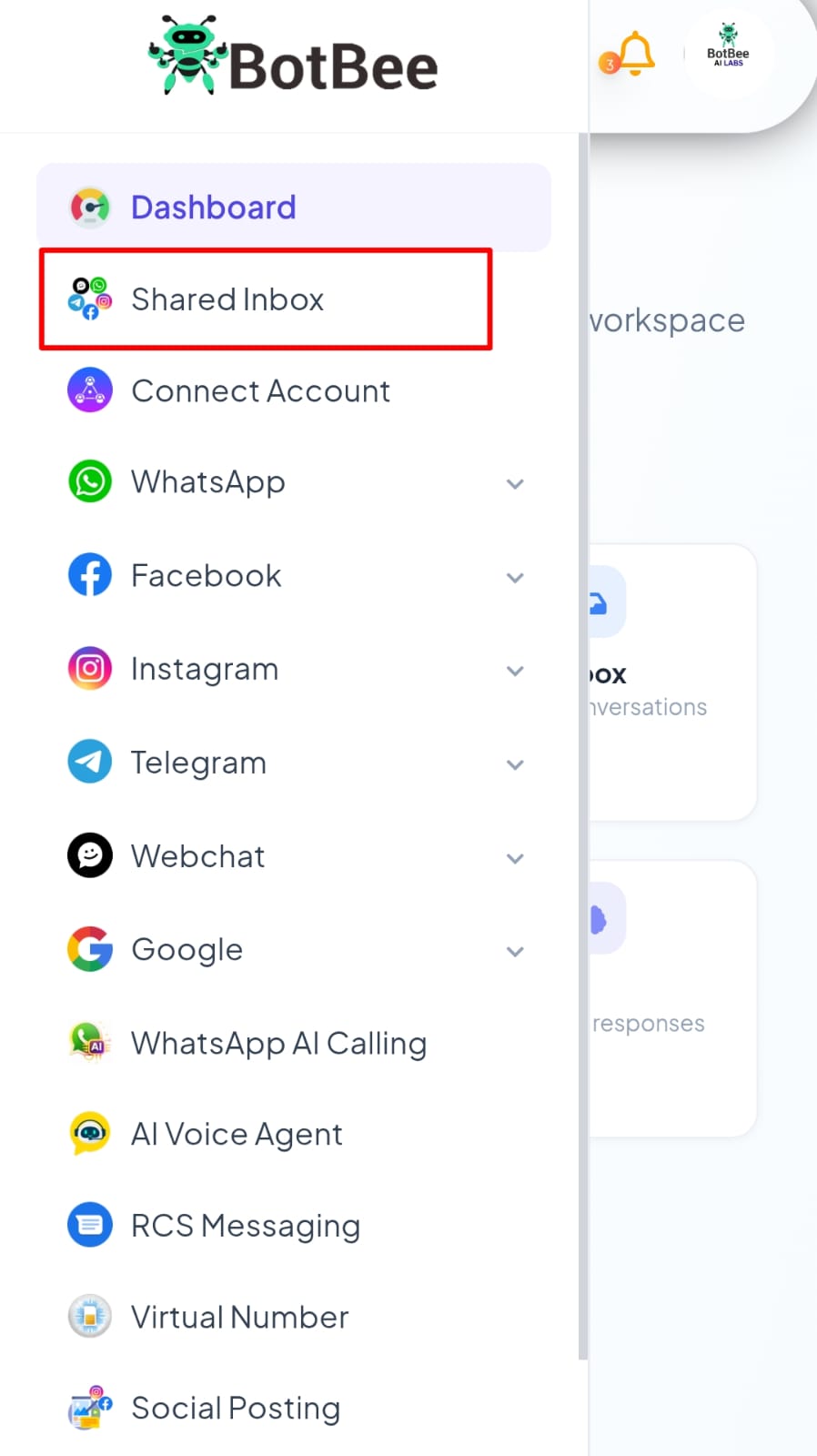
- From the dashboard, navigate to the Shared Inbox in the left side menu.
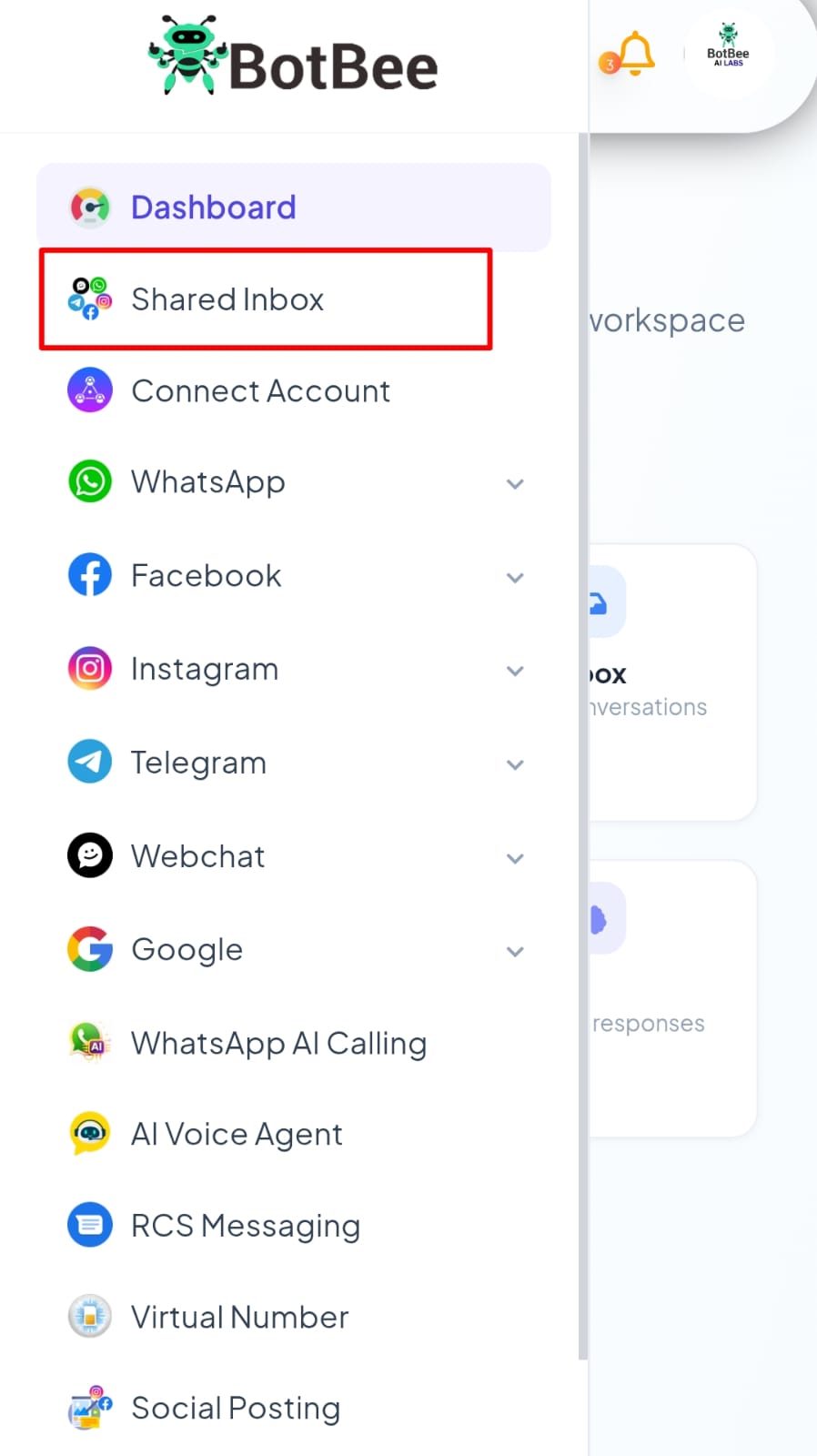
- You can also open it from the dashboard shortcut.
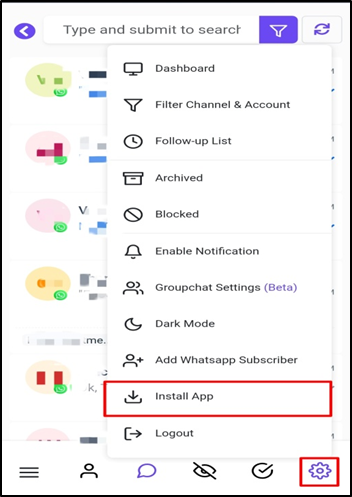
- Click on Settings Icon on the bottom left corner.
- Click on Install App.
- You will receive a pop up on the right hand side, click on Install App.
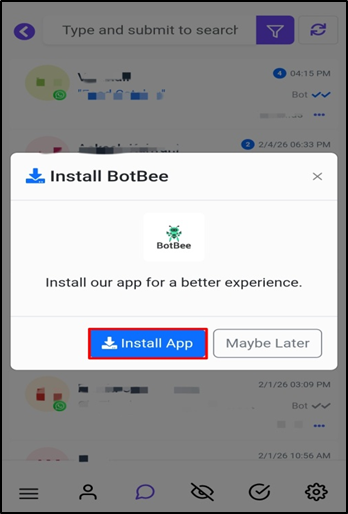
- Your app will installed in your Android phone now make sure to enable your notifications in the app.
- Go to settings icon in the installed app.
- Click on enable notification.
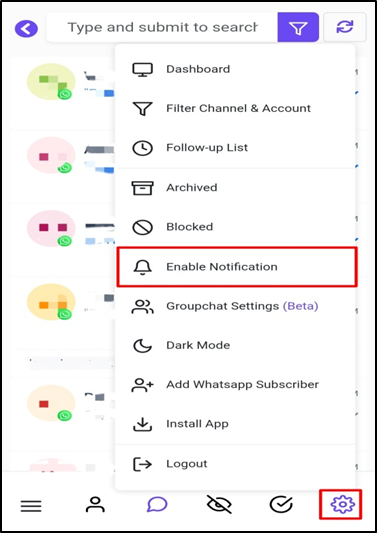
With the Android app, you can respond to customers anytime, anywhere even while traveling or working remotely.
On iOS:
Unlike Android or PC where you can use any browser like Chrome, Firefox or Edge.
But on iOS, you must use Safari browser only.
- Open Safari browser.
- Log in to your BotBee Dashboard using your registered email ID.
- From the dashboard, navigate to the Shared Inbox section.
- At the bottom, tap the share icon.
- Scroll down and select add to home screen.
- Click Add.
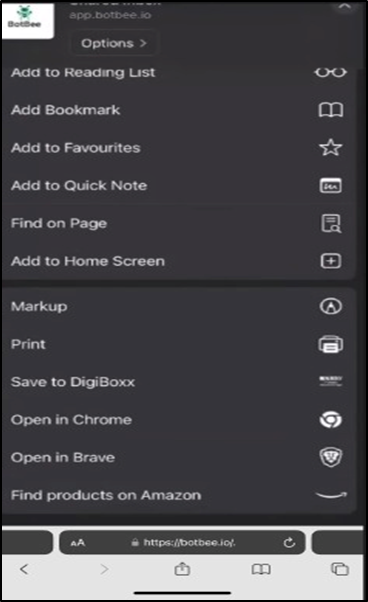
- Now the app is installed successfully. Go to your home screen and open the app. Then allow notification permissions.
Installing the BotBee Live Chat app on your PC, Android, and iOS devices ensures you stay connected with your customers at all times. With mobile access, you’re no longer tied to your desk your customer conversations move with you.
That’s smart, flexible customer communication powered by BotBee Live Chat.
Reference Video:
If you prefer video tutorials here are the links:
English: https://youtu.be/U09ut9pg3KY?si=xCrmsa0YZTDB7VaW
Hindi: https://youtu.be/hT8befooH_U?si=OerrV7TWlnRgBnRk
Tamil: https://youtu.be/Z0F9V5VO0pE?si=MTfxQZzw2Wbt5NKB
Still Need Help?
If you face difficulties during onboarding:
Take a screenshot or screen recording.
Share details with our support team.
Our team will review the onboarding step and guide you further.
Contact: 08069645300
Found this article helpful?
( 4 Out of 8 Found Helpful )