Team Management
As businesses scale, managing conversations through a single account becomes inefficient and risky. Different teams need clear roles, controlled access, and structured workflows to operate smoothly. BotBee’s Team Management feature enables role-based access, smart chat assignment, and secure collaboration from one centralized dashboard helping businesses scale efficiently without losing control.
What is Team Management in BotBee?
Team Management in BotBee enables you to:
- Create custom team roles (like Sales, Support, Operations )
- Add individual team members.
- Control what they can access.
- Restrict which channels they can view.
- Assign chats manually or automatically
- Protect customer data using security features like number masking.
This ensures structured workflows, accountability, and data protection all while improving response speed and operational efficiency.
Key Features of Team Management:
- Role-Based Access Control: Create roles like Sales or Support and define exactly what each team can access.
- Channel Restriction: Control visibility of WhatsApp, Facebook, Instagram, and Telegram per team.
- Live Chat Number Masking: Protect customer privacy by hiding phone numbers from agents.
- Granular Permissions: Control access to features like Bot Manager, Broadcast, and system modules.
- Smart Assignment Logic: Assign chats to teams or individuals manually or automatically.
Step-by-Step Setup Guide:
Step 1: Create a Team Role.
- Log in to the BotBee Dashboard.
- Go to “User Permission” under Team.
- Click Create.
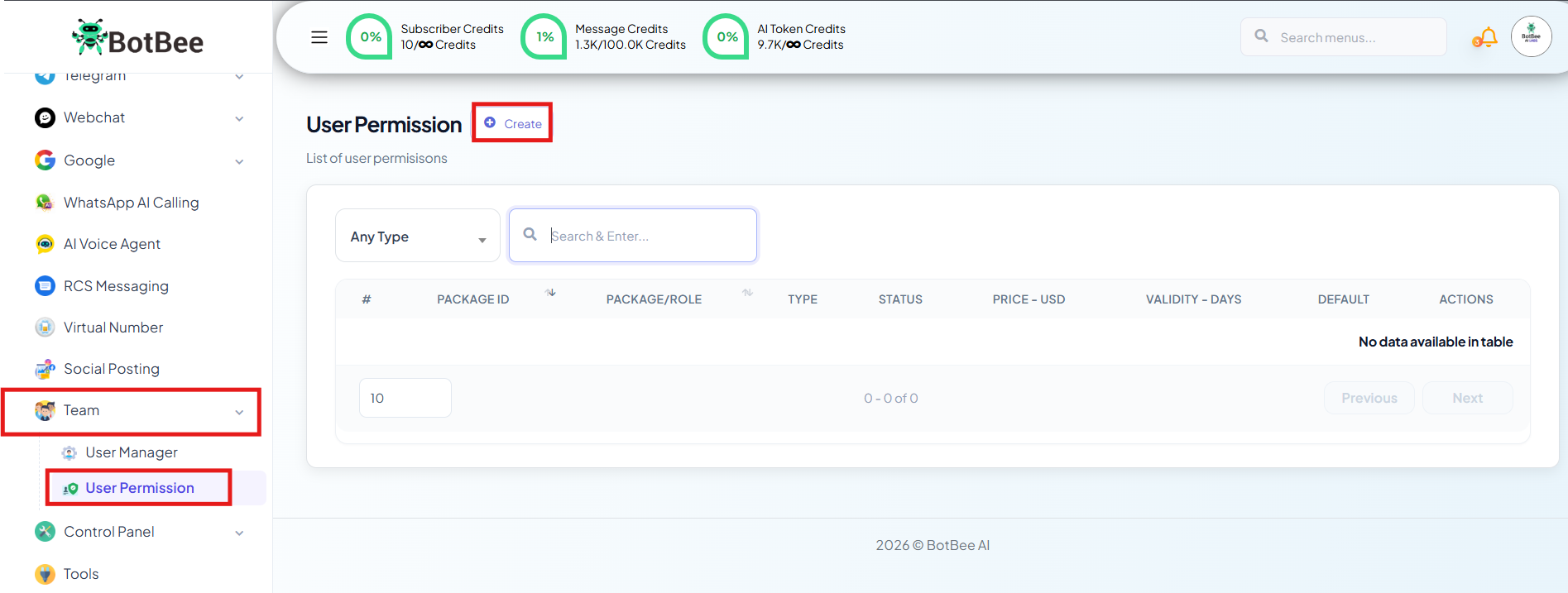
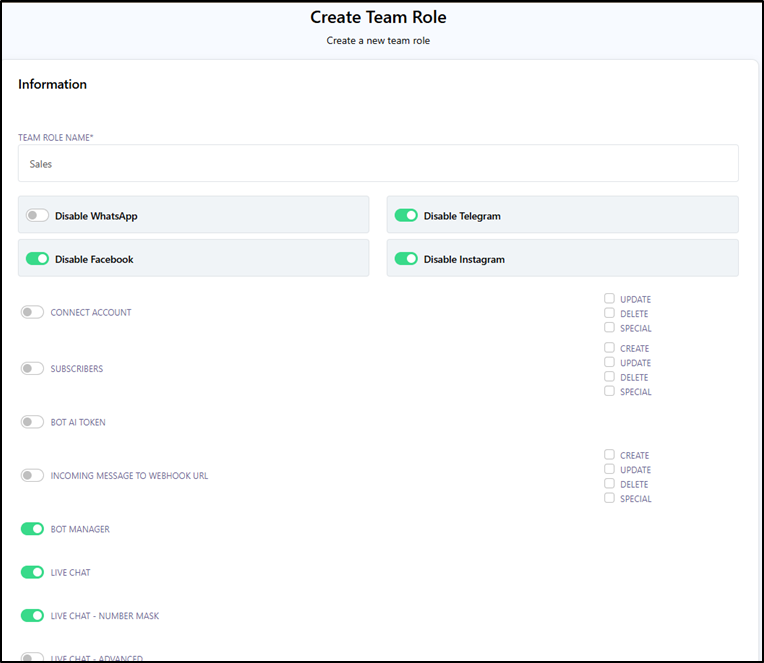
- Name the role (e.g., Support, Sales).
- Select visible channels (enable WhatsApp, disable Telegram, etc.)
- Configure permissions according to your requirements:
- Show/Hide modules (Connect Account, Bot Manager).
- Enable Live Chat Number Masking (Hides numbers from agents).
- Choose visible menus (Flows, Templates, Dashboard options).
- Click Create to save the role.
Step 2: Add a Team Member:
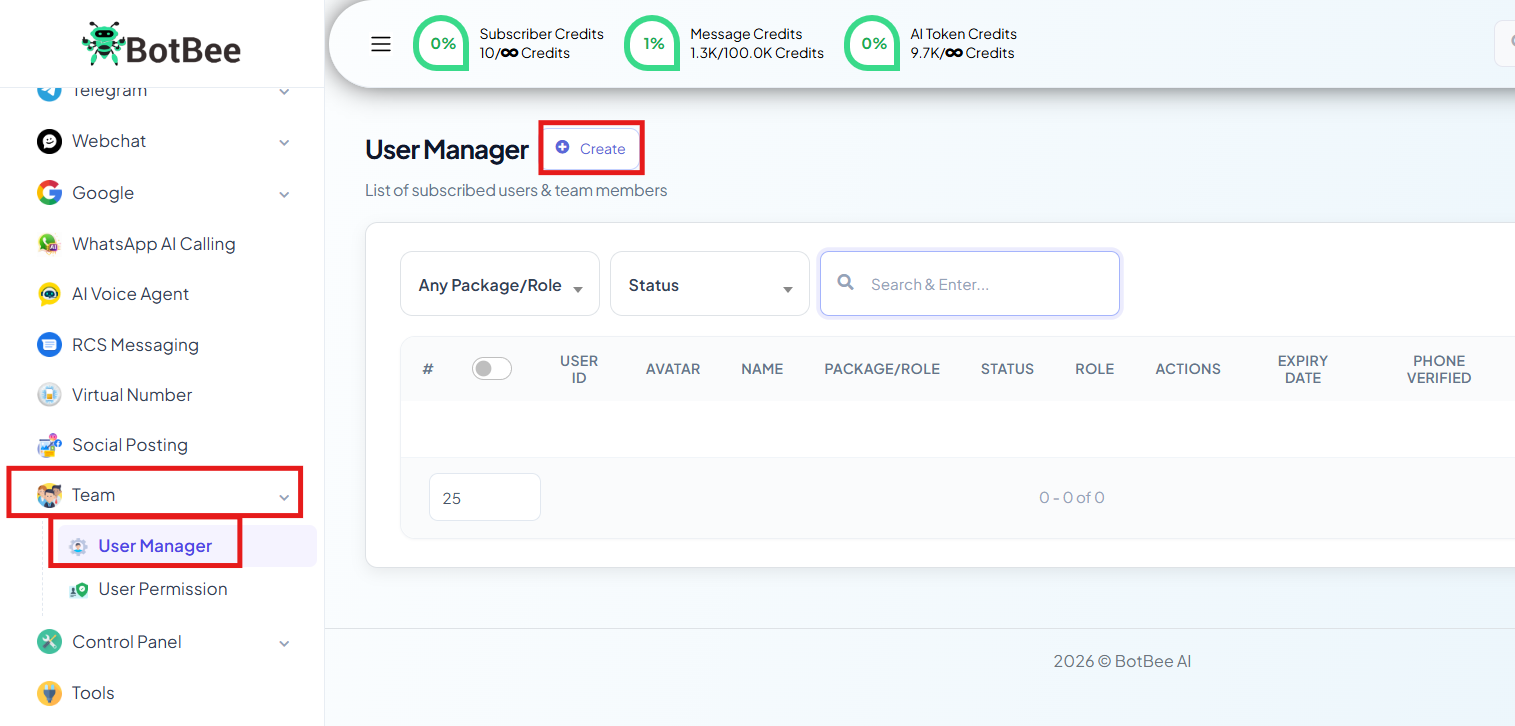
- Navigate to “User Manager” under Teams.
- Click Create.
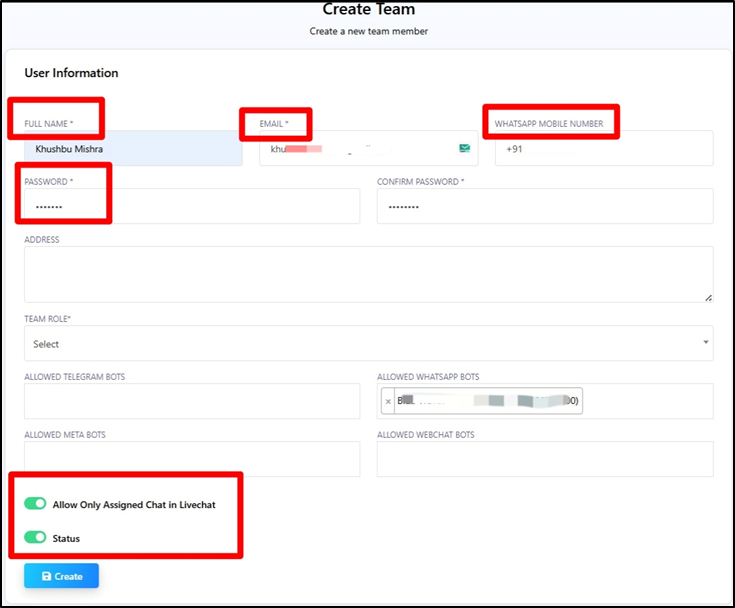
- Enter user details: Name, Email, Mobile Number.
- Create a Password for team member.
- Assign a Team Role
- Configure access:
- Allowed bots / WhatsApp numbers
- Allowed Facebook/Instagram pages
- Choose visibility rules:
- Enable Only Assigned Chats: User sees only assigned conversations.
- Disable: User sees all chats.
- Set status to Enable and click Create.
Chat Assignment Methods
Method 1: Manual Assignment:
Admins can assign chats directly from Live Chat by selecting a team member from the dropdown. The conversation will instantly appear in that member’s dashboard.
Method 2: Auto-Assign via Bot Triggers:
When creating bots, chats can be automatically assigned to:
- A specific team role (e.g., Support team)
- A specific team member
This ensures instant routing without manual intervention.
Method 3: Flow-Based Assignment:
Using Flow Builder:
Assign chats based on user actions
Example: Clicking a “Sales” button routes the chat to the Sales team.
This works with both Button messages and List messages, enabling intelligent routing based on user intent.
Monitoring & Accountability:
BotBee provides full transparency in Live Chat:
- Admins can see who replied to every message
Logs clearly show whether the response came from:
- The Bot
- A specific team member
This creates accountability, improves quality control, and enables performance tracking.
BotBee’s Team Management system brings structure, security, and scalability to business communication. With controlled access, intelligent chat routing, and built-in privacy, teams work faster, safer, and more efficiently enabling businesses to grow without operational chaos.
Still Need Help?
If you face difficulties during onboarding:
- Take a screenshot or screen recording.
- Share details with our support team.
Our team will review the onboarding step and guide you further.
Contact: 08069645300
Found this article helpful?
( 4 Out of 8 Found Helpful )