How to do Social Posting in BotBee
The Social Posting feature in BotBee allows you to create and publish posts to your Facebook and Instagram accounts directly from the BotBee dashboard. Instead of switching between platforms, you can manage and schedule your social media content from one place, making posting faster and more organized.
Step 1: Navigate to Social Posting:
- Go to BotBee Dashboard.
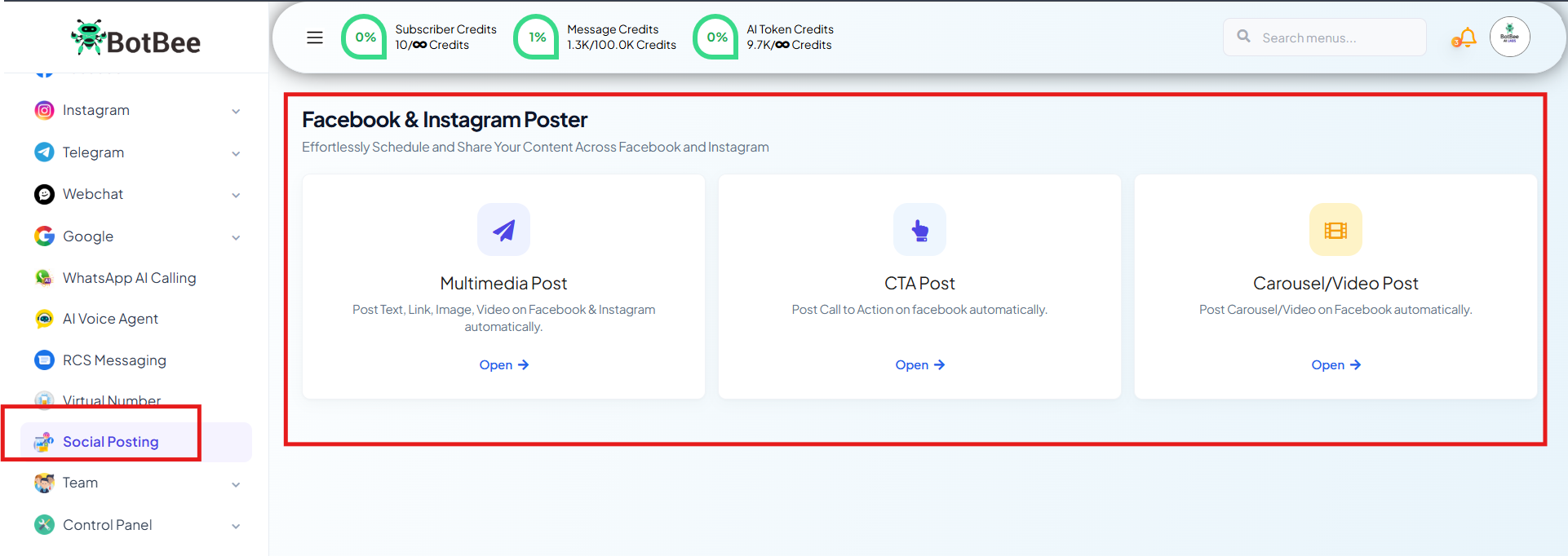
- On the left menu, Click on “Social Posting”.
Post Types in BotBee:
BotBee provides three different options for creating posts. Each option is designed for a different type of content.
Multimedia Post: Post text, links, images, or videos on Facebook and Instagram.
CTA Post: Create posts with a call-to-action button on Facebook.
Carousel/Video Post: Publish carousel or video posts on Facebook.
We will go through each of these options one by one in the following steps.
1. Multimedia Post:
The Multimedia Post option allows you to publish posts with text, links, images, or videos on Facebook and Instagram directly from BotBee.
Facebook:
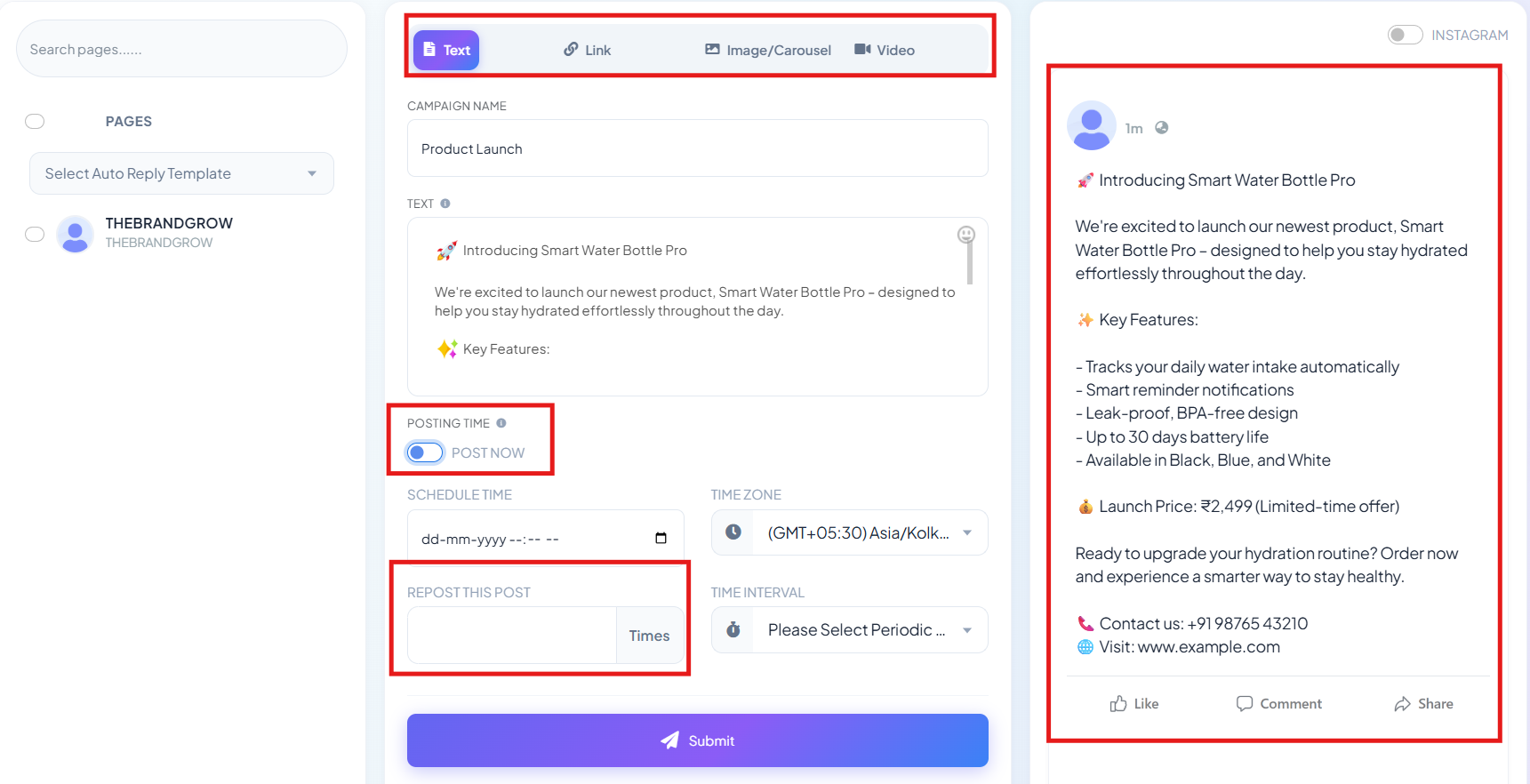
- Click on Create New Post.
- Add the content for your post such as text, links, images/carousel, or videos.
- In the carousel option, you can upload up to 10 images in a single post.
Choose the posting time:
- Post Now to publish instantly, or
- Schedule the post by selecting a specific date and time.
- You can see the post preview on the right side before publishing.
Instagram:
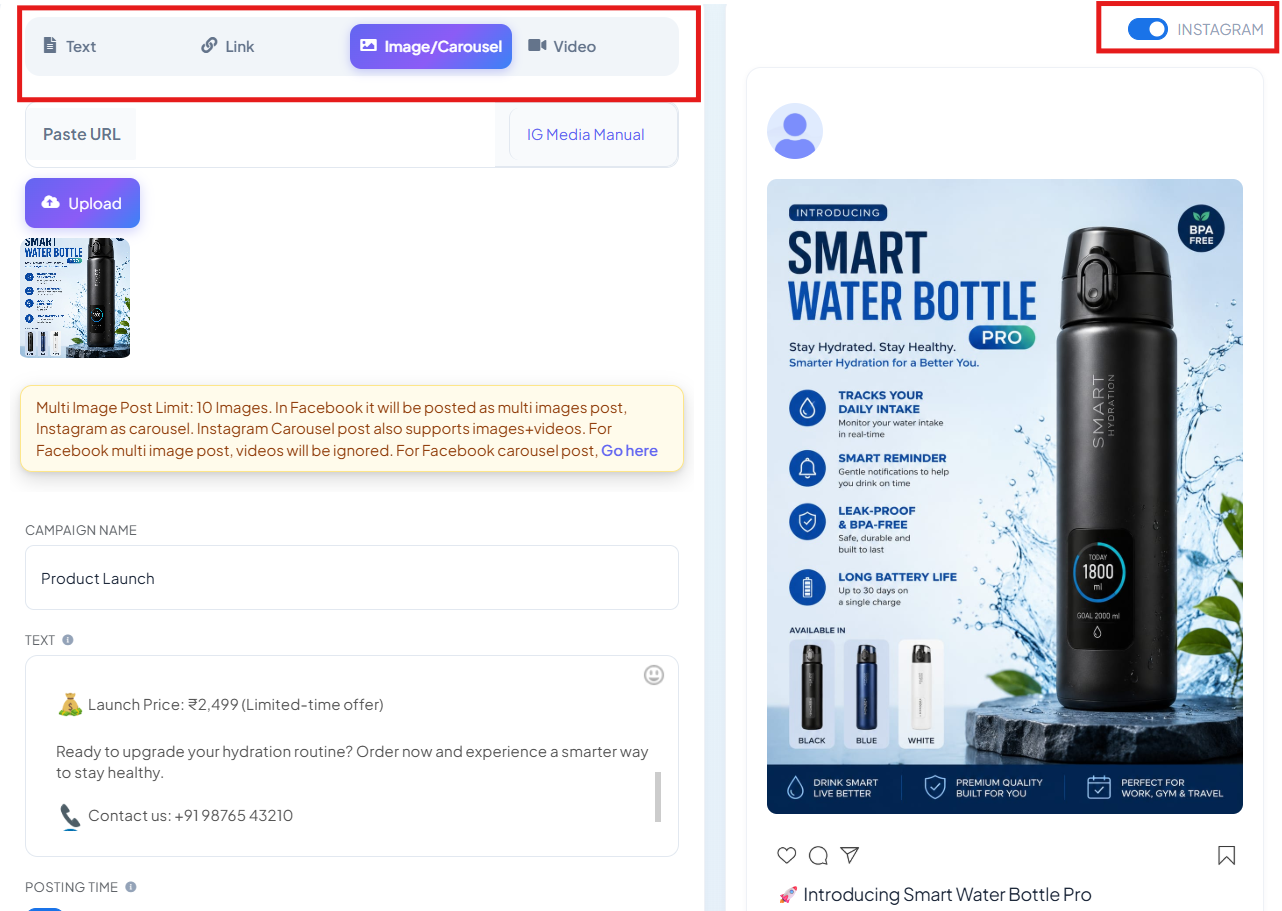
- Enable the Instagram toggle above the preview section.
- Add text, images/carousel, or videos for your post.
- Videos can also be published in Reels format.
(Note: Links cannot be added to Instagram posts as the platform does not support clickable links in regular posts.)
Auto Reply Option:
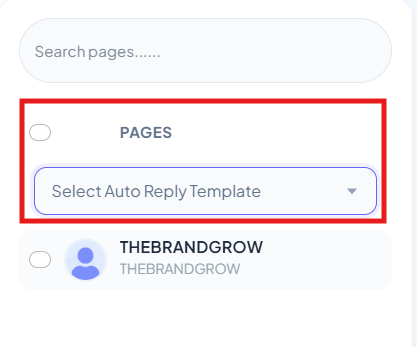
- BotBee also allows you to attach an auto reply template to your Facebook and Instagram posts.
- This automatically sends a predefined reply whenever someone comments on the post, helping you respond to audience interactions instantly without manual effort.
2. CTA Post:
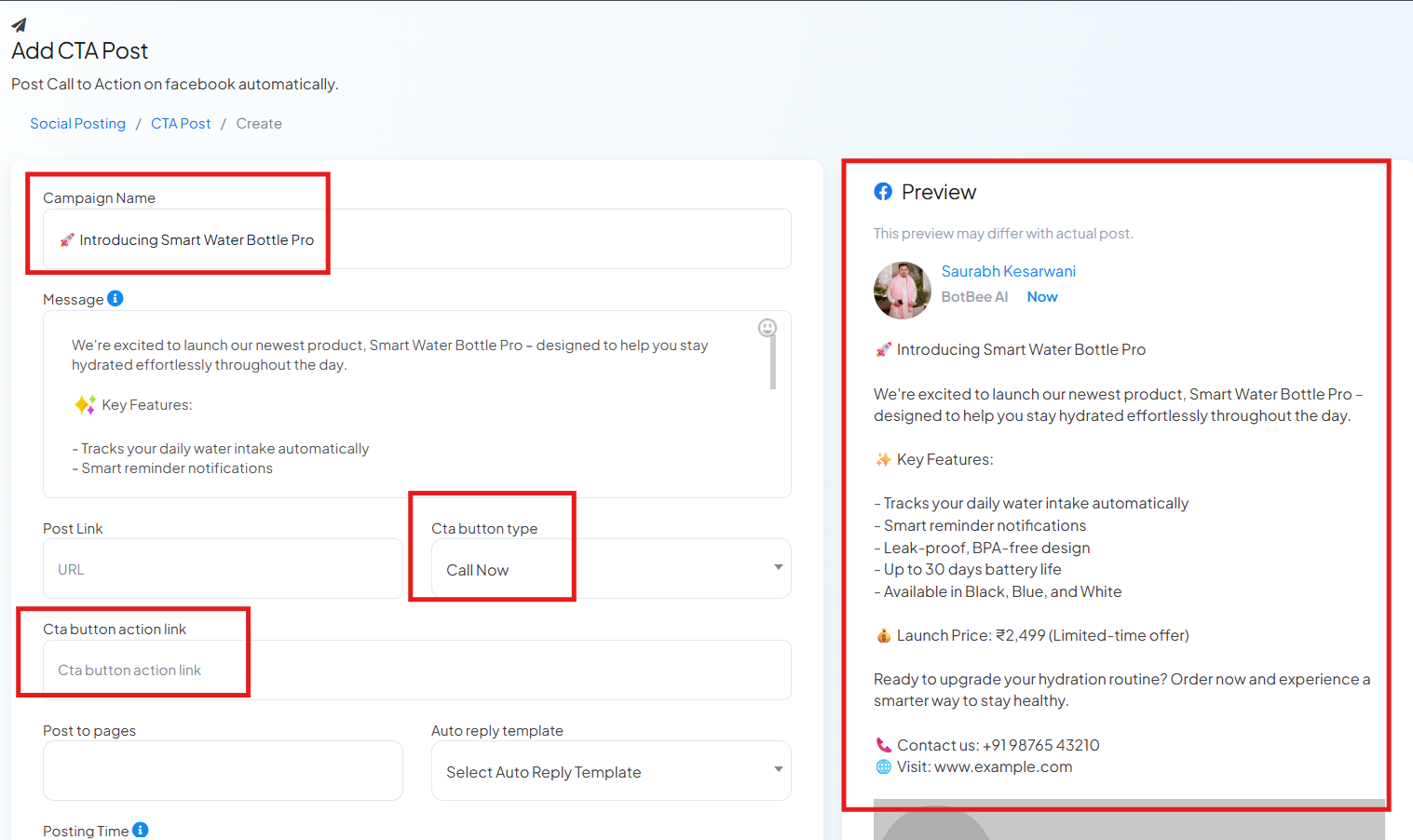
The CTA Post option allows you to create posts on Facebook with a Call-to-Action (CTA) button, encouraging users to take specific actions such as visiting a website or contacting your business.
- Click on Create New Post.
- Enter a Campaign Name for your post.
- Write the message/content you want to publish.
- Add the link you want users to visit.
- Choose a CTA Button such as: Book Travel, Buy Now, Call Now, Download, Get Directions, Get Quote.
- Add the CTA button link.
- Select the Facebook Page where you want to publish the post.
- (Optional) Attach an auto reply template to automatically reply to comments on the post.
- Choose whether to post instantly or schedule the post for a specific time.
- You can also view the post preview on the right side before publishing.
3. Carousel/Video Poster:
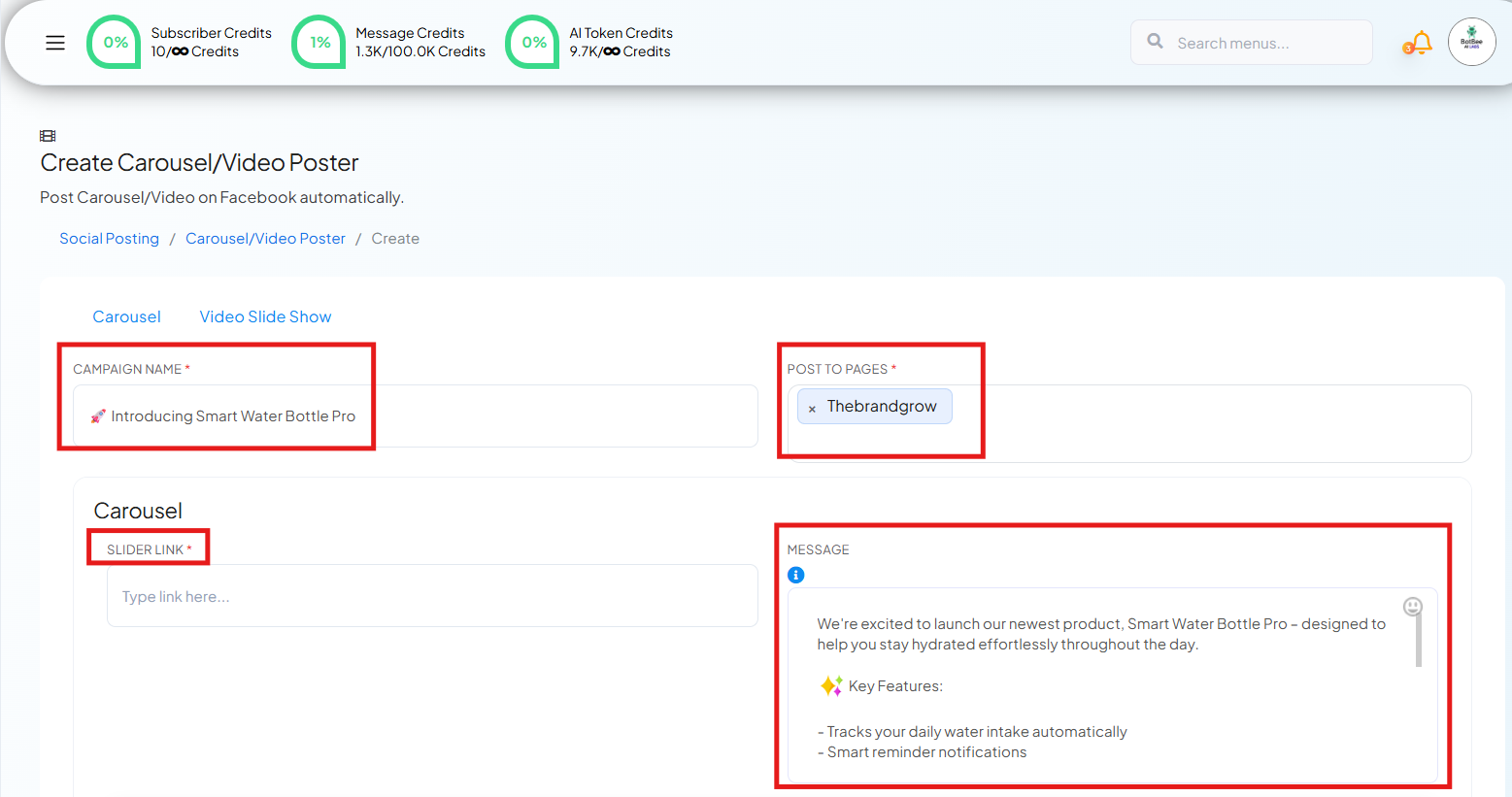
The Carousel/Video Post option allows you to publish carousel posts or video slideshows on Facebook.
- Enter a Campaign Name for the post.
- Select the Facebook Page where you want to publish the post.
- Add a Slider Link for the carousel.
- Write the message for your post.
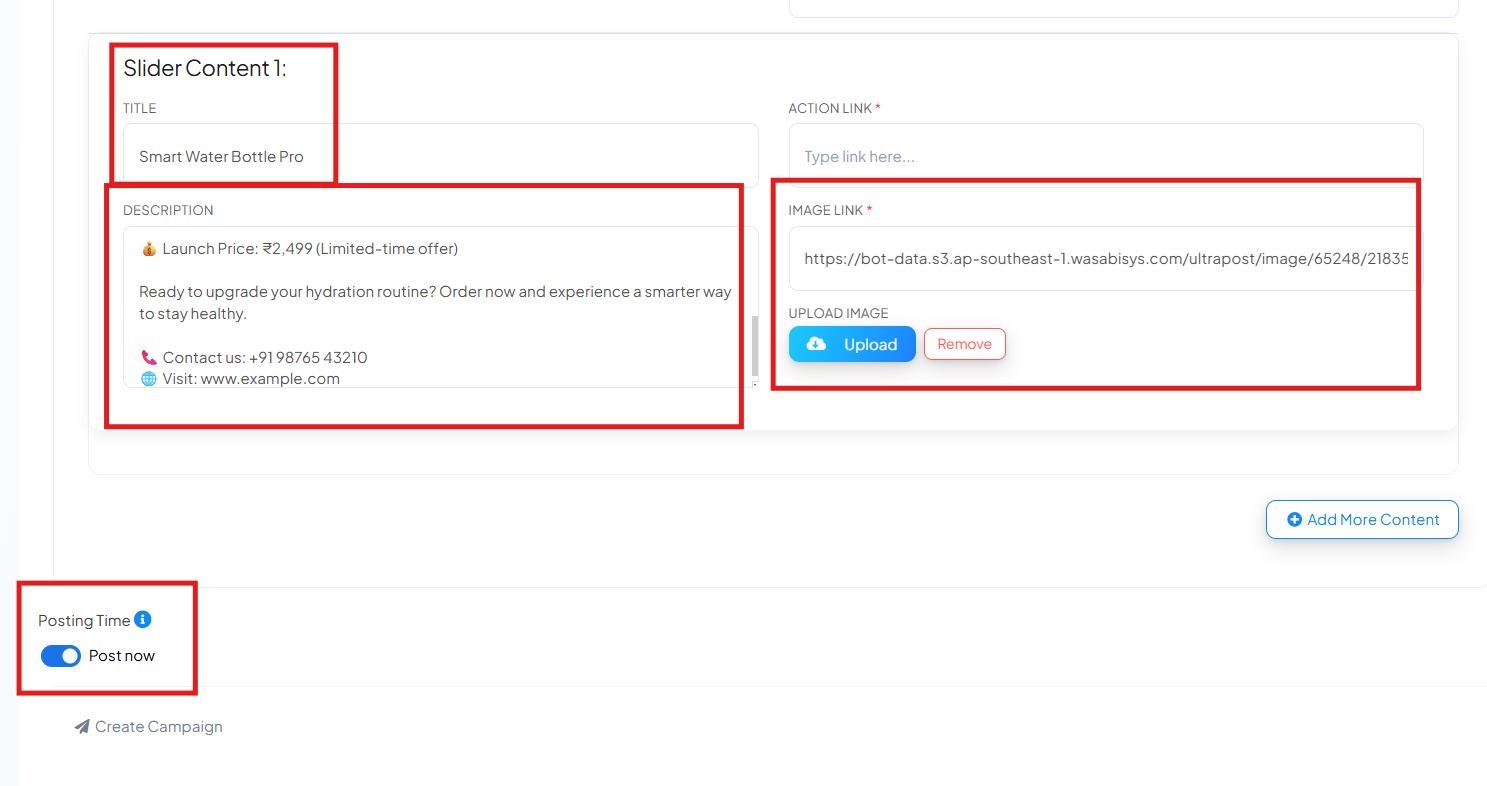
For each carousel slide, you can add:
- Title
- Description
- Action Link (the link users will be directed to when they click the slide)
- Image by uploading it from your device.
You can add multiple slides using the Add More Content option. Each slide will appear as part of the carousel in the Facebook post.
Video Slide Show
The Video Slide Show option allows you to create a video-style post using multiple images that automatically play as a slideshow on Facebook.
- Enter a Campaign Name and select the Facebook Page where you want to publish the post.
- Write the message for your post.
- Set the Image Duration (how long each image appears in the video).
- Set the Transition Duration (the time taken to switch from one image to the next).
- Upload images under Image Content to create the slideshow.
- Use Add More Image to include multiple images in the video slideshow.
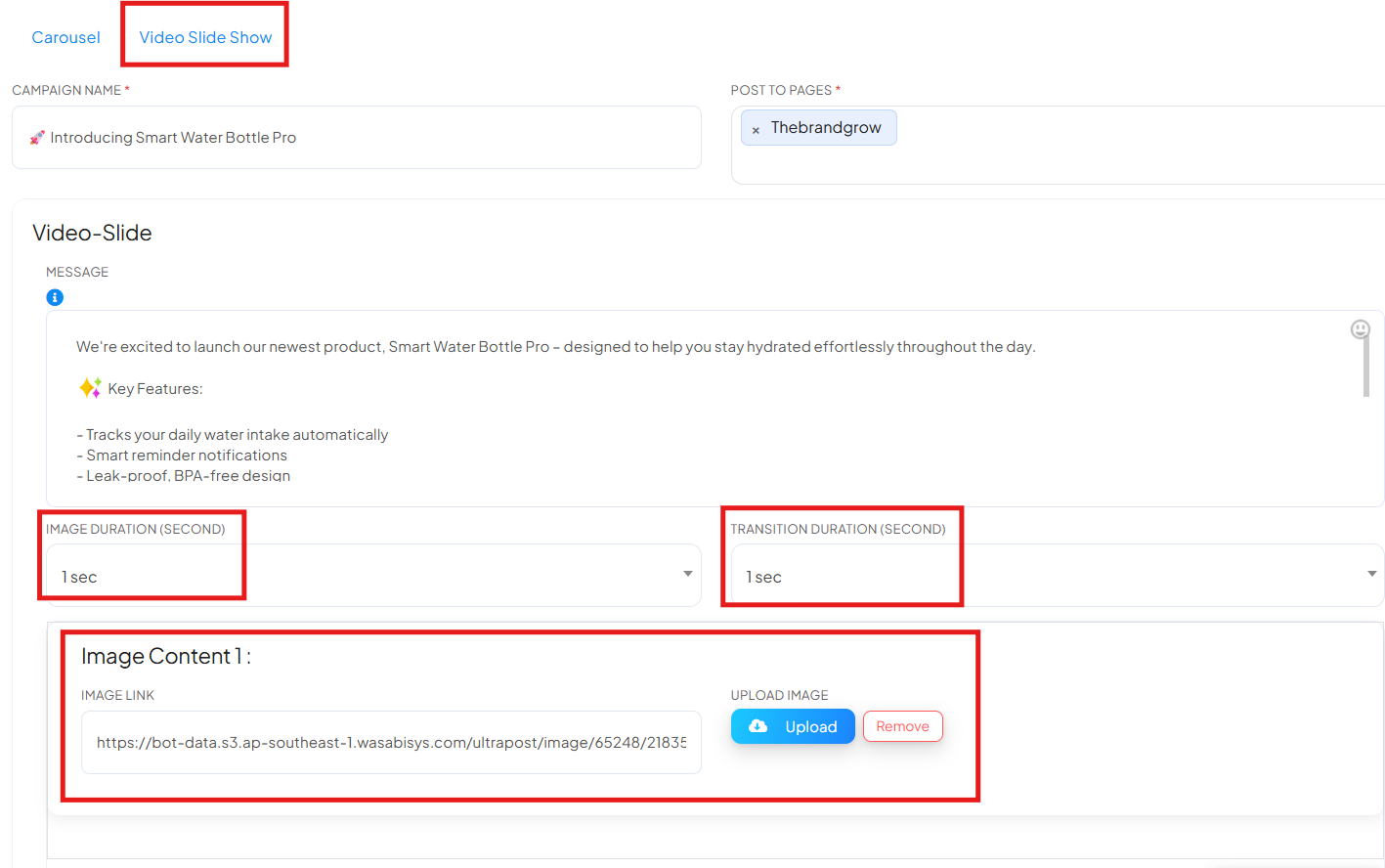
Once completed, the images will be combined into a video slideshow post on Facebook.
The Social Posting feature in BotBee makes it easy to manage and publish content on Facebook and Instagram from a single platform. With options like Multimedia Posts, CTA Posts, Carousel Posts, and Video Slideshows, you can create different types of engaging content based on your marketing needs.
By using these features, businesses can save time, maintain consistent posting, and interact with their audience more effectively directly from the BotBee dashboard.
Still Need Help?
If you face difficulties during onboarding:
- Take a screenshot or screen recording.
- Share details with our support team.
Our team will review the onboarding step and guide you further.
Contact: 08069645300
Found this article helpful?
( 4 Out of 8 Found Helpful )