How to Create a Product Catalogue for WhatsApp
This guide explains how to create a complete product catalogue and integrate it with WhatsApp using BotBee, Facebook Business tools, and Commerce Manager. By following these phases step-by-step, you will be able to set up permissions, create a catalogue, add products, sync everything with WhatsApp, and test the full customer journey.
Step 1: Create Catalogue in Commerce Manager:
- Go to BotBee Dashboard.
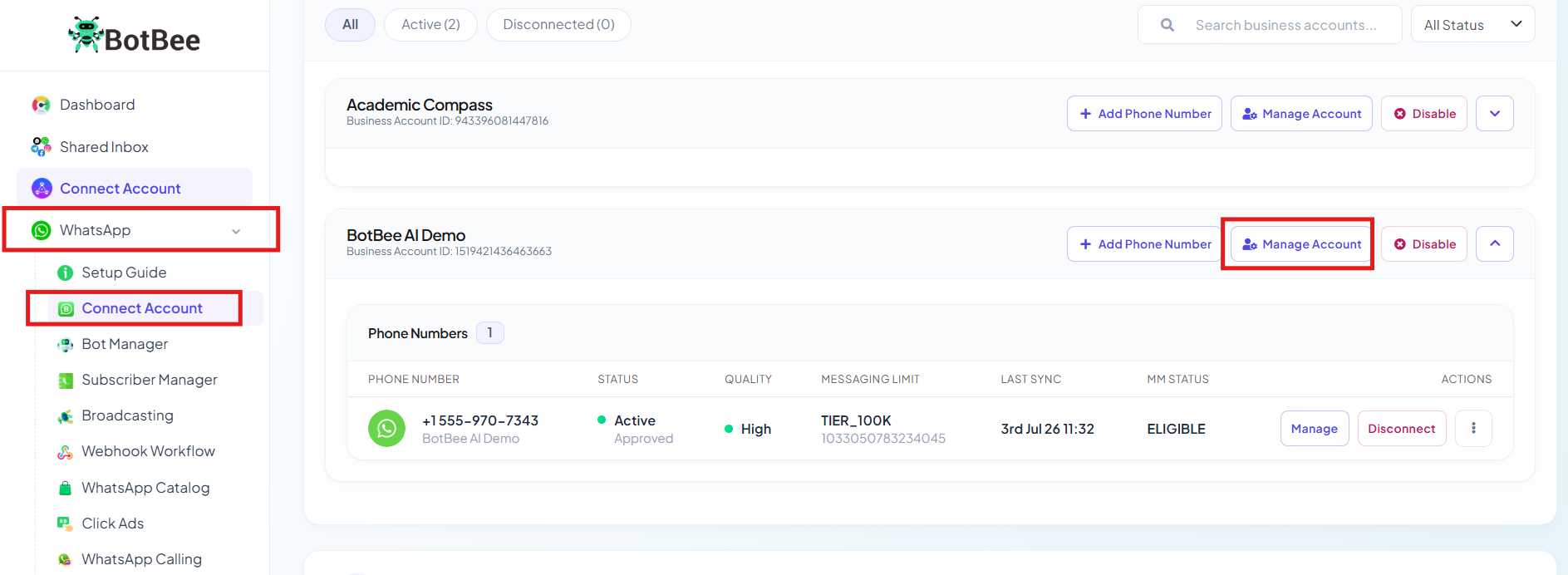
- Click on Connect Account under WhatsApp and scroll down to your profile.
- Click on Manage Account.
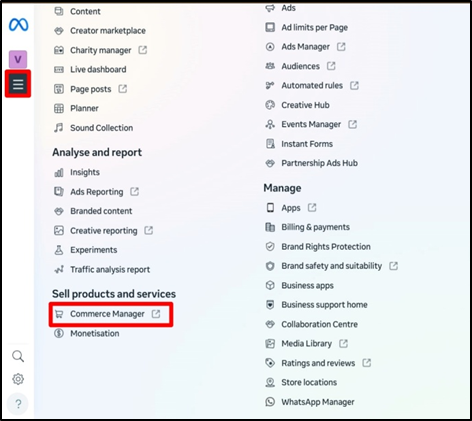
- You will be redirected to overview. Click on All Tools on the left menu.
- Select “Commerce manager” under Sell products and services.
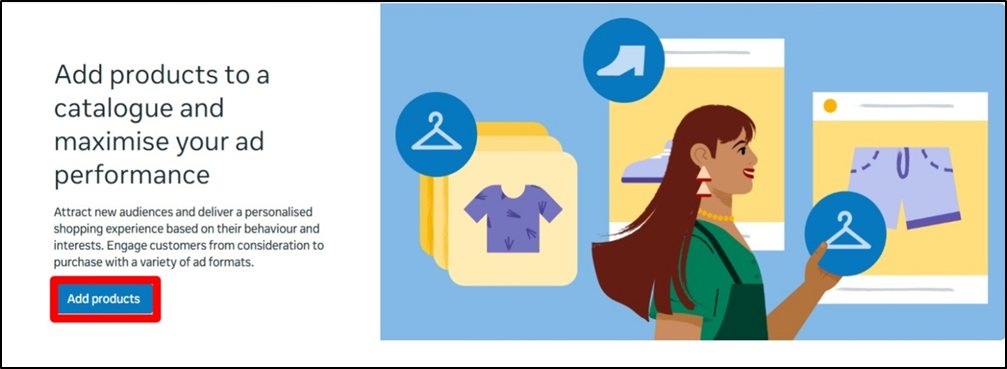
- Click on “Add Products” in Add products to catalogue.
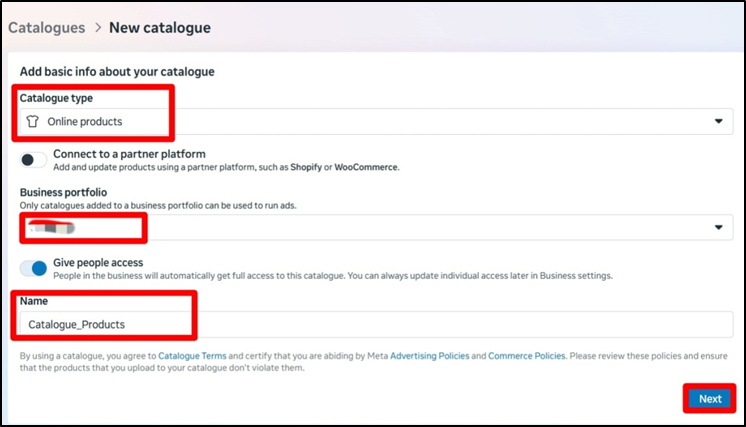
- Select Catalogue type.
- Choose the right Portfolio under which you want to make the catalogue.
- Enter your Catalogue name and click Next.
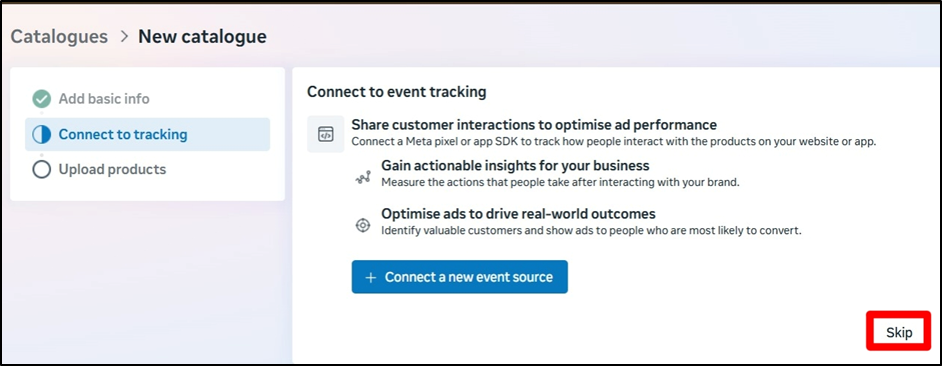
- Skip the part of “connect to event tracking.”
Step 2: Add Products to the Catalogue:
You can add products using three methods depending on your business size and platform.
Method A: Manual Upload:
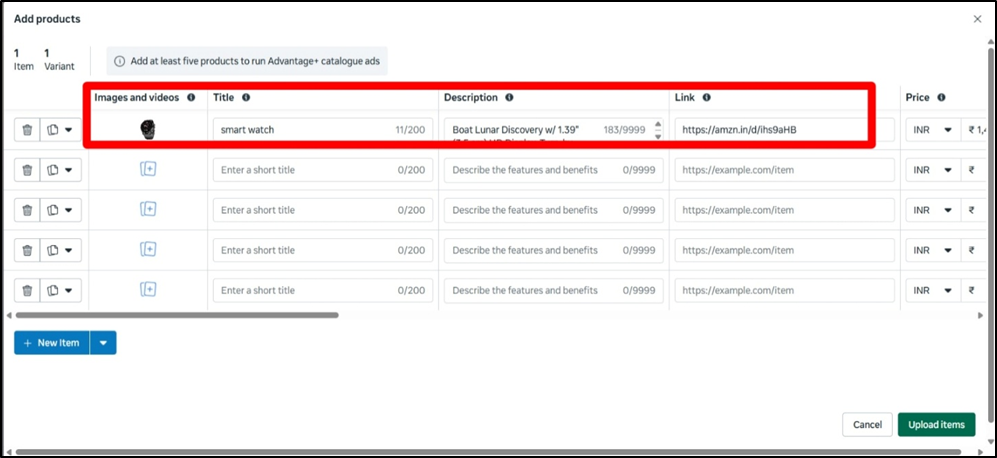
- Click on the option of “Manually add your products.”
(Note: You will have to add minimum 5 products in the catalogue.)
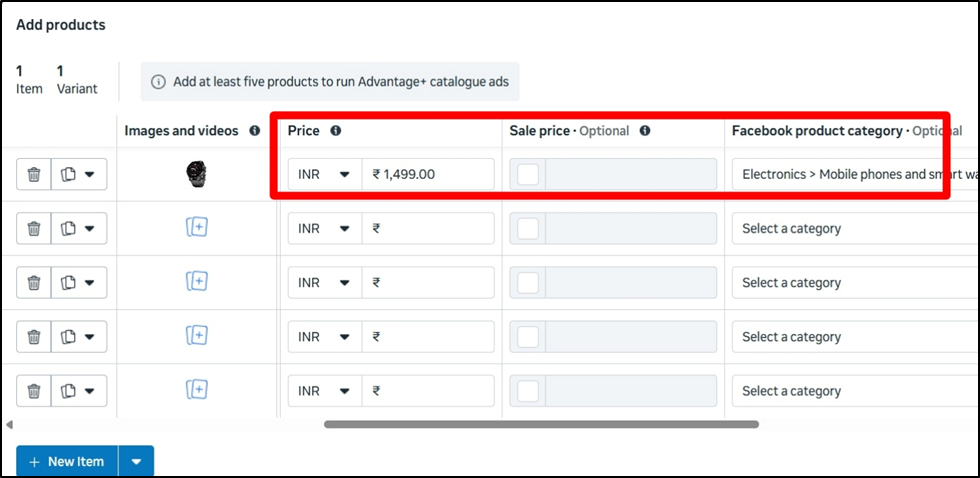
- Upload your products along with their description, prices.
(Note: Adding description, price, image and link is mandatory.)
- Also choose relevant Facebook product category and enter all the details of your products. You can also enable the toggle of whether the item is in stock or not.
- Click on Upload items.
Method B: Add WhatsApp Catalog Using Data Feed
(WooCommerce → Meta → BotBee):
Step I: Create Product Feed in WordPress:
- Log in to your WordPress Admin Dashboard.
- Go to Plugins → Add New.
- Search for Product Feed.
- Install and Activate the plugin.
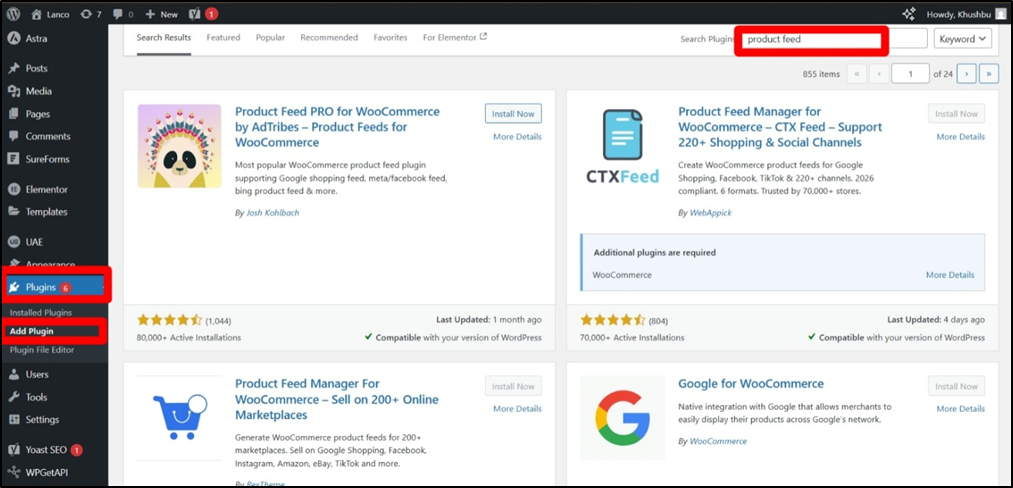
- We are using CTXFeed by WebAppick.
Step II: Generate XML Product Feed:
- Go to Product Feed from the WordPress menu.
- Click Add New Feed.
- Follow the on-screen setup procedure and generate the feed.
- After completion, go to All Product Feeds.
- Click View on the created feed.
- Copy the XML URL (this is your product feed link).
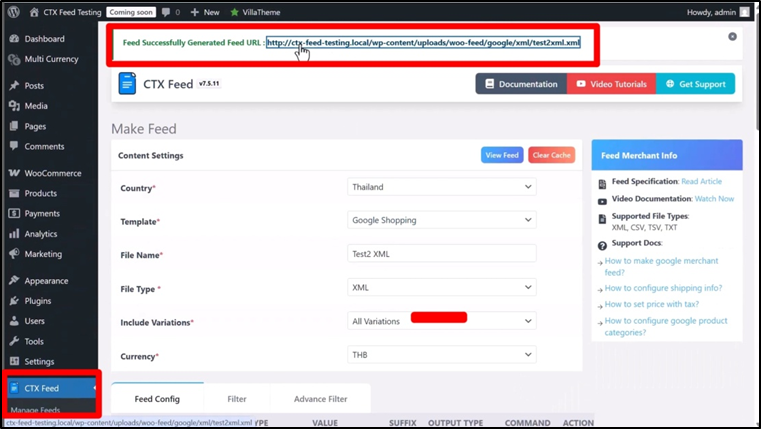
Step III: Add Data Feed to Meta Commerce Manager:
- Open Meta Business Manager.
- Go to Commerce Manager.
- Click on Add products → Add basic info, Click Next.
- Select Data Feed as the upload method.
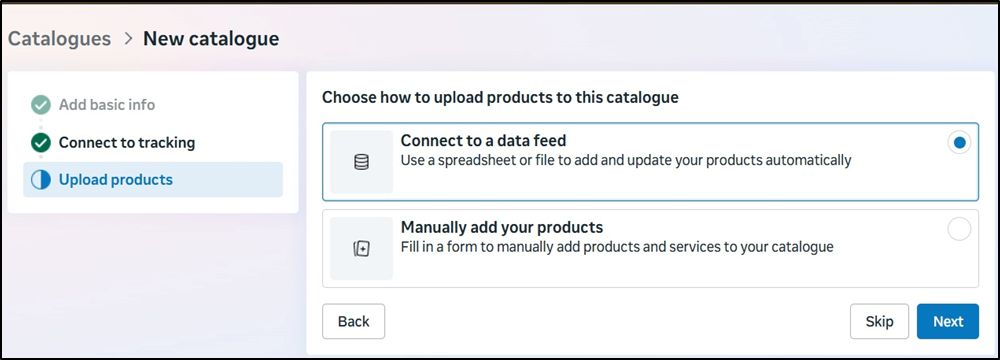
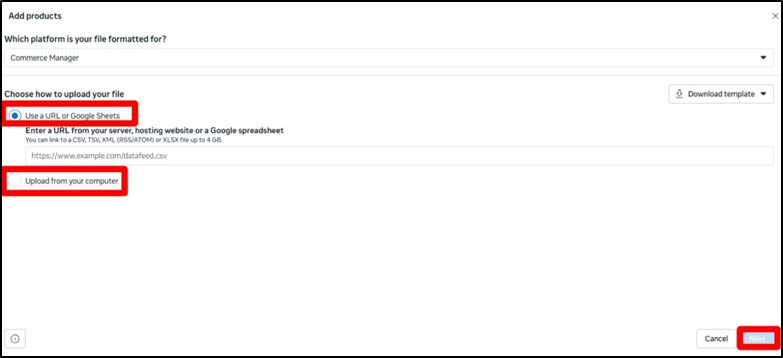
- You can either paste the XML URL from your WooCommerce or a Google Sheet.
- You can also upload the file from your computer.
- Click Next.
Method C: Integrate New Catalog:
- You can also integrate the catalog that you’ve already made in WhatsApp Business App.
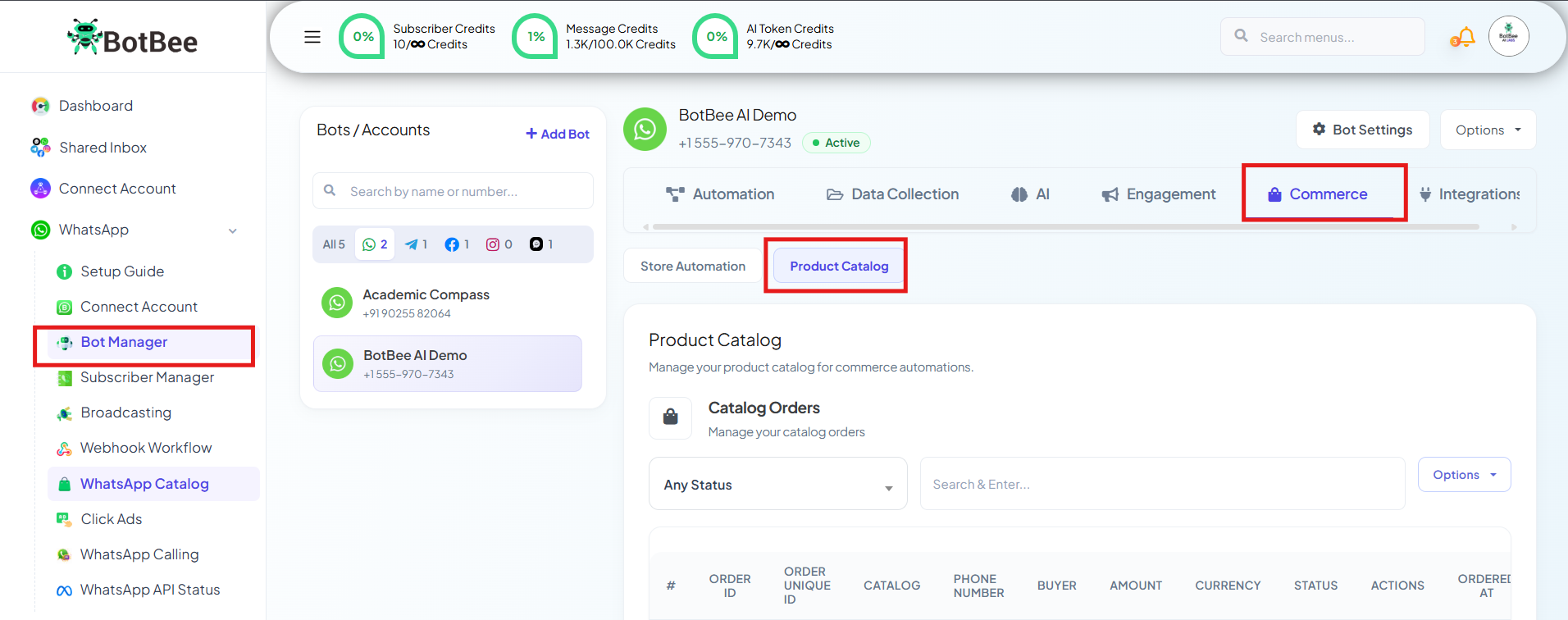
- Go to Bot Bot Manger under Whatsapp.
- Click on “Commerce” then "Product Catalog".
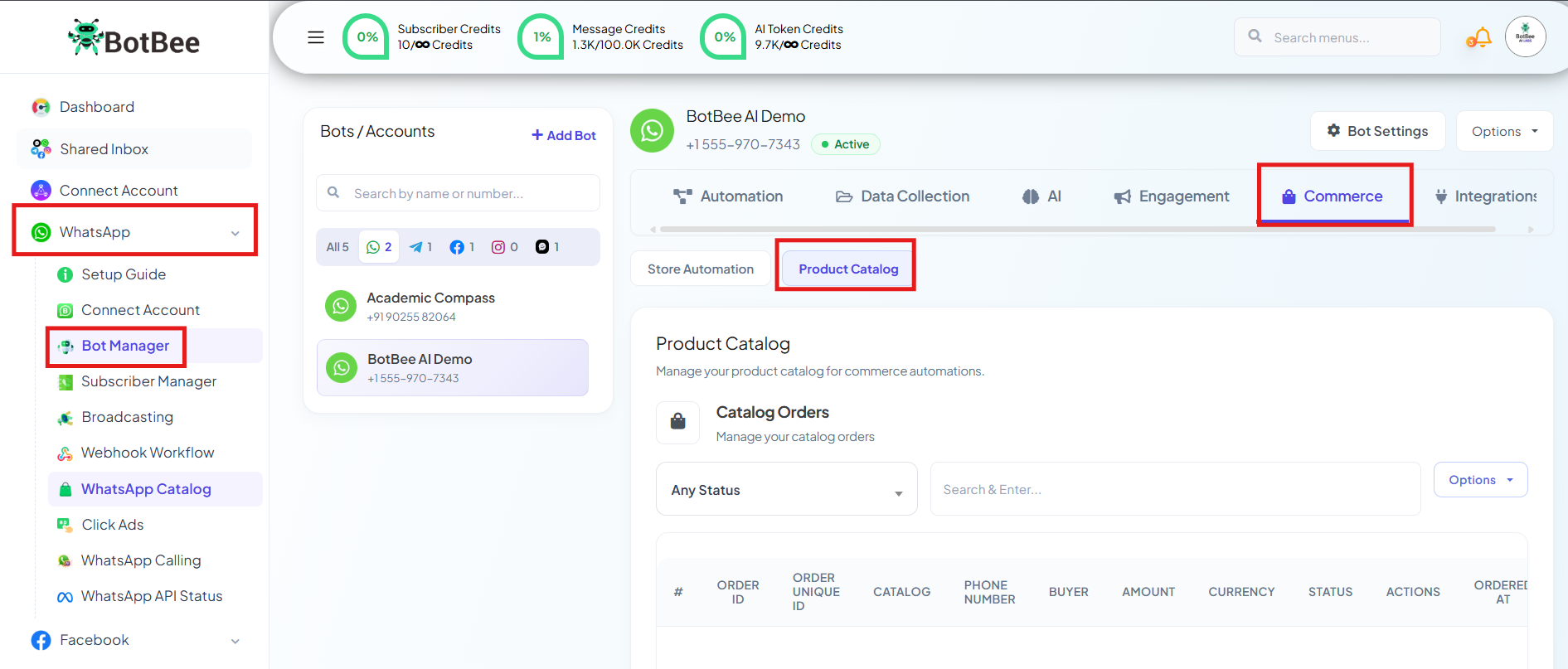
- Scroll down to “Integrate new catalog.”
- Select the WhatsApp Account in which your Catalog is made.
- Enter the Catalog ID and Catalog Name.
- Click on Integrate Catalog.
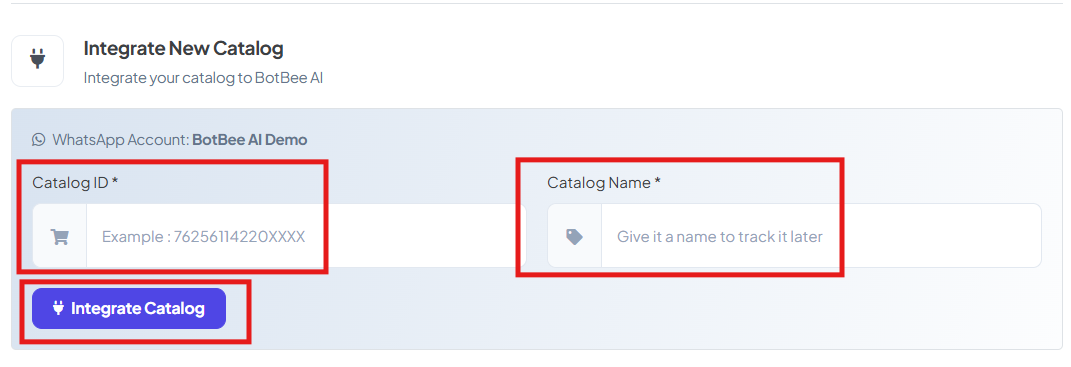
Example:

Step 3: Connect your catalogue to WhatsApp:
- Go to BotBee Dashboard.
- Click on Connect Account under WhatsApp and scroll down to your profile.
- Click on Manage Account.
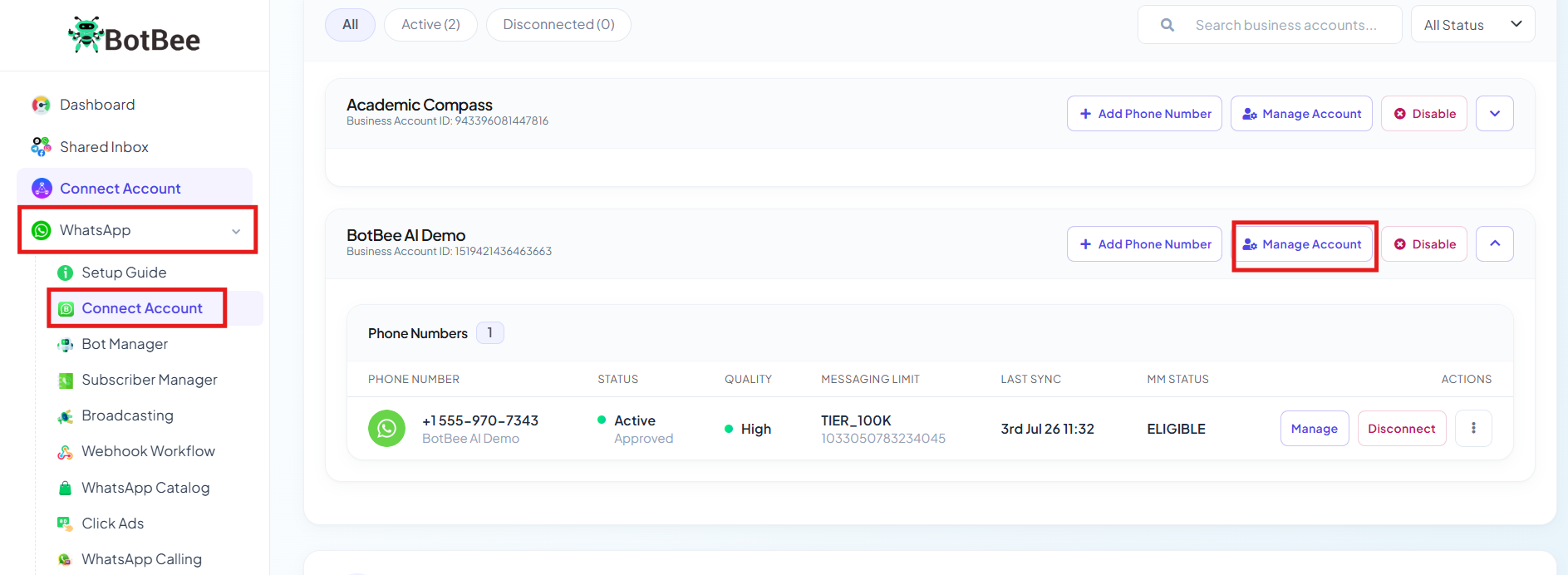
- You will be redirected to Overview, Click on Catalogue under “Account Tools”.
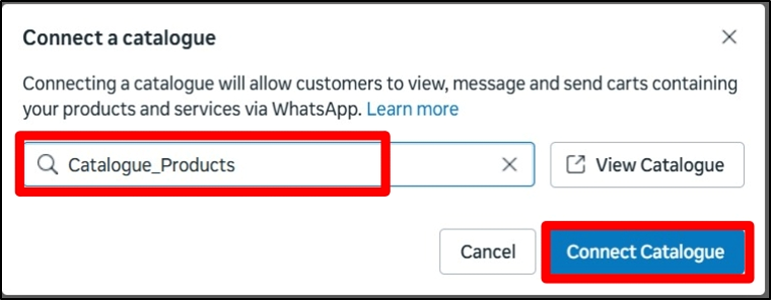
- Choose the catalogue you just created.
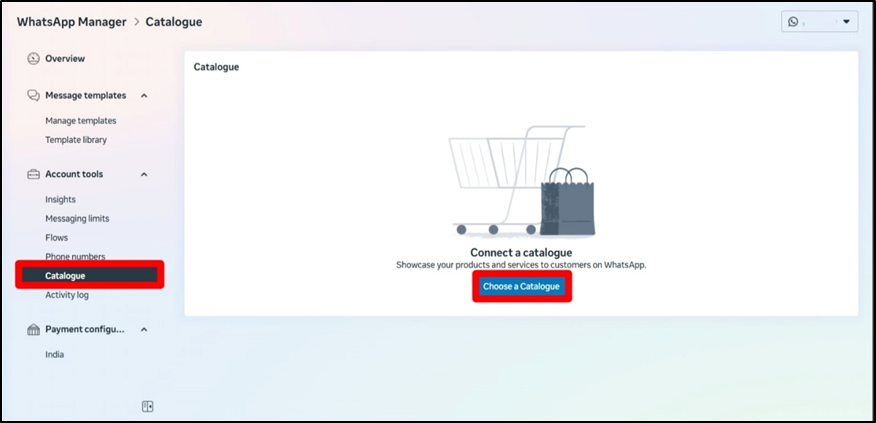
- Choose the catalogue and click on Connect Catalogue.
- Your Catalogue will be connected to your WhatsApp.
Step 4: Connect Catalogue in BotBee:
- Go to BotBee Dashboard.
- Click on Connect Account under WhatsApp.
- Choose Connect WhatsApp with Catalogue.
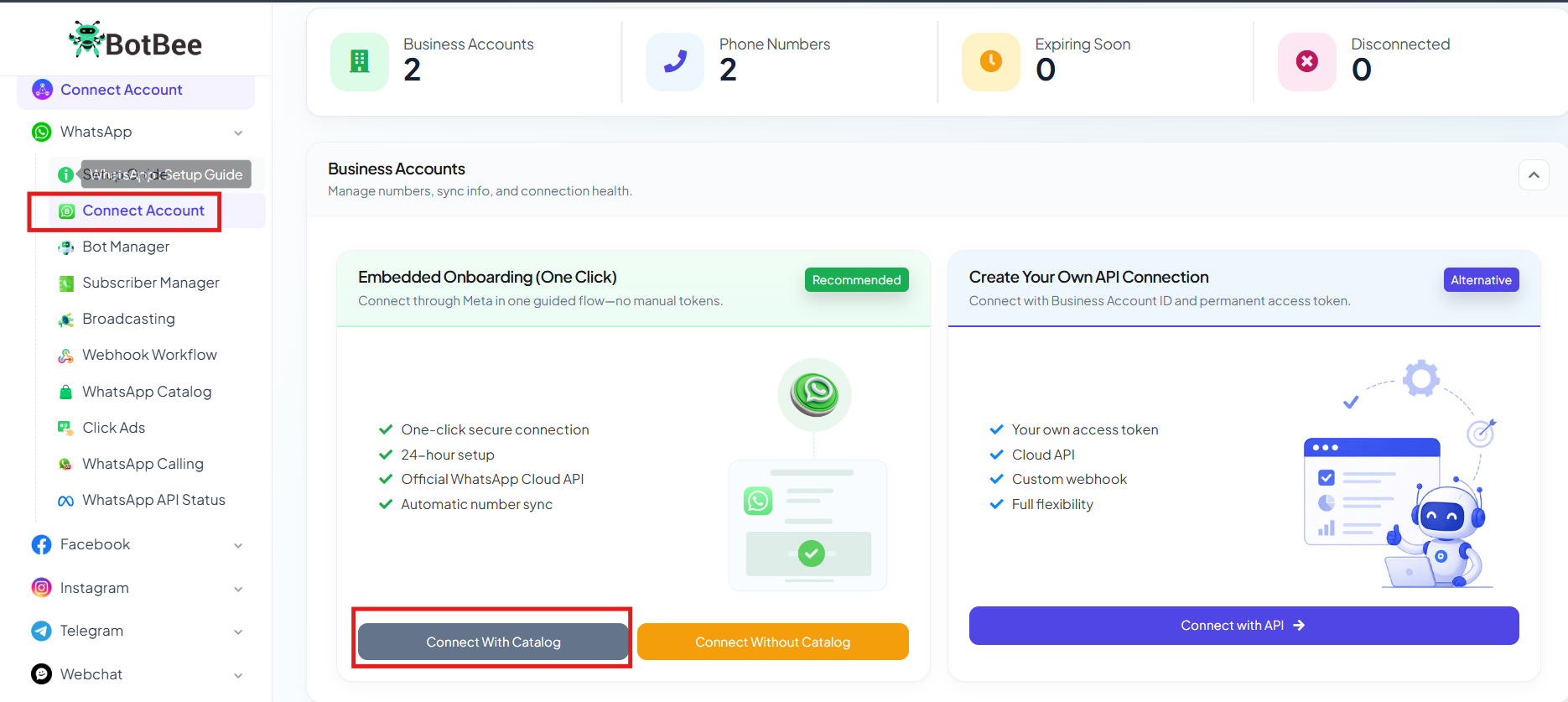
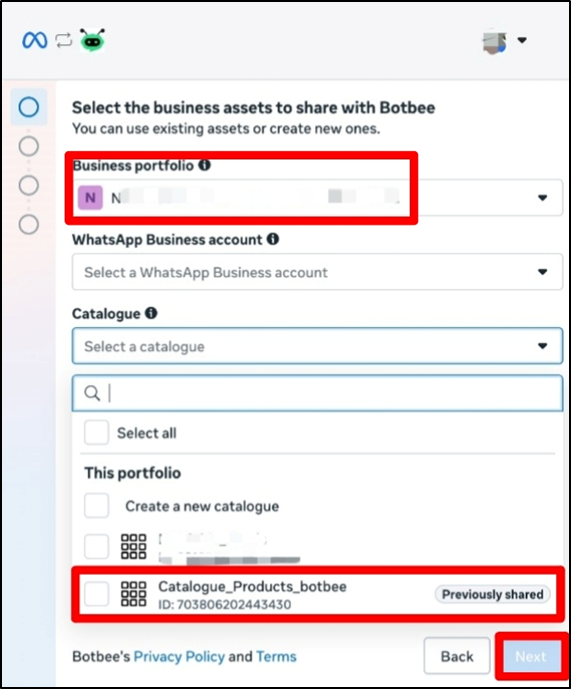
- There will an option to select the Catalogue, select the catalogue you created.
- Click Next and then cut the window.
You can view and manage your Catalogue from “Product Catalog” under Commerce section in Bot Manager.
Step 5: Sync Catalog in BotBee:
- Now in the Catalog Manager only, Locate and click on the sync button .
- Wait until the sync action is complete.
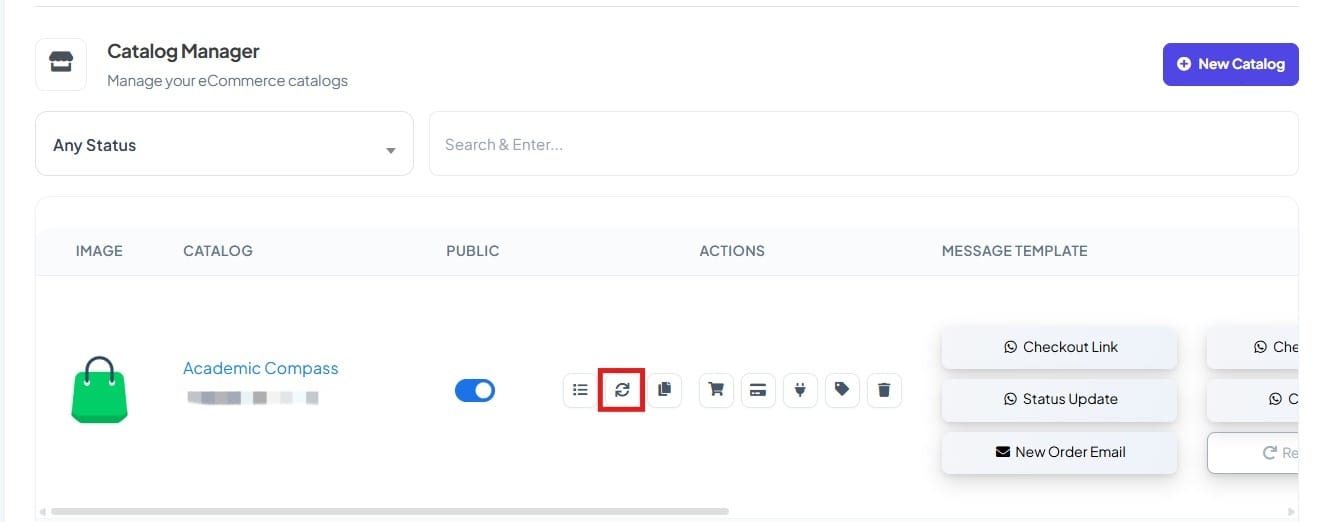
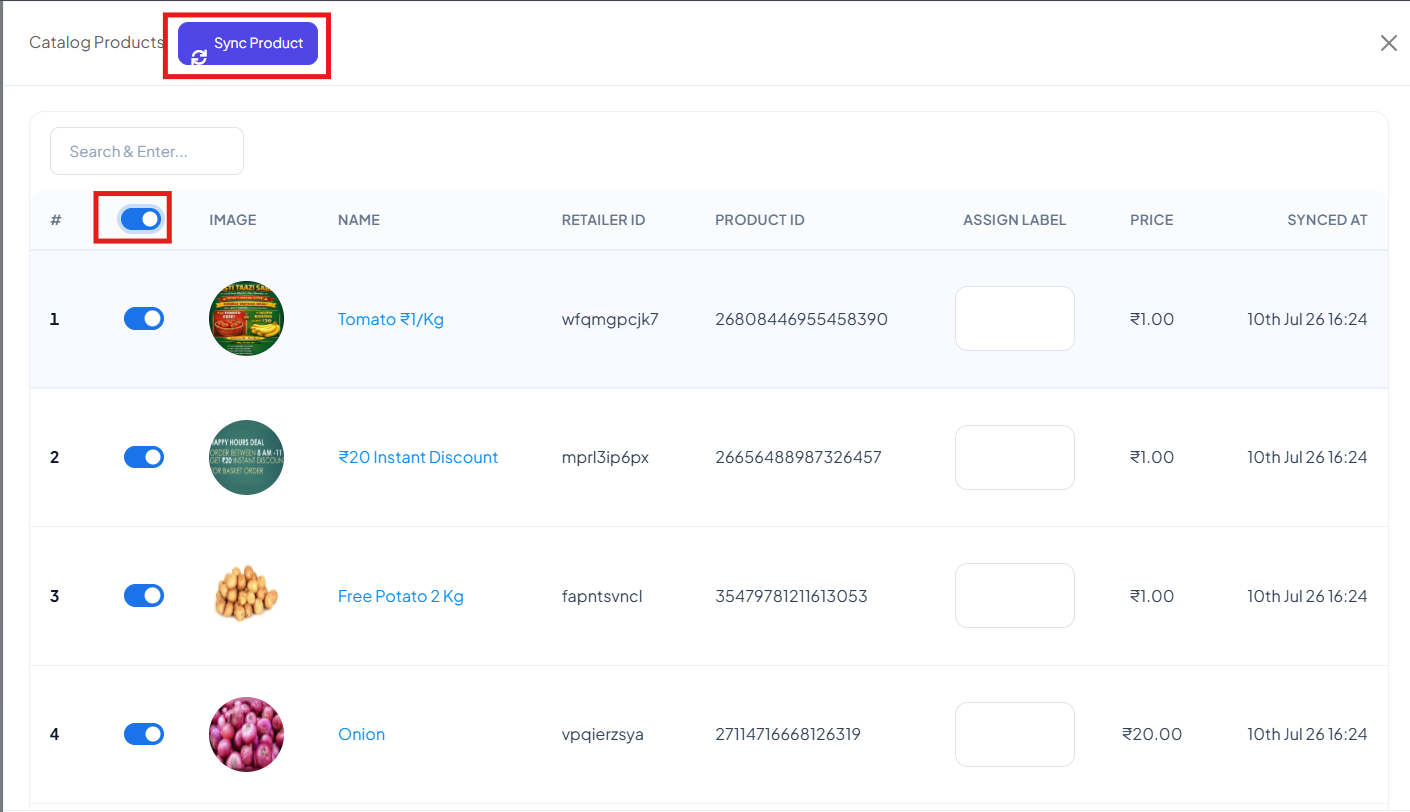
- Now Click on the three-line (=) menu button located beside the Sync icon.
- A list of products will appear. Enable the toggle switch beside the products you want to sync.
- After selecting the products, click on Sync Products.
- BotBee will now sync only the selected and updated products.
By completing all these steps, you successfully build a fully functional product catalogue system integrated with WhatsApp using BotBee. This setup enables automated product browsing, cart management, checkout flow, abandoned cart recovery, and seamless customer interaction creating a professional e-commerce experience directly inside WhatsApp.
This catalog system not only improves customer convenience but also helps businesses automate sales, reduce manual work, and scale operations efficiently.
Reference Video:
If you prefer video tutorials here are the links:
English: https://youtu.be/UdpqcCe7f-0?si=8clSLvTBrdc2Lag-
Still Need Help?
If you face difficulties during onboarding:
- Take a screenshot or screen recording.
- Share details with our support team.
Our team will review the onboarding step and guide you further.
Contact: 08069645300
Found this article helpful?
( 3 Out of 6 Found Helpful )